
Sign in and find your way around
Flowbit is one workspace for your team's work, people, sales and money. This chapter covers signing up, signing in, the screen layout, daily check-in and the Home dashboard. Everyone should read it once.
What Flowbit is
Open: useflowbit.com/Who: anyone
Flowbit holds four products. They share one login, one workspace, one client list and one subscription, so a client added in Orbit is the same client you invoice in Folio and run a project for in Work.
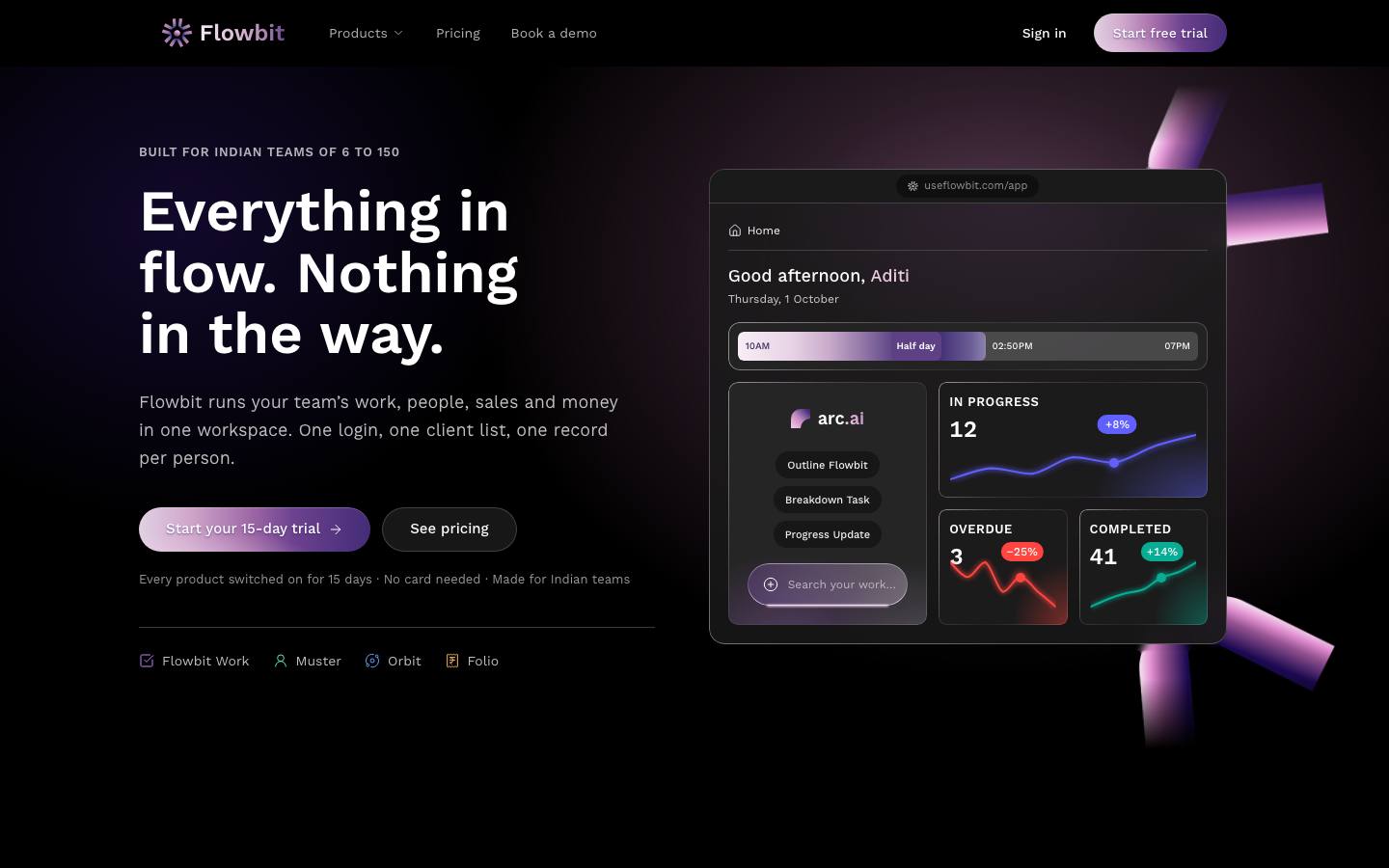
| Product | What it does | Who mostly uses it |
|---|---|---|
| Flowbit Work | Tasks, spaces, projects, teams, meetings, posts, time tracking, whiteboards, reports and the Arc assistant. | Everyone |
| Muster | HR and payroll: people, attendance, leave, reimbursements, payroll with PF, ESI and PT, HR letters and employee self-service. | HR, finance, every employee (self-service) |
| Orbit | CRM: leads, deals, contacts, activities and pipeline reports. | Sales |
| Folio | Billing: GST invoices, quotes, receipts, ledger, aging and recurring retainers. | Finance, owners |
Plans and prices
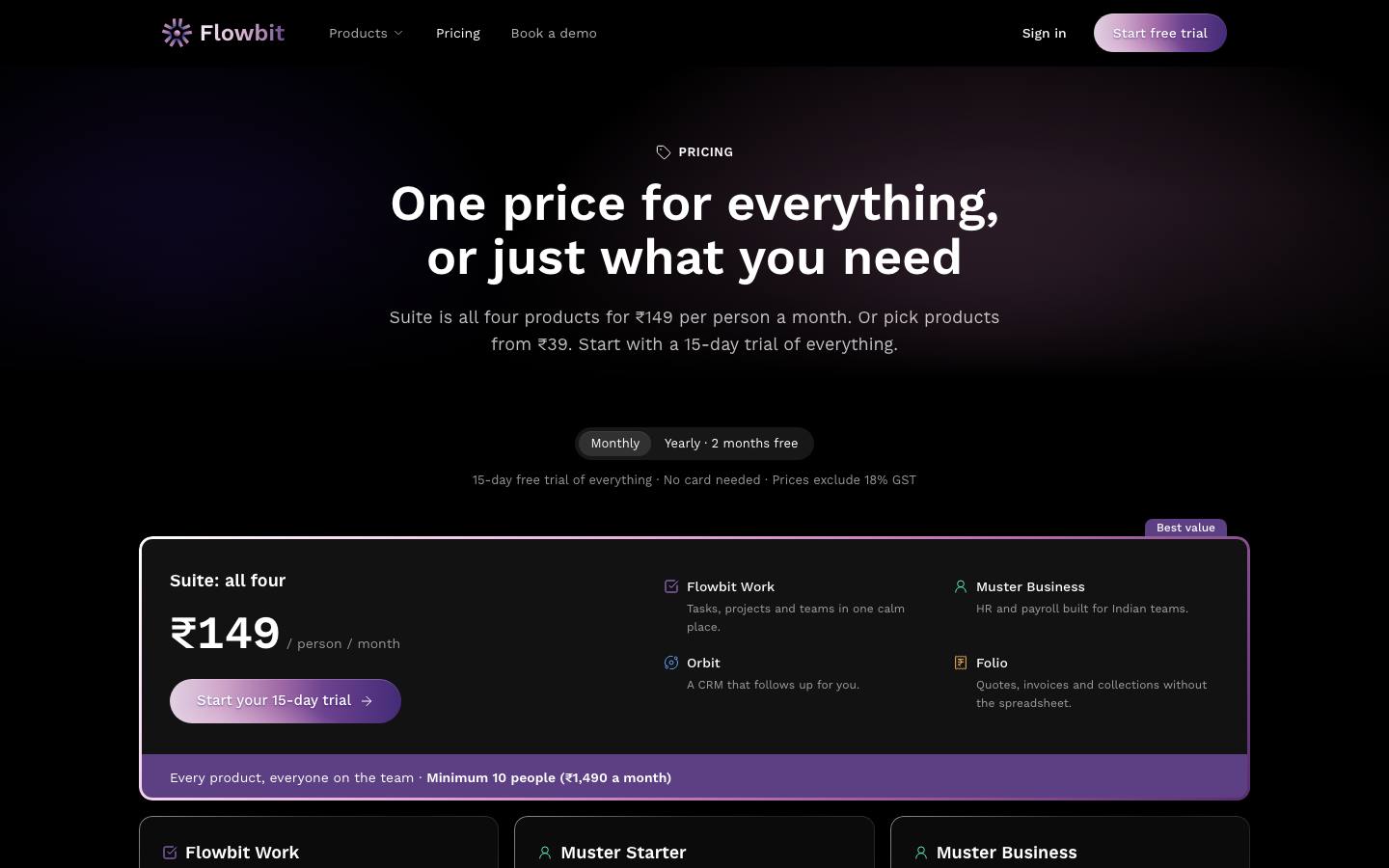
The Pricing page lists each plan. Prices are per month and exclude 18% GST. Monthly plans pay the list price. Yearly plans cost 10 months' price (2 months free), and your first year is 50% off on top, paid up front. For example, 20 people on Suite pay ₹14,900 for the first year and ₹29,800 at each renewal (plus GST).
| Plan | Price | Minimum |
|---|---|---|
| Suite: all four | ₹149 per person | 10 people (₹1,490 a month) |
| Flowbit Work | ₹59 per user | 5 users |
| Muster Starter (no payroll) | ₹39 per employee | 10 employees |
| Muster Business (payroll, PF, ESI, PT) | ₹79 per employee | 10 employees |
| Orbit | ₹149 per sales user | 2 sales users |
| Folio | ₹399 per workspace, flat | 2 firms and 3 users included; each extra firm ₹199 |
The Estimate your bill calculator on the same page adds up the products you pick for your team size and compares it with the Suite.
After the free months or a trial end without a plan, the workspace stays read-only for 30 days while you choose one. Export works throughout. Payments go through Razorpay (card, UPI or netbanking) or by bank transfer against a bill. Until Flowbit is registered for GST, no GST is charged and Flowbit's invoices say they are not tax invoices; after registration, 18% GST is added and each payment gets a GST tax invoice.
Sign up and create a workspace
Open: Start free/signupWho: the person setting Flowbit up (becomes the Owner)
The person who signs up becomes the workspace Owner. Everyone else joins later by invite, so they should not sign up on their own.
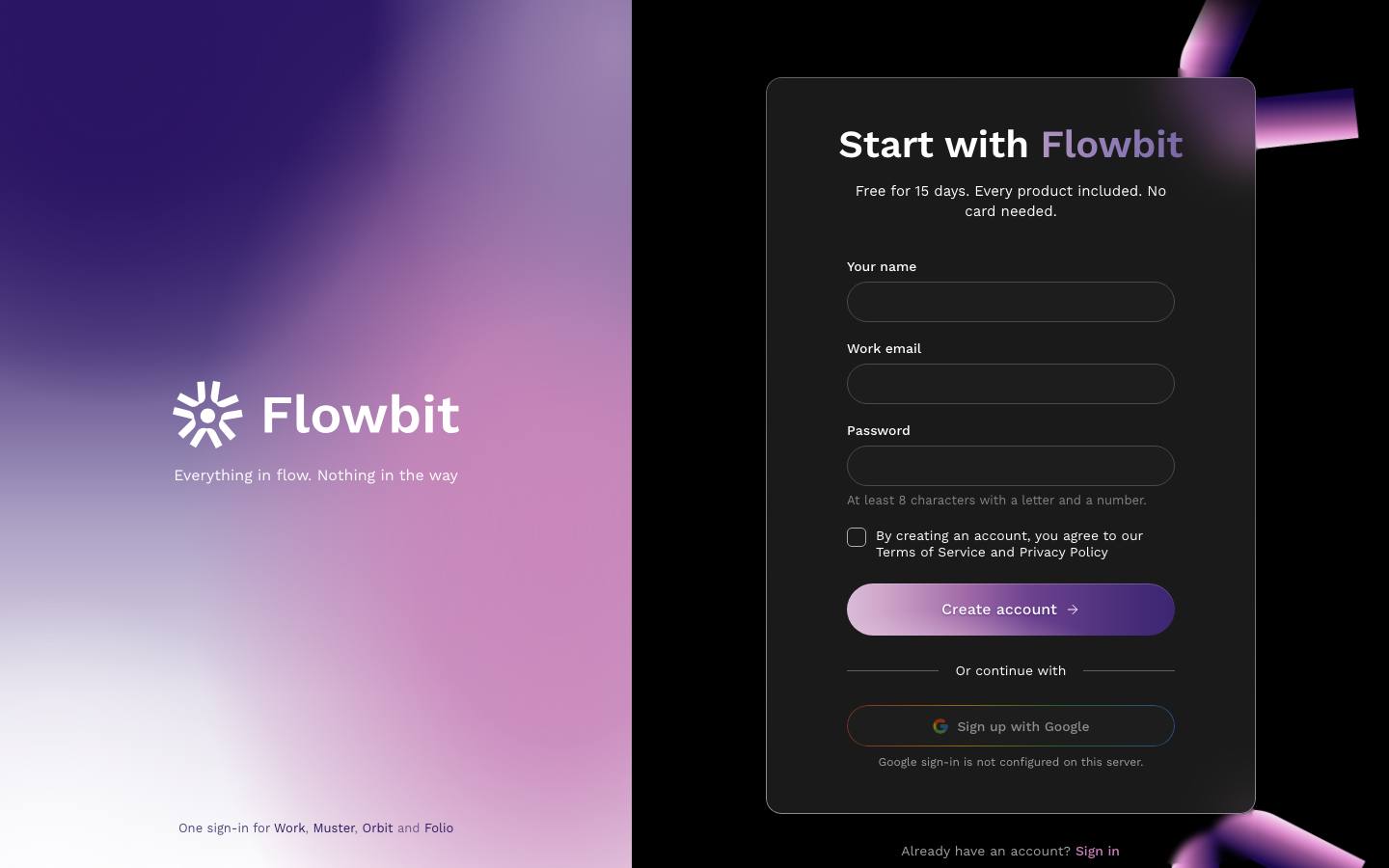
Create your account
- Click Start free on the home page.
- Fill in Your name, Work email and Password. The password needs at least 8 characters with a letter and a number.
- Tick the box to agree to the Terms of Service and Privacy Policy.
- Click Create account. Or click Sign up with Google if your workspace has Google sign-in turned on.
Verify your email
- On Verify your email, click Email me a code.
- Type the six-digit code into Code from the email and click Verify. The code lasts 10 minutes. If it does not arrive, check spam or click Send a new code.
Step 1: Create your workspace
- Enter the Workspace name, for example your company name.
- Check the Workspace URL. Flowbit suggests one from the name and checks it as you type. A green tick means it is free.
- Under How many people will use this workspace? pick a size: Just myself, 2-5, 6-10, 11-50, 51-200, 200-500 or 500+.
- Optionally add your GSTIN or PAN.
- Optionally type teammates' emails under Invite team members, click Add member for each, and choose a role for each (Member, Manager, Admin, HR admin, Finance or Sales).
- Click Continue, or Skip for now to invite people later.
The card tells you which start you get. Up to 5 people: free for 6 months, with every product. Bigger teams: a 15-day full trial of every product. No card is needed for either. Each business gets one Free workspace and one trial, matched by GSTIN, else PAN, else your email; if your business already had one, the card says so.
Step 2: Choose how you want to work
- Pick Project-Based Workspace (Workspace, then Projects, then Tasks and subtasks; best for agencies, startups, software and marketing teams) or Personal Task Workspace (your own tasks with no project setup; best for freelancers and personal productivity).
- Click Create Workspace. You land on Home.
The mode only sets your default experience. You can turn on the other mode later from workspace settings.
Sign in, Google and forgotten passwords
Open: Sign in/loginWho: everyone
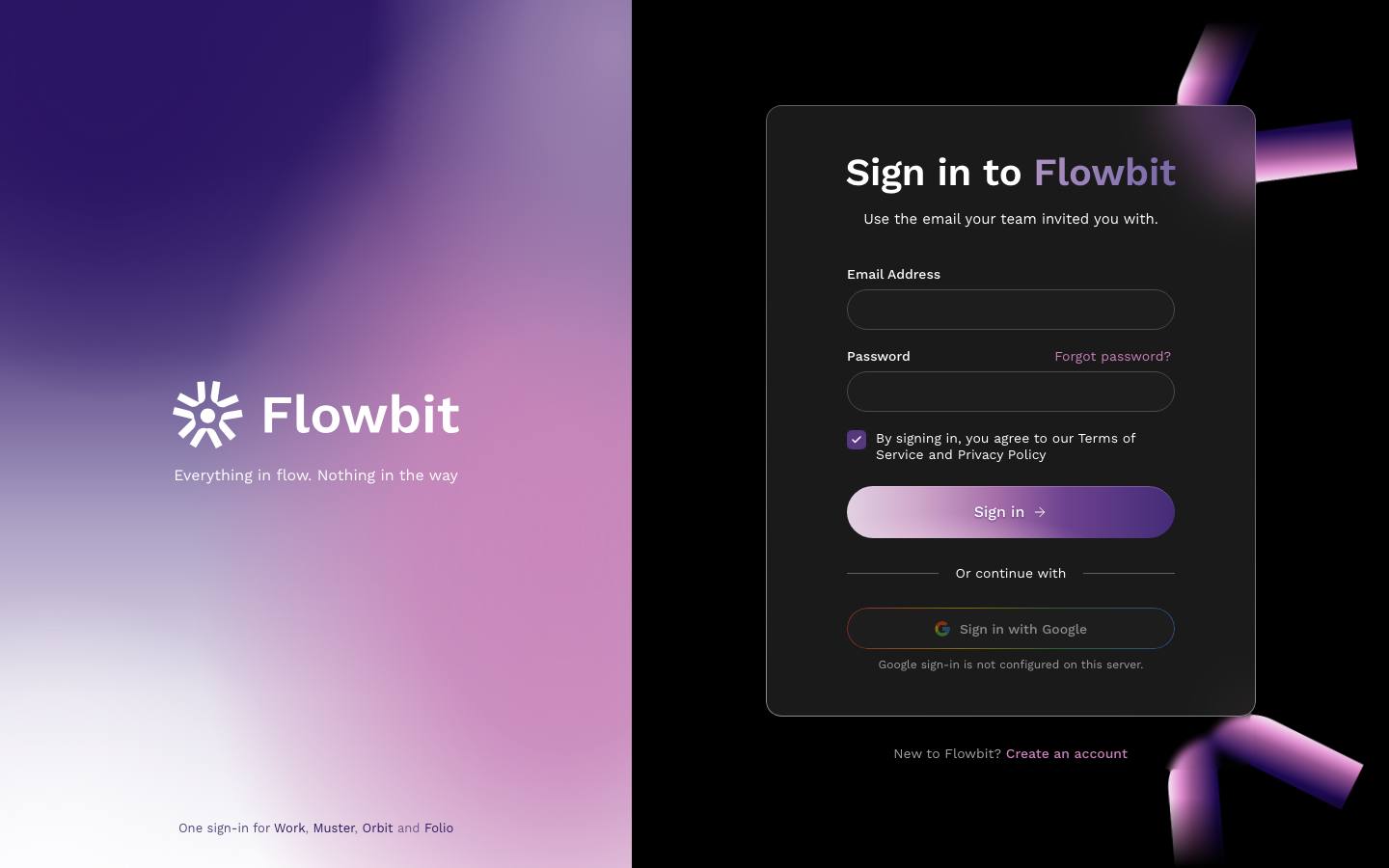
Sign in with email
- Click Sign in on the home page.
- Enter your Email Address and Password.
- Leave the terms box ticked and click Sign in.
Sign in with Google
Click Sign in with Google and choose the Google account that matches your work email. If the card says Google sign-in is not configured, use email and password instead.
Reset a forgotten password
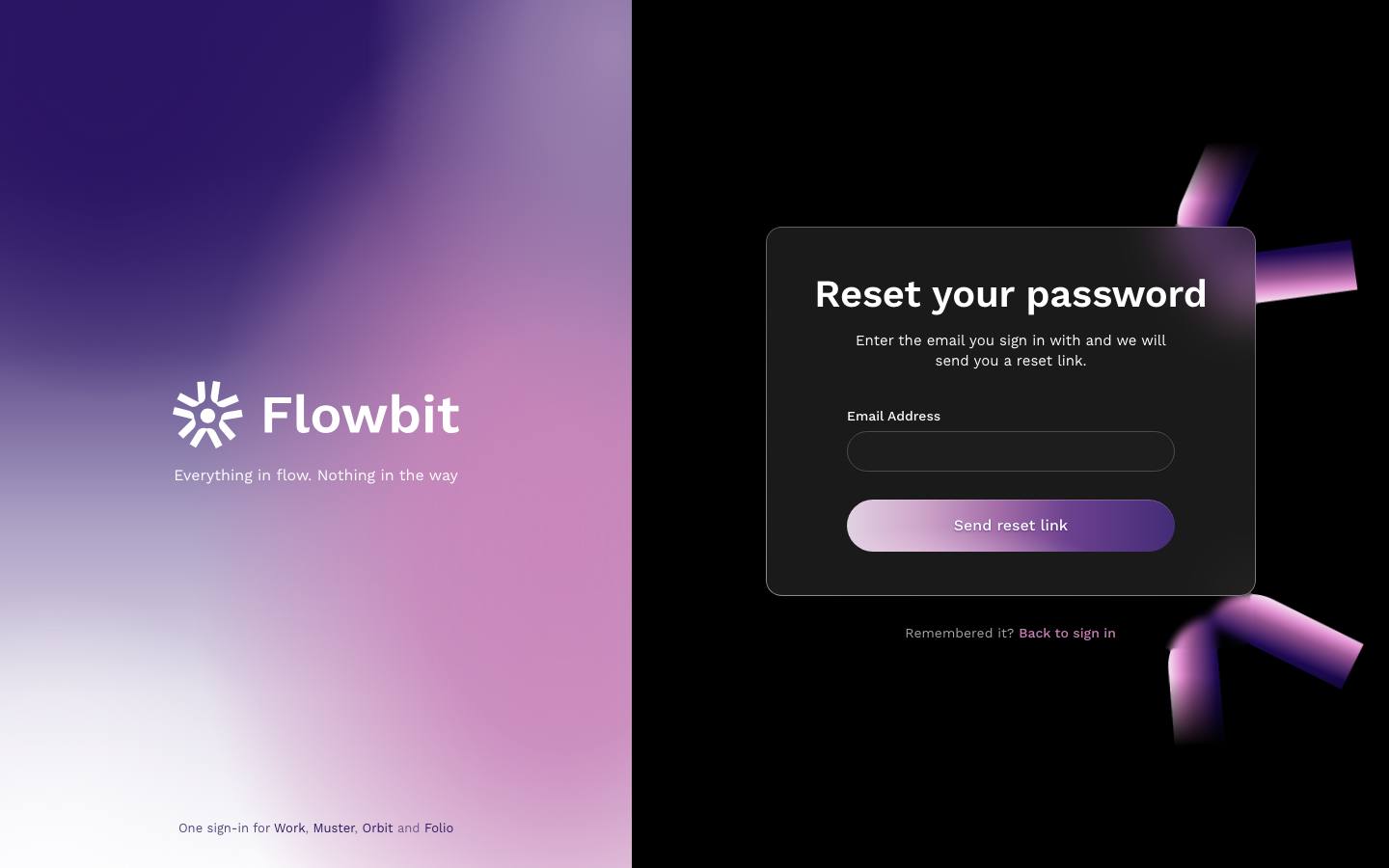
- On the sign-in card, click Forgot password?.
- Enter the email you sign in with and click Send reset link.
- Open the email and click the link. It works once and for 60 minutes.
- On Choose a new password, type the new password twice and save. You are signed in on that device and every other session is signed out.
If the link has expired, request a fresh one from the same page.
Accept an invite
Open: the link in your invite email/invite/…Who: new teammates
An Owner or Admin invites you from Settings, or the Invite button on the rail. You get an email naming the workspace and the role you will have.
- Open the invite email and click the link.
- If you are new to Flowbit, the page shows Create your account for the workspace. Set your name and password, or click Continue with Google.
- If you already have a Flowbit account, the page shows Sign in to join. Sign in with the invited email.
- If you are already signed in with that email, click Join followed by the workspace name.
Invite links work for 7 days and only once. If yours has expired, ask the person who invited you to send a new one. If you are signed in with a different email, the page says so and offers to switch account.
Find your way around
Open: any page after sign-in/appWho: everyone
Every page has the same frame. Once you know it, every product works the same way.
On every page
- Logo (top left): the Flowbit mark. On a phone, tap it to go Home.
- Nav rail (the purple strip on the left): Home, Arc, Tasks, Spaces, Teams, Projects, Clients, Meetings, Work reports (under a Work · Tasks caption), then the products Muster (HR), Orbit and Folio. At the bottom are Invite and Settings. A white bar marks where you are. You only see what your role and plan allow. A product not in your plan shows a lock and opens a preview.
- Side panel (next to the rail): the workspace name with a switcher if you belong to more than one workspace, the Search pill, and links for the product you are in. In Work these are CREATE NEW PROJECT with recent projects, TEAMS, and TOOLS (Whiteboard, Posts, Time, Time approvals). The check-in card sits at the bottom.
- Top bar: a breadcrumb on the left (for example Home › Tasks › Task) that you can click to go back up. On the right: the running timer if you have one, the bell with your unread count, and your avatar.
Search and the command palette
- Click the Search pill in the side panel, or press ⌘K on a Mac (Ctrl+K on Windows).
- Type at least two letters. Results show tasks, projects, clients, people, invoices, leads and deals, followed by pages under Go to.
- Use the arrow keys and press Enter, or click a result. Press Esc to close.
The avatar menu
- My account: your login: name, photo, email and language.
- Settings: workspace settings for Owners and Admins, your own settings for everyone else.
- Sound on / Sound off: Flowbit plays small sounds on actions and new notifications. Click to switch them off or on. The choice is saved for you on every device.
- Sign out.
On a phone or tablet, the rail and side panel move into a menu behind the icon at the top left, and a check-in button appears in the top bar.
Check in, take a break, check out
Open: Side panel → check-in card/appWho: everyone with attendance
The check-in card at the bottom of the side panel records your working day. It feeds the Home timeline, your attendance in Muster and, from there, payroll.
What the card shows
- A label: Check in before you start, then Checked in, On break or Checked out.
- The time worked today, for example 02H 53MIN. Breaks do not count.
- A clock disc that glows green while you work, amber on a break and grey when you are out.
Your day, step by step
- When you start, click Check in.
- For lunch or tea, click Take break. The timer stops counting work.
- When you are back, click Resume.
- At the end of the day, click Check out. You can check out straight from a break.
How the day is marked:
- Late: your first check-in is later than office start plus the grace period. By default office hours are 10:00 to 19:00 with 15 minutes' grace, so checking in after 10:15 is late. HR can change these in Muster settings.
- Half day: you checked out after working less than the half-day hours (4.5 hours by default).
- Present: otherwise.
Each step must follow the last one. You cannot take a break before checking in. Once HR locks a day or month, the card says Today is locked by HR and punches are refused. Ask HR for a correction.
Hover over the card to see when you checked in and how long your breaks have been.
The Home dashboard
Open: Rail → Home/appWho: everyone
Home is the first page after sign-in. It shows what is on your plate today, how your projects are doing and your attendance this month.
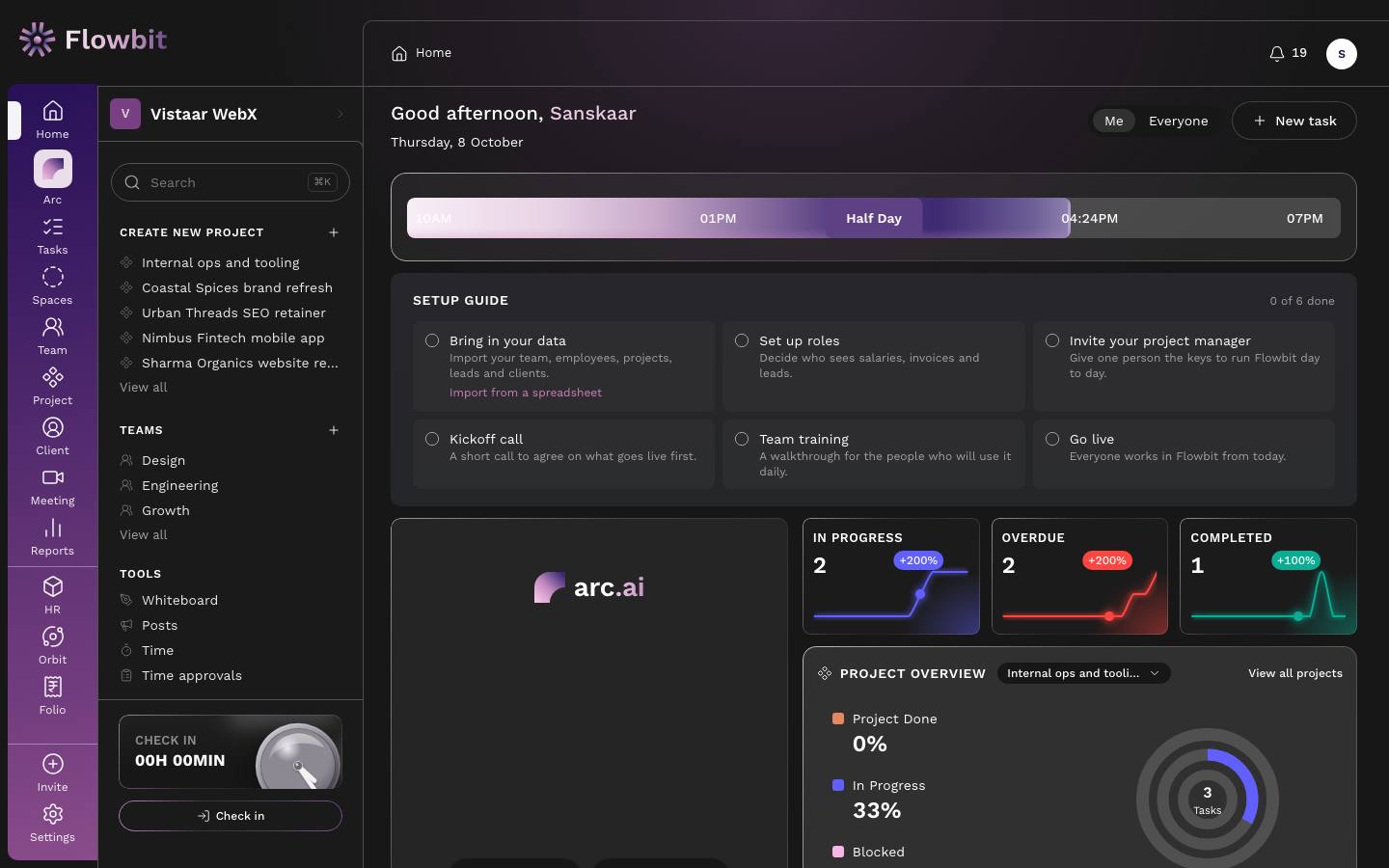
On this page
- Greeting: Good morning, afternoon or evening with your first name and today's date. On the right, Me / Everyone switches the numbers between your tasks and the whole workspace (only for roles that can see all tasks). New task opens the task form.
- Workday timeline: a bar from office start to office end with hour marks and a Half Day marker. It fills up to now and shows when you checked in and your breaks. It says Not checked in yet, On leave today or Day off when that applies.
- Setup guide (new workspaces): six steps to get going, such as Bring in your data, Set up roles, Invite your project manager and Go live, with a count of steps done.
- Arc card: chips Outline Flowbit, Breakdown Task and Progress Update open the Arc assistant, and the search box searches your workspace. See the Arc topic in the Work chapter.
- Stat cards: In progress (in progress or in review), Overdue (open and past the due date) and Completed (done in the last 7 days). Each has a two-week trend line and a percentage change against 7 days ago.
- Project overview: pick a project from the dropdown to see rings for Project Done %, In Progress % and Blocked %, the task count in the centre, and the project's status, people and timeline. View all projects opens the project list. With no projects yet, it offers Create project.
- Assign to me: tabs All task (your open tasks, overdue first), Done (finished in the last 30 days) and Due (due today or overdue). Columns are Task Name, Priority, Due and Assignee. Click the round checkbox to mark a task done; the message has an Undo button.
- My attendance: a bar split into On time, Late and Absent for this month's working days so far, and a month calendar with each day coloured. Click a day to see check-in, check-out and hours. Use the arrows to change month. If you have no employee record, the card says attendance isn't set up for you.
Absent is worked out, not typed in: a past working day with no check-in and no leave counts as absent.
Notifications
Open: Top bar → bell → View all notifications/app/notificationsWho: everyone
Flowbit tells you when something needs you: a task assigned, a mention, a leave request to approve, a payslip ready, an invoice paid. Only you can see your notifications.
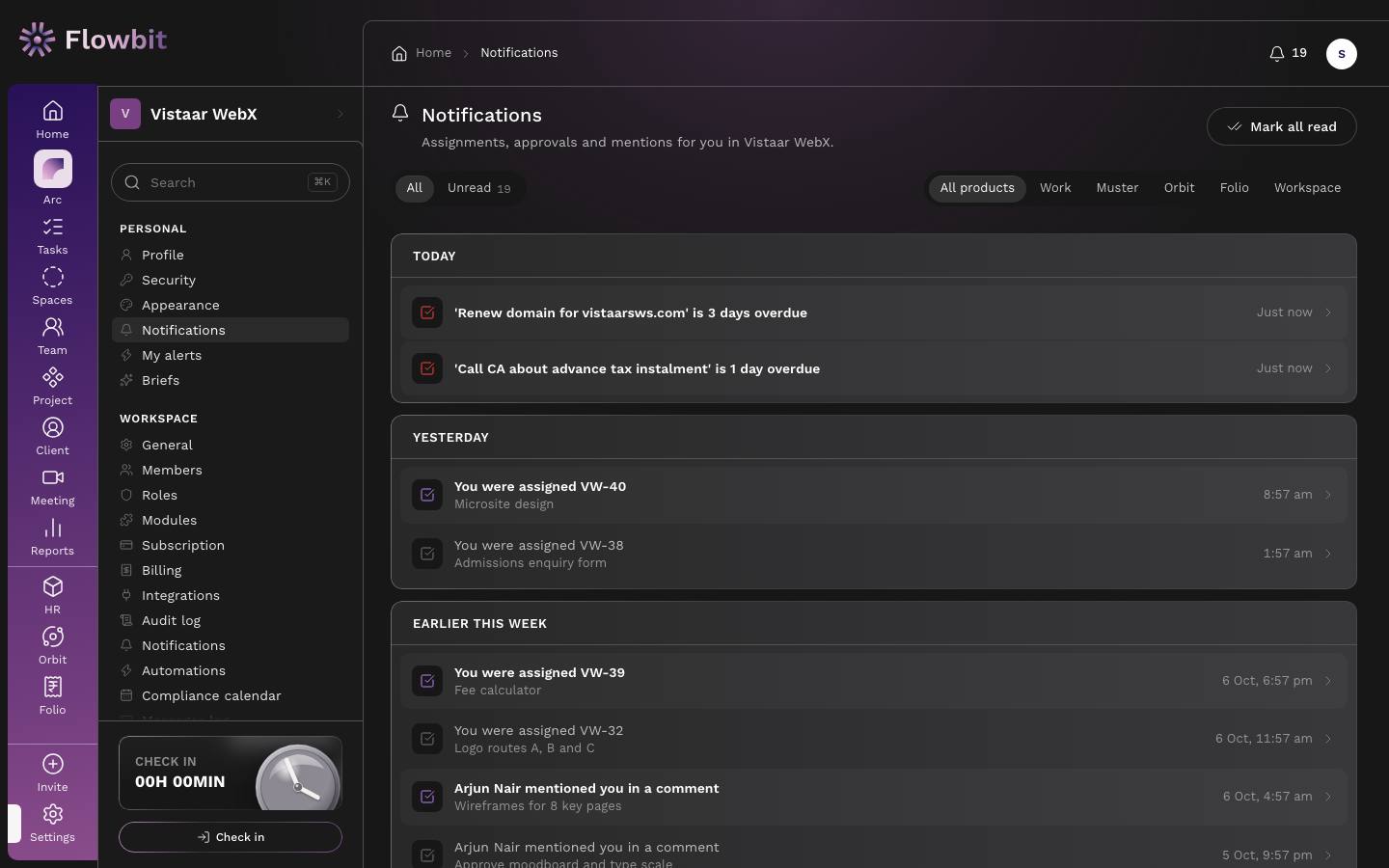
The bell
The number next to the bell is your unread count. It checks for new items every 30 seconds and plays a sound when one arrives (unless sound is off). Click the bell for the latest items with All / Unread tabs, Mark all read and View all notifications.
On this page
- All and Unread tabs.
- Product filters: All products, Work, Muster, Orbit, Folio, Workspace.
- Groups by time: Today, Yesterday, Earlier this week, Earlier. 30 items per page.
Work through your notifications
- Click a row. It opens the task, request or invoice and marks the item read.
- To clear everything at once, click Mark all read.
Task reminders arrive on their own: once on the day a task is due, and when it becomes overdue. Announcements also appear as a pop-up the next time you open Flowbit, until you click Got it.
Roles at a glance
Open: Settings → Roles/app/settings/rolesWho: Owner and Admin manage roles
Each person has one role. The role decides which rail items and buttons they see. Owners and Admins can also build custom roles by combining permissions. Every role can use Work for their own tasks, meetings, posts and time, and every person with an employee record gets self-service (attendance, leave, claims, payslips, letters).
| Role | What they can open and do |
|---|---|
| Owner | Everything, including the subscription and deleting the workspace. |
| Admin | Everything except the subscription and deleting the workspace. |
| HR admin | All of Muster: people, attendance, leave, claims, payroll run and approval, letters. Basic Work. Clients read-only. Audit log. |
| HR executive | People, attendance, leave, claims and letters. Does not see salaries or payroll, and no sensitive IDs. Basic Work. |
| Finance | Payroll approval and release, claim payouts, all of Folio, clients, and reports across Muster, Orbit and Work. Basic Work. |
| Manager | All of Work (every task, projects, spaces, teams, announcements, time approvals). Approves leave and attendance for direct reports. Reads Orbit. Edits clients. |
| Sales | All of Orbit, client records and Folio quotes. Basic Work. |
| Member (employee) | Their own tasks and the projects they are on, meetings, posts, time, whiteboards and Arc, plus self-service. |
Hidden buttons are only a convenience. Flowbit checks the role on every action, so changing the address in the browser does not get round it.