
Plan and track the work
Work is where your team plans tasks and projects, meets, posts updates, logs time and sees how delivery is going. Everyone uses it; managers also approve time and read the reports.
Task basics: statuses, priorities and dates
These rules apply on every Work page, on Home and in the reports.
| Status | Meaning |
|---|---|
| To do | Not started yet. |
| In progress | Someone is working on it. |
| In review | Waiting for a check or approval. |
| Blocked | Cannot move until something else happens. A reason is required. |
| Done | Finished. Flowbit records when it was completed. |
Priority is one of Low, Medium (the default), High or Urgent. Lists sort Urgent first.
Date rules:
- Overdue: not done, and the due date is before today. It shows in red, for example "4d overdue".
- Due today: not done, and due today.
- This week: not done, and due today or in the next six days.
- The due date cannot be before the start date.
- Every task needs at least one assignee. New tasks are assigned to you unless you pick someone else.
Assignees get a reminder on the day a task is due and again once it is overdue.
Blocked: moving a task to Blocked opens Why is this blocked?. Type the reason; you can type @ to tell someone, and they get a notification. To unblock, choose any other status or click Unblock.
Who sees which tasks: you see tasks you created, are assigned to or watch, tasks in projects you are on, tasks in spaces you belong to, and tasks of people in teams you lead. Owners, Admins and Managers see every task except other people's personal tasks.
Tasks
Open: Rail → Tasks/app/work/tasksWho: everyone
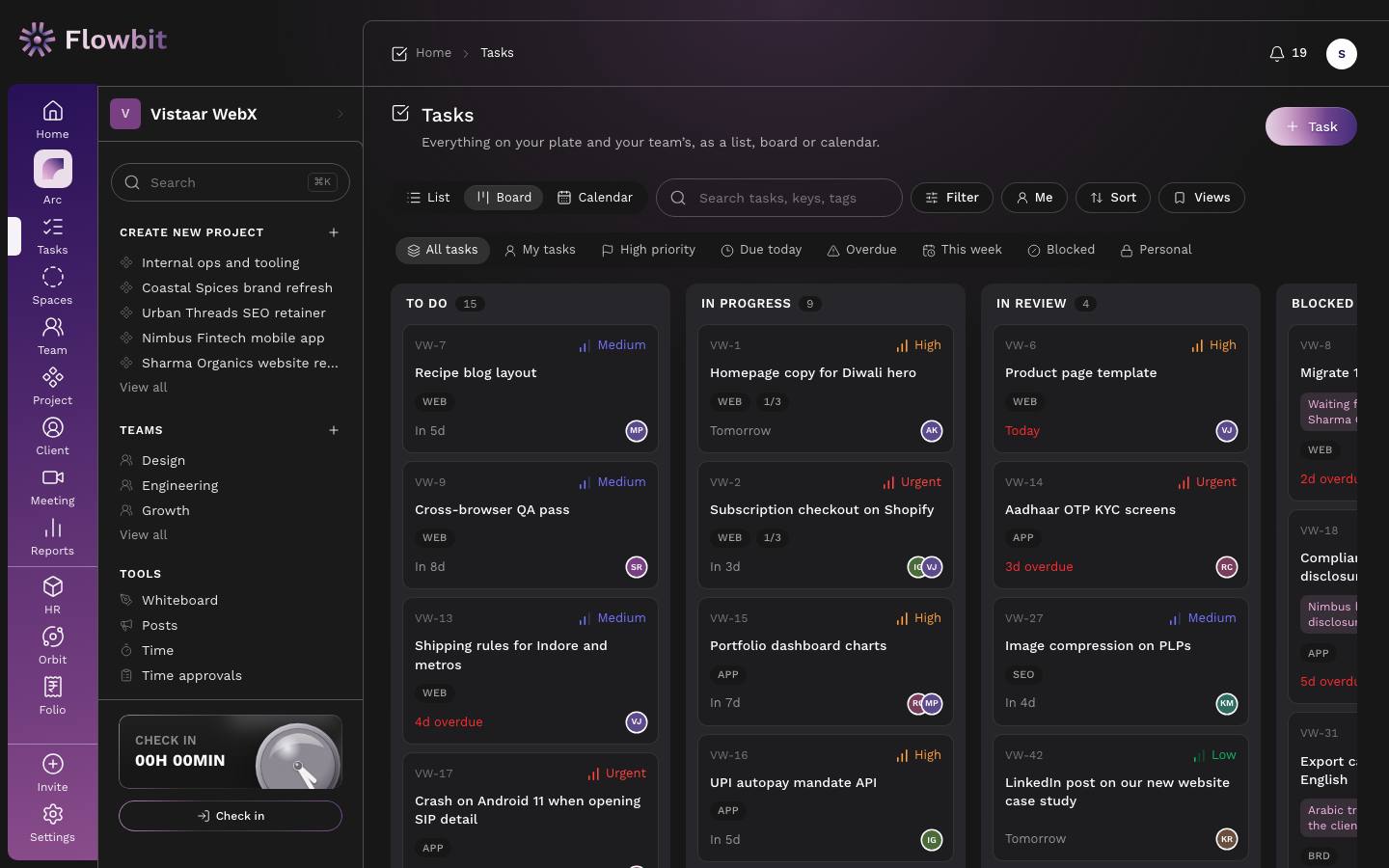
Everything on your plate and your team's, as a list, a board or a calendar.
On this page
- View switcher: List, Board (one column per status) and Calendar (tasks on their dates, with a No due date tray).
- Search tasks, keys, tags: searches titles, descriptions, tags, task keys such as VW-42, assignee, project and client names.
- Filter: Status, Priority, Due date, Assignee, Created by me, Project, Client, Space and list. Active filters appear as chips you can remove one by one.
- Me: only tasks assigned to you. Sort: choose the field and ascending or descending.
- Views: save the current filters, view and sort under a name, optionally with Share with everyone.
- Quick links: All tasks, My tasks, High priority, Due today, Overdue, This week, Blocked, Personal.
- List columns: Task Name, Assignee, Due, Priority, and a row menu with Copy link, Move to project… and delete. Badges show Blocked, Personal and subtasks done.
Create a task
- Click Task at the top right.
- Enter a Title (at least 3 characters) and, if useful, a Description.
- Set Status, Priority and Assignees.
- Pick a Start date and Due date.
- Optionally pick a Project (the client fills in from the project), a Client, and a Space with its List. If you pick a space you must pick a list too.
- Add Tags, an Estimate such as 2h 30m, and any Attachments.
- Click Create task. Assignees get a notification.
For speed, type a title in Add a task and press Enter at the top of the list, or in the box at the top of a board column. The task takes that column's status and is assigned to you. In the calendar, click a day to add a task due that day.
Move tasks along
- In Board view, drag a card to another column. Dropping into Blocked asks for a reason; dropping into Done records the completion time.
- In List view, tick several rows to open the bulk bar: Status, Priority, Assign to…, Due date, Project or Delete. Tasks you are not allowed to change are skipped and the message says how many.
Personal tasks
Open Personal and add a task there to make a private to-do. Only you and people you share it with see it. Personal tasks are assigned to you only and never show in team lists, dashboards or reports.
A task in detail
Open: Tasks → click a task/app/work/tasks/{id}Who: anyone who can see the task
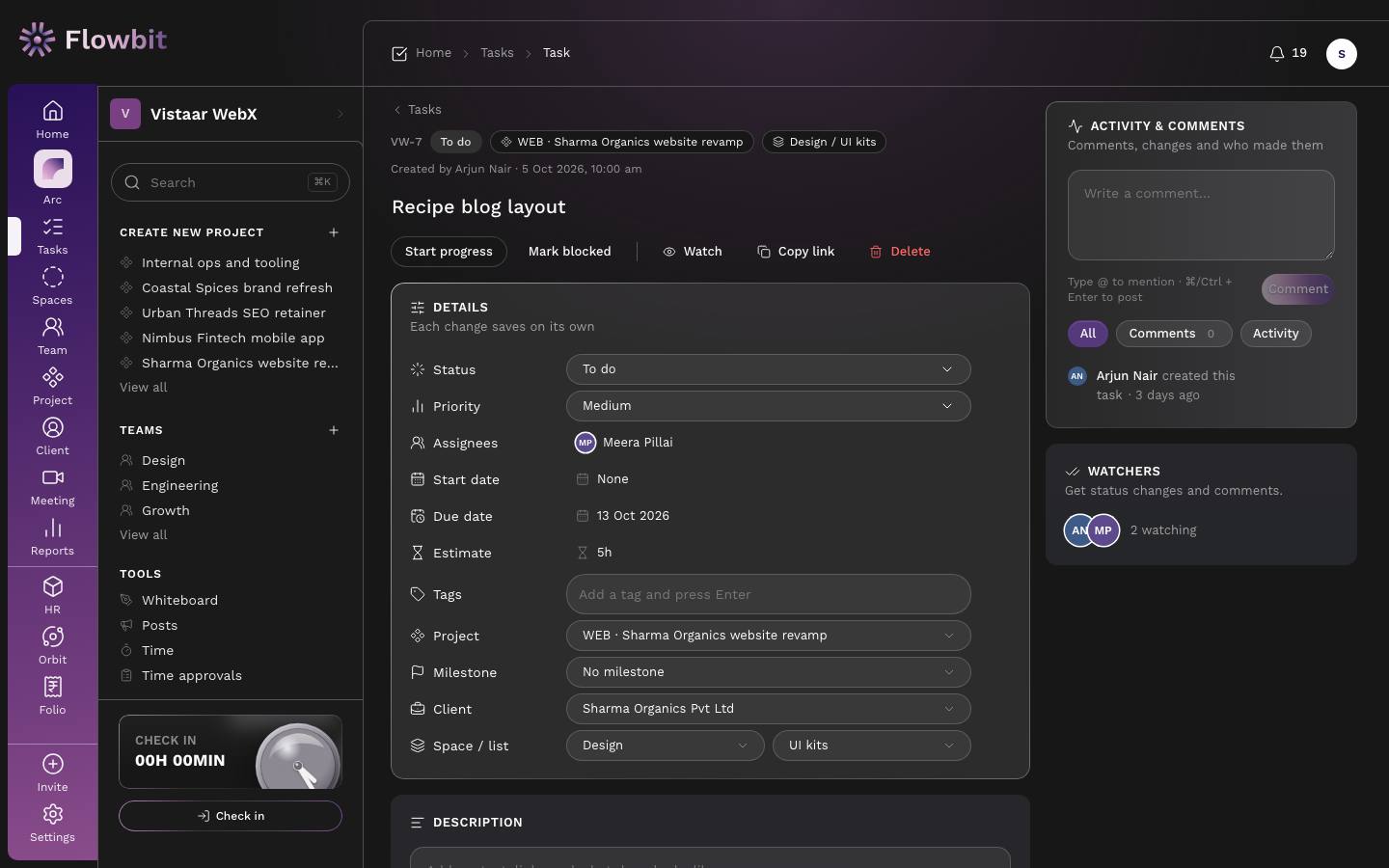
Everything about one task: details, description, subtasks, checklist, files, time and the conversation.
On this page
- Header: key, status, project and list, who created it and when. Click the title to rename it (Enter saves, Esc cancels).
- Action bar: the next step for the status (Start progress; Send for review or Mark done; Unblock; Reopen), Mark blocked, Watch / Unwatch, Copy link and Delete.
- DETAILS: Status, Priority, Assignees, Start date, Due date, Estimate, Tags, Project, Milestone, Client, Space / list. Each change saves on its own.
- DESCRIPTION: saves when you click away.
- Subtasks, checklist, attachments and time logged against the task.
- ACTIVITY & COMMENTS with All, Comments and Activity filters. WATCHERS lists who gets status changes and comments.
Subtasks and checklist
- Subtasks are real tasks under this one, each with its own status, assignee and dates. Type in Add a subtask and press Enter. A subtask cannot have its own subtasks. Cards show "done/total".
- Checklist items are simple ticks. Type in Add an item and press Enter.
Comment and mention someone
- Click Write a comment….
- Type @ and pick a person to mention them. They get a notification.
- Click Comment, or press ⌘/Ctrl + Enter.
- Use Reply, Edit, Delete or a reaction on any comment. Deleting a comment also deletes its replies.
Attach files and links
- Click Upload files, or drop files on the panel. Images and PDFs open in a preview.
- For a link (Figma, Google Drive), click Add a link, fill Title and URL, then Add link.
Delete a task
- Click Delete and confirm with Delete task. Subtasks, comments and time entries go with it.
Deleting cannot be undone. A task with time in a submitted or approved timesheet cannot be deleted until the manager sends that week back.
The creator, the assignees and Managers or above can edit and delete a task.
Spaces
Open: Rail → Spaces/app/work/spacesWho: everyone
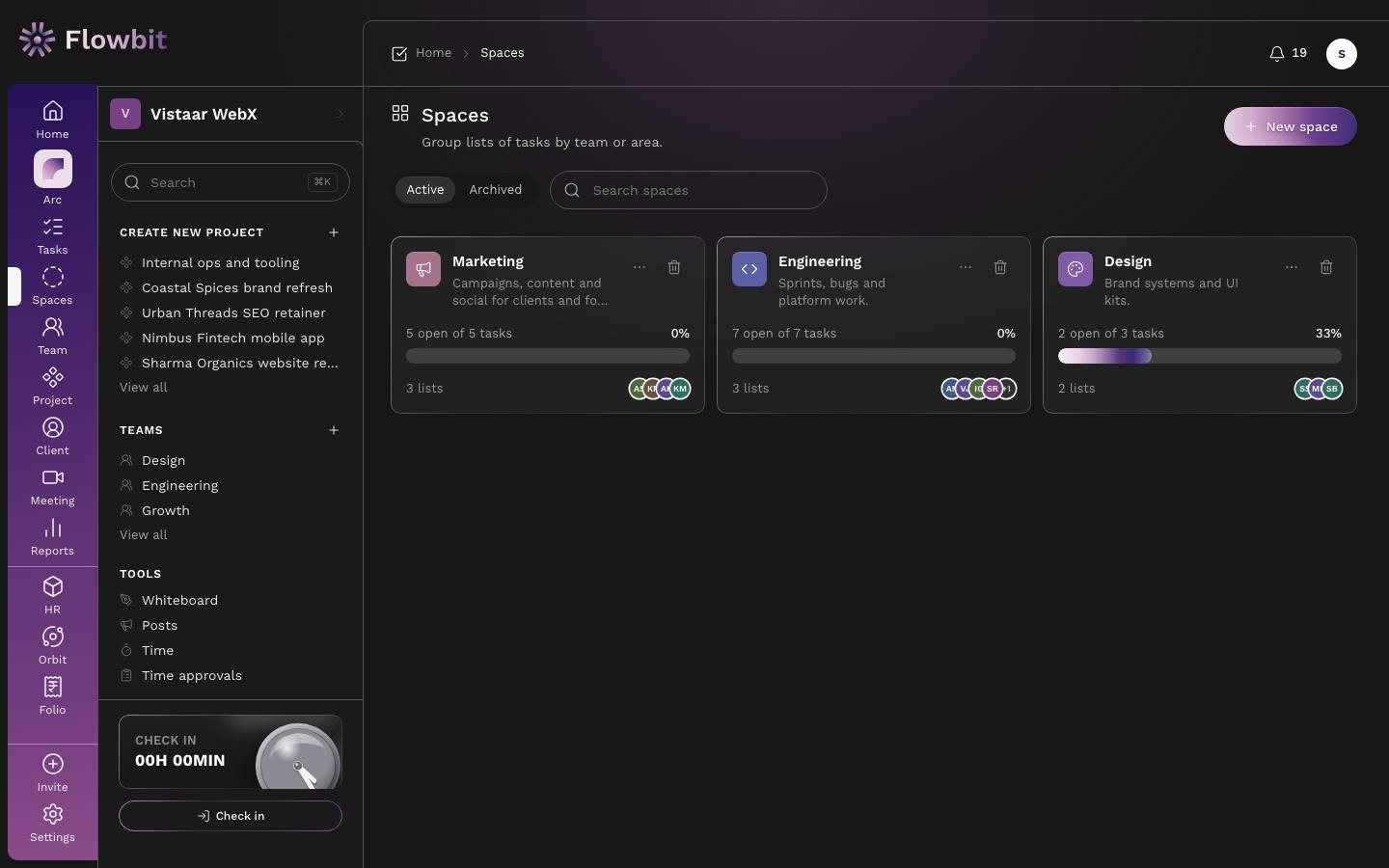
A space groups lists of tasks by team or area, for example Marketing, Engineering or Design. Inside a space, tasks live in lists.
Create a space
- Click New space.
- Enter a Name and Description, and pick a Colour and Icon.
- Click Create space. You become its first member.
Use the Active / Archived tabs and Search spaces to find one.
Inside a space
Open: Spaces → click a space/app/work/spaces/{id}Who: space members, Managers and above
On this page
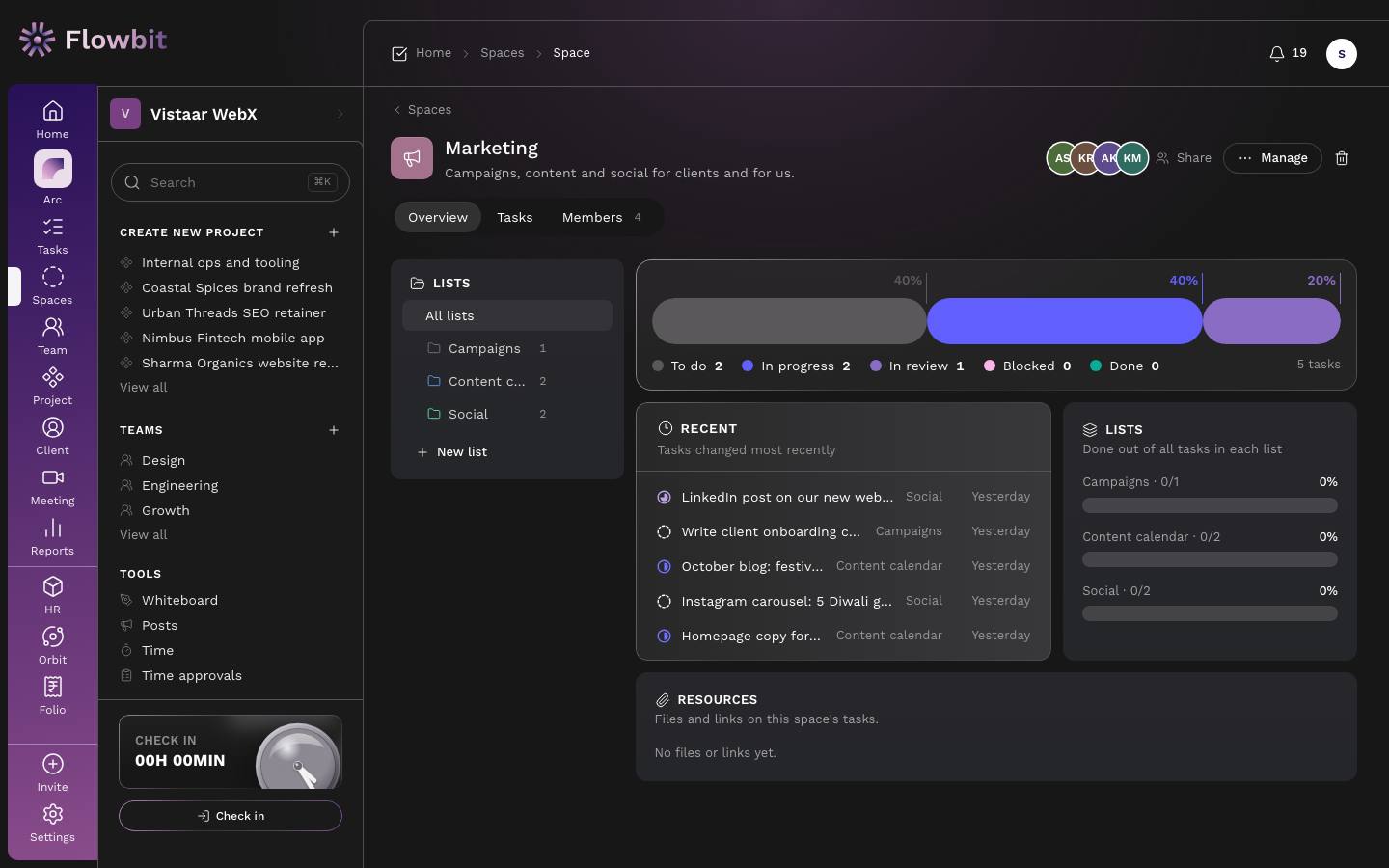
- Header: member avatars, Share, Manage (edit name, colour, icon; archive or restore) and delete.
- LISTS column: All lists and each list. New list adds one.
- Tabs: Overview (status split, recent tasks, LISTS progress, RESOURCES), Tasks (the full task list, board or calendar for this space) and Members.
Add a list
- Click New list.
- Enter a Name, optional description and colour.
- Click Create list.
Share the space
- Open Members or click Share.
- Click Add people and pick teammates. Members get full access to every list.
- To take someone out, click Remove. Their tasks stay. Anyone can Leave a space; afterwards they see only their own tasks in it.
Deleting a space that still has tasks archives it instead. An empty space is deleted. Archived spaces can be restored from the Archived tab. Lists can be archived and restored the same way.
Projects
Open: Rail → Project/app/work/projectsWho: everyone sees projects they are on; Managers and above see all
A project groups the tasks, milestones and files for one piece of client or internal work, with a progress figure and a health score.
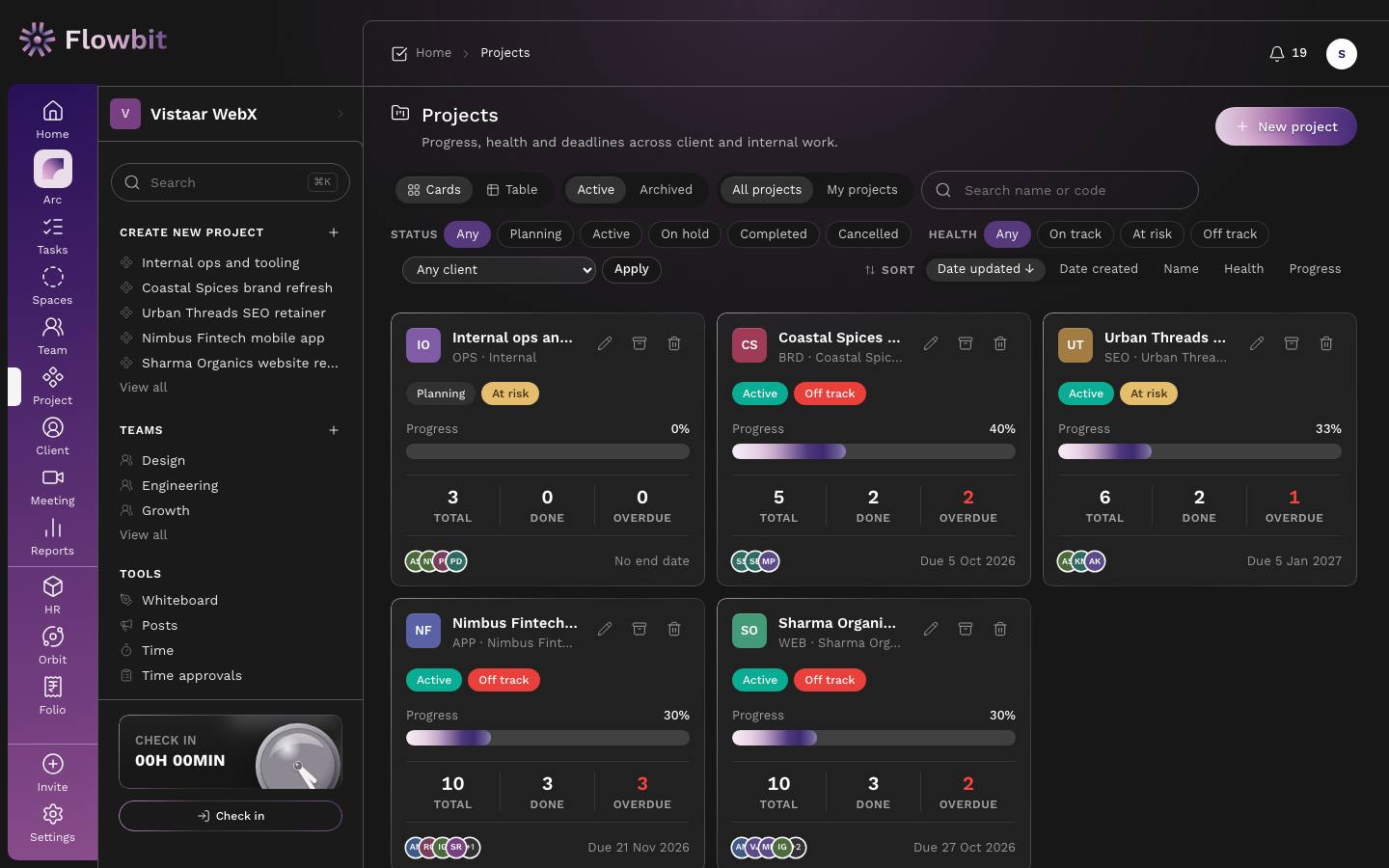
On this page
- Cards or Table; Active or Archived; All projects or My projects; Search name or code.
- Filters: STATUS (Planning, Active, On hold, Completed, Cancelled), HEALTH (On track, At risk, Off track) and client, then Apply.
- SORT: Date updated, Date created, Name, Health, Progress.
Create a project
- Click New project.
- Enter the Project name. Leave Code blank to get PROJ-001, PROJ-002 and so on, or type your own such as WEB.
- Pick a Client, or leave it as internal. New client opens the client form.
- Set Status, Description, Start date and End date.
- Choose the Lead and add Members, a Colour and Tags.
- Click Create project. The lead gets a notification.
Progress is done tasks divided by all tasks (subtasks not counted). Health is a score out of 100 built from progress, overdue tasks, blocked tasks and how far through the timeline you are. 80 or more is On track, 60 to 79 is At risk, below 60 is Off track.
Inside a project
Open: Projects → click a project/app/work/projects/{id}Who: project lead, members, Managers and above
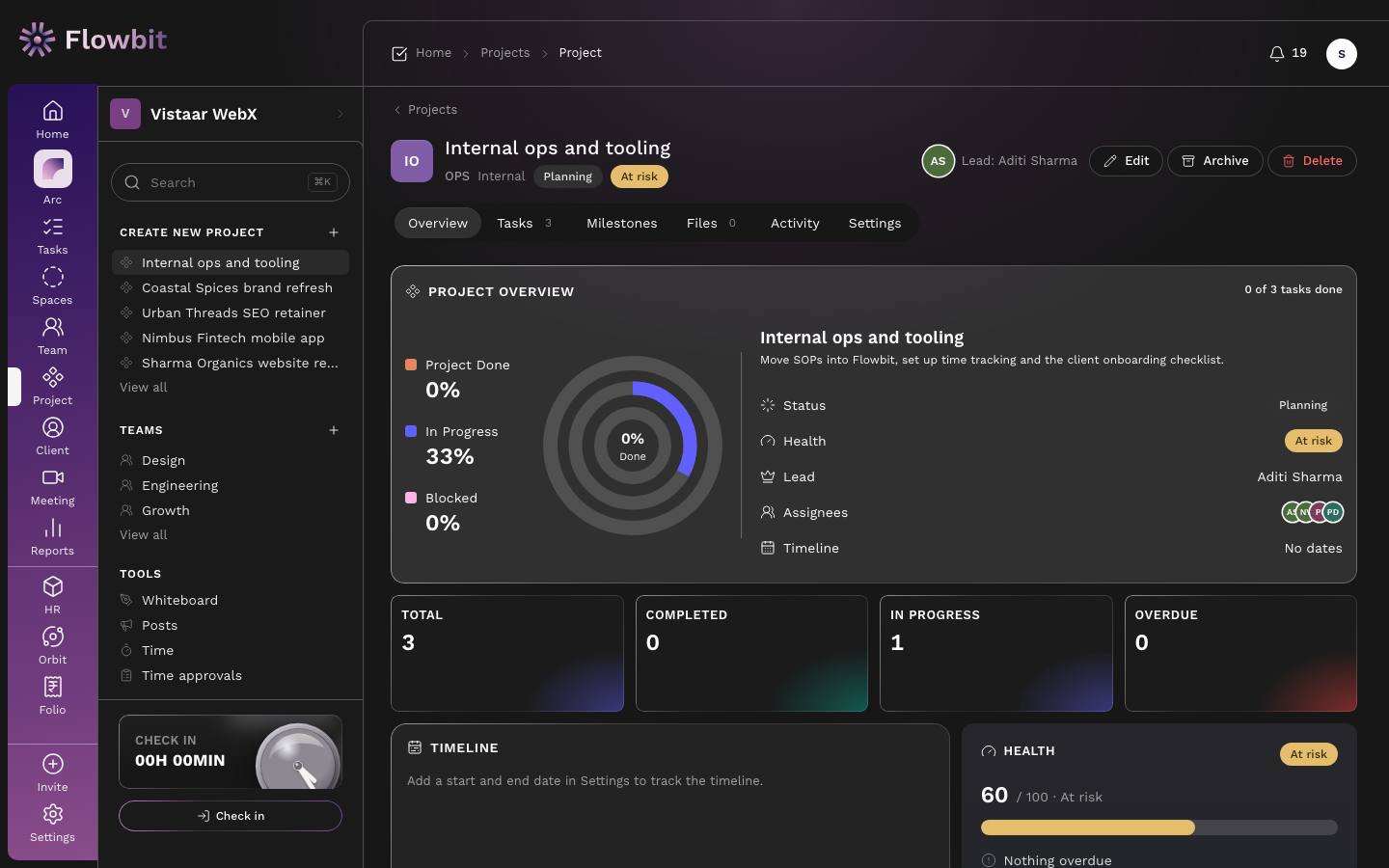
Tabs
- Overview: progress rings, status, health, lead, people and timeline; cards for Total, Completed, In progress and Overdue; TIMELINE (time used against work done); HEALTH; task progress breakdown; next milestones; members; description.
- Tasks: the project's tasks as list, board or calendar. New tasks get this project and client.
- Milestones: the big moments, each with a title, due date and progress from its linked tasks. A milestone past its date and not done shows Overdue.
- Files: Project files you upload, plus attachments From tasks in this project.
- Activity: who changed what, newest first.
- Settings: edit the project and the danger zone.
Add a milestone
- Open Milestones and click Add milestone.
- Enter Title, Due date and optional Description, then Save milestone.
- Link tasks by choosing this milestone in each task's Milestone field. The task must be in the project.
Edit, archive or delete
- Click Edit to change details, lead or members.
- When the work is finished, click Archive. It leaves the list and can be restored from Archived.
- Delete removes only empty projects, and only Owners and Admins can do it.
A project with tasks cannot be deleted. Delete or move its tasks first, or archive it instead.
Teams
Open: Rail → Team/app/work/teamsWho: everyone sees teams; Managers and above create and edit
Teams group people who work together and show how much each team is carrying.
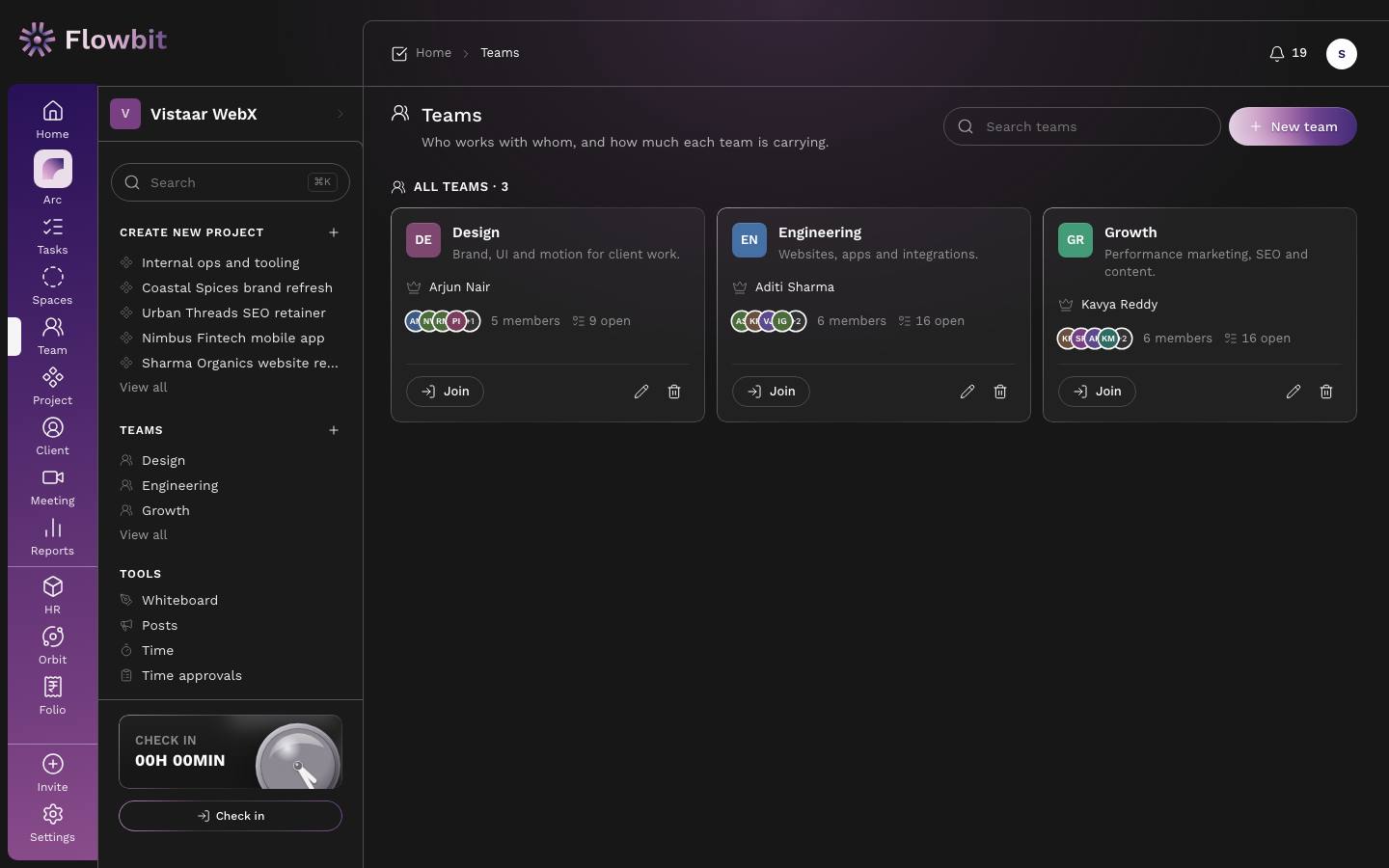
Create a team
- Click New team.
- Enter Team name and Description, pick a colour, add Members and choose a Team lead.
- Click Create team.
Anyone can click Join on a team or Leave one. Team names must be unique.
A team lead sees the tasks of everyone in the team. Deleting a team removes its memberships; members' tasks stay.
Team members and workload
Open: Team → click a team/app/work/teams/{id}Who: everyone; Managers and above change members
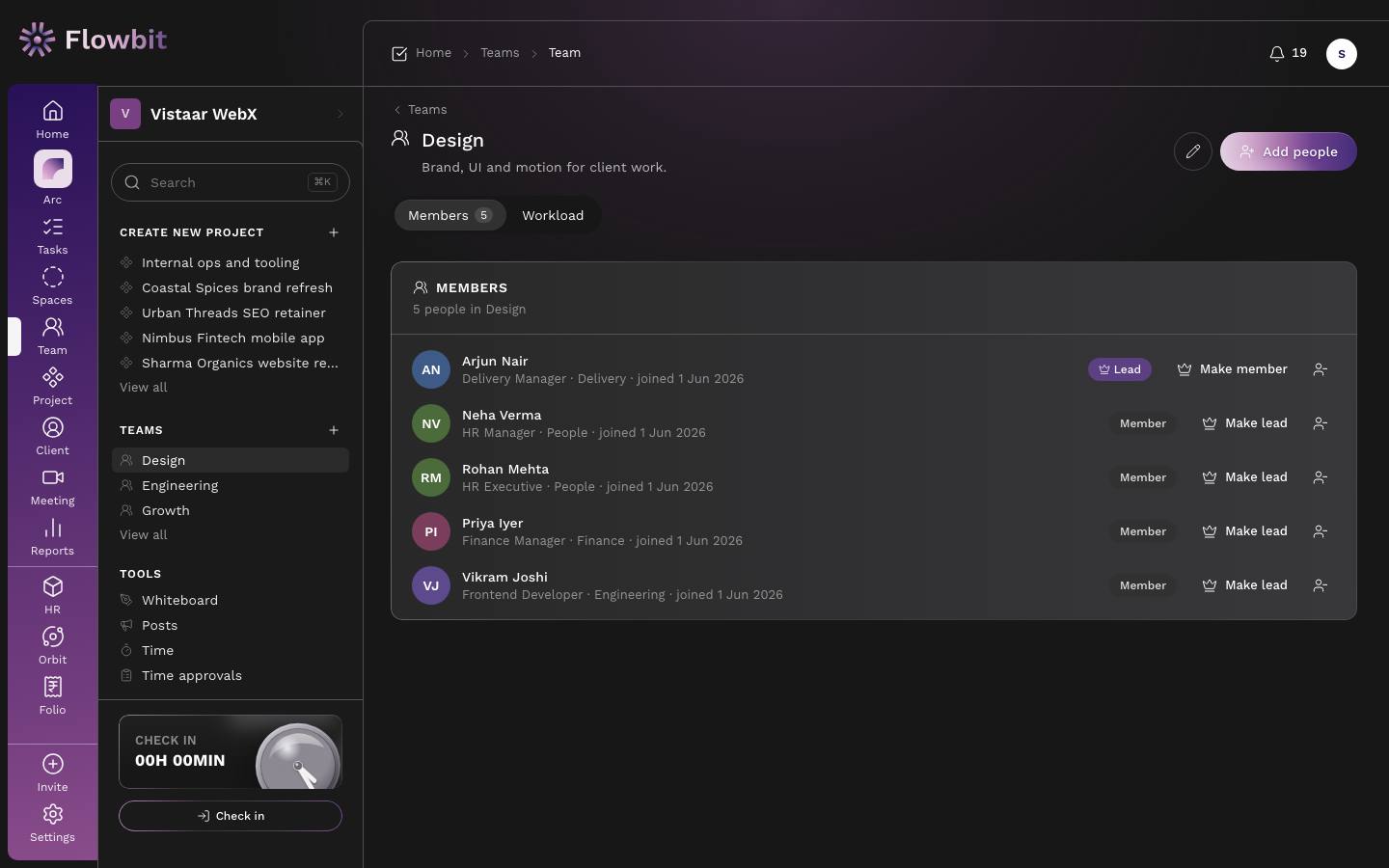
Manage members
- Click Add people, choose people and click Add to team.
- Click Make lead on a member. A team has at most one lead, so first click Make member on the current lead.
- Use the remove icon to take someone out.
Read the workload
Open Workload. For each person it shows Open, Overdue, Due in period, Blocked, Completed, Estimate open, Logged and Load. Load compares logged time with capacity (8 hours per working day). Green is under 70%, amber 70 to 100%, red over 100%. Click a person to see their tasks.
Meetings
Open: Rail → Meeting/app/work/meetingsWho: everyone
Agendas, attendees, notes and the action items that come out of them. You see meetings you organise or attend.
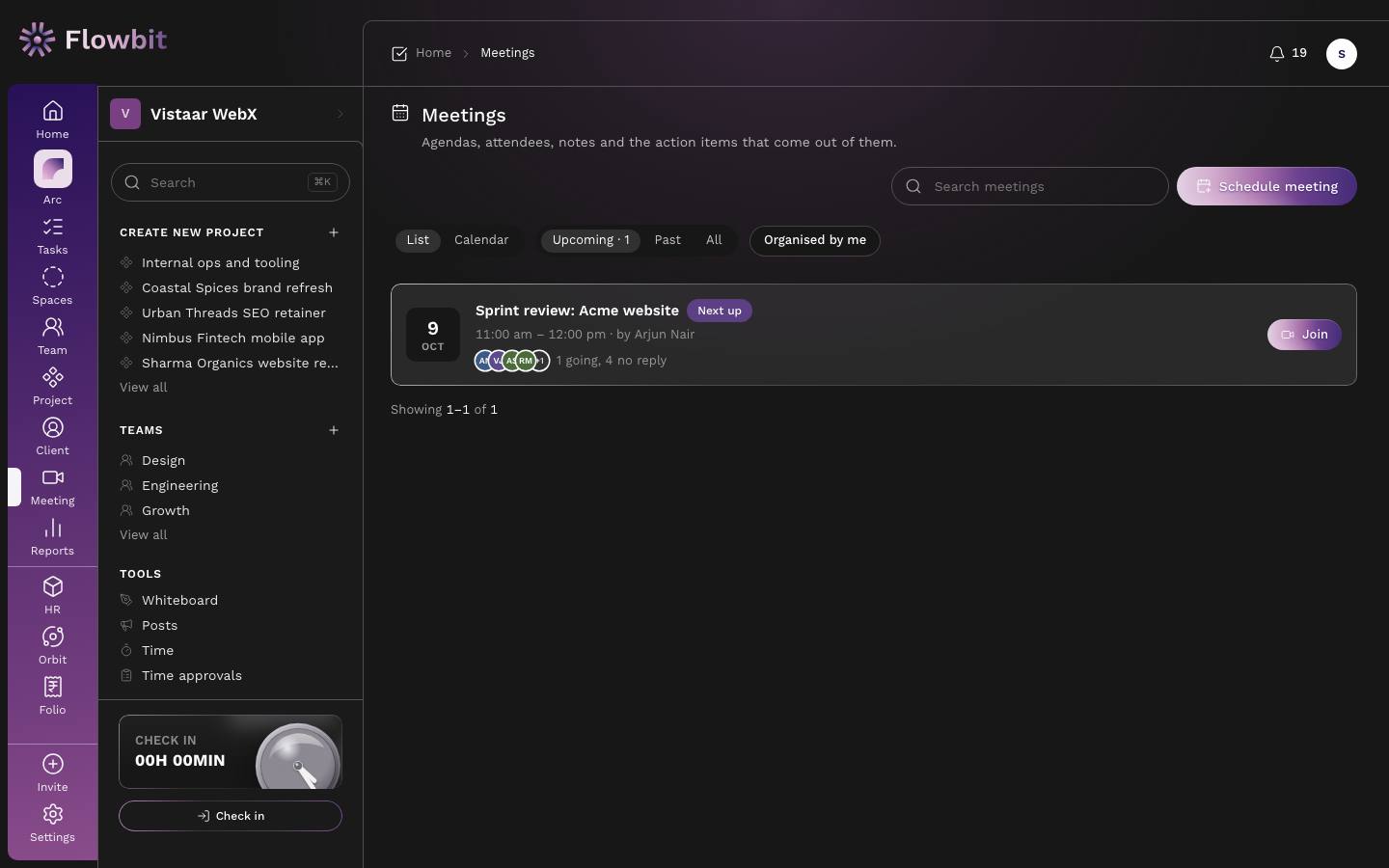
Schedule a meeting
- Click Schedule meeting.
- Fill Title, Date, Start and End.
- Pick Attendees.
- Paste a Meeting link (Google Meet, Zoom or Teams) and/or a Location such as Board room.
- Write the Agenda and click Schedule. Attendees get a notification.
End must be after start, and a meeting can be at most 12 hours. Flowbit does not create calendar events or video links for you; paste the link from your own tool.
A meeting in detail
Open: Meetings → click a meeting/app/work/meetings/{id}Who: organiser and attendees
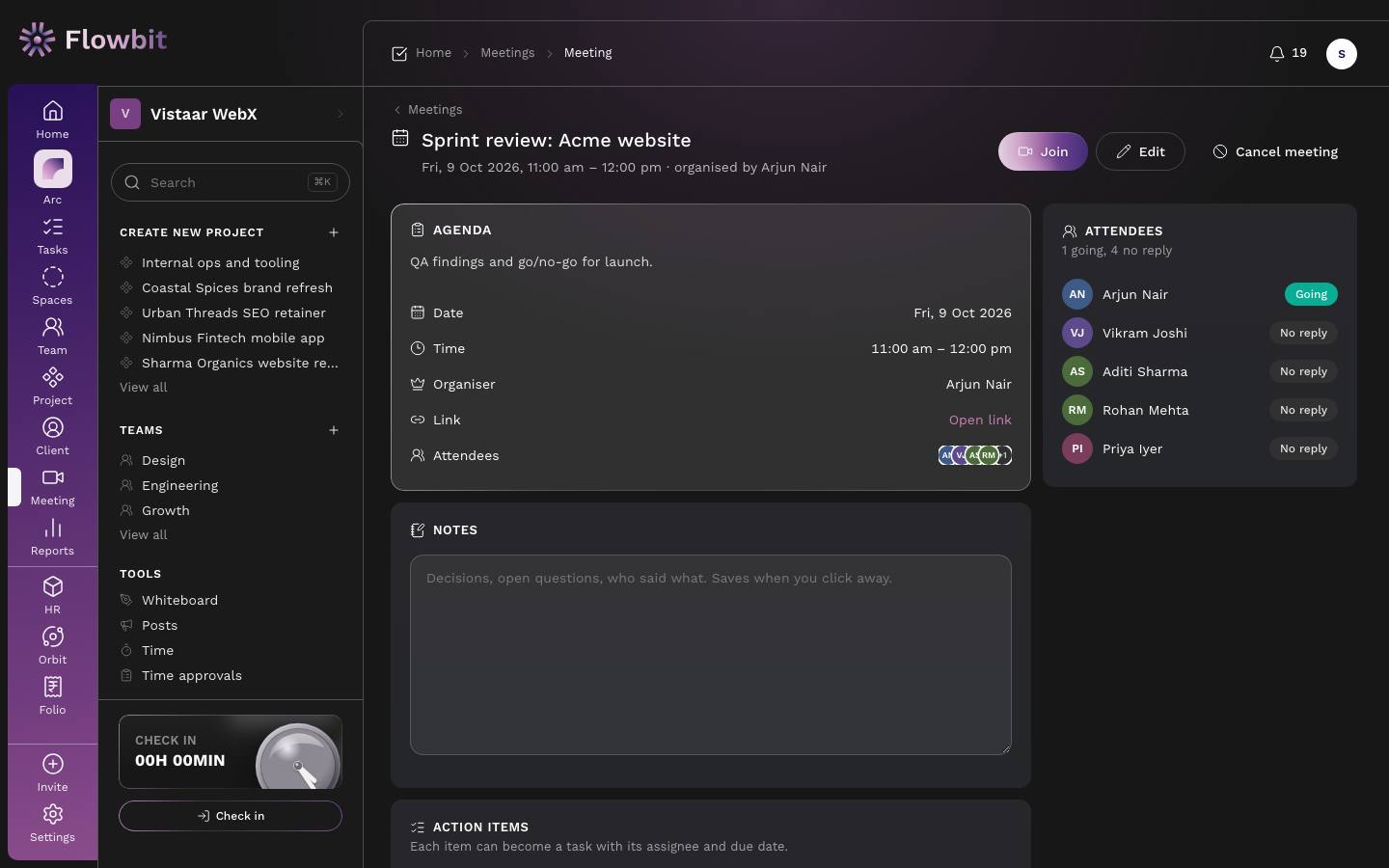
Reply to an invite
Click Accept, Maybe or Decline. The organiser sees the count, for example "1 going, 4 no reply".
Take notes and turn decisions into tasks
- Type in the notes box. It saves when you click away.
- Under ACTION ITEMS, type an item, pick an Assignee and Due date, and click Add.
- Turn an item into a task with its create-task button. The task links back to the meeting.
Change or cancel
Only the organiser can Edit or Cancel meeting. Replies are kept for people who stay on the list. A cancelled meeting stays visible, marked Cancelled, and attendees are told.
Posts
Open: Side panel → TOOLS → Posts/app/work/postsWho: everyone; announcements and policies by managers, HR and above
The workspace notice board: announcements, updates, kudos, polls, policies and more, each aimed at the people who need it.
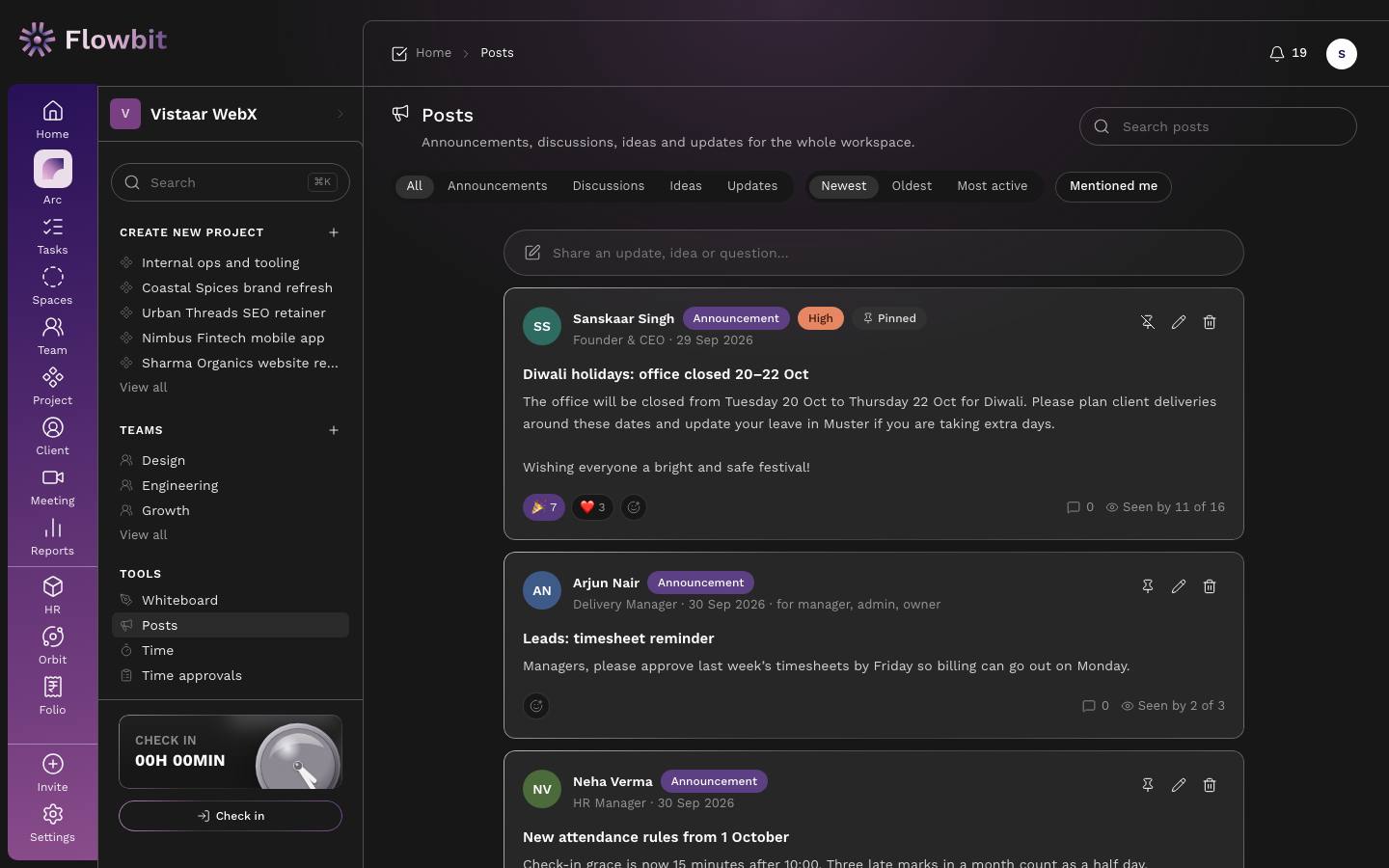
The ten post types
| Type | Use it for |
|---|---|
| Announcement | Something everyone must see, with a priority (Low to Urgent). It also pops up when people next open Flowbit. Managers, HR and above only. |
| Policy | A rule people must read. Each person clicks I've read this; the author sees who has not, can Export CSV and remind only them. Managers, HR and above only. |
| Update, Win, Question | Everyday news, results and questions to the team. |
| Kudos | Thank one or more people by name. They and their managers are told, and it shows on their Muster profile. |
| Poll | 2 to 8 Options, with Allow several choices, Anonymous votes and Closes on. Results show as live bars after you vote. |
| Celebration, Welcome | Birthdays, work anniversaries and new joiners. Flowbit can post these by itself from Muster dates (Settings → Automations). |
| Event | Something happening, with When and Where. |
Write a post
- Open the composer and pick a Type.
- Enter a Title and the Message. Add up to 4 images or GIFs, each up to 4 MB, and Mention people if you like.
- Under Who sees it and when, choose the Audience: everyone, Some roles, chosen teams, departments or locations, or Only mentioned people.
- Post now, or pick At a set time and a Publish at (IST) time up to 90 days ahead. Your scheduled posts are listed for you until they go out.
Filter the feed by type, by Mentioned me or "about me", and sort or search it. People react and reply; the author or a moderator can edit or remove a post, and announcers can Pin to top.
A post in detail
Open: Posts → click a post/app/work/posts/{id}Who: everyone in the post's audience
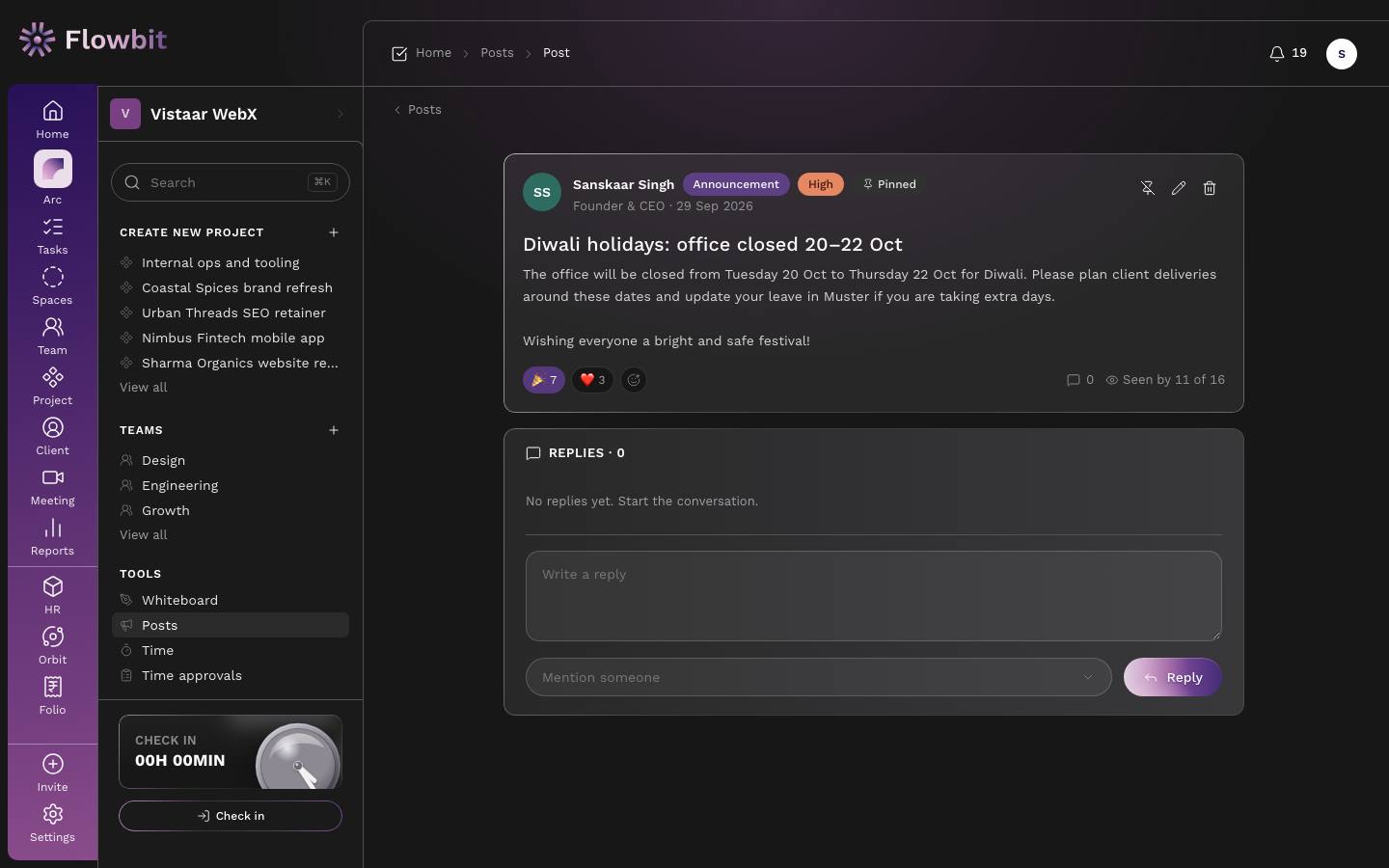
- Read the post and add a reaction if you like.
- Type in Write a reply, optionally pick someone in Mention someone, and click Reply. The author is notified.
- The author and moderators can click the Seen by count to see who has read it and who has not.
Whiteboards
Open: Side panel → TOOLS → Whiteboard/app/work/whiteboardsWho: everyone
Sketch flows and ideas. Boards save to the workspace as you draw.
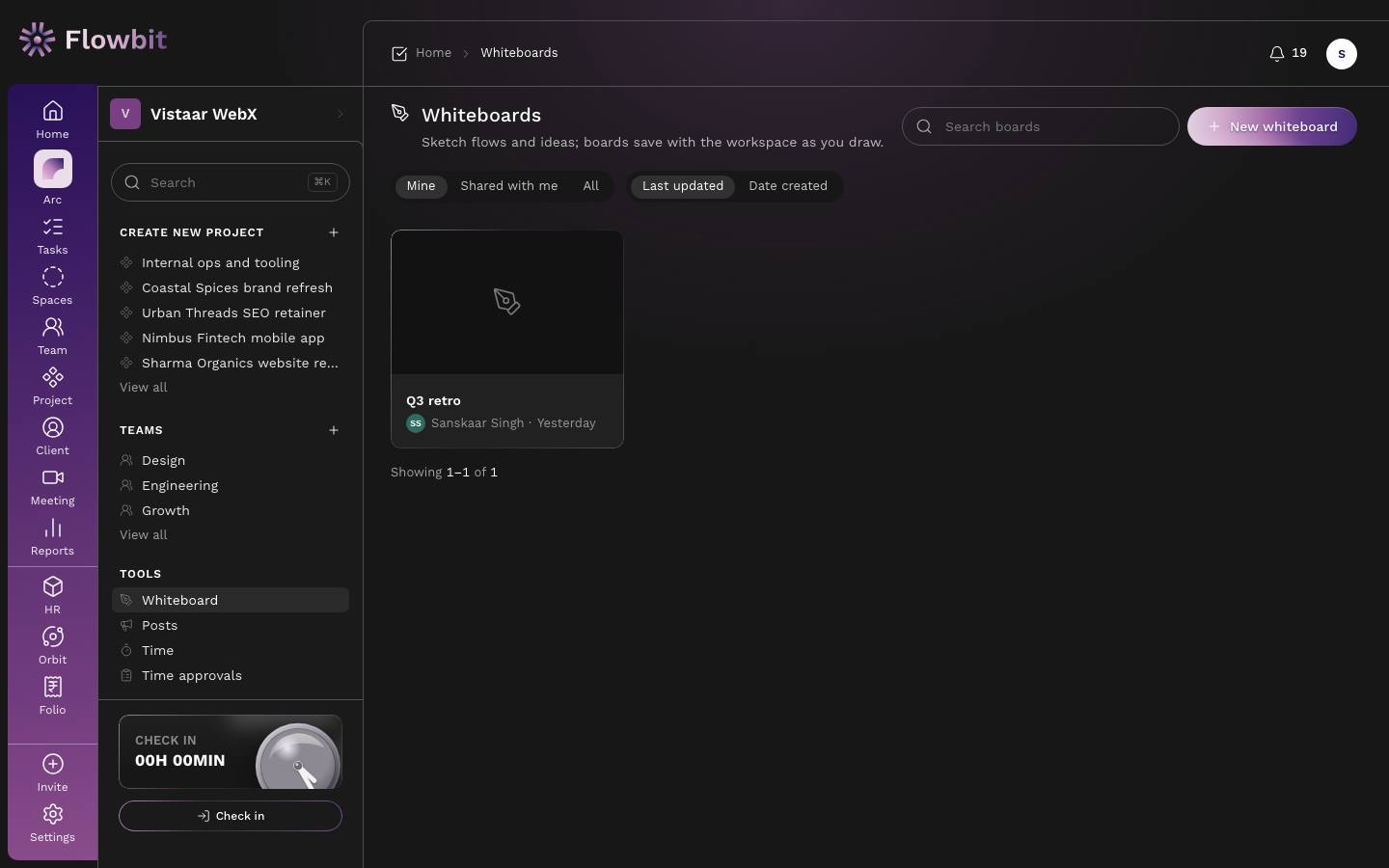
- Click New whiteboard. It opens as "Untitled whiteboard".
- Click the title to rename it.
- From a card's menu: Rename, Share, Duplicate or Delete.
Drawing on a whiteboard
Open: Whiteboards → click a board/app/work/whiteboards/{id}Who: owner and people it is shared with
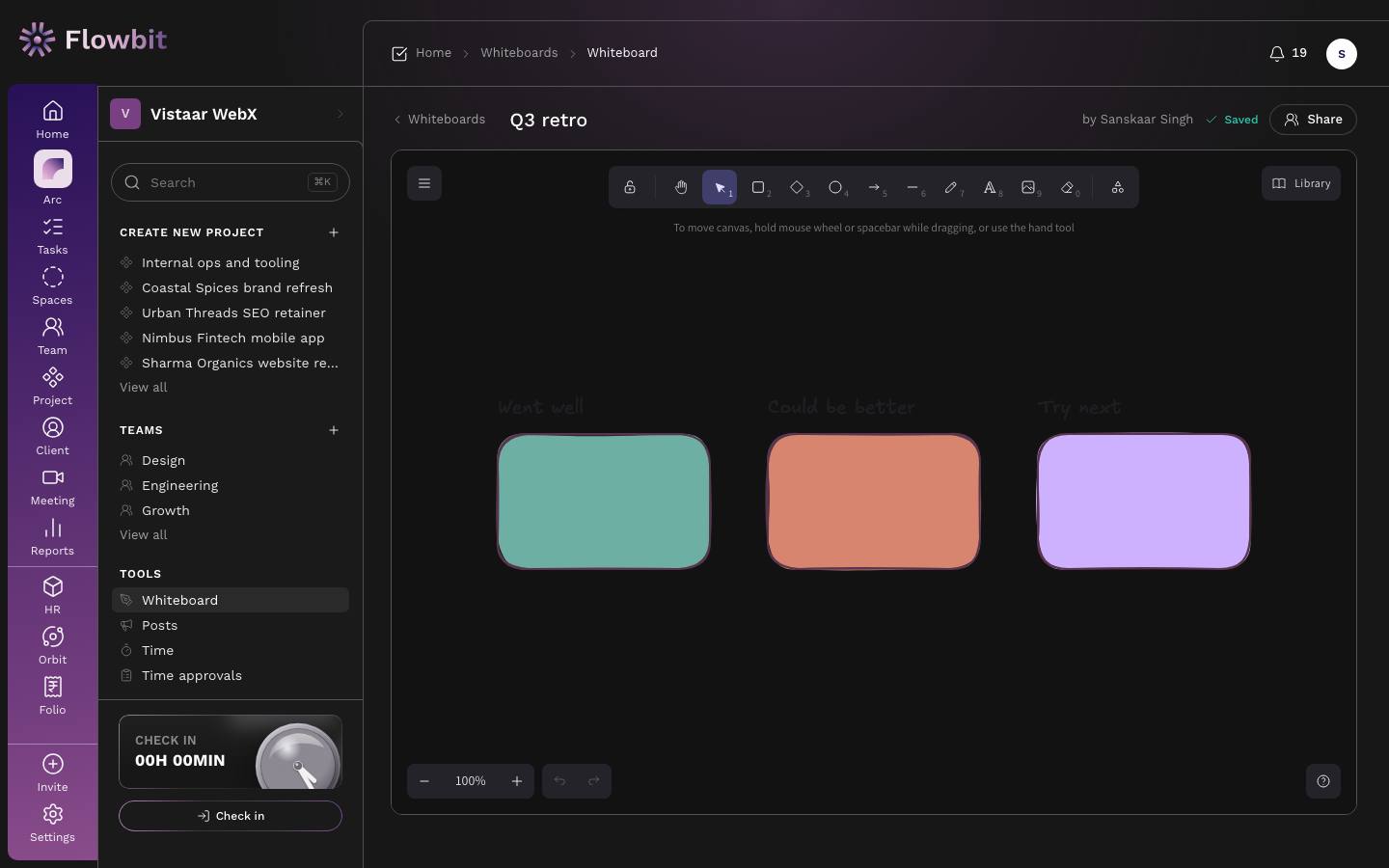
- The toolbar has select, hand (move the canvas), shapes, arrows, lines, pen, text, image and eraser. Zoom and undo are at the bottom left.
- Click Share, pick people and click Save access. Shared people can edit.
One person should edit at a time. If someone else saved first, Flowbit says the board changed elsewhere; click Reload to see the latest. Very large boards with many images cannot be saved.
Time tracking
Open: Side panel → TOOLS → Time/app/work/timeWho: everyone
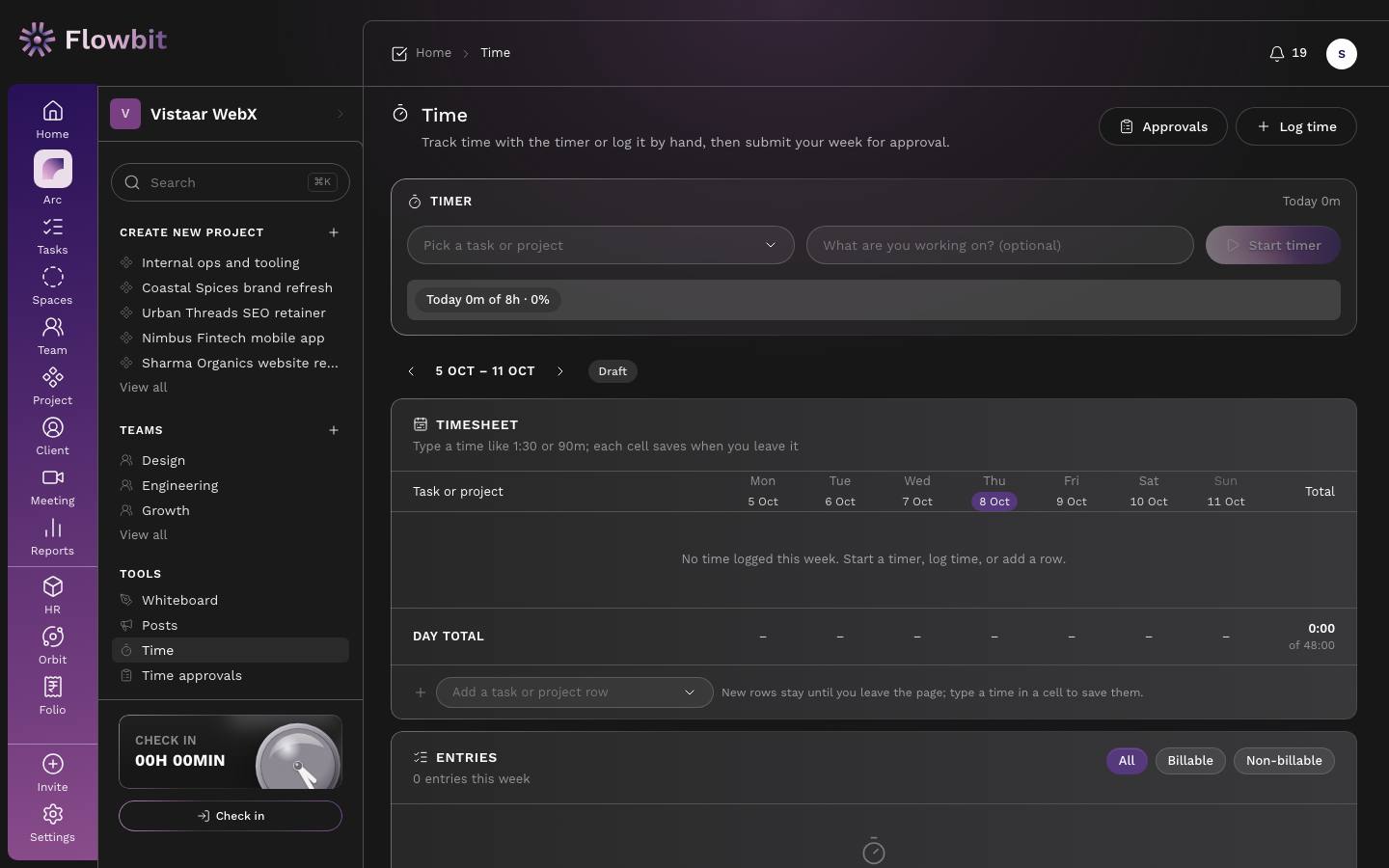
Track time with the timer or log it by hand against a task or project, then submit your week for approval.
Use the timer
- In TIMER, choose a task or project in Pick a task or project.
- Optionally type What are you working on?.
- Click Start timer. The running time shows in the top bar on every page.
- Stop it from the top bar or this card. The time is logged.
Only one timer runs at a time. Starting a new one stops the last and logs it. A running timer cannot be edited or deleted; stop it first.
Log time by hand
- Click Log time.
- Pick the Task or project, the Date and the Time (for example 1:30, 1h 30m or 90m).
- Add a Note, set Billable, and click Log time.
In the weekly grid you can type a time straight into a day cell; it saves when you leave the cell. Use Add a task or project row to add a row.
Submit your week
- Check the DAY TOTAL row against the expected hours (8 hours per working day).
- Click Submit week and confirm. Your approver is notified.
Once submitted, the week is locked. If your manager sends it back, the reason shows on the week and you can edit and submit again. You cannot submit an empty week.
Time approvals
Open: Side panel → TOOLS → Time approvals/app/work/time/approvalsWho: managers of the person, Managers, Admins, Owner
Review submitted weeks, approve them or send them back with a reason.
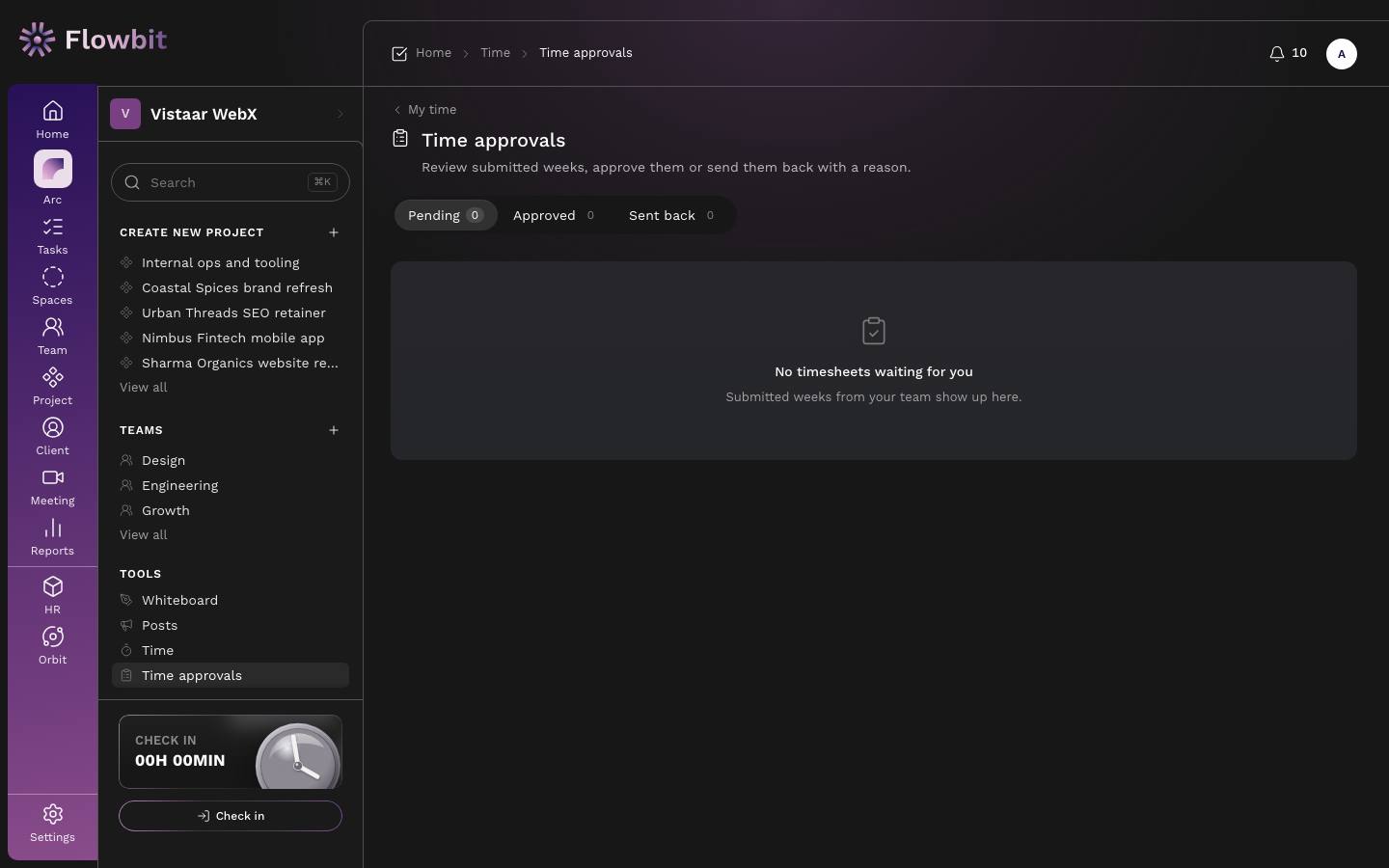
- Open Pending. Each row shows the person, the week, total and billable hours.
- Click Show days to check the day-by-day entries.
- Click Approve, or tick several weeks to approve them together.
- To return a week, click Send back, write what needs fixing (at least 5 characters) and confirm.
A week goes to the person's manager; Owners, Admins and Managers can also approve. Nobody can approve their own timesheet.
Work reports
Open: Rail → Reports/app/work/reportsWho: everyone sees their own scope; Managers, Finance and above see all
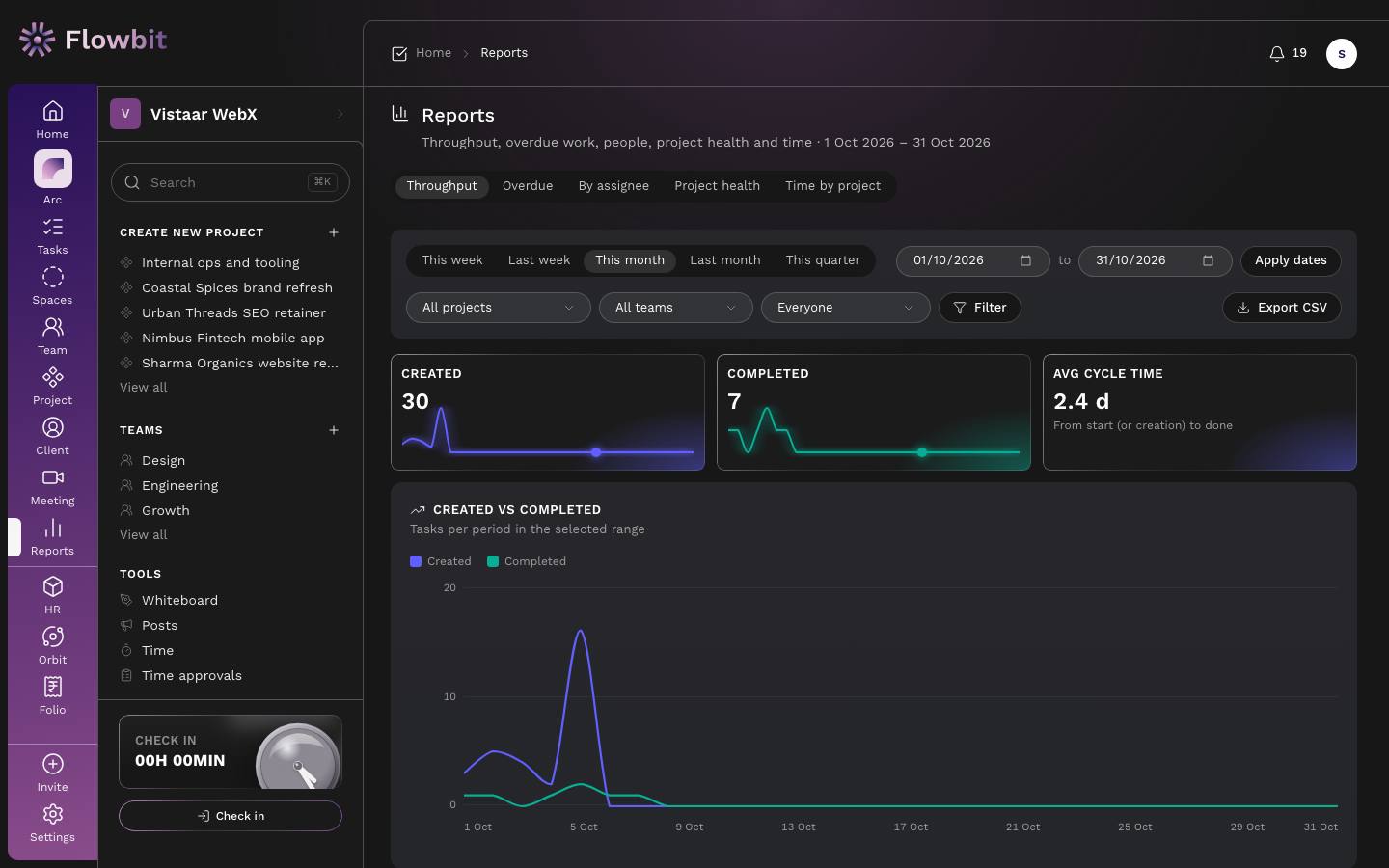
Throughput, overdue work, people, project health and time for a date range.
Run a report
- Pick a tab.
- Choose This week, Last week, This month, Last month or This quarter, or type dates and click Apply dates.
- Narrow by project, team or person, then Filter.
- Click Export CSV to download the section.
| Tab | What it shows |
|---|---|
| Throughput | Tasks created and completed per day, and average cycle time (from start, or creation, to done). |
| Overdue | Open tasks past due today, by age (1–3, 4–7, 8–14, 15+ days), assignee and project. Oldest first. |
| By assignee | Per person: open, completed, overdue, on-time %, average cycle, logged hours and estimate variance. |
| Project health | Every active project's lead, status, health, completion, open, overdue, blocked, schedule and logged time. |
| Time by project | Billable and non-billable hours per project and the people who logged most. Switch to Only approved time if needed. |
Personal tasks are never counted.
Arc assistant
Open: Rail → Arc/app/arcWho: everyone
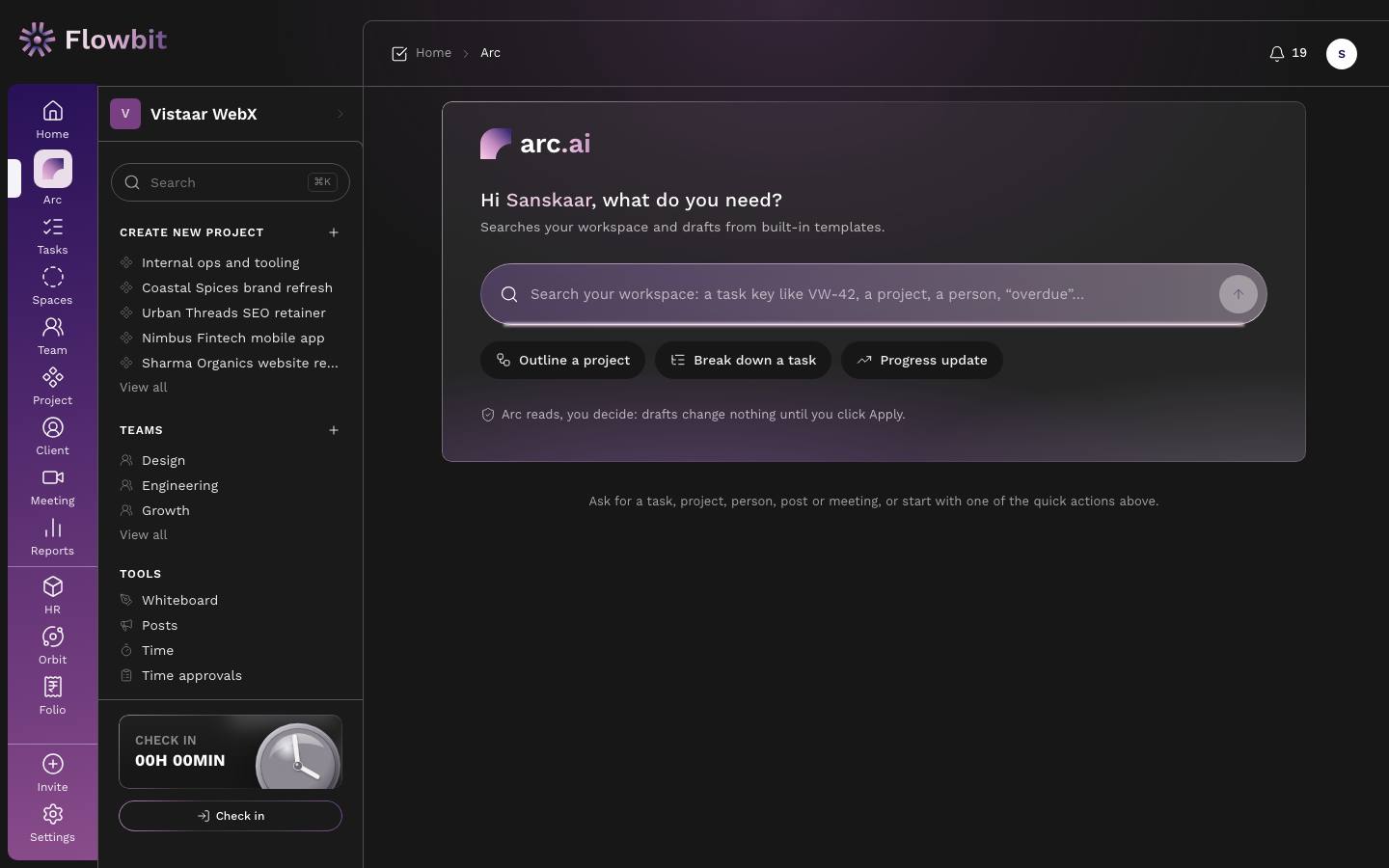
Arc searches your workspace and drafts plans and updates for you. AI reads, people decide: Arc never changes anything on its own. Every draft waits for you to click Apply.
Search the workspace
Type a task key like VW-42, a project, a person, or a word such as "overdue", and press Enter. Results are grouped into Tasks, Projects, Clients, People, Posts and Meetings, and only include what you are allowed to see. An exact task key opens the task.
Outline a project
- Click Outline a project.
- Enter a Project name (or tick Add to an existing project), a Goal in one line and a Start date.
- Click Draft outline. Arc proposes milestones with tasks, estimates and priorities.
- Edit, remove or Add task rows as you like.
- Click Apply to create them, or Discard.
Break down a task
- Click Break down a task and pick an open task.
- Click Suggest subtasks.
- Edit the suggestions and click Apply to add them as subtasks.
Progress update
- Click Progress update, choose the Period (This week or Last week) and what it is About (My work, a project or a team).
- Click Write update. Arc writes it from real data: tasks completed, overdue, blocked, time logged and what is due next.
- Click Copy, or Post as update to share it in Posts.
Each draft says whether it was drafted by Claude or built from a template. If the AI service is not set up or does not answer, Arc uses its built-in templates. The numbers always come from your workspace. Clear history removes your past Arc requests.
Client portal
Turn on: Clients → a client → Contacts → Client portalClient's link: /portal/your-workspaceWho: owners, admins and people who manage clients
Give a client their own sign-in to see their projects, approve work and pay invoices, without a Flowbit seat. It is part of Suite, comes with the client portal add-on, and is on during the 15-day trial. The Free plan does not include it, or any other paid add-on (custom domains, Meetings AI).
- Open the client, go to Contacts, switch the Client portal on and Invite the people at the client who should see it.
- In a project's Settings, switch the Client portal card on to share that project.
- On a task, tick Client can see this, or click Send for approval to ask the client to approve it (the task becomes visible to them).
Clients sign in with a six-digit code sent to their email; there is no password. They see only their own company: shared projects with status, health, progress and milestones, the tasks you made visible, approvals (approve or ask for changes, with a comment), invoices and quotes with Pay now, their statement, and files on shared projects and tasks. Their answers are logged on the task as "name (client)" and you are notified.
The portal carries your logo, name and brand colour, and never opens the rest of Flowbit. Removing a contact signs them out for good.