
Run HR for your whole team
Muster holds every employee record, the daily attendance register, leave, corrections and comp-off, payroll, expense claims, letters and HR reports in one place. HR admins run it day to day, managers approve requests from their own team, and employees use My HR to check in, apply for leave and download payslips.
This first half of the chapter covers people, attendance and leave. Payroll, claims, letters, reports and HR settings follow in the next part.
| Who | What they do in Muster |
|---|---|
| HR admin | Adds and edits employees, marks and locks attendance, decides leave and corrections at the HR stage, adjusts balances, runs payroll and changes HR settings. |
| HR executive | Adds and edits employees, marks attendance and decides leave. Does not see salaries or bank, PAN and Aadhaar details. |
| Manager | Sees their own reporting team and signs the manager stage of their team's leave, corrections and comp-off. |
| Employee | Uses self-service only: check in and out, ask for corrections, apply for leave, see payslips and letters. |
Muster home
Open: Rail → Muster/app/hrWho: HR admin, HR executive, managers
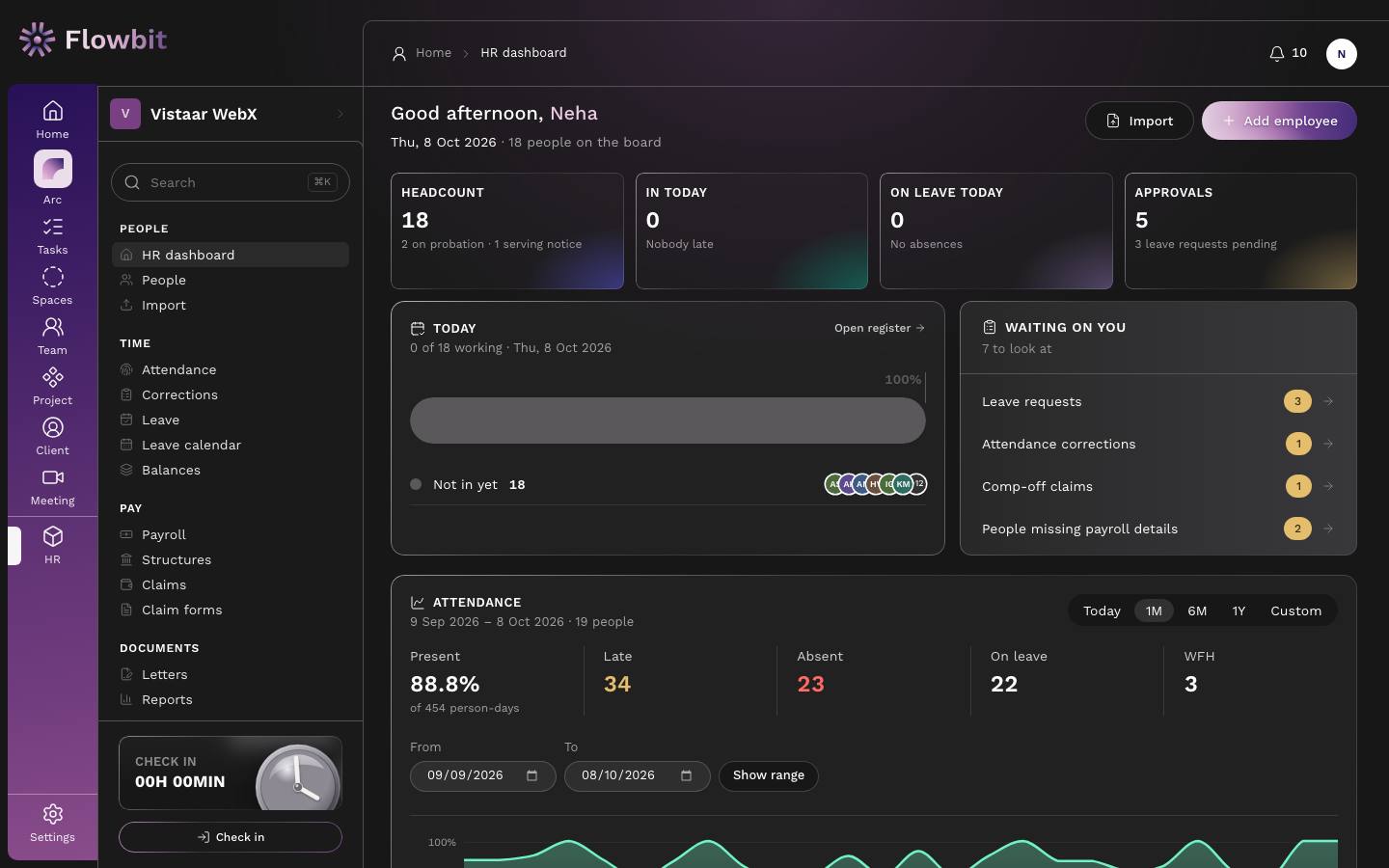
The dashboard is HR's morning view. It tells you who is on the board, who has come in today, who is on leave and what is waiting for your decision.
On this page
- Greeting line: today's date and how many people are on the board (everyone in the directory).
- Import and Add employee buttons for adding people.
- Headcount: people in the directory, with how many are on probation and serving notice. Opens People.
- In today: people marked in today and how many came in late. Opens the attendance register.
- On leave today: people on approved leave or marked absent today. Opens the leave calendar.
- Approvals: everything waiting on you, with the number of leave requests called out. Opens Leave.
- Today: a bar showing how many of the team are In, Remote, Late, on Half day, On leave, Absent or Not in yet, with avatars under each group. Click an avatar to open that person's Attendance tab, or Open register for the full day sheet.
- Waiting on you: one line per queue with a count: Leave requests, Attendance corrections, Comp-off claims and People missing payroll details. Each line opens the right page, already filtered.
- Attendance: present percentage over a range, with counts of Late, Absent, On leave and WFH days, and an area chart per day. Pick Today, 1M, 6M, 1Y or Custom; for a custom range set From and To and click Show range.
- Teams: a donut chart of headcount by department.
- Birthdays & anniversaries: the next 30 days, including work anniversaries in years.
- Joiners & exits: people joining or leaving within 30 days either side of today, marked Joining, Leaving or Left.
Clear your queue each morning
- Open Muster home from the HR side menu.
- Under Waiting on you, click Leave requests and approve or reject each one.
- Come back and do the same for Attendance corrections and Comp-off claims.
- Click People missing payroll details to see who has no salary structure, bank account or PAN. Fix these before the month's payroll.
- Click Open register and mark anyone who has not checked in.
A manager's dashboard counts only their own team's requests. A request shows under "Waiting on you" only when it is at a stage you are allowed to sign.
People directory
Open: HR → People/app/hr/peopleWho: HR, finance, managers (own team)
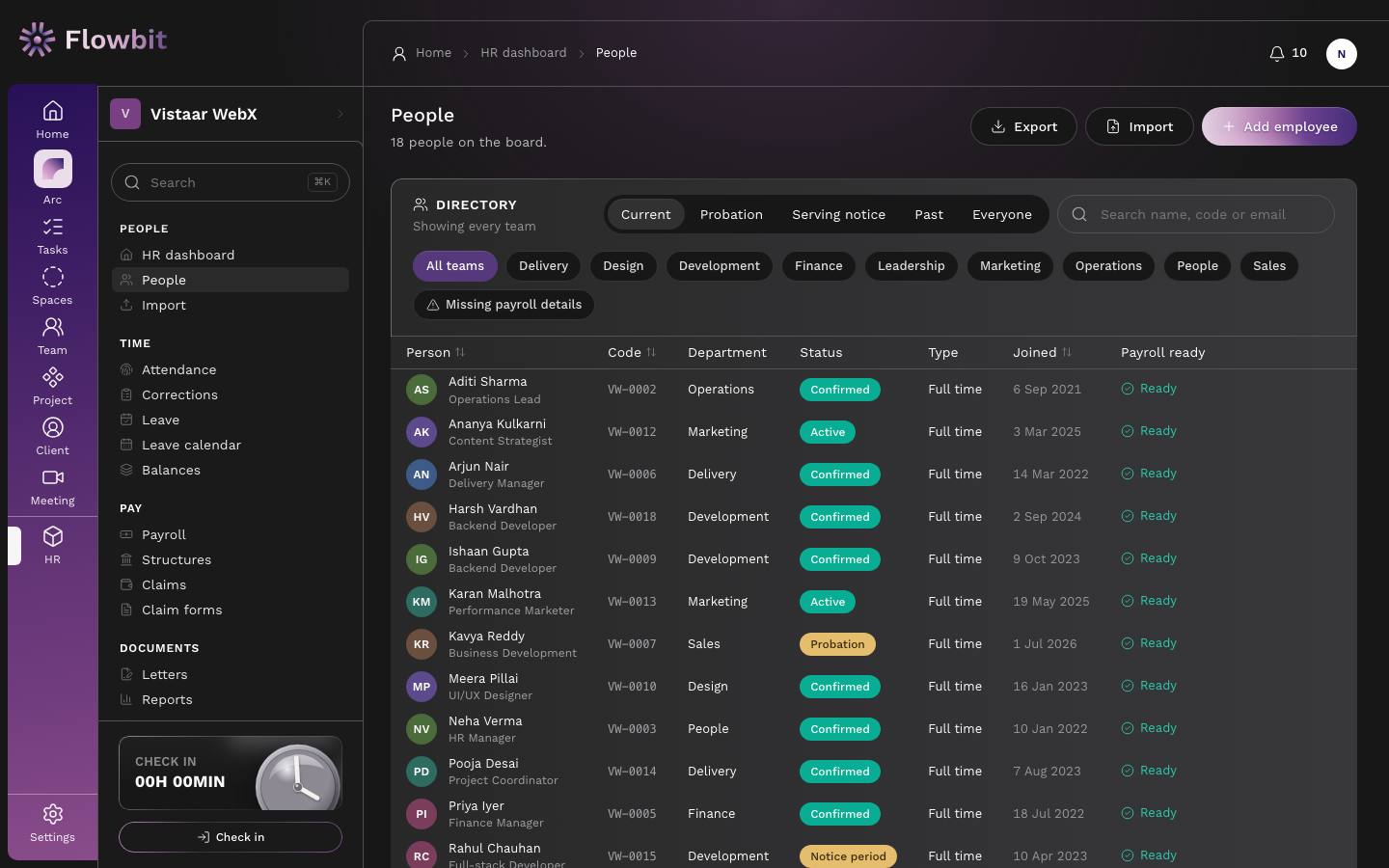
The directory lists everyone on your books. From here you open a profile, add someone, import a spreadsheet or export the list.
On this page
- Export, Import and Add employee at the top right.
- Status tabs: Current (default; everyone in the directory), Probation, Serving notice, Past (people who have left) and Everyone (including people who have not joined yet).
- Search name, code or email.
- Team chips: All teams or one department. Missing payroll details shows only people who are not payroll ready.
- Columns: Person (name and designation), Code, Department, Status, Type, Joined and Payroll ready. Click Person, Code or Joined to sort.
Payroll ready
A person on payroll is Ready when they have a salary structure, a bank account (number and IFSC) and a PAN. Otherwise the column lists what is missing, for example "No bank account, PAN". Payroll skips or flags people who are not ready, so clear these before generating a month.
The 13 employment statuses
Every person has one status. It decides whether they appear in the directory and whether payroll pays them. The status picker groups them by stage.
| Status | Stage | In directory | On payroll | Meaning |
|---|---|---|---|---|
| Candidate | Before joining | No | No | In the hiring process. No offer has been made. |
| Offered | Before joining | No | No | An offer has been issued and is awaiting acceptance. |
| Joining pending | Before joining | No | No | Offer accepted, joining date not yet reached. |
| Intern | Working | Yes | Yes | On an internship with a defined end date. |
| Probation | Working | Yes | Yes | Employed, within the probation period. |
| Active | Working | Yes | Yes | Employed and working normally. |
| Confirmed | Working | Yes | Yes | Probation completed and confirmed in the role. |
| Notice period | Leaving | Yes | Yes | Serving notice. Still working and still paid. |
| Resigned | Leaving | Yes | Yes | Resignation accepted, notice not yet served out. |
| Terminated | Leaving | No | No | Employment ended by the company. Settlement may be pending. |
| Internship completed | No longer here | No | No | Internship finished. Certificate and experience letter are due. |
| Exited | No longer here | No | No | Left the organisation. Records kept for payroll history. |
| Inactive | No longer here | No | No | On the books but not working: long leave, sabbatical, dormant. |
Which status can follow which
Flowbit only offers the moves that make sense. For example, a Candidate can become Offered or Inactive; Joining pending can become Intern, Probation, Active or Inactive; Probation can become Confirmed, Active, Notice period, Resigned or Terminated; Notice period can become Resigned, Exited or Terminated, or go back to Active or Confirmed if the resignation is withdrawn. Terminated can only become Exited, and Exited is final: someone who rejoins gets a new record.
Find a person
- Open People.
- Type part of a name, employee code or email in Search name, code or email, or click a team chip.
- To find someone who has left, click Past or Everyone first.
- Click the person's name to open their profile.
Use Export to download the current list as a spreadsheet for audits or headcount reviews.
Employee profile
Open: HR → People → click a name/app/hr/people/{id}Who: HR, finance, the person's manager
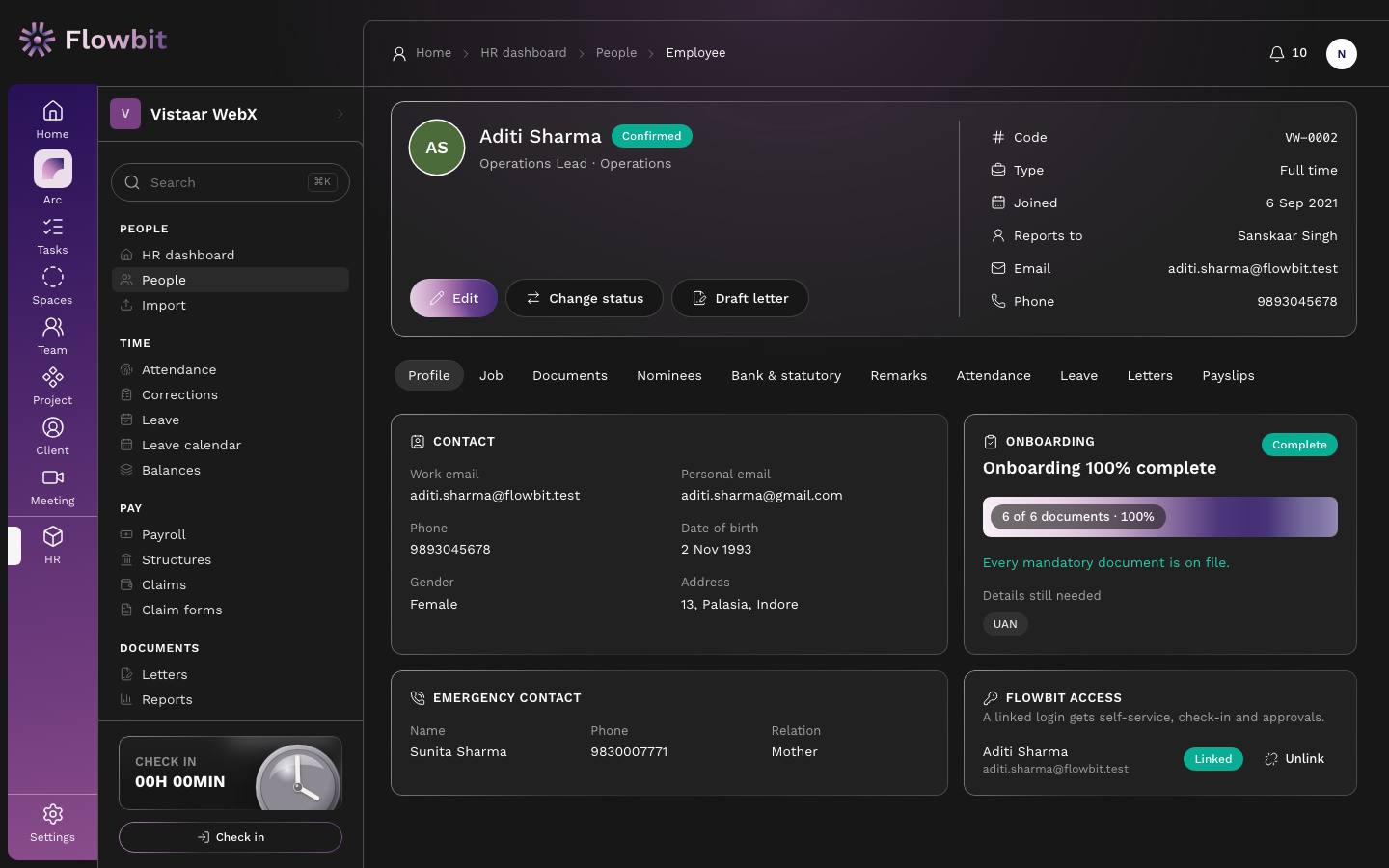
The profile is the full record of one employee: their details, documents, nominees, bank and statutory numbers, notes, attendance, leave, letters and payslips.
Header
- Name, status badge, designation and department.
- Edit opens the edit form. Change status moves the person to a new status. Draft letter starts a letter for them.
- Summary: Code, Type, Joined, Reports to, Email and Phone.
Tabs
| Tab | What it shows |
|---|---|
| Profile | Contact (work and personal email, phone, date of birth, gender, address), Emergency contact, the Onboarding card, Flowbit access, and Exit details once someone is leaving or has left. |
| Job | Role and dates (code, department, designation, reporting manager, joining and original joining date, last working day, work location, type, status, notice period), Statutory coverage (Provident fund, ESI, Professional tax, Overtime) and, for people who may see pay, Current salary with Edit salary. |
| Documents | Marksheets, ID proof and signed letters. Upload PDF or image files; archive a wrong file with a reason. Files are never hard-deleted. |
| Nominees | Who receives PF, gratuity or insurance benefits, with each nominee's share. Shares for one scheme cannot go above 100%. |
| Bank & statutory | PAN, UAN, ESIC number, Aadhaar, PF number, bank, account holder, account number and IFSC, plus the history of bank changes. Changes made in self-service show as Not verified until HR verifies them. |
| Remarks | HR notes about the person, newest first, and an Activity timeline of every change to the record. |
| Attendance | The person's month: working days, payable so far, late days, leave and loss of pay, with the last ten corrections and HR overrides. |
| Leave | Their balances per leave type and their last twenty requests. |
| Letters | Offer, confirmation and experience letters issued to them, with Draft a letter. Letters that state pay are locked for people who cannot see salaries. |
| Payslips | One payslip per payroll month, marked Published or Not published. |
Bank, PAN, Aadhaar, UAN and nominee details are shown only to roles allowed to see sensitive details. Salary is shown only to roles that can see payroll.
The Onboarding card
The card shows how many mandatory joining documents are on file (by default Aadhaar card, PAN card, 10th and 12th marksheets, college marksheet or degree, and bank passbook or cancelled cheque) and lists Details still needed, such as UAN or an emergency contact. Nobody ticks this list; it fills itself as documents are uploaded and details are saved.
Link a login (Flowbit access)
A person with a linked login gets self-service, check-in and approvals. Their check-ins then feed the attendance register.
- On the Profile tab, find the Flowbit access card.
- If it says Not linked to a login, choose a member under Link an existing member… and click Link.
- To remove the link, click Unlink. Their login stays, but it stops showing this employee record and their check-ins stop feeding the register.
Change someone's status
- Click Change status.
- Pick the New status. Only allowed moves are listed.
- For Notice period or Resigned, enter the Resignation date. Notice is counted from this date.
- For Exited, Terminated or Internship completed, enter the Last working day (it may be in the future) and why they are leaving.
- Click Change status or Record exit.
Someone cannot start work (Intern, Probation or Active) until enough joining documents are in, 60% of the mandatory list by default. An HR admin can still start them by filling in Start anyway: why?. The reason and the missing documents are kept in the audit log.
Nobody can change their own status or exit date. Ask another HR admin or the owner.
Add an employee
Open: People → Add employee/app/hr/people/newWho: HR admin, HR executive
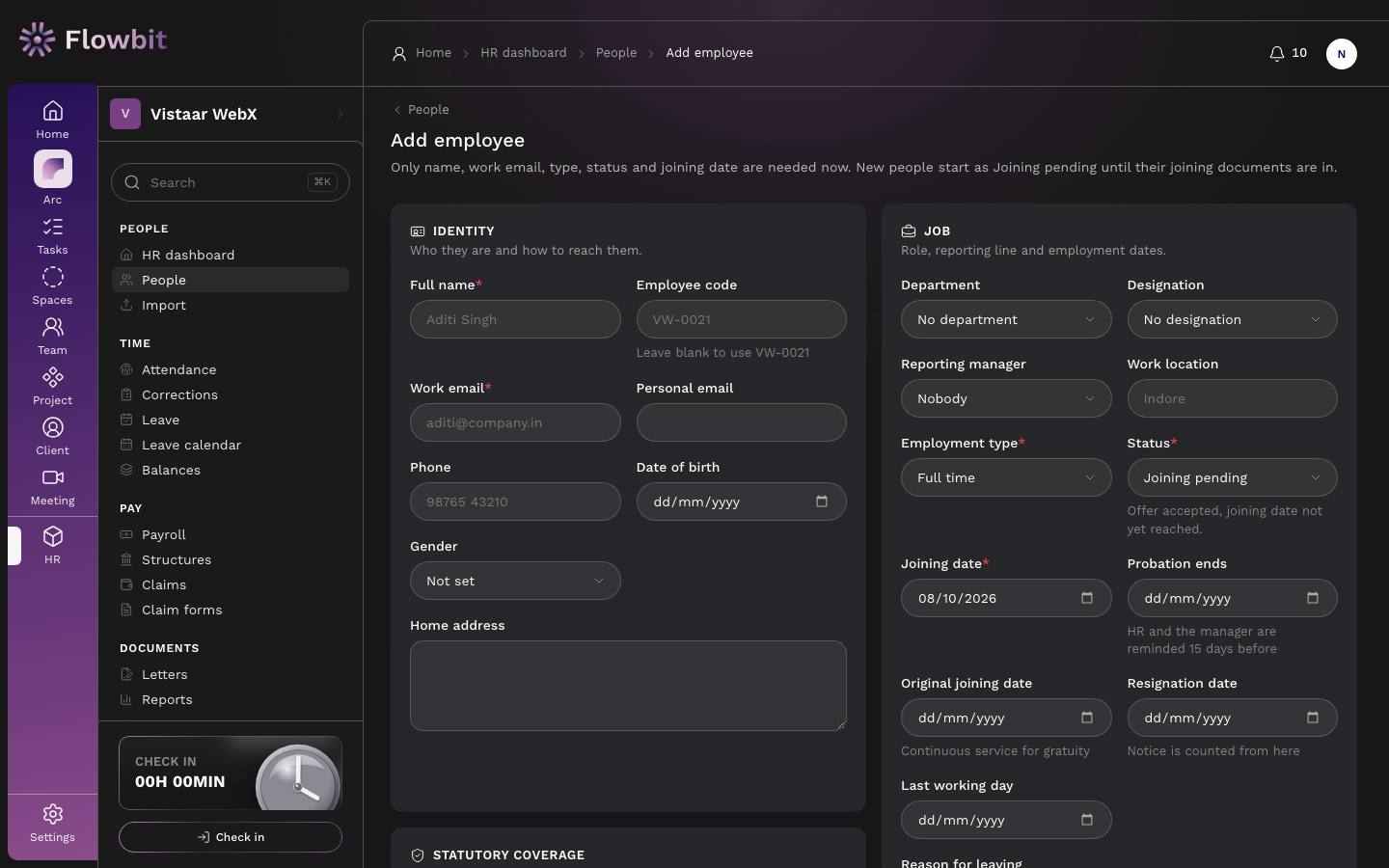
Use this form to add one person. Only five fields are needed now; the rest can be filled in as documents arrive.
Form sections
| Section | Fields |
|---|---|
| Identity | Full name*, Employee code (leave blank to use the next code, for example VW-0021), Work email*, Personal email, Phone, Date of birth, Gender, Home address. |
| Job | Department, Designation, Reporting manager, Work location, Employment type* (Full time, Part time, Intern, Contract), Status*, Joining date*, Probation ends, Original joining date, Resignation date, Last working day, Reason for leaving, Notice period (days), Start before documents are in, Professional tax state. |
| Statutory coverage | PF covered, ESI covered, PT exempt, Overtime eligible. |
| Emergency contact | Name, Phone, Relation. |
| Bank & statutory | PAN, UAN, ESIC number, Aadhaar, PF number, Bank, Account holder, Account number, IFSC. Shown only to people who may see these details. |
| Notes | Anything HR should know. |
Add someone
- Click Add employee on the Muster home or People page.
- Enter Full name and Work email. Leave Employee code blank unless you use your own codes.
- Pick Department, Designation and Reporting manager. The manager is who signs their leave and corrections first.
- Choose Employment type and check Status. New people start as Joining pending.
- Set the Joining date. If they are on probation, set Probation ends; HR and the manager are reminded 15 days before.
- Set Professional tax state and tick PF covered, ESI covered or PT exempt as they apply. Payroll deducts PF, ESI and PT only where these say so.
- Fill in the emergency contact and, if you have them, PAN and bank details.
- Click Add employee. Their profile opens.
Use Original joining date only when service is continuous from an earlier date, for example after a transfer. Gratuity is counted from it. Leave Notice period (days) blank to follow your notice policy (by default 7 days for interns, 30 for probation and 90 for confirmed staff).
If you do not tick PF covered or ESI covered, payroll will not deduct PF or ESI for that person. Check these for every new joiner.
Edit an employee
Open: Profile → Edit/app/hr/people/{id}/editWho: HR admin, HR executive
The edit form has the same sections as Add employee, filled with the person's current details. Every change is recorded in the audit log.
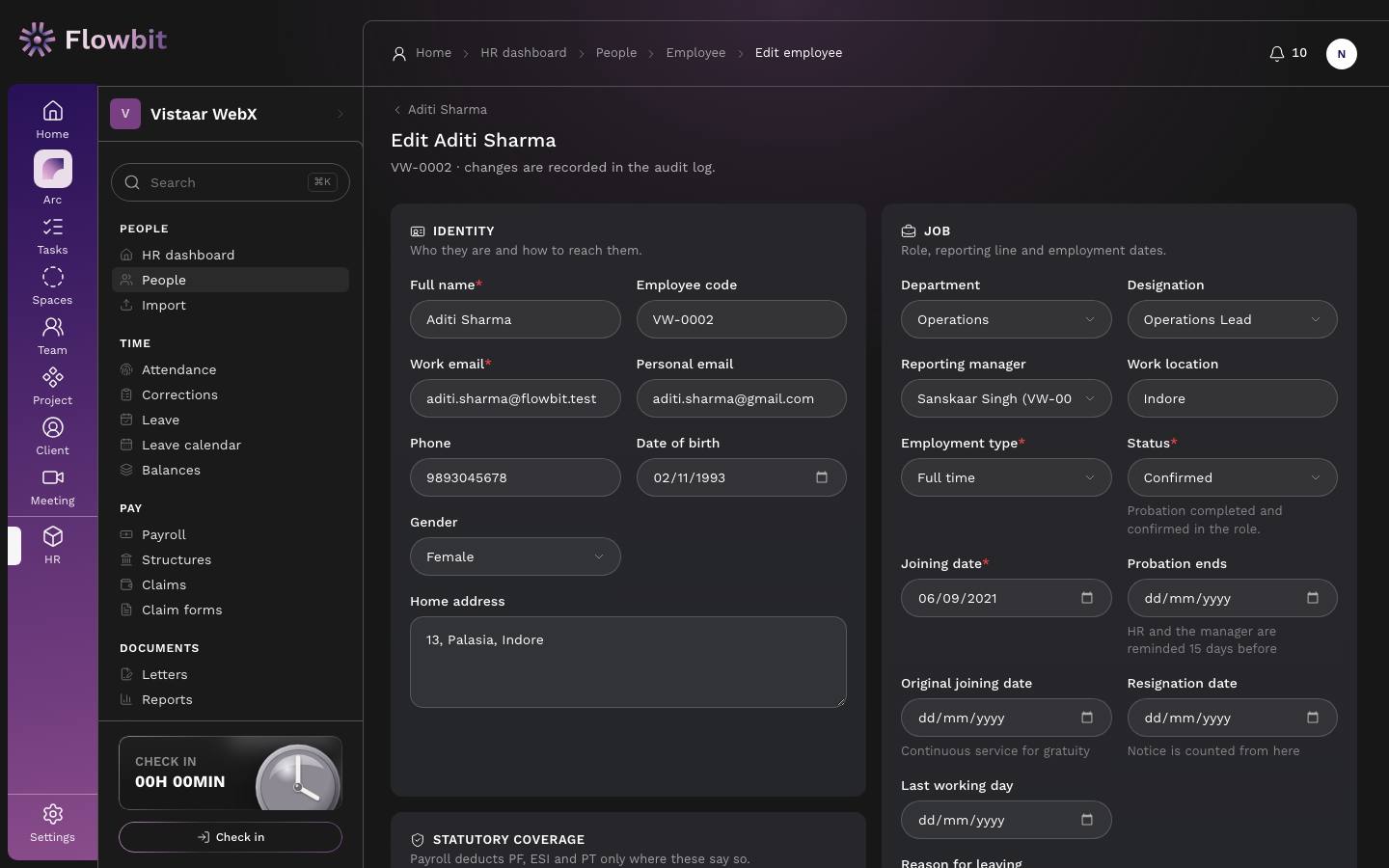
Edit details
- Open the person's profile and click Edit.
- Change what you need, for example a new Reporting manager or a corrected Phone.
- To record a resignation, set Status to Notice period and fill in Resignation date. For an exit, also fill in Last working day and Reason for leaving.
- Click Save changes, or Cancel to leave without saving.
A work email or employee code can belong to only one person. If you enter one that is taken, Flowbit names whose record already holds it. A date of birth that makes someone younger than 14 is refused.
When HR changes bank details here, verify them with the person before the next payroll run. Bank changes made by the employee in self-service appear on the Bank & statutory tab for you to verify.
Import employees from a spreadsheet
Open: Muster → Import or People → Import (both open Settings → Import → Employees)/app/settings/import/employeesWho: HR admin
Bring in your whole team at once from a CSV file. Every row is checked first, and nothing is saved until you import.
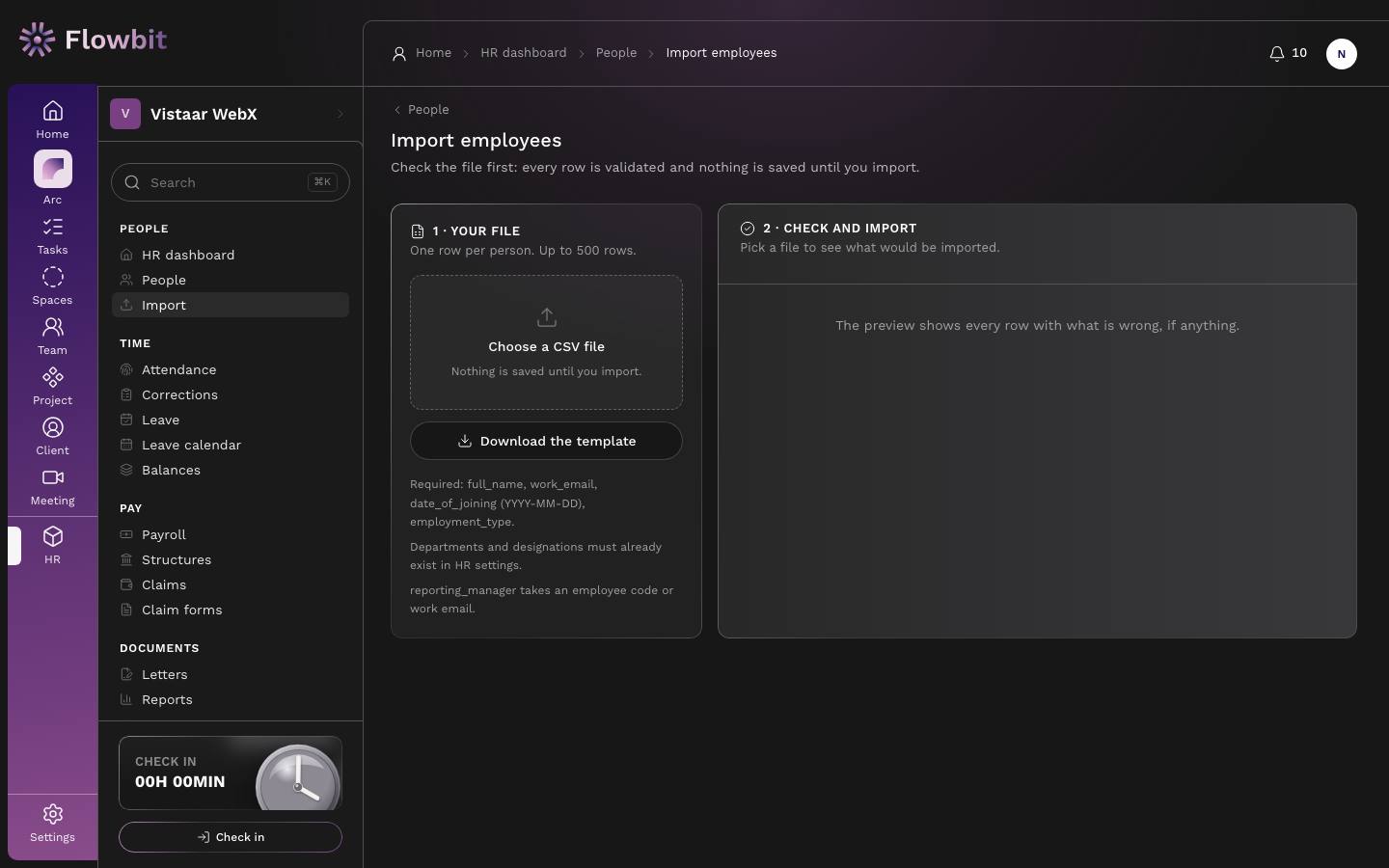
File rules
- One row per person, up to 500 rows, file up to 3 MB (the same limits as every importer; see the FAQ for the full table).
- Required columns:
full_name,work_email,date_of_joining(YYYY-MM-DD) andemployment_type(full_time, part_time, intern or contract). - Optional columns:
employee_code,personal_email,phone,gender,date_of_birth,employment_status,exit_date,department,designation,reporting_manager,work_location,pt_state,pan,uan,aadhaar,esic_number,bank_name,bank_account_holder,bank_account_number,bank_ifsc,emergency_contact_name,emergency_contact_phone,emergency_contact_relation,notes. - Departments and designations must already exist in HR settings.
reporting_managertakes an employee code or work email.- A blank
employee_codegets the next code. A blank status means the person starts as Joining pending.
Import your team
- Click Download the template and fill it in, one person per row. Save it as CSV.
- Click Choose a CSV file and pick your file. Flowbit checks every row.
- Read the preview under 2 · Check and import. Each row shows its Line, Person and Result: Ready, or what is wrong.
- Fix rows with errors in your spreadsheet and choose the file again, or go ahead with the rows that are ready.
- Click Import N people. Only the ready rows are saved.
Errors stop a row: a missing name, work email or joining date; an email or code already used (in Flowbit or earlier in the same file); a date that is not a real day; an unknown department, designation, status or manager. Warnings do not stop a row: a PAN, UAN, IFSC or account number that does not look right is left out, and an account number without an IFSC is flagged because it cannot be paid. Extra columns are ignored and listed.
Salary columns are not imported here. Add salaries afterwards in Payroll → Salary structures.
Attendance register
Open: HR → Attendance/app/hr/attendanceWho: HR admin, HR executive; managers read their team
The register is the record payroll reads. Check-ins from linked logins fill it on their own; HR marks anyone who did not check in and corrects days that are wrong. At month end you lock it so payroll can run.
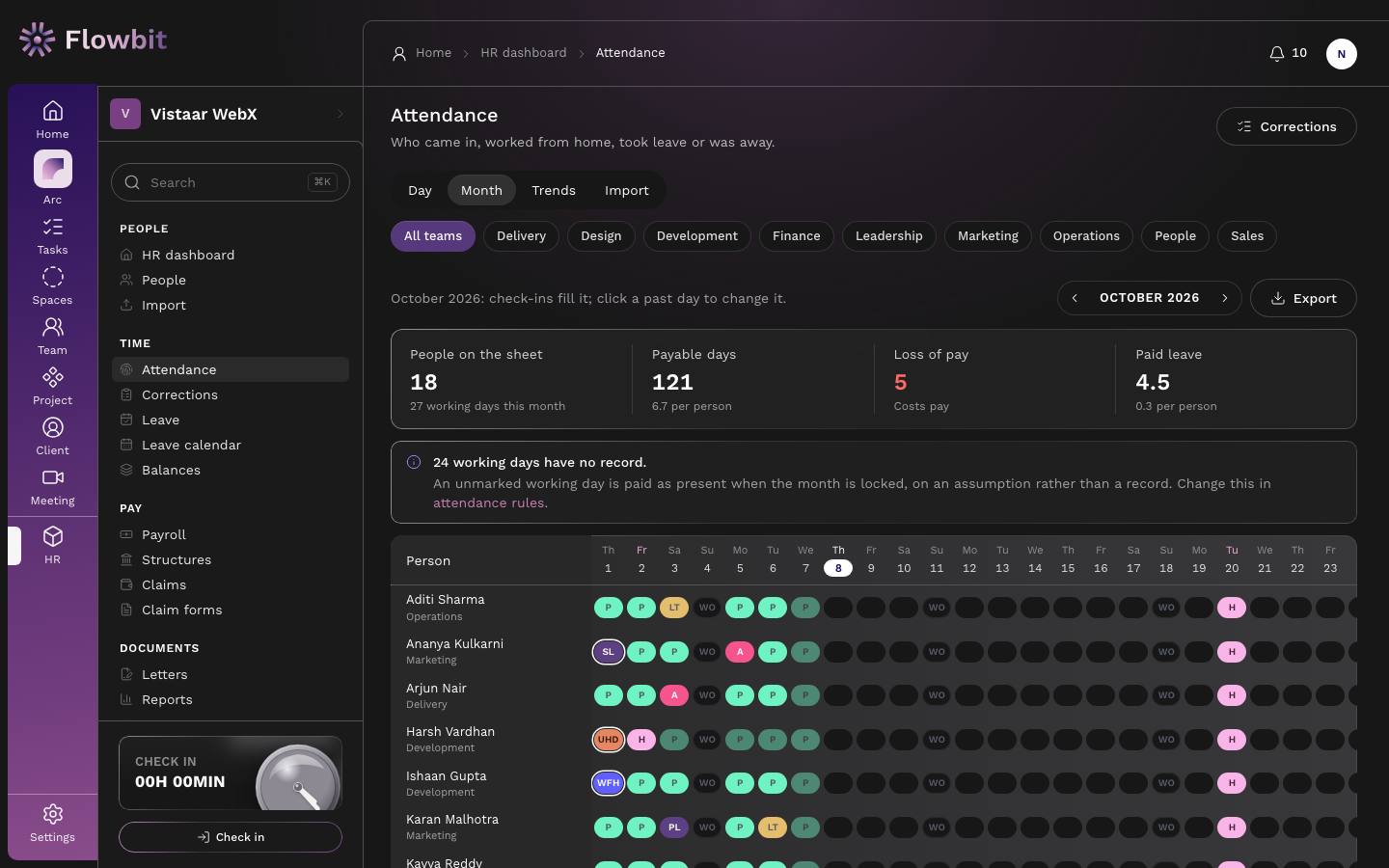
On this page
- Day picker (top right): step to the previous or next day, or type a date. Future days cannot be opened.
- Corrections: opens the corrections and comp-off queue.
- Tabs: Day (one day, everyone), Month (the full grid), Trends (charts over a range, with CSV export) and Import (load marks from a spreadsheet or another system).
- Team chips: All teams or one department.
Month view
Click Month to see everyone's whole month as a grid: one row per person, one column per day. Each cell shows a short code, and the row ends with that person's payable days.
- Figures across the top: People on the sheet (with working days this month), Payable days, Loss of pay (red when someone loses pay) and Paid leave, each with a per-person average.
- Cell codes: P Present, WFH Work from home, LT Late, HD Half day, UHD Unpaid half day, OD On duty, PL Paid leave, SL Sick leave, LOP Loss of pay, A Absent, H Holiday, WO Week off, ? Not marked yet. A cell with a white ring was set by HR. A faded cell is assumed, not marked.
- Hover a holiday column to see the holiday's name. Use the month switcher to move between months and Export to download the month as CSV.
Change one day in the month grid
- Open Month and click a past day in the person's row.
- The dialog shows what the day is now and where it came from (check-in, approved leave or set by HR).
- Under Mark the day as, pick the status.
- Type a Reason, for example "Forgot to check in; was at the client site". A reason is required and kept in the audit log.
- Click Save. To undo an earlier HR change, click Remove override; the day goes back to what the check-ins say.
Lock the month
Locking freezes the month for payroll. Nobody can change its attendance, or check in for it, until it is reopened.
- Open Month on the month you want to close, after its last day.
- Review rows with LOP and any days that have no record.
- Click Lock month and confirm. The month shows a Locked badge with who locked it and when.
- If a mistake turns up later, click Reopen month, answer Why reopen it? and confirm. Regenerate that month's payroll once the corrections are in.
Lock only when the month is complete. Payroll uses the locked numbers, and every unmarked working day is treated by your unmarked-day rule (see below). Only a role that sees the whole company can lock or reopen.
Import punches from a biometric device
Open Import and choose From a biometric device to load the raw punch log from an eSSL / eTimeTrackLite or ZKTeco machine (attlog.dat, or its CSV or Excel export), or any file with a user id and a punch time. Up to 50,000 punches and 3 MB per file.
- Choose the export. The format is detected from the file; change Format, or pick the user id and time columns by hand, then click Check again.
- Punches are grouped per person and day (IST). The first punch is the in time and the last is the out time; repeats within 2 minutes are ignored, and a single punch is flagged missing out. Punches after midnight and before the Night shift cutoff (04:00 unless you change it) count for the day before.
- Device ids are matched to the Biometric device id on each profile, then to the employee code. Any id that matches nobody is listed: choose the person and click Save. The id is saved on their profile, so the next import maps it by itself.
- Read the preview. Each day shows in and out, the status worked out from the times (by the same rules as a check-in), and any warnings. Days in a locked month, before joining or after leaving are refused.
- Click Write N days. Like the template import, it can be undone from Settings → Import for 7 days.
Set the device id on a profile under Edit → Job → Biometric device id, or add a biometric_id column when you import employees.
Daily attendance sheet
Open: Attendance → Day/app/hr/attendanceWho: HR admin, HR executive
The Day view is the quickest way to mark a whole team. Tap a status and it saves at once.
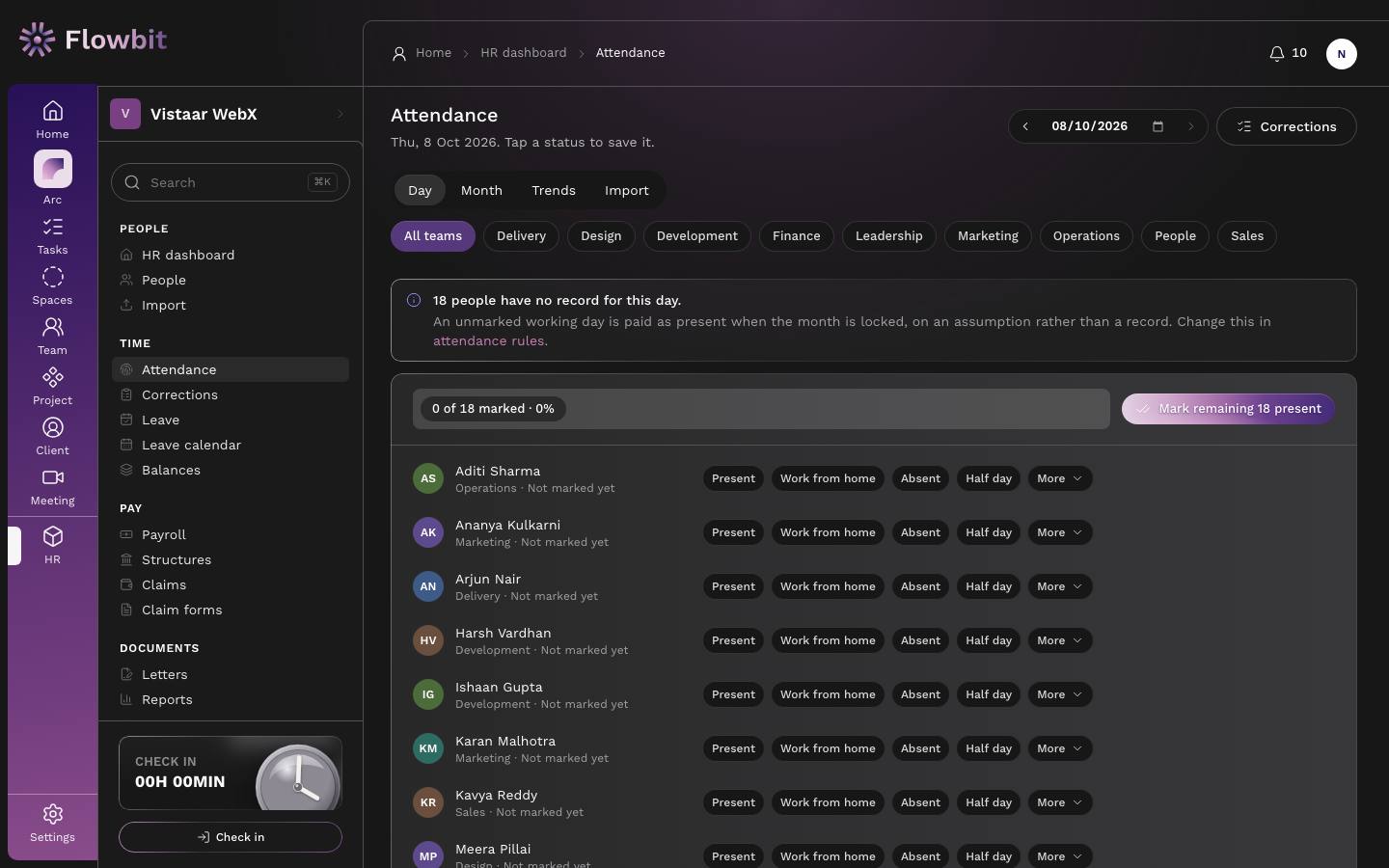
Mark today
- Open Attendance. It opens on today. Use the arrows or the date box to open another past day, then click Go.
- For each person, tap Present, Work from home, Absent or Half day.
- For anything else, open More: Paid leave, Sick leave, Unpaid half day, Week off, Holiday or On duty.
- When the exceptions are done, click Mark remaining N present to mark everyone left as present in one go.
- Watch the progress bar ("12 of 18 marked") until every working person is marked.
- Half day: worked half the day; the other half is paid leave.
- Unpaid half day: worked half the day; the other half is not paid.
- On duty: working away from the office, for example at a client.
- Week off: a weekly off that is not in your work week, for example an alternate Saturday.
Changing a day that already has a record (a check-in, approved leave or an earlier HR mark) asks for a reason, which is kept in the audit log. A locked month is read-only.
The note at the top ("18 people have no record for this day") also tells you what happens to unmarked days under your rules. Follow the attendance rules link to change it.
How attendance is counted
Payroll pays for payable days out of the month's working days. These rules decide both.
One status per person per day
Flowbit picks the day's status in this order, and the first one that applies wins:
- A change made by HR (override or approved correction).
- Approved leave.
- The person's check-ins and check-outs.
- The calendar: a holiday or weekly off.
- Days still ahead are shown as upcoming and not counted.
- Your unmarked-day rule.
Late, half day and absent from check-ins
- Late: the first check-in is after office start time plus the grace period. With the default hours (10:00 to 19:00, 15 minutes' grace) a check-in at 10:16 is late. A late day is still paid in full; it is counted so you can see patterns.
- Half day: the person checked out after working less than the half-day hours (4.5 hours by default). This counts as an unpaid half day: half a day of pay and half a day of LOP.
- Absent: a working day with no check-in and no other record, once the day has passed.
What each status pays
| Status | Pays |
|---|---|
| Present, Late, Work from home, On duty | Full day |
| Paid leave, Sick leave, Half day (other half paid leave) | Full day |
| Holiday, Week off | Full day |
| Unpaid half day | Half day (0.5 LOP) |
| Absent, Loss of pay (leave not covered by balance) | Nothing (1 LOP) |
Working days and loss of pay
- Working days are every day of the month that is not a weekly off. Holidays stay in the count, so an absence costs the same in a month with holidays.
- For each working day, LOP is the part of the day that is not paid: 1 for Absent, 0.5 for an unpaid half day.
- Someone who joins or leaves mid-month is paid only for the days they were employed, but the divisor is the whole month's working days. Days before joining or after leaving show as not applicable.
Unmarked days
Your attendance rules say what happens to a past working day with no record at all:
- Present (default): paid as present when the month is locked, on an assumption rather than a record. Assumed days look faded.
- Absent: counts as absent when the month is locked, and costs a day's pay.
- Pending: not treated as worked, and the month cannot be locked until every day has been marked.
Corrections and comp-off
Open: HR → Corrections/app/hr/attendance/correctionsWho: HR admin, managers (own team)
Days employees asked to fix, and days off they worked. Managers sign first, then HR.
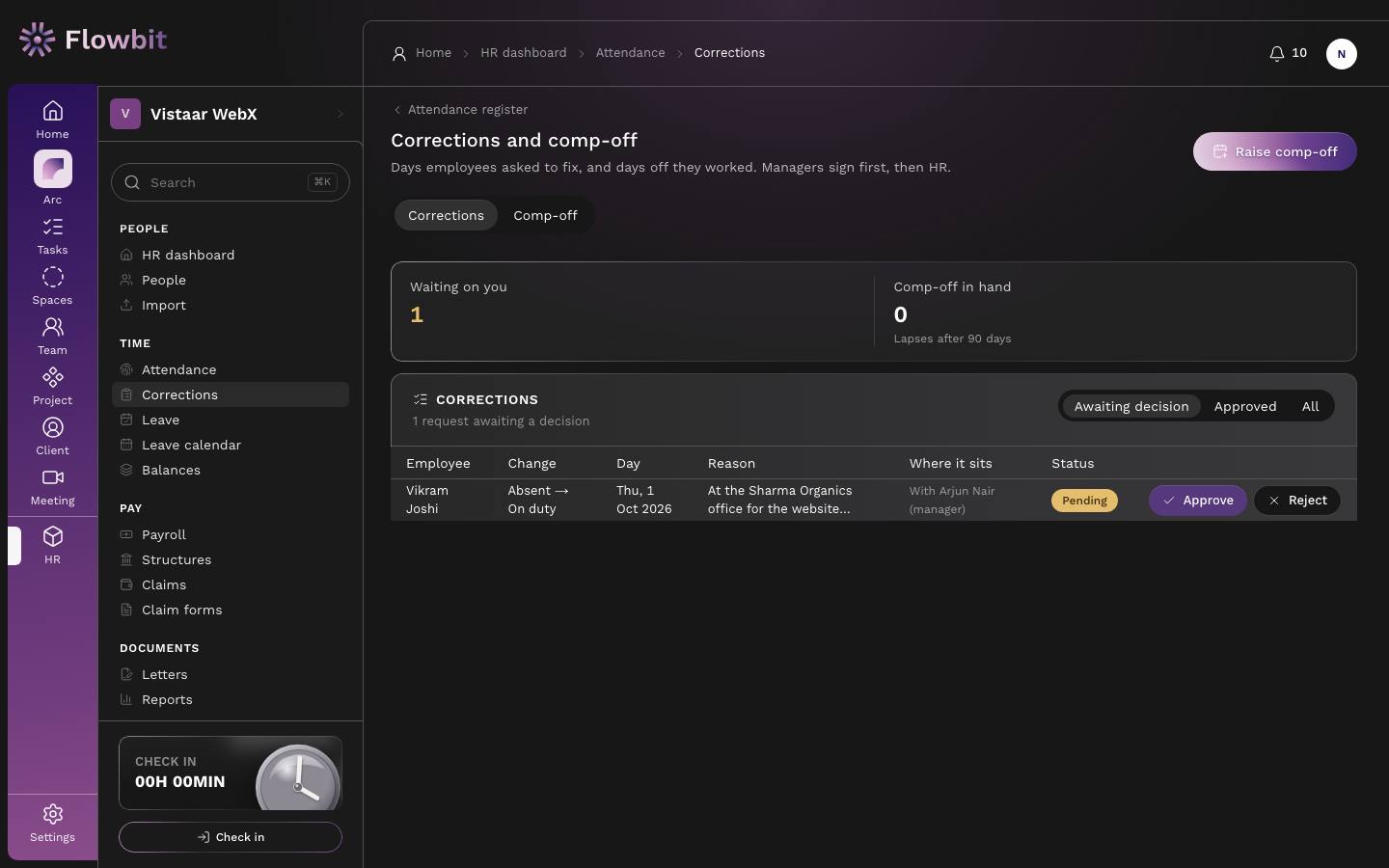
On this page
- Corrections and Comp-off tabs, and Raise comp-off.
- Tiles: Waiting on you and Comp-off in hand (approved comp-off not yet used; lapses after 90 days by default).
- Status filter: Awaiting decision, Approved, All.
- Columns: Employee, Change (for example "Absent → On duty"), Day, Reason, Where it sits, Status, and Approve / Reject when it is your turn.
Corrections
Employees ask for a correction from their own attendance page when a day is wrong, for example they forgot to check in. They can ask for Present, Work from home, On duty or Half day, for a past day within 15 days. Leave is not a correction: it spends a balance, so it goes through the leave screen.
- Open Corrections and stay on Awaiting decision.
- Read the Change, Day and Reason. Check the register if needed.
- Click Approve, or Reject and add a note explaining why.
- On the final approval the day is updated on the register. If the month is locked, reopen it first.
Comp-off
A comp-off is a day of leave earned by working on a weekly off or a holiday. A full day worked earns 1 day; a half day earns 0.5. The day must already be marked as worked on the register, and it must have been an off day.
- Click Raise comp-off.
- Choose the employee (HR can raise for anyone they can see; others raise for themselves).
- Enter the Day worked and What was the work?.
- Click Send for approval. It follows the same manager-then-HR route as leave.
- Once approved, the days appear in the Comp-off column of Leave balances and can be taken as Comp-off leave.
Overtime is not claimed on this page. The Overtime eligible flag on the employee form records who is eligible.
Leave requests
Open: HR → Leave/app/hr/leaveWho: HR admin, HR executive, managers (own team)
Requests waiting on you come first. Approved leave lands on the attendance register by itself.
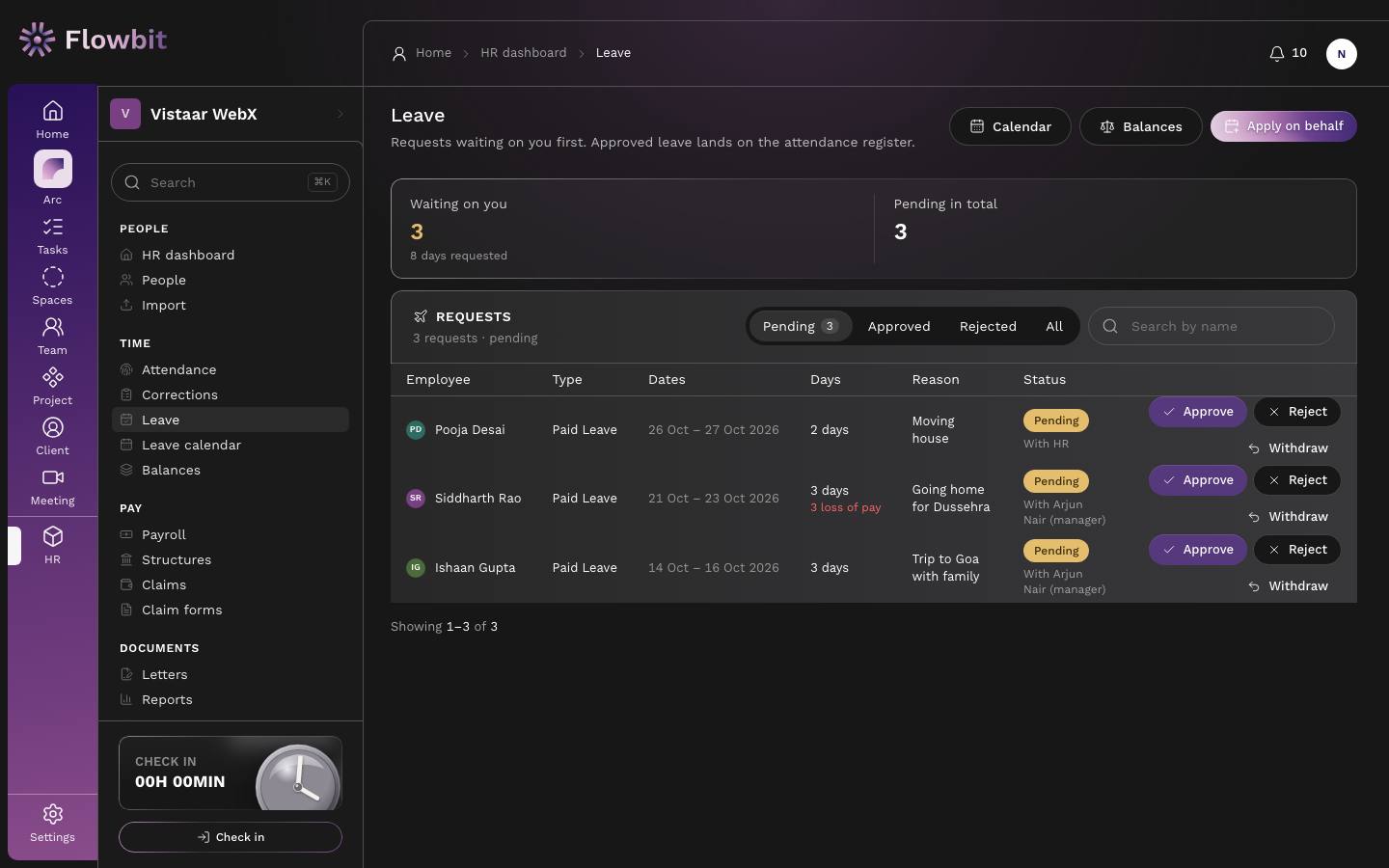
On this page
- Calendar, Balances and Apply on behalf.
- Tiles: Waiting on you (with days requested) and Pending in total.
- Tabs: Pending, Approved, Rejected, All, and Search by name.
- Columns: Employee, Type, Dates, Days (with any loss of pay), Reason, Status with where it sits (for example "With Arjun Nair (manager)" or "With HR"), and the actions.
Who approves
- A request goes to the person's reporting manager first, if they have one whose login can approve leave.
- It then goes to HR. HR's stage needs a role that approves leave and sees everyone.
- If the applicant could sign the HR stage themselves (for example the HR manager's own leave), the second stage goes to management instead, so nobody approves their own leave.
- A rejection at any stage ends the request. An approval moves it to the next stage, and the last approval settles it. The employee is told when it is settled.
Approve or reject
- Open Leave. Requests you can decide show Approve and Reject.
- Check the Days column. Days the balance does not cover are shown as loss of pay.
- Click Approve. If you are the manager, it moves on to HR. If you are the last stage, the days are marked on the attendance register.
- To refuse, click Reject, write Why this cannot be approved and confirm. They are told, with your note.
Apply on someone's behalf
- Click Apply on behalf.
- Choose the Employee and Leave type.
- Set From and To, or tick Half day (it starts and ends on the same date).
- Enter a Reason. Attach a Supporting document if the leave type needs one, such as a medical certificate.
- Click Send for approval. It follows the same route as if the employee had applied.
Withdraw a request
Click Withdraw on a pending request to cancel it, for example when the employee's plans change. Only pending requests can be withdrawn.
How days are counted: weekly offs and holidays inside the range are skipped, and a half day counts as 0.5. For paid leave types, the days are split against the balance: what the balance covers is paid, the rest becomes loss of pay.
Leave in a locked attendance month cannot be approved. Reopen that month first, approve, then lock it again and regenerate payroll if it was already run.
Leave balances
Open: HR → Balances or Leave → Balances/app/hr/leave/balancesWho: HR, managers (own team)
Everyone's balance for each leave type in the current leave year, worked out from the register. Remaining = carried + earned + adjusted − taken.
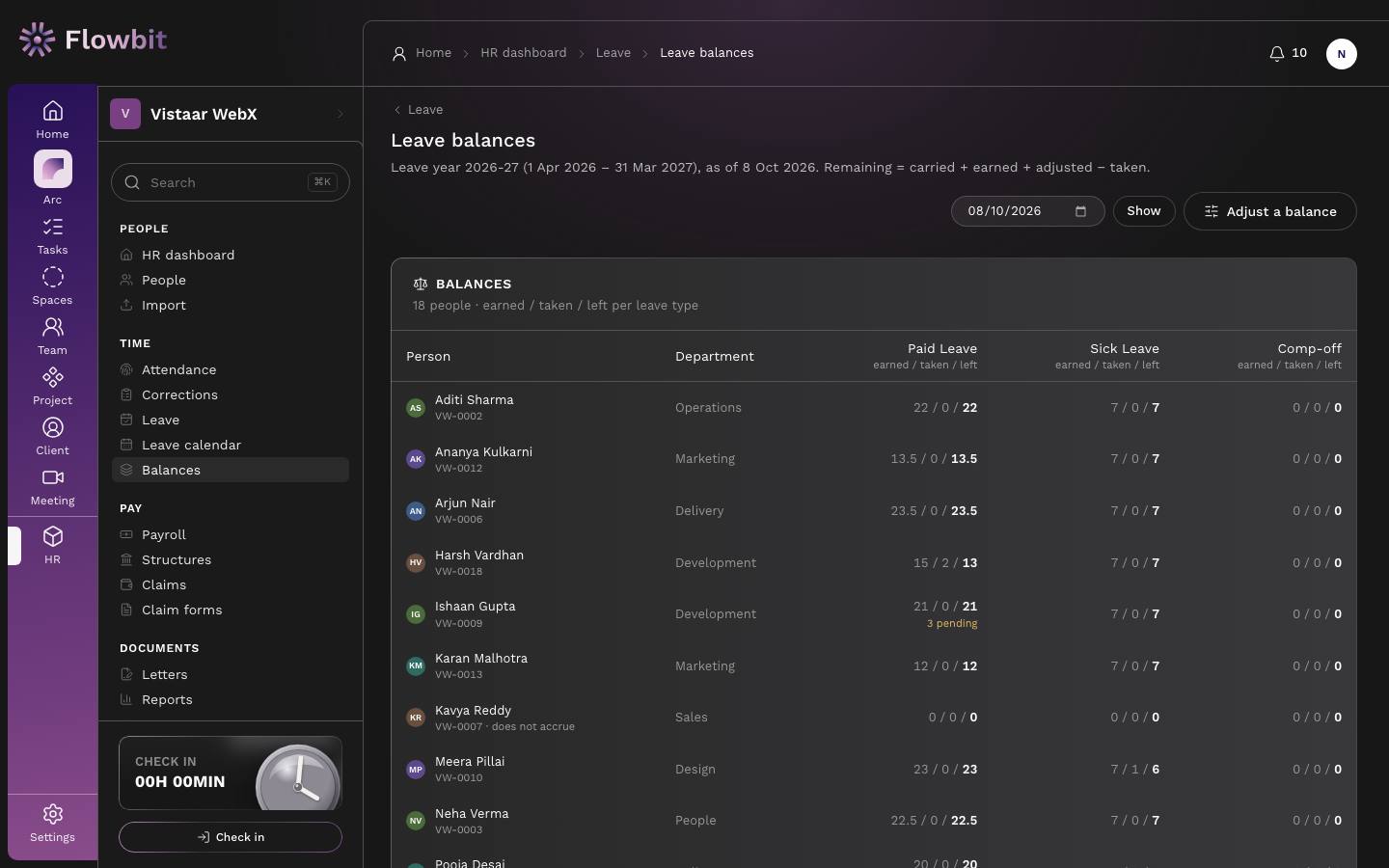
On this page
- The leave year and the as-of date. Change As of and click Show to see balances on another date.
- One row per person with code and department, and an earned / taken / left cell for each leave type (for example Paid Leave, Sick Leave, Comp-off).
- Adjust a balance to correct a balance or enter an opening balance.
How leave is earned
- Only full-time people who are Active, Confirmed, serving notice or Resigned earn leave. People on probation, interns and contract staff show "does not accrue".
- Monthly types credit a fixed amount on the 1st of each month. The joining month counts if they joined on or before the 15th. Credits stop after they leave.
- Yearly, up front types grant the year's quota at once, reduced for the months they were not employed and rounded to a half day.
- Per service year types grant the quota for each completed year of service.
- On application types (for example maternity) have no running balance; each request is allowed up to the quota.
- At the end of the leave year, part of an unused balance carries forward (50% by default, rounded to a half day and capped per type). The leave year runs April to March by default.
- Taken days come from approved leave on the attendance register.
Adjust a balance
- Click Adjust a balance.
- Choose the Employee and Leave type.
- Enter Days: a positive number adds, a negative number takes away (for example 2.5 or -1).
- Pick the Kind: Correction, or Opening balance when bringing balances over from your old system.
- Enter a Reason and click Save adjustment.
When you start using Flowbit mid-year, enter each person's opening balance once with Kind set to Opening balance, so carry-forward works from then on.
Leave calendar
Open: HR → Leave calendar or Leave → Calendar/app/hr/leave/calendarWho: HR, managers (own team)
A month view of who is off. Use it before approving leave, to see whether too many people from one team are away on the same days.
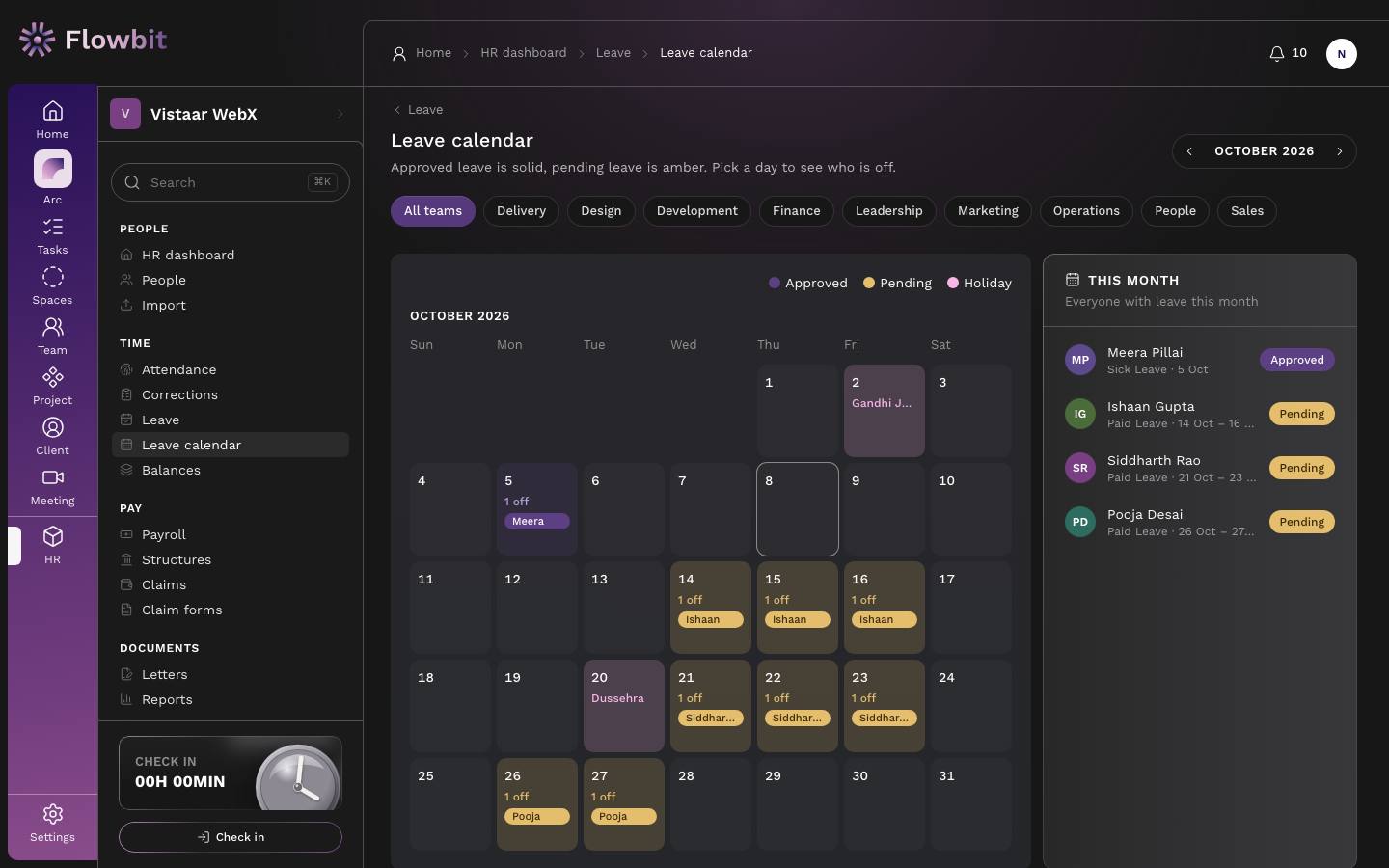
On this page
- Month switcher (previous and next month) and team chips to show one department.
- The calendar: each day shows how many are off and their names, with holidays named.
- This month: everyone with leave this month, the type and dates, and Approved or Pending.
Check cover before approving
- Open Leave calendar and move to the month of the request.
- Click the team chip for the person's department.
- Click a day to see who is off. If the team is thin, talk to the manager before approving.
- Go back to Leave to approve or reject.