
Payroll months
Open: HR → Pay → Payroll/app/hr/payrollWho: HR, Finance and anyone with payroll access
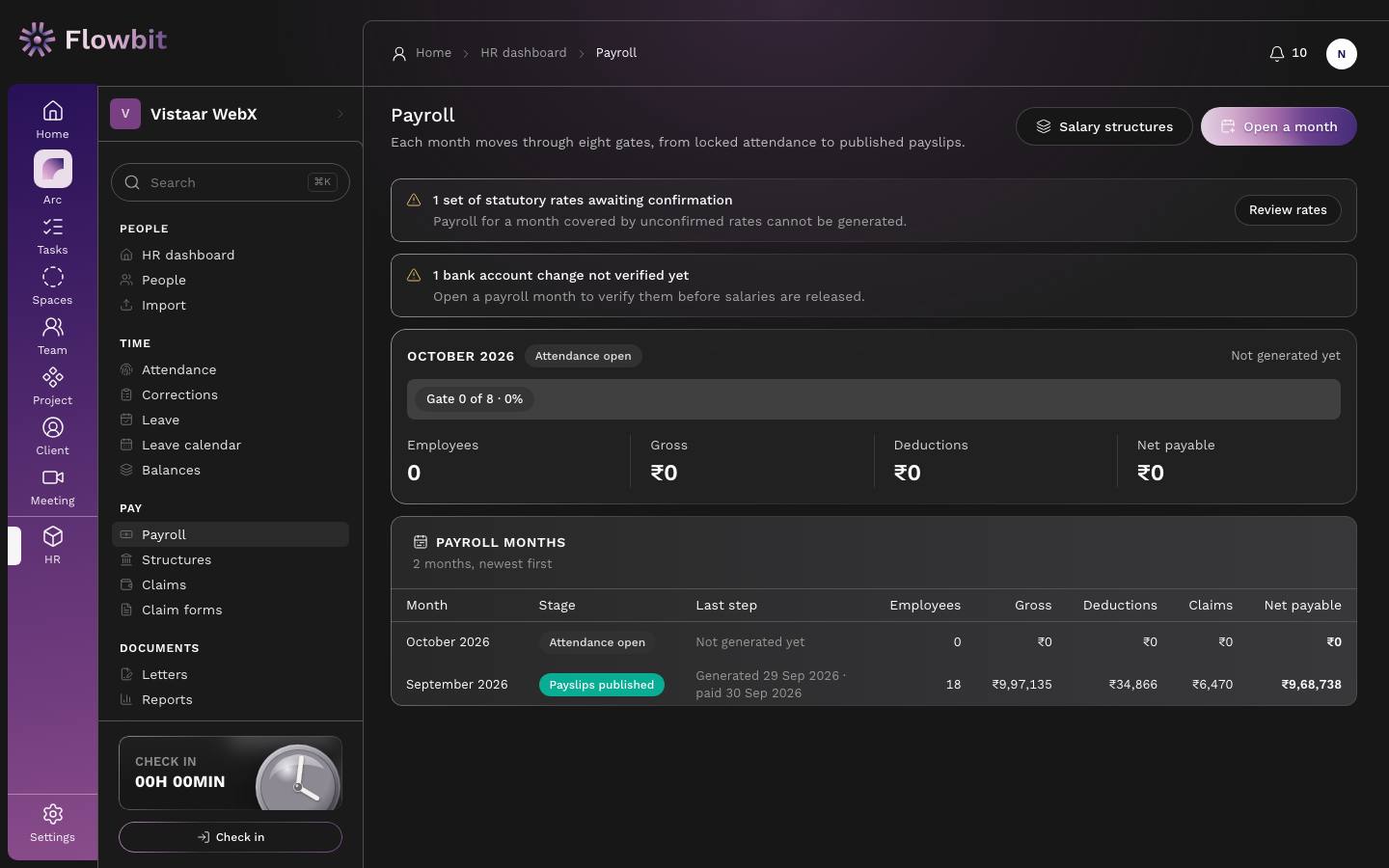
This page lists every payroll month, newest first. Each month moves through eight gates, from locked attendance to published payslips. You open a month here and then do all the work on the month's own page.
On this page
- Salary structures opens the page where you set each person's pay and the PF, ESI and PT rates.
- Open a month starts a new payroll month.
- Warning banners. For example, 1 set of statutory rates awaiting confirmation with a Review rates button, or 1 bank account change not verified yet.
- The current month card shows its stage (for example Attendance open), a progress bar such as Gate 0 of 8, and the figures Employees, Gross, Deductions and Net payable.
- The Payroll months table has the columns Month, Stage, Last step (for example "Generated 29 Sep 2026 · paid 30 Sep 2026"), Employees, Gross, Deductions, Claims and Net payable. Click a month to open it.
Open a payroll month
- Click Open a month.
- Pick the Month.
- Click Open month. Flowbit takes you to the new month's page.
Each calendar month can be opened only once. If it is already open, Flowbit takes you to the existing month. You can open a month before its attendance is locked, so that approved claims can be sent to it early.
Run payroll for a month
Open: Payroll → pick a month/app/hr/payroll/{id}Who: HR runs it, Finance approves, people with lock and release rights finish it
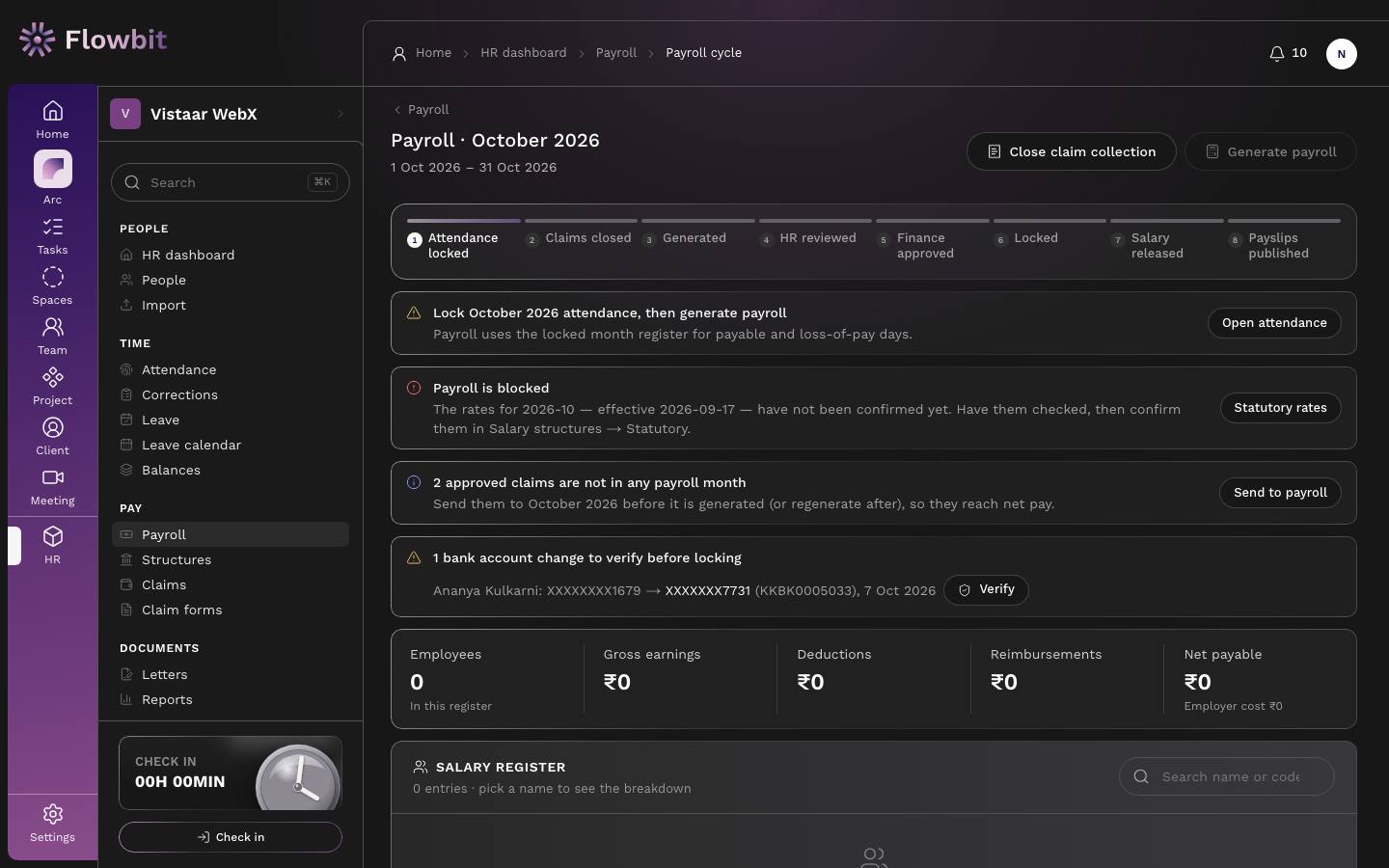
This is where a month's salaries are worked out, checked, approved, paid and sent as payslips. Only the next allowed step is shown as a button, and only to people whose role allows that step.
The eight gates
| # | Gate | Button | What it means |
|---|---|---|---|
| 1 | Attendance locked | (done in Attendance) | The month register is locked, so payable and loss-of-pay days are final. |
| 2 | Claims closed | Close claim collection | Claim forms paid with this month's salary stop taking claims. Optional. |
| 3 | Generated | Generate payroll / Regenerate | Every person's pay is worked out and the salary register is built. |
| 4 | HR reviewed | Mark HR reviewed | HR has checked attendance, adjustments, holds and new joiners. |
| 5 | Finance approved | Finance approve | Finance confirms the salary register is correct. |
| 6 | Locked | Lock payroll | Every figure is frozen. The bank file can now be downloaded. |
| 7 | Salary released | Mark salaries released | You record the date and bank reference of the salary payment. |
| 8 | Payslips published | Publish and email payslips | Each person gets a PDF payslip by email and in My payslips. |
Banners you may see
- Lock October 2026 attendance, then generate payroll, with Open attendance. Payroll uses the locked month register for payable and loss-of-pay days. If attendance is reopened after generation, the banner asks you to regenerate once the corrections are in.
- Payroll is blocked. No statutory rates exist for the month, or the rates have not been confirmed. Click Statutory rates to fix it.
- 2 approved claims are not in any payroll month, with Send to payroll. Send them before you generate, or regenerate after, so they reach net pay.
- 1 bank account change to verify before locking. It shows the old and new account (masked), the IFSC and the date. Check the change with the person, then click Verify.
- A list of people skipped at the last generation, with the reason (for example "No salary structure is in force for this month").
- Warnings in the register, such as components that do not add up to the monthly gross. Click a name to open that person's breakdown.
Generate payroll
- Lock the month's attendance in Attendance.
- Make sure the statutory rates for the month are confirmed (see Salary structures).
- Send any approved claims to this month from Claims.
- Optional: click Close claim collection, then Close collection.
- Click Generate payroll, then Generate.
- Read the message. It says how many people were paid and who was skipped, and why.
How each person's pay is worked out
- Structure. Flowbit takes the salary structure in force on the last day of the month. Anyone without one is skipped.
- Loss of pay. Each earning that is set as Reduced for loss of pay is paid as full amount × payable days ÷ working days. Payable and LOP days come from the locked attendance register. Absent, unpaid leave and LOP days pay nothing; an unpaid half day pays half. Paid leave, sick leave, weekly offs and holidays are paid.
- Joiners and leavers. The divisor is the whole month's working days, and only the days they were employed count as payable. So someone who joined mid-month is paid only for the part they worked.
- Adjustments added for the month (bonus, recovery, TDS) are added as earnings or deductions.
- Statutory deductions are worked out (below).
- Claims sent to this month are added as a separate reimbursement line. They are not taxed and do not count for PF, ESI or PT.
- Net pay = total earnings − total deductions + reimbursements, rounded to the rupee. If deductions are larger than earnings, net pay is set to zero and a warning appears.
Statutory deductions
Rates come from the confirmed statutory version for the month, not from fixed numbers. The values below are Flowbit's starting values. Finance should check them against the company's own registrations before confirming.
| Deduction | Rule |
|---|---|
| PF (Provident Fund) | 12% from the employee and 12% from the employer, on the PF wage. The PF wage is the earned amount of components set as Counts for PF wage (Basic in the standard set). When Cap PF at the ceiling is on, the PF wage is capped at the wage ceiling. The EPF wage ceiling is ₹25,000 from 17 Sep 2026 (it was ₹15,000 before). Amounts are rounded to the rupee. Not deducted for people marked as not covered by PF. |
| ESI | 0.75% from the employee and 3.25% from the employer, on the ESI wage, rounded up to the rupee. Applies only when the person's full monthly gross is ₹21,000 or less. Loss of pay never brings someone into ESI. |
| Professional Tax (PT) | By the person's PT state, from that state's slabs, on the month's earned gross. Default Madhya Pradesh slabs: up to ₹18,750 nil; up to ₹25,000 ₹125; up to ₹33,333 ₹167; above that ₹208 a month. A month override can collect a different amount in one month. If no schedule exists for the state, nothing is deducted and a warning is shown. |
| LWF (Labour Welfare Fund) | A flat employee and employer amount, only in the state's remittance months (for example June and December), when the state's LWF is switched on. |
| TDS | Worked out by Flowbit when Compute TDS each month from the tax worksheet is on in the statutory rates (see Salary tax). In manual mode, add it as a deduction adjustment labelled "TDS" so it lands in the TDS column of the reports. |
Bonuses and other earning adjustments are added to total earnings but do not change the PF wage, the ESI wage or the PT slab.
Check the salary register
The Salary register lists one row per person: name and code, payable days out of working days, LOP days (red when above zero), earnings, deductions, net pay and status (Ready, On hold or Excluded). Use Search name or code to find someone. The tiles above show Employees, Gross earnings, Deductions, Reimbursements and Net payable with the employer cost.
Click a name to open the Entry breakdown: Monthly gross, Payable days, Earned salary, Net pay, the Earnings, Deductions and Employer contributions tables, and facts such as PF wage, ESI wage, PT state and Days assumed present.
Add a bonus, recovery or TDS
- Click the person's name in the register.
- Click Add adjustment.
- Fill Label (for example "Diwali bonus" or "TDS"), Type (Earning (adds to pay) or Deduction (recovers)), Amount (₹) and Reason.
- Click Add adjustment.
- Click Regenerate to apply it.
To take an adjustment out, click its remove icon, give a reason and click Remove. It is kept on record as removed. Regenerate to apply the change.
Hold or exclude someone
- Hold pay. The entry stays in the register but is not paid and its payslip is not published until you release it. Use the hold icon, give a reason (for example "Bank details being verified") and click Hold pay.
- Exclude. The person is left out of this month. Use the exclude icon, give a reason (for example "Paid through full and final settlement"), click Exclude, then regenerate.
Review, approve and lock
- HR clicks Mark HR reviewed, then Mark reviewed.
- Finance clicks Finance approve, then Approve.
- Someone with lock rights clicks Lock payroll, then Lock.
Once locked, nothing can be regenerated, adjusted, held or have claims sent to it. If you regenerate before locking, the HR review and Finance approval are cleared and must be done again.
Download the bank transfer file
After the month is locked, a Bank file button appears above the register. It builds a CSV for bulk salary payment in net banking.
- Click Bank file.
- Pick the Layout: Generic (most banks), HDFC-style or ICICI-style.
- Pick the Mode: NEFT or IMPS. Any single payment above ₹5,00,000 goes by NEFT.
- Pick the company account to pay from, or choose Another account (type it) and enter the Debit account number (9 to 18 digits).
- Set the Value date and the Narration (up to 30 letters and digits).
- Click Download CSV and upload it to your bank.
People with nothing to pay, no bank account, no valid IFSC or an unverified bank change are left out of the file and listed under Left out of the file. Pay them separately, or fix their details and download again. Banks change their templates, so check your bank's current format before the first upload. Only people who can release or lock payroll and see sensitive details can download this file.
The register also has Register CSV, Statutory CSV and Journal CSV downloads. See HR reports.
Record the salary payment
- After the bank has paid, click Mark salaries released.
- Enter Paid on (it cannot be a future date) and the Bank reference (UTR). Add Notes if useful.
- Click Record payment. Claims in this register are marked paid at the same time.
Publish payslips
- Click Publish and email payslips, then Publish.
- Each person gets a PDF payslip by email and can download it from My payslips. People on hold are skipped.
- If someone's email fails, the message names them. They can still download the payslip themselves. Use Re-send payslips to send again.
The payslip shows the company letterhead, the person's details (PAN, UAN, masked bank account), working, payable and LOP days, earnings, deductions, approved expense claims, net pay in figures and words, and employer contributions.
Reopen a locked month
- Click Reopen.
- Fill Why it is being reopened. The reason is kept in the audit log.
- Click Reopen. The month goes back to Generated and must be reviewed, approved and locked again.
Reopening does not reverse salaries already paid or claims already marked paid. For small corrections, it is usually safer to add an arrears or recovery adjustment in next month's payroll.
Salary structures
Open: HR → Pay → Structures/app/hr/payroll/structuresWho: HR and Finance with payroll access
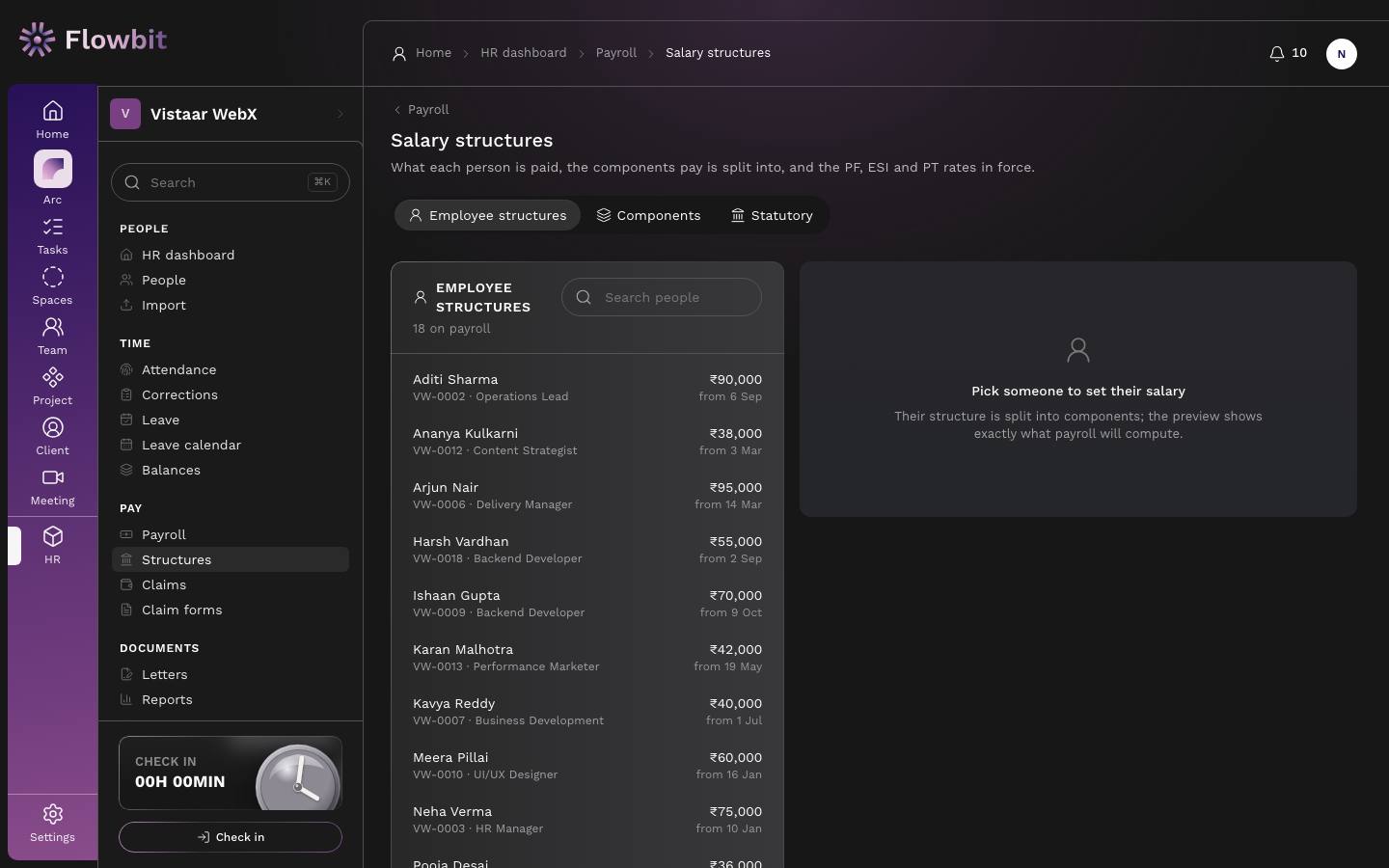
This page holds what each person is paid, the components pay is split into, and the PF, ESI and PT rates in force. It has three tabs: Employee structures, Components and Statutory.
How CTC splits into components
Each structure has a monthly gross, an annual CTC and a set of component lines. Each line has a basis:
- % of gross, for example Basic at 50% of gross.
- % of basic, for example HRA at 40% of basic.
- % of CTC, a share of the monthly CTC (annual CTC ÷ 12).
- Fixed amount, for example the Special Allowance.
Basic is worked out first, then the rest. The components should add up exactly to the monthly gross. For example, a monthly gross of ₹40,000 gives Basic ₹20,000 (50%), HRA ₹8,000 (40% of basic), and a Special Allowance of ₹12,000 to close the gap.
Set or revise someone's salary
- On Employee structures, use Search people and click the person.
- Set Effective from. It must be after the start of their current structure.
- Enter Monthly gross (₹) and Annual CTC (₹). CTC defaults to 12 × gross.
- Check the component lines (Component, Basis, Value, Per month). Use Add a component to add more.
- Look at Total of components. If it does not match the gross, a note says by how much. Click Close the gap to adjust the Special Allowance.
- Add Notes if useful and click Save structure.
The old structure ends the day before the new one starts. Earlier versions stay under Revision history. After saving, Flowbit offers a Salary Revision letter. You cannot change your own salary.
A person marked No structure is skipped when payroll is generated. Set their structure before generating.
Components tab
The list of pay components with their code, name, type (Earning, Deduction or Employer contribution), basis, default value and flags. Click Load the standard set to add Basic, HRA, Conveyance, Special, Other allowance, Variable pay, Incentive, Bonus, Arrears, PF, ESI, PT, TDS, advance and loan recoveries and employer PF and ESI.
- Click Add component, or the edit icon on an existing one.
- Fill Code (capitals, like HRA), Name, Type, Basis and Order on payslip.
- Tick the flags that apply: Counts for PF wage, Counts for ESI wage, Counts as wages (gratuity), Reduced for loss of pay, Taxable, Paid every month.
- Save. To stop using a component, click its retire icon and Retire. You can Restore it later.
A percentage above 100 is refused, since it is almost always a fixed amount typed in the wrong box. BASIC, PF, ESI, PT, LWF and reimbursement are protected: they cannot be renamed, retyped or retired.
Statutory tab
A timeline of rate versions. Each shows when it took effect, the payroll month it applies from, a note, PF, ESI, PT by state, LWF, and who confirmed it (or Proposal if not yet confirmed).
- Click Add version. It starts as a copy of the latest version.
- Set Took effect on, Payroll applies from (the 1st of a month) and a Note.
- Edit PF: Employee %, Employer %, Wage ceiling (₹), Cap PF at the ceiling, Reduce the ceiling in LOP months.
- Edit ESI: Employee %, Employer %, Covers gross up to (₹).
- Add PT slabs per State, and LWF amounts per state, as needed.
- Save the proposal. Then a Finance person checks it and clicks Confirm, then Confirm rates. Use Set payroll month to change which month it applies from before confirming.
Payroll cannot be generated for a month whose rates are not confirmed. Confirmed versions can never be edited; add a new version instead. A banner warns when the latest version still caps PF below the current EPF ceiling of ₹25,000.
Expense claims
Open: HR → Pay → Claims/app/hr/claimsWho: HR and Finance with claims access
Employees file expenses through a claim form link. Here you review each claim, approve, reduce or reject it, and send approved claims to payroll so they are paid with salary.
On this page
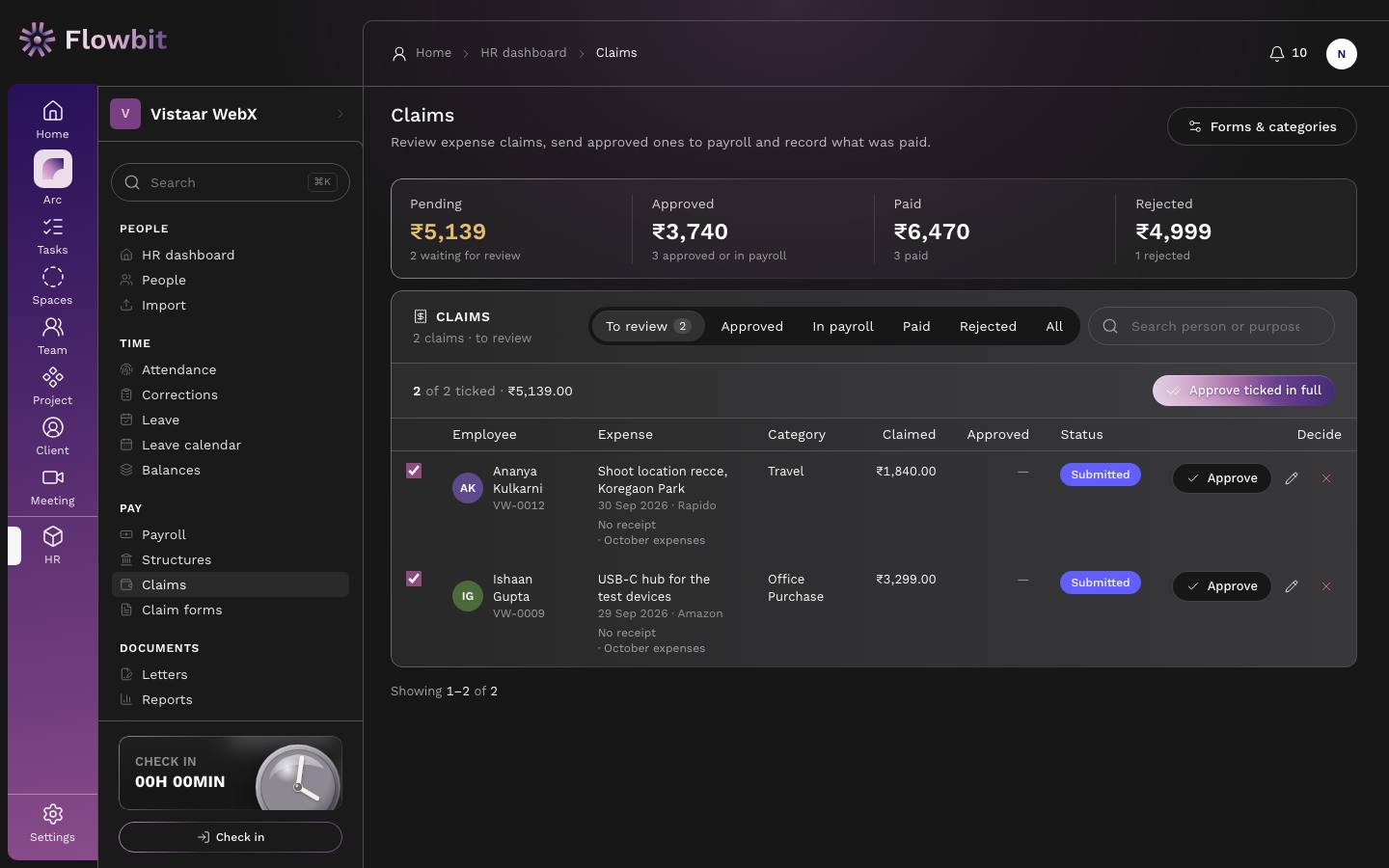
- Tiles: Pending, Approved, Paid and Rejected, each with the total in ₹ and a count.
- Tabs: To review, Approved, In payroll, Paid, Rejected, All.
- Search person or purpose.
- Columns: Employee, Expense (purpose, date, vendor, receipt, form), Category, Claimed, Approved, Status and Decide. A receipt link opens the uploaded file; "No receipt" means none was attached.
- Forms & categories opens the claim forms page.
Claim statuses
| Status | Meaning |
|---|---|
| Submitted | Filed by the employee, waiting for a decision. |
| Approved | Approved in full. Ready to send to payroll. |
| Partially approved | Approved at a lower amount, with a note. |
| Rejected | Not approved. The employee is emailed the reason. |
| In payroll | Sent to a payroll month. Paid when that month's salaries are released. |
| Paid | Paid with salary, or marked paid separately. |
Decide a claim
- Open the To review tab and read the expense and receipt.
- Click Approve to approve the full amount.
- Or click Approve a reduced amount, enter Amount to approve (₹) (no more than claimed) and Why it was reduced, then click Approve reduced amount.
- Or click Reject, enter a Reason and confirm.
The employee gets an email and a notification with the decision, the approved amount and your note. To approve many at once, tick the claims and click Approve ticked in full.
You cannot decide your own claim; it is left for someone else. Once a claim is in a payroll month, its decision can no longer change.
Send approved claims to payroll
- Open the Approved tab. All claims are ticked; untick any you want to leave out.
- Pick the Payroll month. Only months that are not locked are offered. If none is open, open one on the Payroll page first.
- Click Send to payroll. The claims move to In payroll.
- Generate (or regenerate) that payroll month so the claims are added to net pay as a reimbursement line.
- When the month's salaries are released, the claims become Paid.
Pay claims outside payroll
If you reimburse someone directly, open the Approved tab, tick the claims, enter the UTR / UPI reference and click Mark paid. This needs claim payment rights.
Claim forms and categories
Open: HR → Pay → Claim forms/app/hr/claims/formsWho: HR with claim form access
A claim form is a shareable link where people file expenses for a period. Categories are the expense types people can claim under, with an optional ceiling.
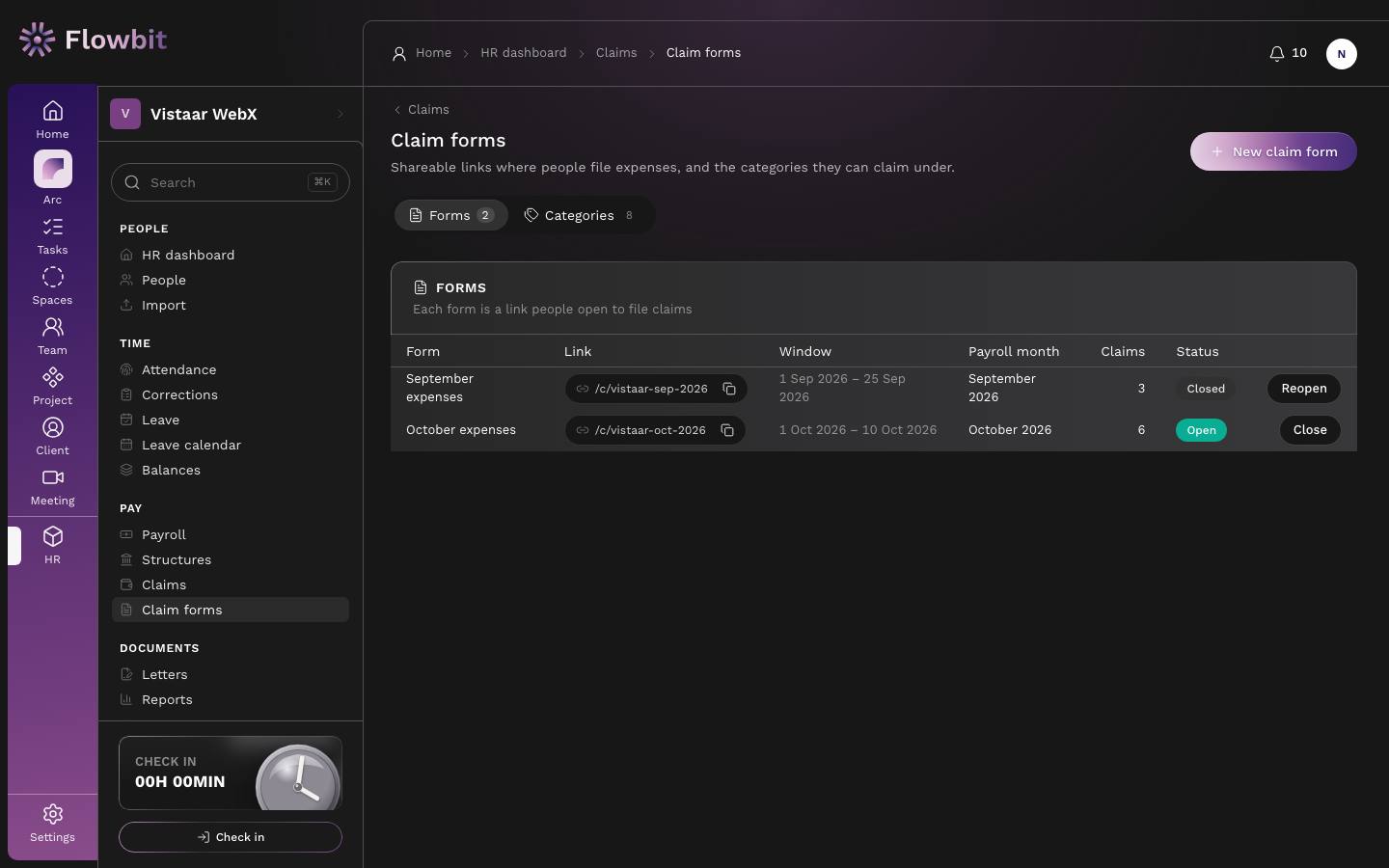
On this page
- Tabs: Forms and Categories.
- Forms table: Form, Link (with Copy link), Window, Payroll month, Claims, Status, and a Close or Reopen button.
- Status is Upcoming (not open yet), Open, Ended (past the deadline) or Closed (closed by HR).
Create a claim form
- Click New claim form.
- Enter a Name (for example "October expenses") and the Link slug. People open
/c/your-slug. The slug must be unique. - Add a Description, then set Opens on and Deadline. The deadline cannot be before today.
- Pick the Categories people can use (at least one).
- Optional: set Most per claim (₹). Leave blank for no cap beyond ₹10,00,000.
- Leave Receipt required on unless receipts are not needed.
- Leave Pay with salary on and pick the Payroll month the claims will be paid in.
- Under Who can use it, tick people to limit the form. With nobody ticked, everyone on payroll with a work email can use it.
- Click Create form, then copy the link and share it with the team.
Close, reopen or edit a form
- Click Close, then Close submissions. Its link stops taking claims.
- Click Reopen to take claims again until the deadline.
- Closing claim collection on a payroll month closes every open form paid with that month.
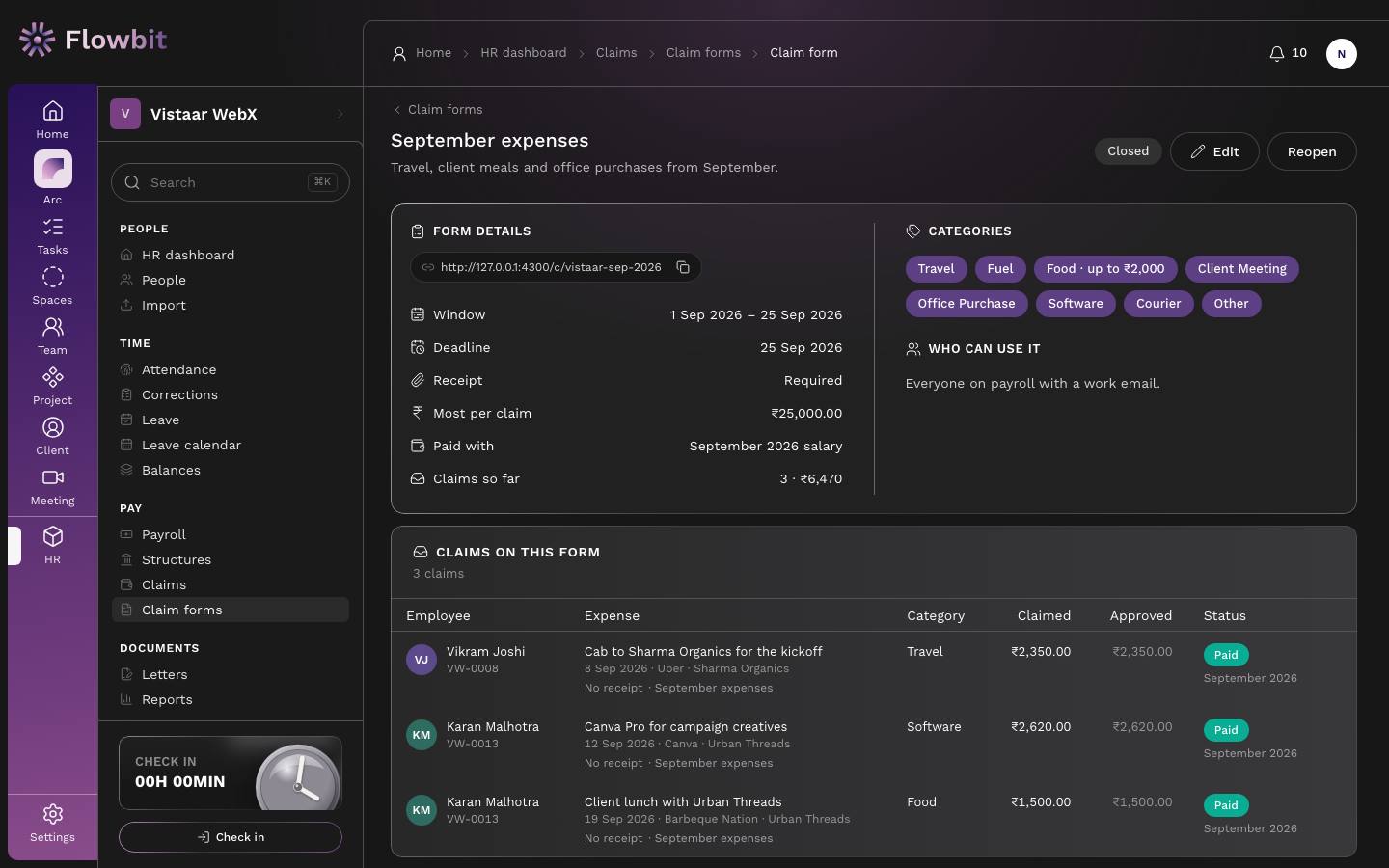
Click a form's name to open it. The Form details card shows the link with Copy link, Window, Deadline, Receipt, Most per claim, Paid with and Claims so far. Beside it are the categories (with any ceiling, like "Food · up to ₹2,000") and Who can use it. Below is Claims on this form. Click Edit to change the name, description or deadline, then Save.
How employees use the public link
- The employee opens the link. They do not need to sign in to Flowbit.
- They enter Your work email and click Send my code. A six digit code is emailed if they can claim on this form. It lasts 10 minutes.
- They type the code and click Verify. After five wrong tries they must request a new code.
- They fill Category, Date of expense (not in the future), Amount (₹), Paid to, What it was for, Client or project, Paid by, Anything HR should know and attach the Receipt (PDF or image, up to 4 MB).
- They click Submit claim. Their claims on this form are listed below. Not you? Sign out ends the session.
Before the form opens, the link shows the opening date. After it closes, it says the form is no longer accepting claims. An amount above the form's cap or the category's ceiling is refused.
Categories
- Open the Categories tab. Click Load the standard set to add Travel, Fuel, Food, Client Meeting, Office Purchase, Software, Courier and Other.
- To add or edit one, fill Code (like TRAVEL), Name, Ceiling per claim (₹) (blank for no ceiling) and Order.
- To stop using a category, click its retire icon and Retire.
HR letters
Open: HR → Documents → Letters/app/hr/lettersWho: HR with letters access; pay letters need payroll access
Offer, experience, relieving and 17 more letter types, drafted with the person's details filled in, numbered, and filed on their record. Issued letters are never deleted.
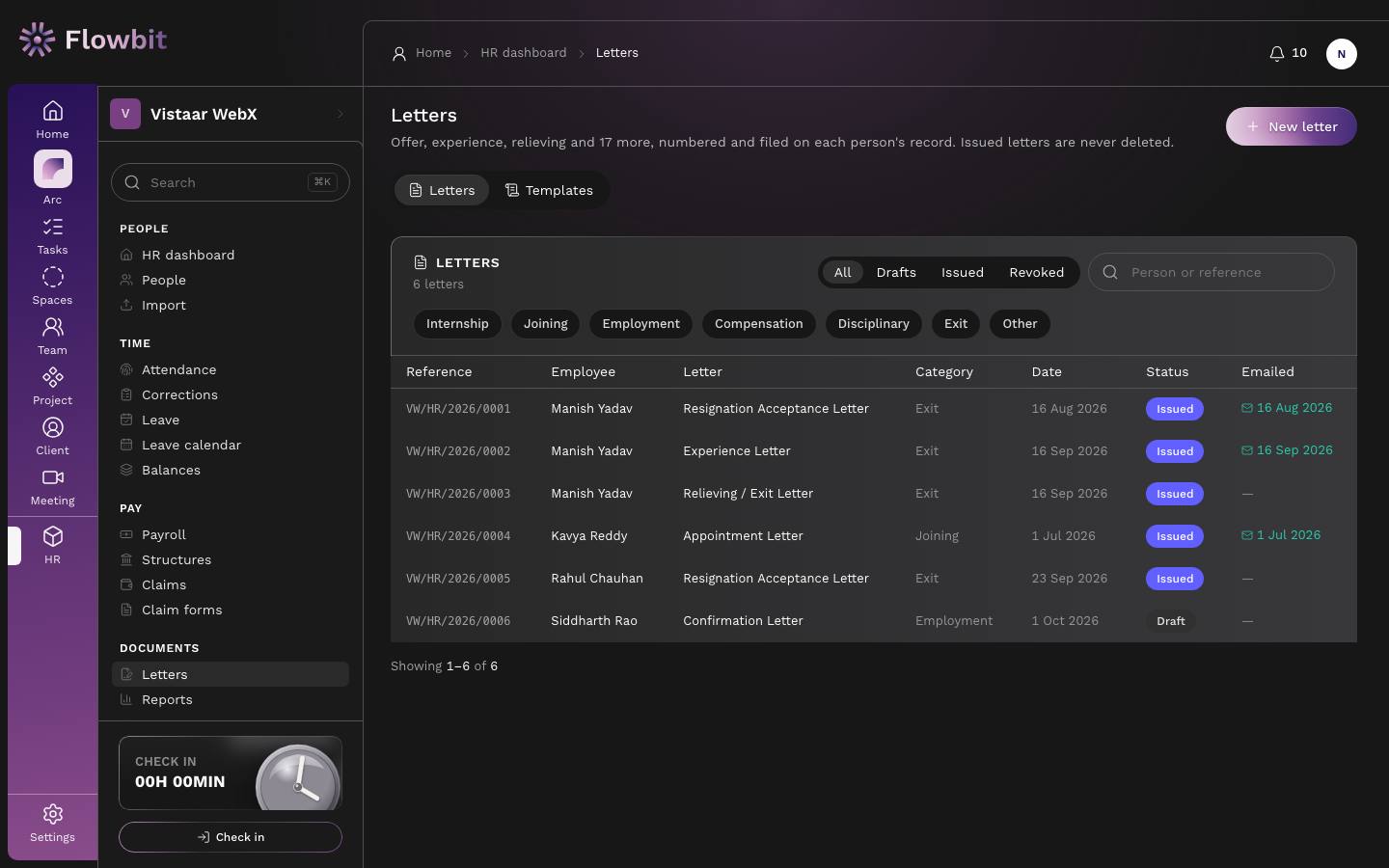
On this page
- Tabs: Letters and Templates.
- Status filter: All, Drafts, Issued, Revoked. Search: Person or reference.
- Category filter: Internship, Joining, Employment, Compensation, Disciplinary, Exit, Other.
- Columns: Reference, Employee, Letter, Category, Date, Status, Emailed.
Reference numbers follow the pattern VW/HR/2026/0001: company prefix, HR, the year of issue and a running number. A number is never reused, so a discarded draft leaves a gap. Letters that state pay show as "Pay letter" with a lock to people without payroll access.
The letter types
| Category | Letters |
|---|---|
| Internship | Internship Offer Letter (states pay), Internship Completion Letter, Internship Certificate, Internship Experience Letter, Internship Recommendation Letter, Letter of Recommendation (LOR) |
| Joining | Employee Offer Letter (states pay), Appointment Letter (states pay) |
| Employment | Confirmation Letter |
| Compensation | Salary Revision Letter (states pay), Promotion Letter (states pay) |
| Disciplinary | Warning Letter, Show Cause Notice |
| Exit | Experience Letter, Termination Letter, Resignation Acceptance Letter, Relieving / Exit Letter, Full and Final Settlement Letter (states pay), No Dues / Clearance Letter |
| Other | Custom Letter: a blank letter on the letterhead where you write the body yourself |
Draft a new letter
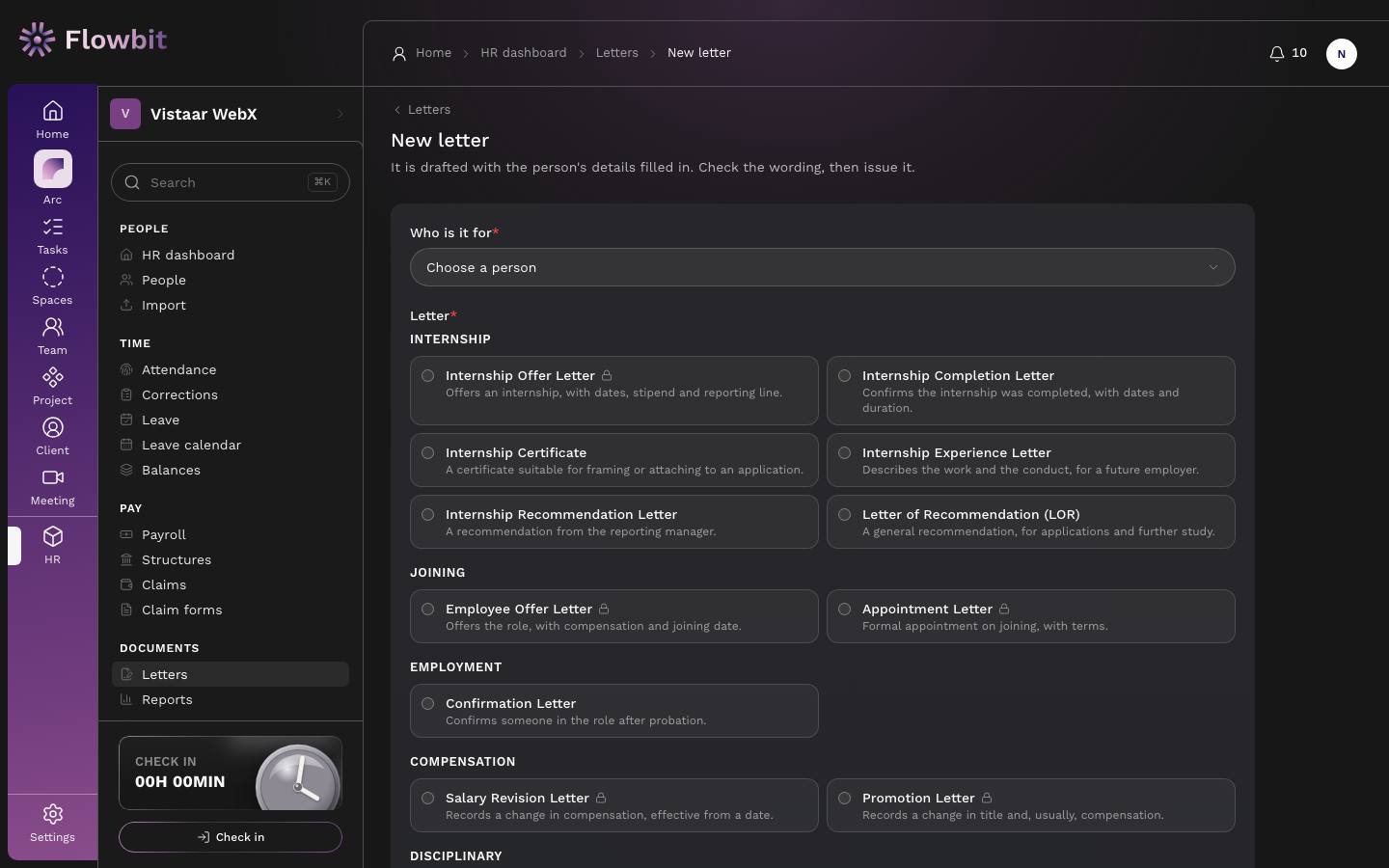
- Click New letter.
- In Who is it for, choose the person. Their status is shown beside the name.
- Under Letter, pick the type. Letters that suit the person's status are suggested first; intern-only letters appear only for interns.
- Click Draft letter. The draft opens with the person's name, designation, department, dates and manager filled in.
Edit and issue a draft
- Fill Details for this letter, such as the effective date, last working day, work undertaken or revised CTC. Required fields depend on the letter type.
- Check Issue date, Signed by and Their designation.
- Edit the Subject and Body directly if needed. Use Preview to read it as it will print.
- Click Save draft. If you changed the details above and want the wording rebuilt from them, click Rebuild from template, then Rebuild. This replaces your hand edits.
- Click Issue letter, then Issue. The wording is locked, a PDF is filed on the person's record, and they can download it from My letters.
A letter cannot be issued while any {{…}} placeholder is still unfilled. Fill the field and rebuild, or edit the text. Salary figures fill in only for people with payroll access, so others cannot issue pay letters. A letter about yourself that states pay or is an exit letter is refused.
To throw away a draft, click Discard draft, then Discard. Only drafts can be discarded.
Email, download or revoke an issued letter
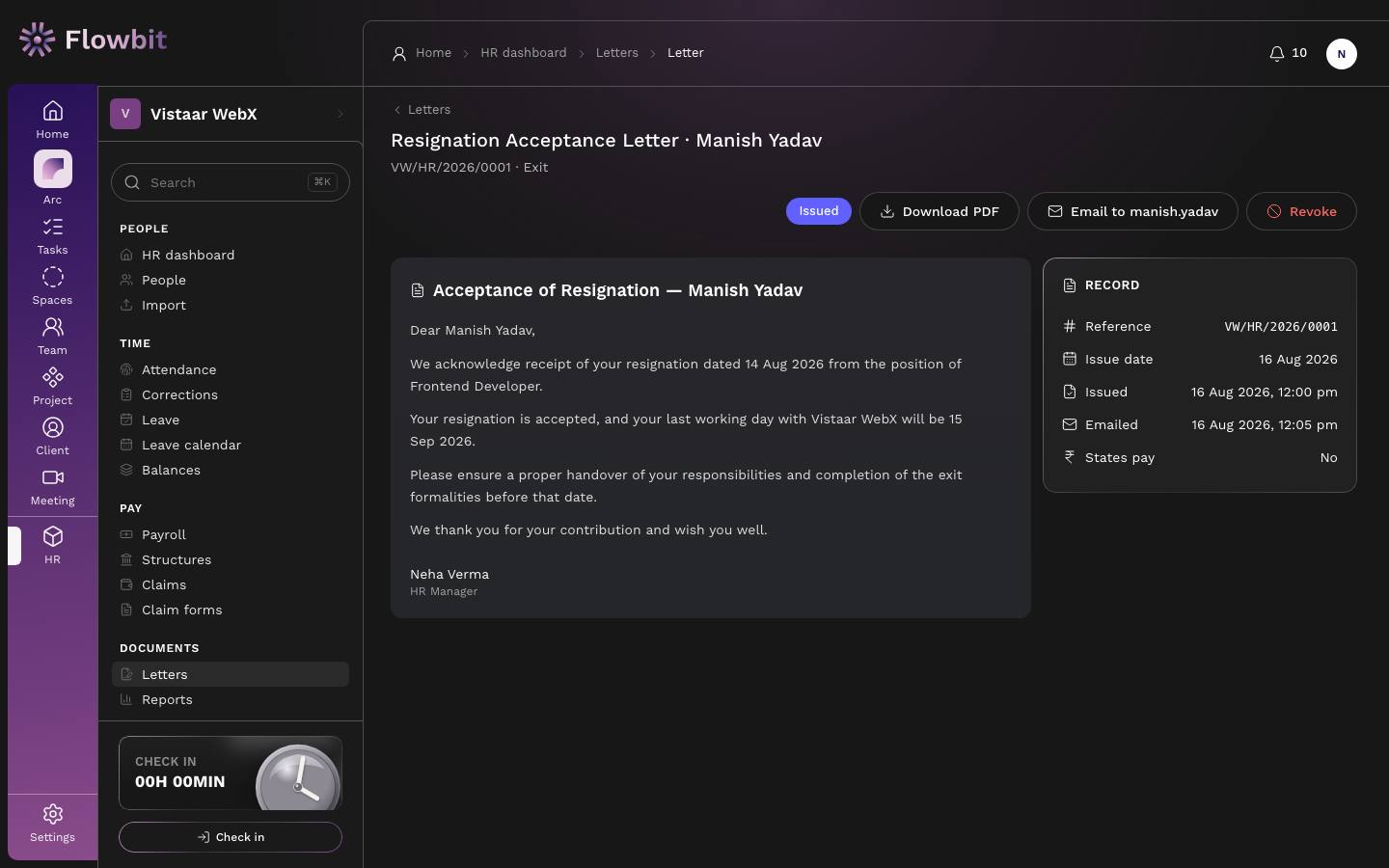
- Download PDF gives the letter on the letterhead with reference, date, signature block and footer.
- Email to … opens a dialog with a Subject and Message drafted from the letter. Change anything, then click Send. The PDF goes to the person's work email. If email is not set up, nothing is sent but the letter stays saved.
- Revoke asks for a Reason, then Revoke letter. The letter stays on record and its PDF is marked REVOKED.
Revoking cannot be undone. Issue a fresh letter if one was wrong.
Change a template's wording
- Open the Templates tab and pick a template.
- Edit the Subject and Body. The Placeholders panel lists the fields you can use, like
{{employee.name}}or{{company.name}}. - Click Save template. New drafts use your wording; letters already written keep theirs.
- To go back, click Reset to shipped wording, then Reset.
Salary tax: TDS, Form 138 and Form 130
Open: HR → Payroll → Salary tax/app/hr/payroll/taxWho: HR and finance with payroll access
Flowbit can work out each person's monthly TDS on salary from their salary structure and their declarations in My tax.
- Set the year: when declarations are open, the proof window, your TAN and who signs Form 130.
- In the statutory rates, turn on Deduct salary TDS and Compute TDS each month from the tax worksheet. With the second switch off (the default), TDS stays an adjustment you type.
- When payroll is generated, each person gets a worksheet: income so far this year, this month, the months left, the standard deduction, HRA, 80C (with employee PF), 80D, NPS, home loan, slab tax, rebate, surcharge and 4% cess. What is still due is spread over the months left as the TDS line.
- Review proofs: Verify proofs (with adjusted amounts if needed) or Send back. Verified amounts replace declared ones from then on.
- Finance can Override TDS for one person's month, with a reason. It is audited.
- Form 138 (formerly 24Q): a quarterly deductee CSV, plus the salary details for the last quarter, for your CA's return utility.
- Form 130 (earlier Form 16) Part B: a PDF per person for the year, signed by the person named in the year's settings. Part A comes from TRACES.
Flowbit does not file TDS returns. The tax rules for each year are kept up to date by the Flowbit team, but every screen says "Verify with your CA", and you should.
HR reports
Open: HR → Documents → Reports/app/hr/reportsWho: HR with reports access; salary reports need payroll access
Every report downloads as a CSV for Excel or your CA. Monthly reports use the month you pick at the top right.
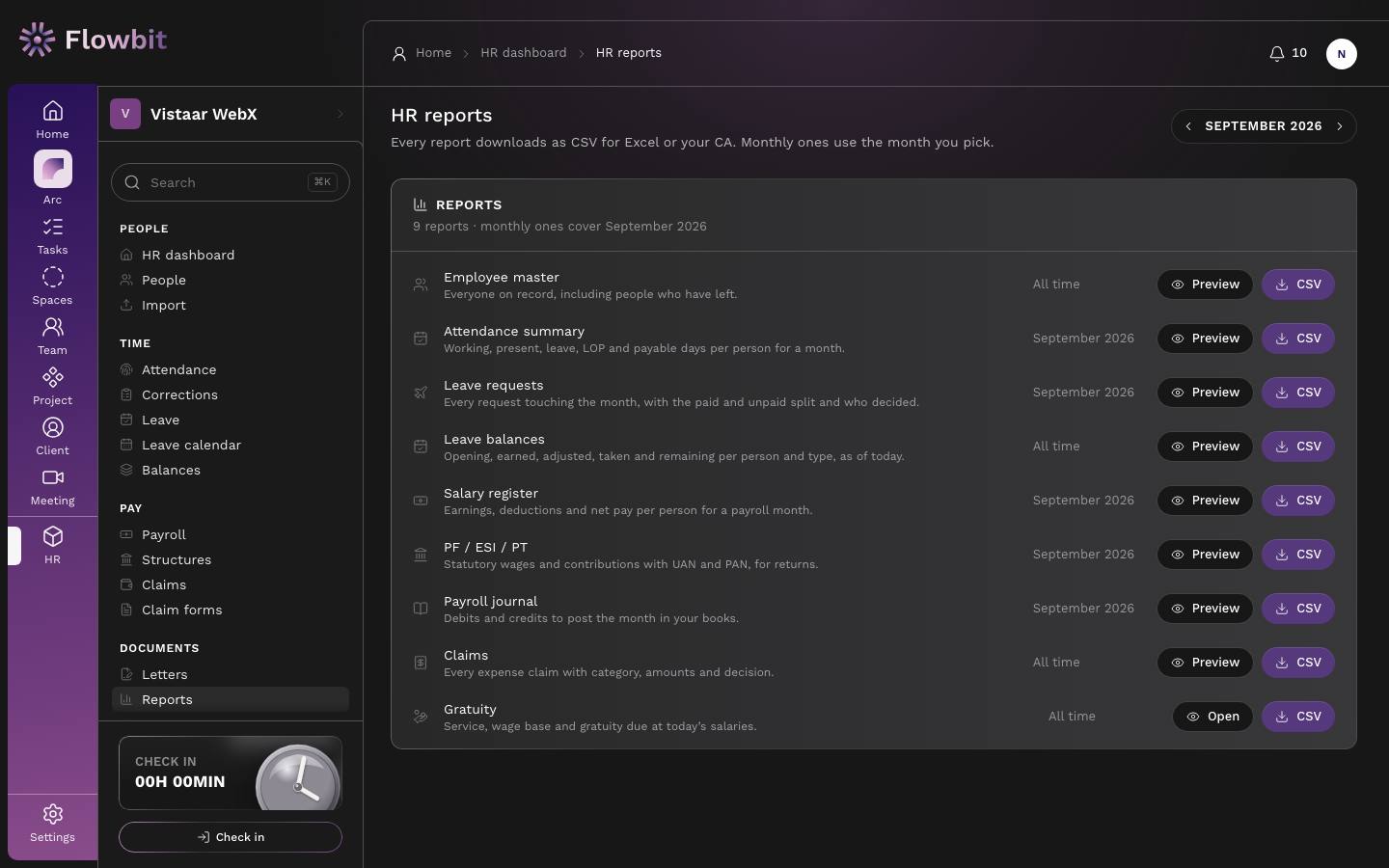
- Use Previous month and Next month to pick the month.
- Click Preview to see a report on screen, or CSV to download it.
| Report | Period | What it shows |
|---|---|---|
| Employee master | All time | Everyone on record, including people who have left: ID, name, work email, phone, department, designation, manager, employment type, status, joining date, work location and exit date. |
| Attendance summary | Month | Per person: working days, present, WFH, on duty, half days, paid leave, unpaid leave, absent, LOP days and payable days. |
| Leave requests | Month | Every request touching the month, with the paid and unpaid split, status and who decided. |
| Leave balances | As of today | Opening, earned, adjusted, taken and remaining per person and leave type. |
| Salary register | Payroll month | Per person: monthly gross, working, payable and LOP days, earned gross, total earnings, PF, ESI, PT, TDS, total deductions, reimbursements, net pay, employer PF and ESI. |
| PF / ESI / PT | Payroll month | Statutory wages and contributions with UAN and PAN, for filing returns: PF wage, employee and employer PF, ESI wage, employee and employer ESI, PT, TDS. |
| Payroll journal | Payroll month | Debits and credits to post the month in your books (salaries, reimbursements, employer PF and ESI, net salary payable, PF, ESI, PT and TDS payable, other recoveries), with a total row. |
| Claims | All time | Every expense claim with expense date, category, vendor, purpose, client or project, claimed and approved amounts, status and review note. |
| Gratuity | Today | Service, wage base and gratuity due at today's salaries. Opens its own page (below). |
If the payroll journal does not balance, do not post it. Regenerate payroll and export it again.
Gratuity report
Open: Reports → Gratuity → Open/app/hr/reports/gratuityWho: people with payroll access
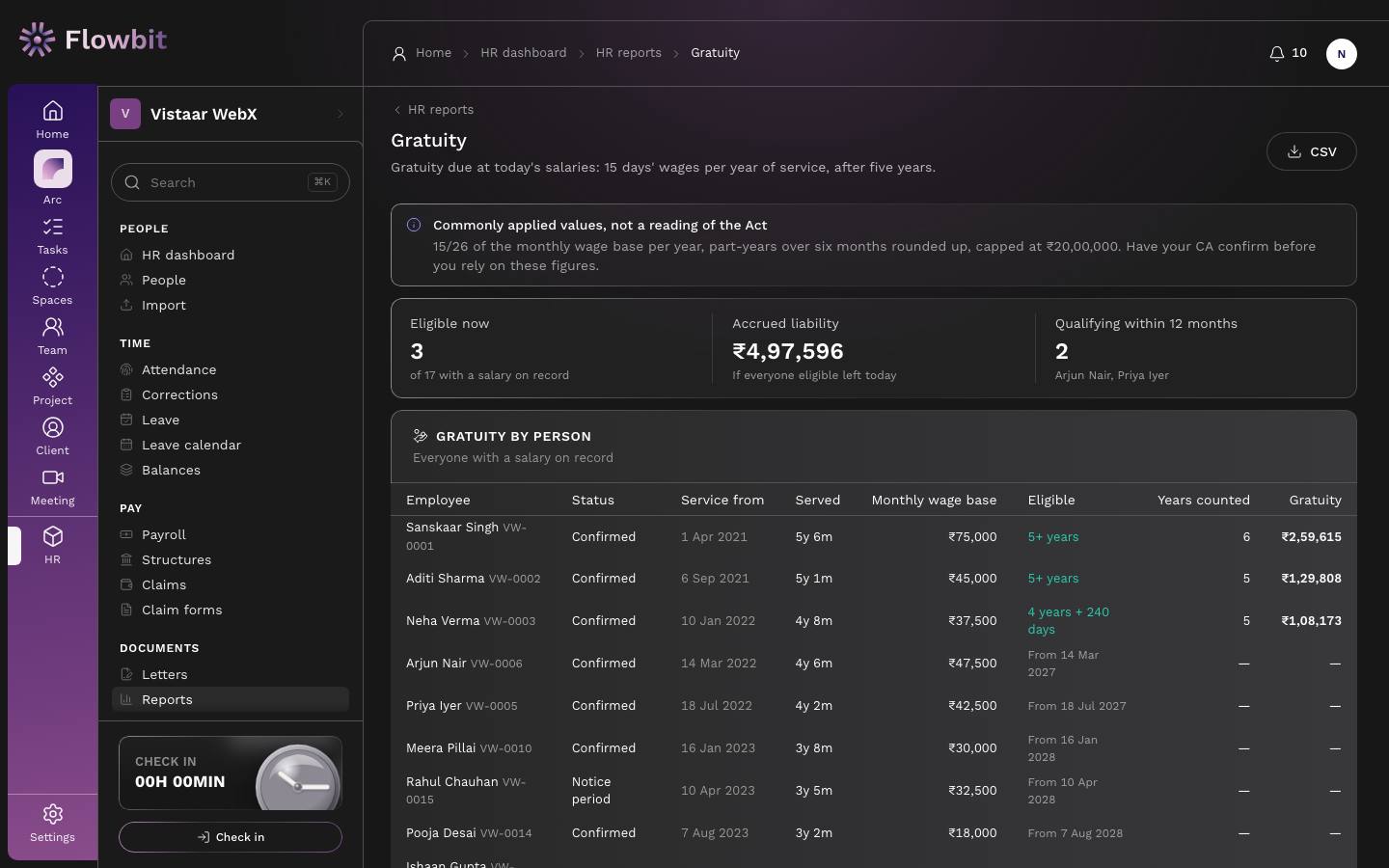
Shows the gratuity each person would be due if they left today, at today's salary, and the company's total liability.
On this page
- Eligible now: how many people qualify, out of those with a salary on record.
- Accrued liability: the total if everyone eligible left today.
- Qualifying within 12 months: people with at least four years' service who do not qualify yet, named.
- Gratuity by person: Employee, Status, Service from, Served, Monthly wage base, Eligible, Years counted, Gratuity. Click CSV to download.
How it is worked out
- Who qualifies: five or more years of service, or four years plus at least 240 days in the fifth year, or service ended by death or disability. Others show the date they will qualify, for example "From 14 Mar 2027".
- Service counts from the original joining date.
- Monthly wage base: the components set as Counts as wages (gratuity) (Basic in the standard set), or half of the total monthly pay, whichever is higher.
- Years counted: full years, plus one more if the extra part is over six months.
- Formula: monthly wage base ÷ 26 × 15 × years counted, capped at ₹20,00,000.
Example: a wage base of ₹45,000 and 5 years counted gives ₹45,000 ÷ 26 × 15 × 5 = ₹1,29,808.
These are commonly applied values, not a reading of the Act. Have your CA confirm them before you rely on these figures.
HR settings
Open: HR → HR settings/app/hr/settingsWho: HR admins change settings; people with HR access can view them
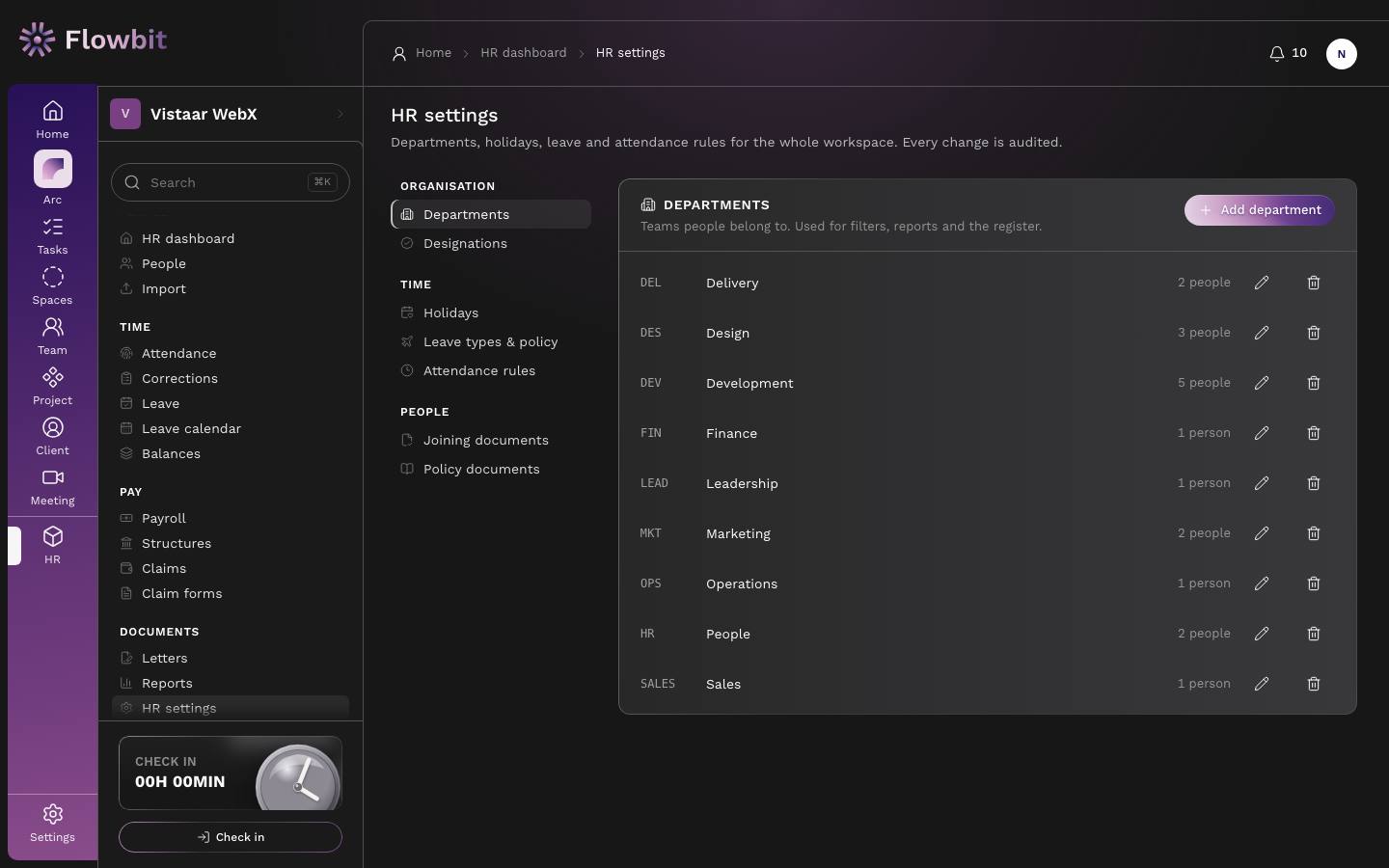
Departments, holidays, leave and attendance rules for the whole workspace. Every change is audited.
The tabs
| Group | Tab | What it controls |
|---|---|---|
| Organisation | Departments | Teams people belong to, each with a short code and a people count. Used for filters, reports and the register. |
| Organisation | Designations | Job titles for the people directory and letters. |
| Time | Holidays | Company and optional holidays for each year. Holidays are paid and are not counted as leave. |
| Time | Leave types & policy | Each leave type and how it is earned, plus the leave year, carry forward, negative balance and notice periods. |
| Time | Attendance rules | Office hours, late and half-day rules, working days, how unmarked days count, and the correction and comp-off windows. |
| People | Joining documents | Which documents a new joiner must submit, and how complete they must be to start. |
| People | Policy documents | Company policy PDFs that every employee can read. |
There is no separate approval routing tab. Leave, corrections, comp-off and overtime go first to the person's reporting manager, then to HR (or to management when the applicant could otherwise sign HR's stage). Set the reporting manager on each person's record. There is one set of office hours for the workspace, not separate shifts. Salary components and statutory rates live in Salary structures; claim categories live in Claim forms.
Departments and designations
- Click Add department (or Add designation).
- Enter the name, and for a department a code of 2 to 12 letters or digits, like PROD.
- Click Add department. Use the pencil icon to rename, or the bin icon to remove.
A department cannot be removed while people still belong to it. Move them first from their People records.
Holidays
- Open Holidays and pick the year.
- Enter the Date and Name. Tick Optional for a holiday people may choose to take.
- Click Add holiday.
Holidays can be added only within a year either side of today. You cannot add or remove a holiday in a month whose attendance is locked; reopen the month first. A holiday that approved leave already covers cannot be removed.
Leave types and policy
- Click Load the standard set to add PL, SL, comp-off, maternity, paternity and leave without pay, or click Add leave type.
- Fill Code, Name and How it is earned (Monthly, Yearly up front, Per service year, or On application).
- Set Days per year, Days per month, Carry-forward cap (days), Proof needed beyond (days) and Order.
- Tick Paid, Half days allowed and Always needs proof as needed, then save.
- In the Leave and notice policy card, set Leave year starts in, Carry forward (%), Negative balance, and the notice days for interns, probation and confirmed staff. Click Save policy.
Keep at least one unpaid leave type, so leave beyond a balance can be recorded as loss of pay.
Attendance rules
- Under Office hours, set Day starts, Day ends, Late after (minutes past start), Half day under (hours) and the Working days. The days not ticked are weekly offs.
- Under Register rules, choose how a working day with no check-in and no mark counts: Present (paid, shown as assumed), Absent (costs a day's pay) or Unmarked (blocks the month lock until every day is marked).
- Set Corrections allowed within (days) and Comp-off lapses after (days) (0 means never).
- Click Save attendance rules. They apply the next time payroll is generated.
The unmarked-day rule changes pay. With Absent, every unmarked working day costs a day's salary when the month is locked.
Joining documents
- Under Mandatory documents, pick the documents every joiner must submit.
- Set Complete enough to start (%): the share of those documents needed before someone can be made active, on probation or an intern.
- Click Save joining documents.
Below the threshold, people stay in joining. An HR admin can start them anyway by giving a reason.
Policy documents
- Under Publish a policy, enter the Title, Category and Summary, and attach the PDF.
- Click Publish. Everyone sees it in My documents.
- To take one down, click Archive in Published policies. Employees stop seeing it.