
Your own HR desk
Every employee gets a personal space in Muster. Check in and out, see what payroll will count for you, apply for leave, download payslips, file expense claims and keep your details up to date, without writing to HR.
My employee record and checking in
Open: Rail → Muster → My employee record/app/meWho: every employee
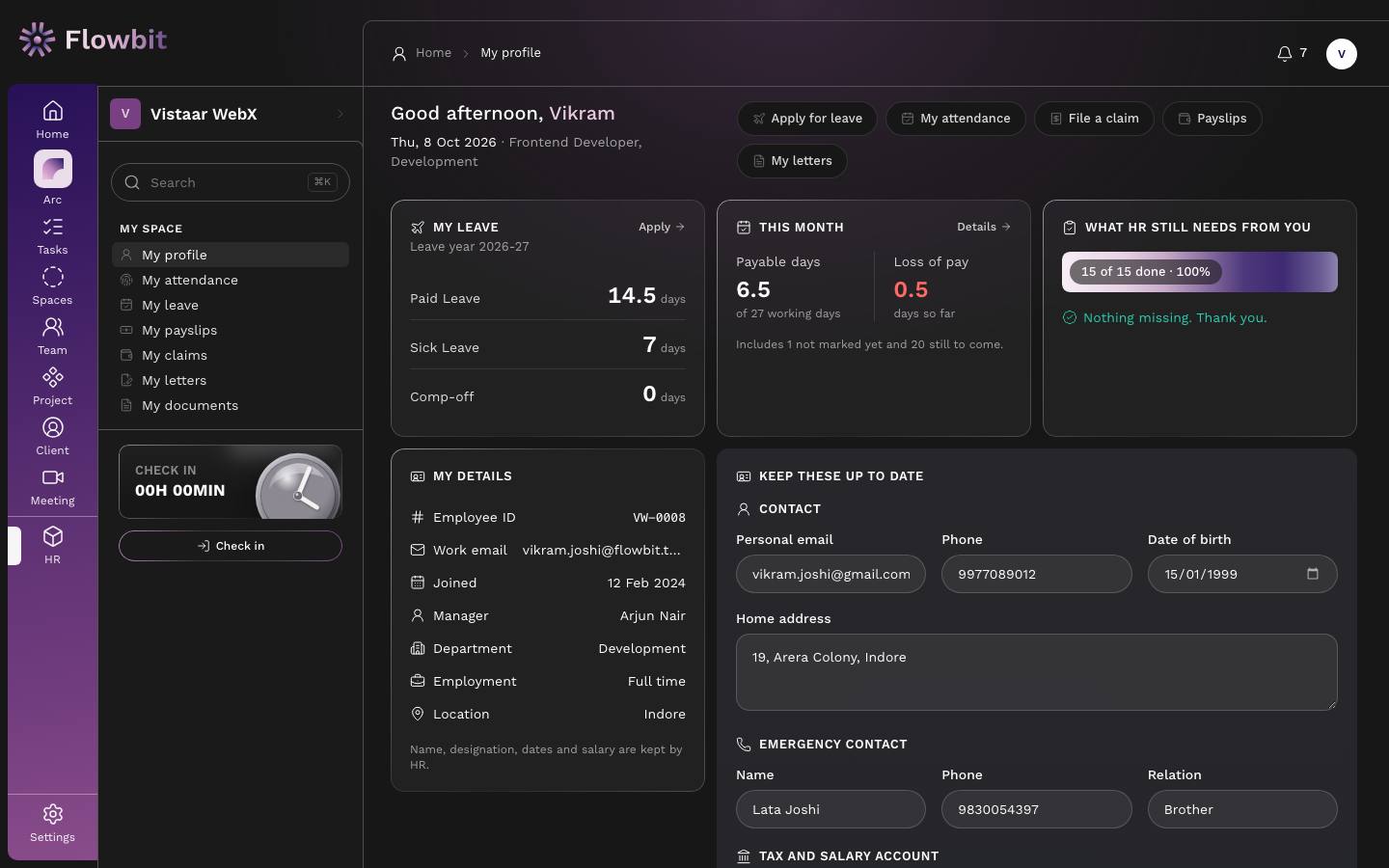
My employee record is your starting page. It greets you, shows your leave balance and this month's attendance, tells you what HR still needs from you, and holds the details you are allowed to change yourself.
On this page
- Quick links at the top: Apply for leave, My attendance, File a claim, Payslips and My letters.
- My leave: what you have left of each leave type for the current leave year (for example 2026-27). Click Apply to go straight to the leave form.
- This month: Payable days out of the month's working days, and Loss of pay so far. The note under it says how many days are not marked yet and how many are still to come. Click Details for the day-by-day view.
- What HR still needs from you: your joining checklist (contact details, statutory numbers and documents) as a progress bar. When everything is in, it says "Nothing missing. Thank you."
- My details: Employee ID, work email, joining date, manager, department, employment type and location. These are kept by HR and you cannot edit them here.
- Keep these up to date: the details you own (see below).
- Salary account changes: the last five changes to your bank account, newest first, with the account number masked.
- Something HR keeps is wrong?: a short form to report a mistake in your name, designation, department, manager, joining date, work email or location.
- Notes from HR: general notes and one-on-one notes that HR or your manager has shared with you.
Check in and check out
The Check in card at the bottom of the side panel shows your hours worked today on a live timer. It is on every page, not just My employee record. On a phone, the same button sits in the top bar.
- When you start work, click Check in. The card changes to Checked in and the timer starts.
- Going for lunch or a break? Click the small break button next to Check out (Take break) and pick the kind: Lunch Break, Power Nap, Tea/Coffee Break or Personal/Rest Break. The card shows On break. Each kind has a daily limit set by HR. Paid kinds (by default Power Nap and Tea/Coffee) count as paid time up to their limit; unpaid kinds, and minutes past a limit, do not.
- If your workspace records where you check in, the first check-in shows a short notice about location. Accept it to continue; you are asked again only if the notice changes.
- Back at your desk, click Resume.
- At the end of the day, click Check out.
If the card says "Today is locked by HR", the day's attendance has already been finalised and you can no longer punch. If you forgot to check in on a day, ask for a correction on My attendance.
Update your personal details
- Scroll to Keep these up to date.
- Under Contact, edit Personal email, Phone, Date of birth and Home address.
- Under Emergency contact, fill Name, Phone and Relation (for example Mother or Spouse).
- Under Tax and salary account, check PAN (format ABCDE1234F) and UAN (12 digits, from your PF passbook).
- Click Save my details. The message lists exactly what changed. If nothing changed, it says so.
Change your salary bank account
- In Tax and salary account, update Bank, Account holder, Account number (6 to 20 digits) and IFSC.
- Click Save my details.
- The change appears under Salary account changes, with the old and new account masked.
Change the account only if your salary should go somewhere new. As soon as you save, everyone in HR or Finance who looks after bank details is notified: "{your name} changed their bank account. Verify it before the next payroll run." Payroll flags the change until someone verifies it, so make the change well before month end and double-check the IFSC.
Report a mistake in your HR record
- Under Something HR keeps is wrong?, pick the field in What is wrong (for example Date of joining).
- In What it should say, write the correct value, for example "My joining date is 1 Apr 2025, not 4 Apr 2025".
- Click Send to HR. HR corrects the record; you do not need to email them.
My attendance
Open: My HR → My attendance/app/me/attendanceWho: every employee
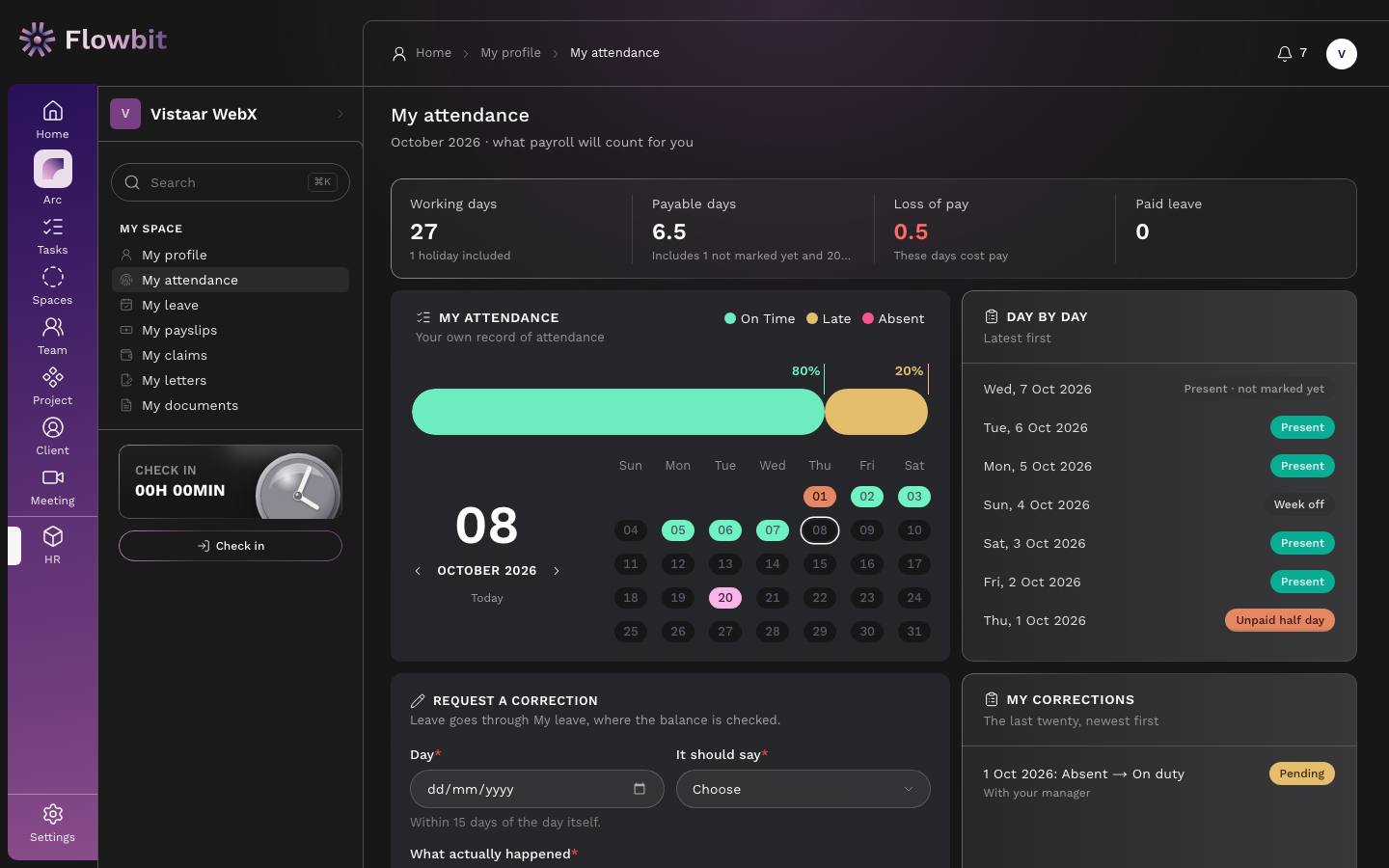
This page shows your month exactly as payroll will count it, and lets you ask for a correction or claim a comp-off.
On this page
- Tiles: Working days (holidays included in the count), Payable days, Loss of pay and Paid leave.
- My attendance card: your On Time, Late and Absent share for the month, and a calendar. Use the arrows beside the month name to see earlier or later months.
- Day by day: each day, latest first, with its mark (for example Present, Week off, Unpaid half day). A day shown as "not marked yet" has not been recorded; a future day is "Upcoming".
- Request a correction, My corrections and Comp-off forms.
How the days are counted
| Mark | Paid as |
|---|---|
| Present, Work from home, On duty | A full day |
| Paid leave, Sick leave, Paid or sick half day | A full day (taken from your leave balance) |
| Weekly off, Holiday | A full day |
| Unpaid half day | Half a day; the other half is loss of pay |
| Absent, Unpaid leave, Loss of pay | Nothing; the whole day is loss of pay |
Days that are not marked yet are shown faded. Depending on your company's setting, an unmarked working day is either paid as present, counted as absent, or held until HR marks it when the month is locked. Check that your days are marked well before month end.
Ask for a correction
Use this when a day is marked wrong, for example you were at a client's office and could not check in.
- Under Request a correction, pick the Day.
- In It should say, choose Present, Work from home, On duty or Unpaid half day.
- In What actually happened, explain briefly.
- Click Request correction. It appears under My corrections as Pending, with who it is waiting on (for example "With your manager").
Rules: you can ask within 15 days of the day itself. Only one pending correction per day. The month must still be open. A correction goes to your reporting manager first, then to HR; once the last person approves, the day is changed on the attendance sheet. Leave is not a correction: apply for it on My leave, where your balance is checked.
Claim a comp-off
Worked on a weekly off or a holiday? Claim a day back.
- Under Comp-off, pick the Day worked.
- Add Why, for example "Release support for a client launch".
- Click Claim comp-off. It goes to your manager and HR for approval.
The day must already be marked as worked on the attendance sheet, and it must have been an off day. A full day worked earns one comp-off day; a half day earns half. An approved comp-off adds to your Comp-off balance and lapses after 90 days if you do not use it.
My leave
Open: My HR → My leave/app/me/leaveWho: every employee
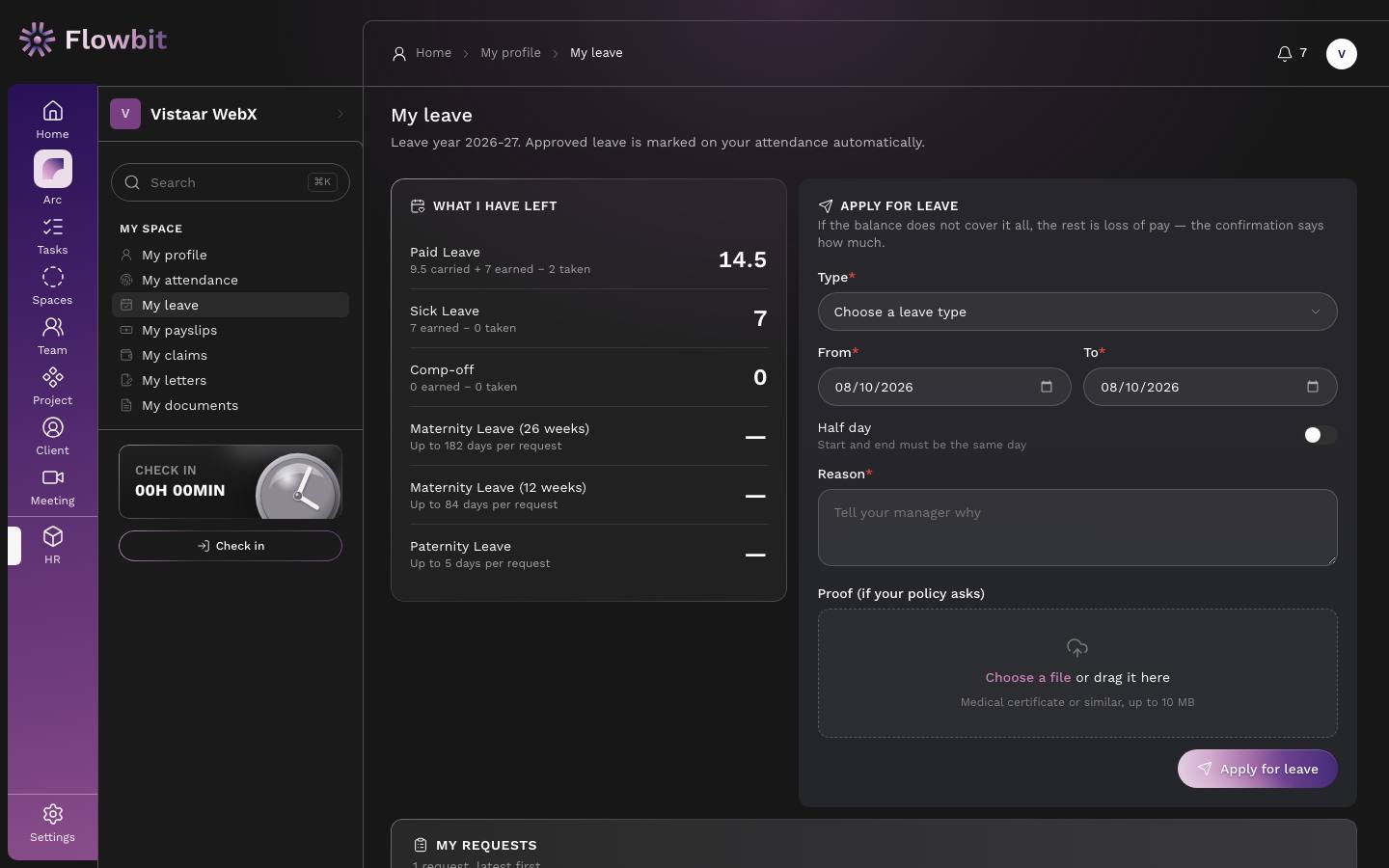
See your balances, apply for leave and follow your requests. Approved leave is marked on your attendance automatically.
On this page
- What I have left: each leave type with its balance, for example Paid Leave "9.5 carried + 7 earned − 2 taken" = 14.5. Types granted only when you apply, such as maternity and paternity leave, show the most you can take per request.
- Apply for leave: the request form.
- My requests: a table with Type, Dates, Days, Reason and Status.
Apply for leave
- Pick the Type, for example Paid Leave (PL) or Sick Leave (SL).
- Set From and To. For a single day, keep both the same.
- For half a day, turn on Half day. Start and end must then be the same day.
- Write the Reason. Your manager reads it.
- If your policy asks for proof (for example a medical certificate for long sick leave), add it under Proof (if your policy asks): PDF or image, up to 4 MB.
- Click Apply for leave. The confirmation says how many days were requested and how they are paid.
How days are counted: weekly offs and holidays inside your dates are skipped, so Friday to Monday over a weekend is two days of leave, not four. If your balance does not cover the whole request, the rest is loss of pay, and the confirmation says so, for example "3 paid from the Paid Leave balance and 2 as loss of pay". Leave Without Pay is always unpaid.
Who approves: your reporting manager first, then HR. You are told when the final decision is made. A rejection always comes with a note.
Withdraw a request
- In My requests, find the request. Only pending requests can be withdrawn.
- Click Withdraw and confirm. Your approvers are told it was withdrawn.
Need to cancel leave that is already approved? Ask HR. They can cancel it and remove the marks as long as that month's attendance is still open.
My payslips
Open: My HR → My payslips/app/me/payslipsWho: every employee
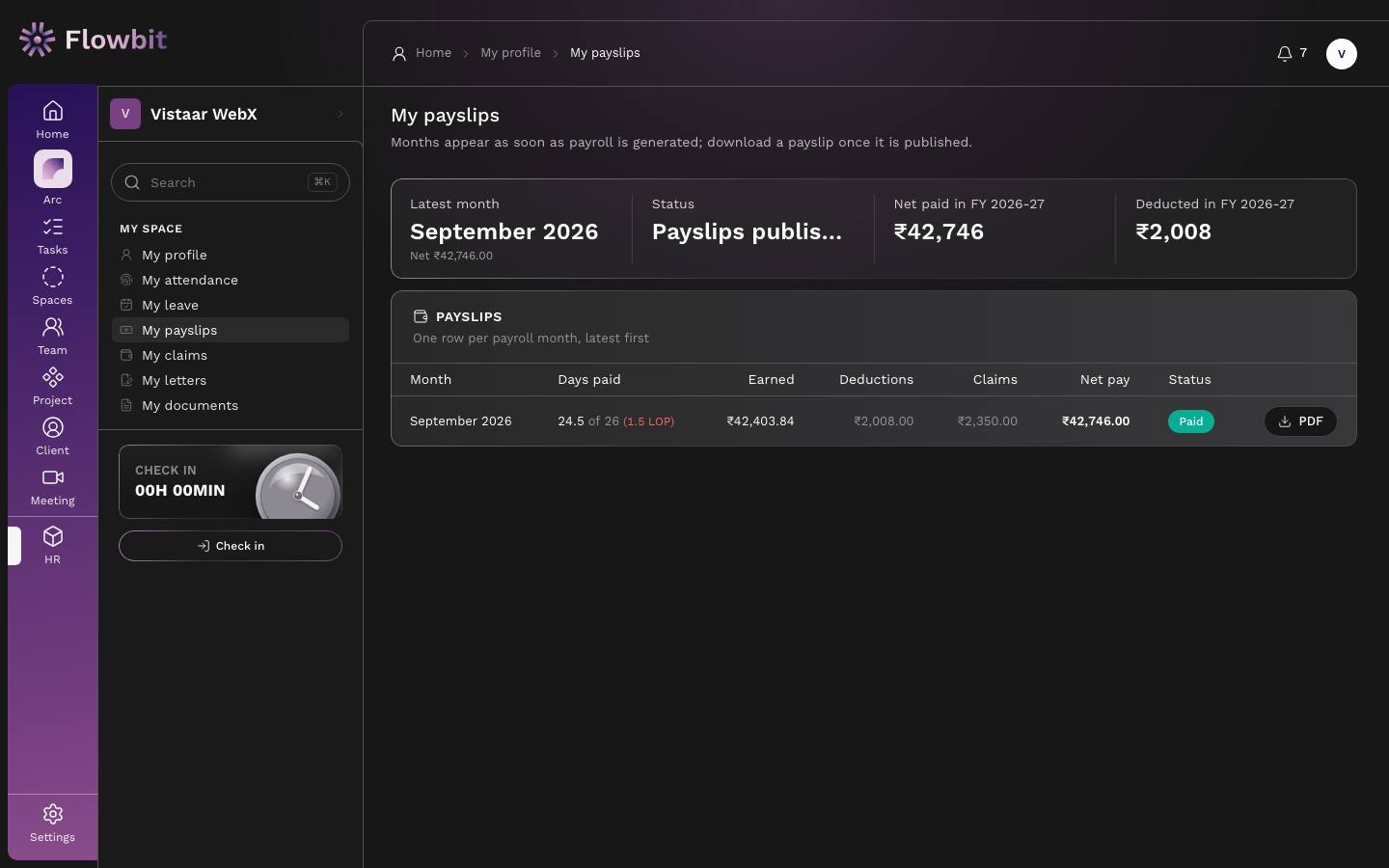
One row for every month payroll has been run for you, with a PDF payslip once it is published.
On this page
- Tiles: Latest month with its net pay, Status of that month's payroll, Net paid in FY and Deducted in FY for the current financial year.
- The Payslips table: Month, Days paid (for example "24.5 of 26 (1.5 LOP)"), Earned, Deductions (PF, ESI, professional tax and so on), Claims reimbursed with that salary, Net pay and Status.
Download a payslip
- Find the month in the table.
- Click PDF at the end of the row. The payslip downloads.
A month appears as soon as payroll is generated, so you can see the figures early. The PDF button only appears once Finance publishes the payslips. Until then the month is "still with Finance". Payslips are also emailed to you when published.
My claims
Open: My HR → My claims/app/me/claimsWho: every employee
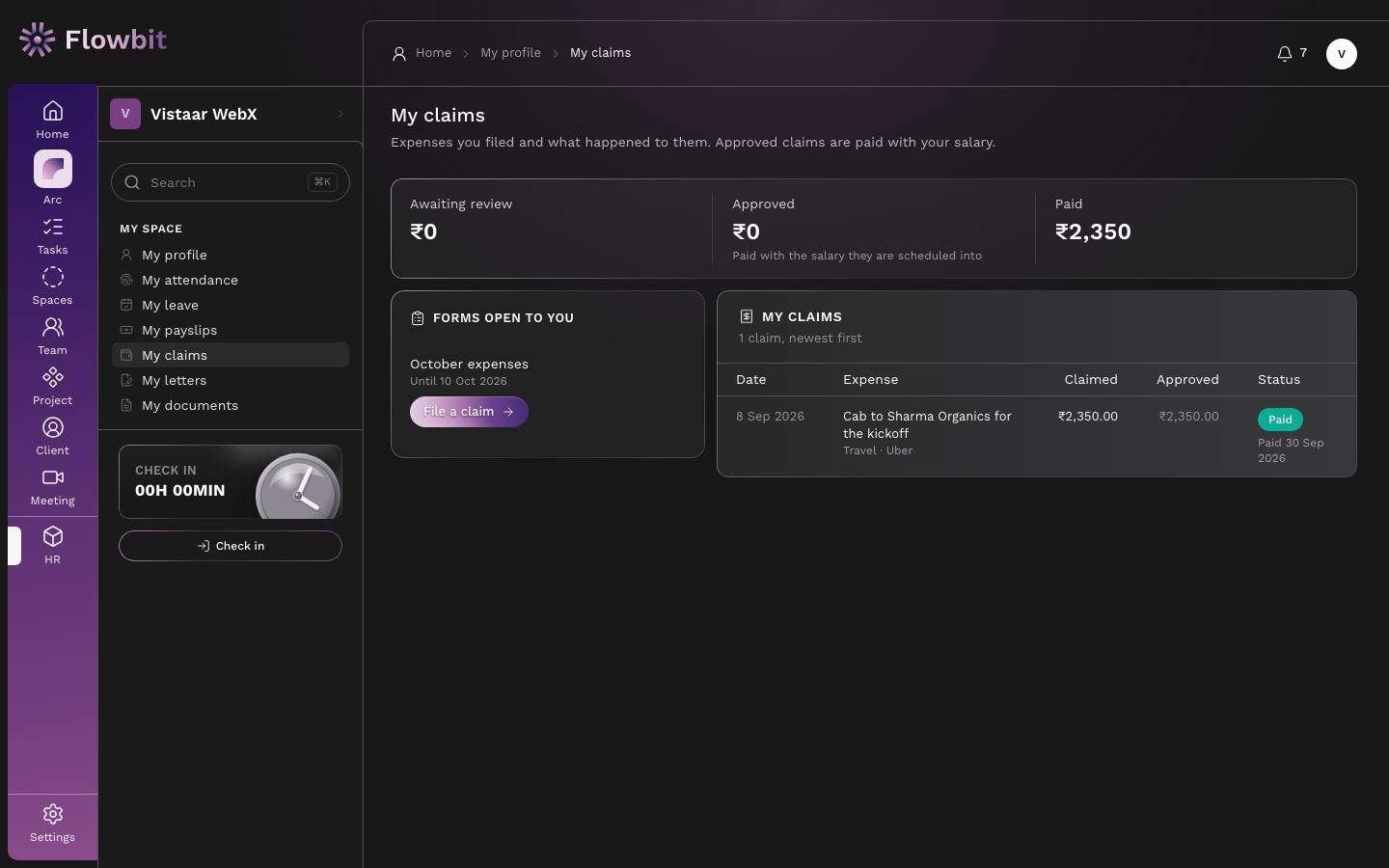
File work expenses such as cab fares or client lunches, and follow them until they are paid with your salary.
On this page
- Tiles: Awaiting review, Approved (paid with the salary they are scheduled into) and Paid, in ₹.
- Forms open to you: each claim form you can use right now, with its deadline.
- My claims: Date, Expense (purpose, category and vendor), Claimed, Approved and Status, with the paid date once paid.
File a claim with a receipt
- Under Forms open to you, click File a claim on the right form. The claim form opens.
- Enter your work email. A six-digit code is sent to it; it lasts 10 minutes.
- Type the code to verify. The form says "Verified as {your name}".
- Pick the category, the expense date (not in the future) and the amount in ₹.
- Add the vendor, the purpose (for example "Cab to client office for kickoff"), and the client or project if it applies.
- Attach the receipt: PDF, PNG, JPEG, WebP or HEIC, up to 4 MB. Most forms require one.
- Submit. You see "Claim for ₹… submitted" and the claim appears on My claims.
HR may approve the full amount, approve a reduced amount with a note, or reject with a reason. You are emailed the decision. Approved claims are added to a payroll month and paid with that salary; the Claims column on your payslip shows them. A form can cap the amount per claim, and each category can have its own limit.
Your session on the claim form lasts an hour. If it ends while you are typing, verify your email again; what you typed is kept.
My documents
Open: My HR → My documents/app/me/documentsWho: every employee
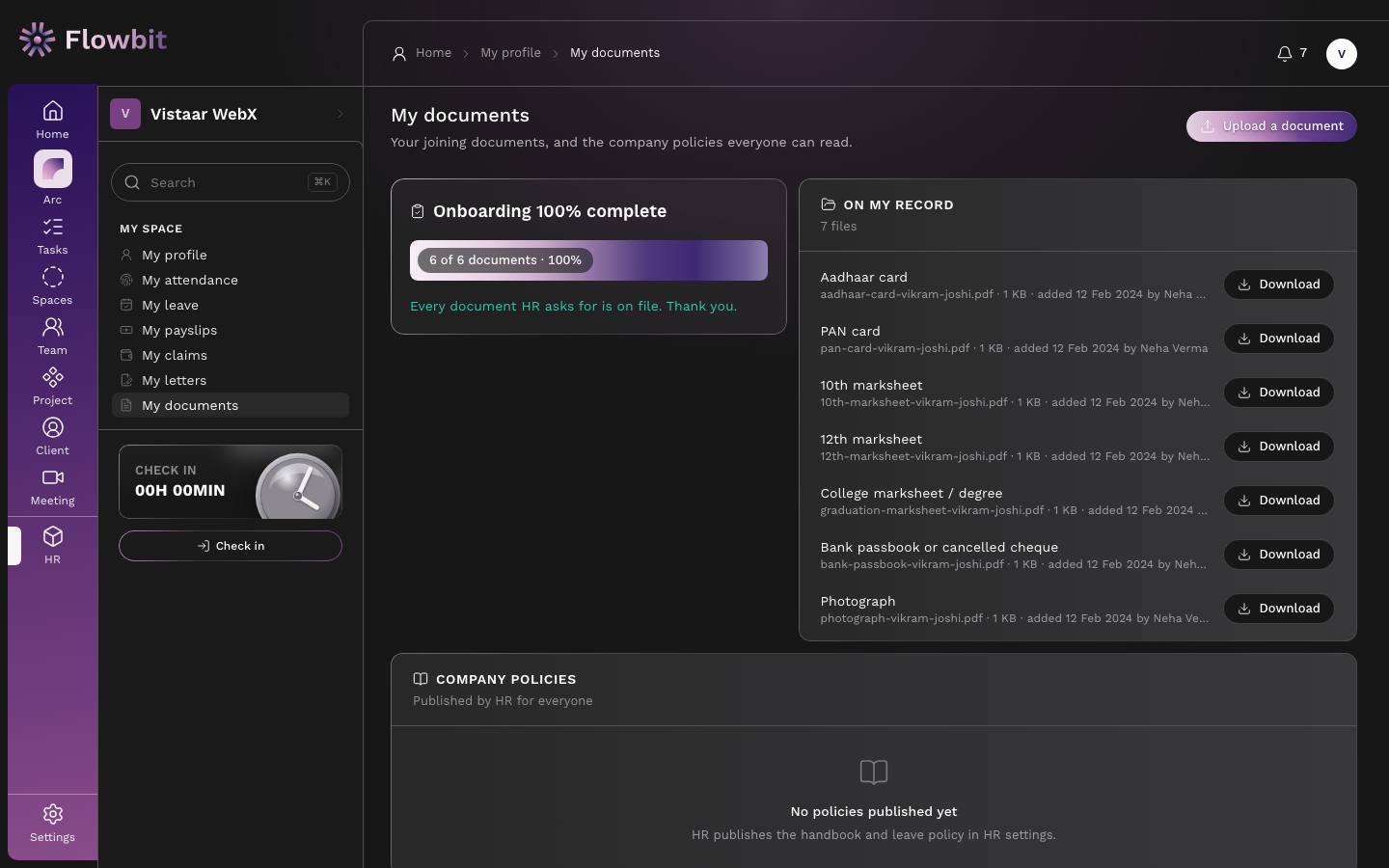
Your joining documents on file, what is still missing, and the company policies HR has published.
On this page
- Onboarding: how many of the required joining documents are on file, for example "6 of 6 documents". Anything missing is listed here.
- On my record: each file with its type (Aadhaar card, PAN card, marksheets, bank passbook or cancelled cheque, photograph and so on), size, date added and who added it. Click Download to get a copy.
- Company policies: the handbook, leave policy and other documents HR publishes for everyone.
Upload a document
- Click Upload a document (top right).
- Choose the Document type. The first missing document is suggested.
- Under File, choose one PDF or image (PNG, JPEG, WebP or HEIC), up to 4 MB. A clear phone photo of the page is fine.
- Add Notes if useful, then click Upload.
The same joining checklist drives What HR still needs from you on My employee record. Upload everything there and both reach 100%.
My letters
Open: My HR → My letters/app/me/lettersWho: every employee
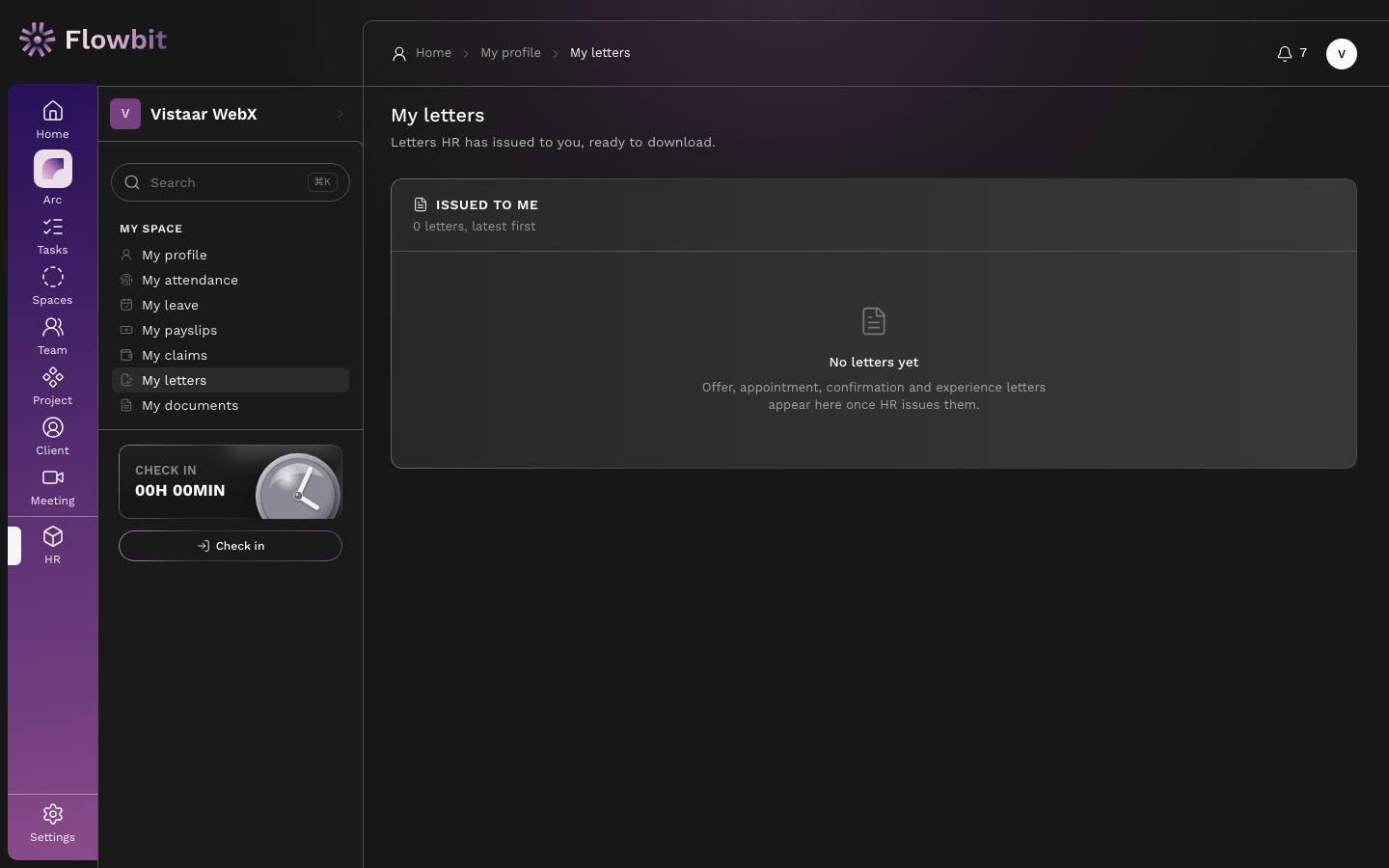
Letters HR has issued to you, such as your offer, appointment, confirmation, salary revision or experience letter, ready to download.
On this page
- Issued to me: each letter with its reference number, the kind of letter and the issue date, latest first, and a download link.
Download a letter
- Open My letters.
- Find the letter and click its download link. The signed PDF downloads.
Only issued letters appear here. Drafts HR is still working on are never shown. Need a letter you do not see, such as an experience letter for a visa? Ask HR to issue it; it appears here as soon as they do.
My tax: declarations and Form 130
Open: My HR → My tax/app/me/taxWho: every employee on payroll
Tell HR how you want your salary TDS worked out, and see the worksheet behind each month's deduction.
- Pick your tax regime: new (the default) or old.
- For the old regime, fill in what applies: 80C investments, 80D health insurance (for yourself and your parents, with the senior citizen boxes), rent (with your landlord's PAN when rent is above ₹1 lakh a year), home loan interest and NPS under 80CCD(1B).
- Joined mid-year? Add your previous employer's salary, TDS and professional tax so the year adds up.
- Save. When HR opens the proof window, upload proofs for what you declared. HR verifies them or sends them back with a note.
The worksheet shows the year's income, deductions, tax and what is left to deduct over the remaining months. Form 130 Part B downloads your salary and tax summary for the year (Form 130 replaced Form 16 under the Income-tax Act, 2025). Part A comes from TRACES through your employer.
The figures are worked out by Flowbit from what you and HR entered. Check them with your CA before relying on them.
Flowbit in Hindi
Open: Settings → My account (login) → LanguageWho: everyone, for themselves
Choose हिन्दी to see your own HR screens in Hindi: My employee record, My attendance, My leave (apply and balances), My claims, My letters, My payslips, the check-in card with its break types, and the Home attendance and Get started cards. Payslip PDFs then print English and Hindi labels side by side. My tax and My documents, and everything else, including names, dates and leave types, stay in English, and emailed payslips stay in English.