
Find, follow up and win clients
Orbit is the sales desk. Leads are the people you are prospecting; once a meeting is done, a lead is converted into a client and a deal, and the deal carries the money to won or lost. Salespeople work their leads and follow-ups here every day; owners and managers watch the pipeline and the conversion numbers.
Who can do what
Orbit has two levels of sales rights. A salesperson can add and work leads, log activity and move their own records forward. A reviewer (owners, admins and the built-in Sales role) can also close and reopen, move things backwards and reassign. A custom role such as "BD executive" can be given only the salesperson rights.
| Right | What it allows | Who has it by default |
|---|---|---|
| Read | Open Orbit and see your own leads and deals (and leads you review) | Owner, Admin, Sales, Manager |
| See everyone | See the whole team's leads, deals and activity; the Whole team and per-person scope pickers | Owner, Admin, Sales, Manager |
| Write | Add and import leads, log and schedule activity, move a lead forward up to Meeting done, disqualify, convert, create deals and move your own deals between open stages | Owner, Admin, Sales |
| Close (reviewer) | Mark leads Lost, move leads backwards, reopen, mark deals Won or Lost, reopen deals, change owner and reviewer, edit any record | Owner, Admin, Sales |
| Admin | Orbit settings; delete leads, deals and logged activities | Owner, Admin, Sales |
A record outside your scope simply does not open. Without "See everyone", lists show only leads you own or review and deals you own.
Orbit home (Today)
Open: Rail → Orbit/app/orbitWho: everyone with Orbit
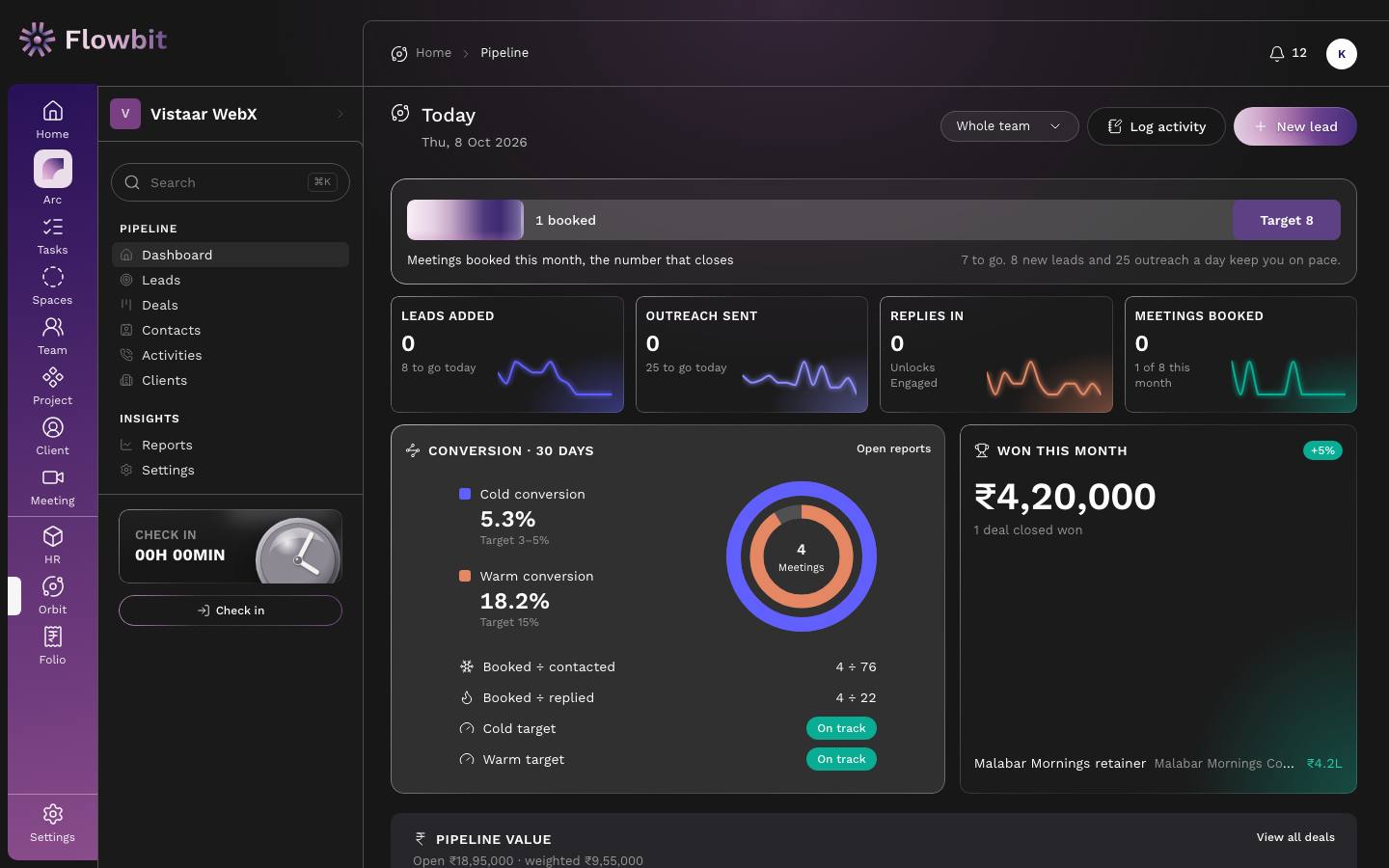
The daily report. A salesperson starts the day here to see what is overdue and due today; a manager gets the pipeline at a glance.
On this page
- Scope picker (for example Whole team), Log activity and New lead.
- Meetings this month bar: meetings booked against the monthly target, with how many to go and the daily lead and outreach pace that keeps you on track.
- Four counters for today, each with a 14-day trend line:
- Leads added: leads created today, against the daily target ("8 to go today" or "Target met").
- Outreach sent: DMs, emails, calls and follow-ups logged today, against the daily target.
- Replies in: replies logged today. A reply is what unlocks the Engaged stage.
- Meetings booked: leads that reached Meeting booked today, plus the month's count against target.
- Conversion · 30 days: Cold and Warm conversion for leads created in the last 30 days, with their targets and an On track or below pill. Open reports goes to the full reports.
- Won this month: total ₹ of deals won this month, the change against last month, and the latest wins.
- Pipeline value: open deals by stage, with count, value and weighted value. View all deals opens the deal board.
- Overdue and Due today: planned follow-ups, with the lead or deal they belong to, how late they are and who owns them. Each row has Mark done, Reschedule and Cancel.
- No next step: open leads with no follow-up scheduled, with how long since they were last touched, and a Schedule button on each row. A warning above it counts leads that are both stale and without a next step.
Daily targets are the weekly targets from Orbit settings divided by the number of working days in your work week. "Today" always means today in India time.
Clear your follow-ups
- Start with Overdue, oldest first.
- Did it? Click Mark done, add what happened, and save. It becomes a logged activity.
- Not today? Click Reschedule and pick a new date.
- No longer needed? Click Cancel and, if you like, say why.
- Then work through No next step: click Schedule on each lead, or open it and disqualify it if it is going nowhere.
Every open lead should have a dated next step. Leads without one are the ones that quietly die, and a pipeline full of them makes the conversion numbers meaningless.
Leads
Open: Orbit → Leads/app/orbit/leadsWho: everyone with Orbit
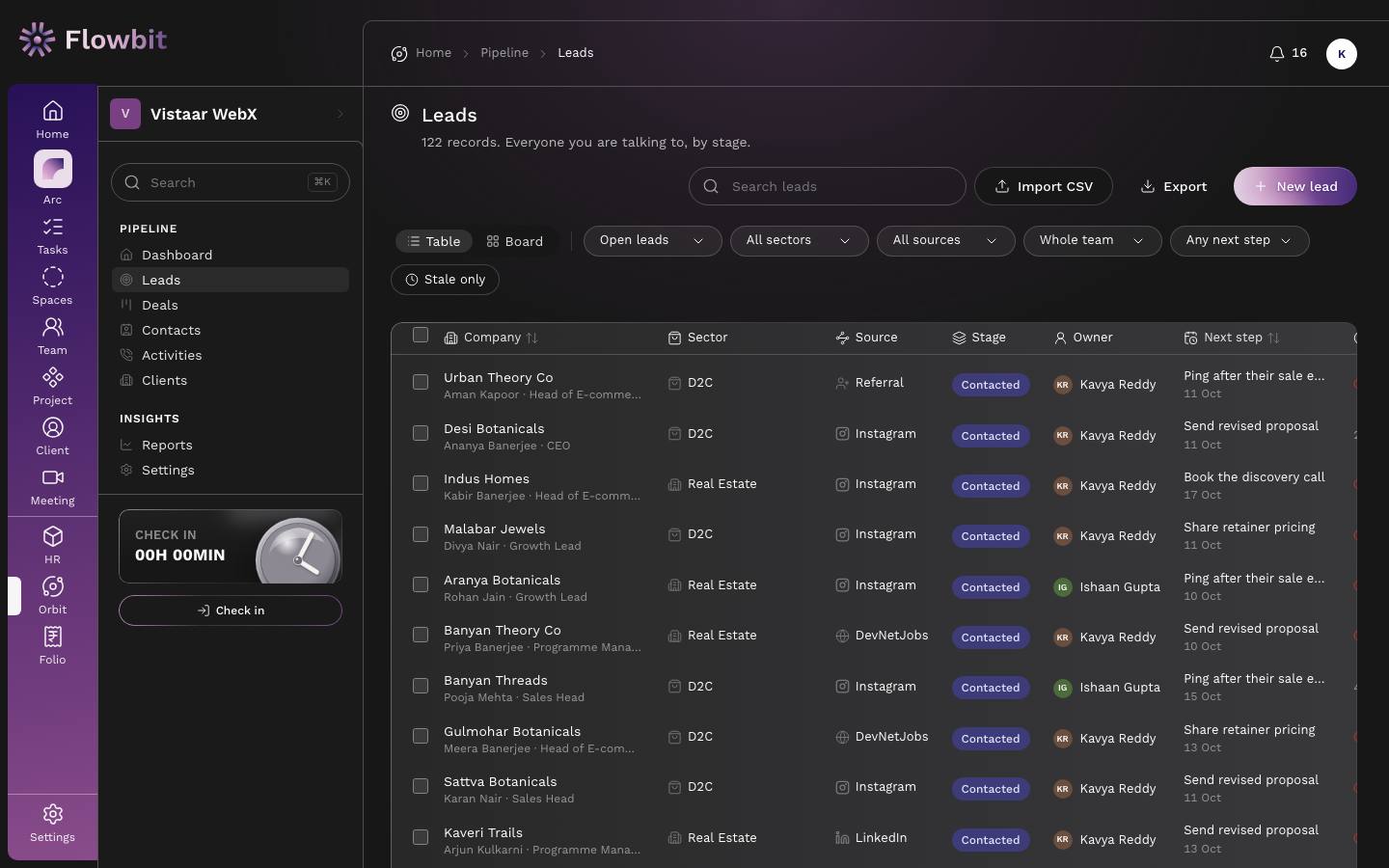
Everyone you are talking to, by stage. Switch between a table and a board.
On this page
- Search leads: matches company, contact, email and phone.
- Import CSV, Export and New lead.
- Table and Board views.
- Filters: stage (Open leads by default, or closed, all, or one stage), sector, source, owner, Any next step (overdue, today, this week, or none) and Stale only.
- Table columns: Company (with contact and designation), Sector, Source, Stage, Owner, Next step (red when overdue, amber when due today), Last touch ("2d ago", or red "Stale 28d") and Value. Click a column title to sort.
- Tick rows to get the bulk bar: assign owner, set reviewer (reviewers only), disqualify with a reason, or export the selection.
Lead stages and the stage machine
Lead stages are fixed, because the Cold and Warm conversion rates are defined by them. Each stage needs proof that it really happened.
| Stage | Means | To move in, you need |
|---|---|---|
| New | Sourced and added. No outreach yet. | Every lead starts here |
| Contacted | At least one outreach logged | A logged DM, email, call or follow-up |
| Engaged | They replied. Any human response counts, positive or not. | A logged "Reply received" |
| Meeting booked | Invite accepted, date on record | The meeting date |
| Meeting done | The meeting happened and notes are logged | A logged meeting with notes |
| Converted | Became a client and a deal | Use Convert from Meeting done |
| Lost | Closed without a deal | A reason; reviewers only |
| Disqualified | Not a fit, no budget or wrong segment | A reason |
Allowed moves:
- Forward one step at a time, for everyone, reviewers included. Trying to jump from Contacted to Meeting booked is refused: "Move one step at a time".
- Warm sources may skip Contacted. Leads from a source marked warm (Referral, Inbound and Event by default) can go from New straight to Engaged once their message is logged as a reply.
- Backwards only for reviewers. A salesperson sees "A lead can't move backwards. Ask your reviewer."
- Disqualify any open lead, with a reason. Mark lost needs a reviewer.
- Reopen a lost or disqualified lead: reviewers only. It goes back to the stage it was closed from, and the close reason is cleared.
- A converted lead cannot be reopened. Carry on, or lose it, on the deal.
The first time a lead reaches each stage is recorded and never wiped, even if it later moves back. Reports count every lead that ever reached a stage.
Work the board
- Click Board. Columns are New, Contacted, Engaged, Meeting booked and Meeting done, with drop targets for Converted, Lost and Disqualified at the right.
- Drag a card to the next column. If the move is allowed, it sticks; if not, it snaps back with the reason, for example "Log a 'Reply received' activity first".
- Dropping on Meeting booked asks for the meeting date, time and link. Dropping on Meeting done asks you to log the meeting notes (unless a meeting is already logged). Dropping on Lost or Disqualified asks for a reason. Dropping on Converted opens the Convert dialog.
A red clock on a card means nothing has happened on that lead for a while (7 days by default; set in Orbit settings → General).
Import leads from a CSV
- Click Import CSV, then Choose a .csv file. The file needs a header row.
- Columns such as Company, Contact, Email, Phone, Instagram, LinkedIn, Website, Sector, Source and Notes are matched automatically, including common variants such as "Brand name", "Mobile" or "Lead source".
- Check the preview: how many rows are ready, how many were skipped for having no company name, and the sector and source each row was matched to. Unknown sectors and sources become "Other".
- Reviewers can pick the owner and reviewer for the whole file; otherwise the leads are yours.
- Click Import N leads. The message says how many were imported and how many skipped.
Every imported lead starts at New. Rows that duplicate an open lead (same company or same email) are skipped, as are duplicates inside the file. Import at most 2,000 rows at a time.
Export
- Set the filters you want.
- Click Export. A CSV of the filtered list downloads, ready to open in Excel.
Add a lead
Open: Leads → New lead/app/orbit/leads/newWho: salespeople and reviewers
Adding a lead takes under 30 seconds. Only the company is required; everything else can be filled in later.
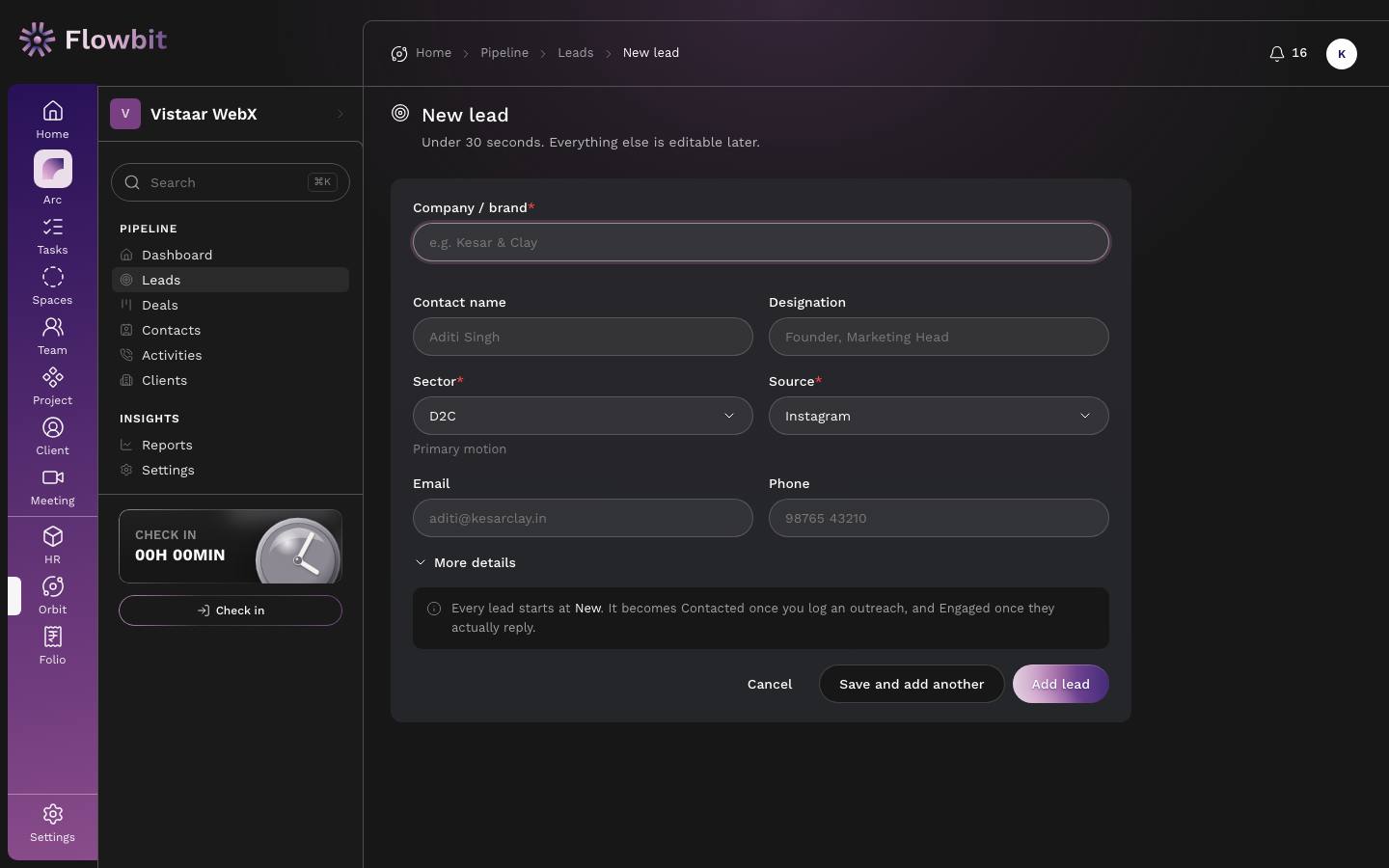
- Click New lead (on Leads or the dashboard).
- Type the Company / brand.
- Add Contact name and Designation if you know them.
- Pick the Sector (the hint says whether it is your primary motion) and the Source, such as Instagram, LinkedIn or Referral.
- Add Email and Phone.
- Optional: click More details for Instagram handle, LinkedIn URL, website, ICP fit (1 = poor fit, 5 = ideal), estimated deal value in ₹, a first next step with a date, owner and reviewer (reviewers only) and notes.
- Click Add lead to open the new lead, or Save and add another to keep adding.
If an open lead already exists with the same company name or email, Orbit says so and names its owner. You can open that lead, or choose to add anyway. Without reviewer rights, the owner is you and the reviewer is the default reviewer from settings; the reviewer is told about the new lead.
Leads can also arrive by themselves from your website form, a webhook (Zapier, Meta lead ads, JustDial) or IndiaMART. See Orbit settings → Lead capture.
Working a lead
Open: Leads → click a company/app/orbit/leads/{id}Who: the owner, the reviewer, and anyone who sees everyone
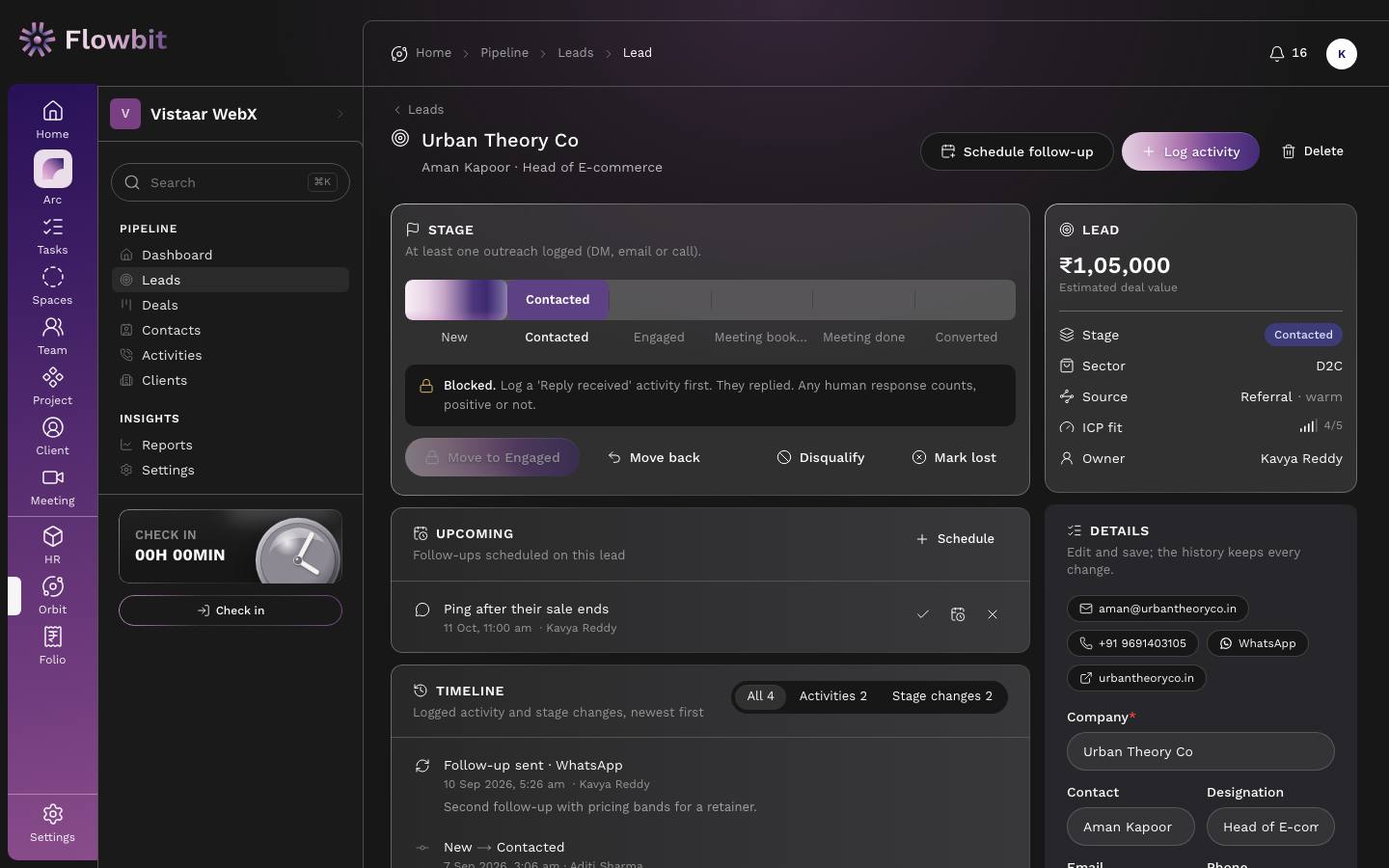
Everything about one lead: its stage, the next step, everything that happened, and its details.
On this page
- Header: company and contact, Schedule follow-up, Log activity and (admins) Delete.
- Stage: the rail New → Contacted → Engaged → Meeting booked → Meeting done → Converted, the rule for the current stage, and the stage buttons. When the next move is not yet allowed, a Blocked note says why.
- Upcoming: planned follow-ups for this lead, each with mark done, reschedule and cancel.
- Timeline: activities and stage changes, newest first, with filters All, Activities and Stage changes.
- Lead card: estimated value, stage, sector, source (with "warm" if it is a warm source), ICP fit and owner.
- Details: email and phone shortcuts, and the editable fields. Click Save changes after editing. Only reviewers can change Owner and Reviewer.
- Milestones: when it was created, first contacted, first replied, meeting booked, meeting done, converted and closed.
Log an activity
- Click Log activity.
- Under What happened, pick DM, Email, Call, Follow-up, Reply, Meeting or Note.
- Check the Channel (Instagram, LinkedIn, Email, Phone, Video call, In person or another channel).
- Set When if it was not just now. You can go up to 7 days back, never into the future.
- Write Notes: what you said and what they said back. Notes are required for a meeting.
- Optional: open Also schedule a follow-up and give the Next step and its Due date.
- Click Log activity. If this activity unlocks the next stage, the message offers a button such as Move to Engaged.
Log a Reply only when a person actually responded. Engaged is the denominator of the Warm conversion rate, so a reply logged by mistake makes the numbers wrong. Logged activities cannot be edited; only an admin can delete one.
Schedule a follow-up
- Click Schedule follow-up (or Schedule in Upcoming).
- Pick the Type (Follow-up, Call, Email, DM or Meeting) and write a Title, for example "Send the deck".
- Set the Date (today or later) and, if needed, the Time. For a meeting, add the Meeting link.
- The Assignee is the lead owner; reviewers can pick someone else, who is notified.
- Click Schedule. The earliest planned follow-up becomes the lead's next step in every list.
Move the lead through its stages
- Log the evidence first (an outreach for Contacted, a reply for Engaged).
- Click Move to … under the rail, for example Move to Engaged.
- For Meeting booked, enter the Date, Time (11:00 by default) and Meeting link, then click Mark meeting booked. A planned meeting is added to Upcoming.
- After the meeting, click Move to Meeting done, write the Notes of what was discussed and click Mark meeting done. The reviewer is told the lead is ready to convert.
- Reviewers can use Move back and choose an earlier stage.
Disqualify or mark lost
- Click Disqualify (anyone who can edit the lead) or Mark lost (reviewers).
- Pick the Reason that fits best, for example No budget, Not ICP / wrong segment, Already has an agency or Timing: revisit next quarter.
- Add a Detail such as "Said budget opens again in Q3, told me to ping in April." Detail is required when the reason is Other.
- Click Mark disqualified or Mark lost.
A reason code is mandatory: free text alone makes the loss analysis in Reports impossible. To undo, a reviewer clicks Reopen; the lead returns to the stage it was closed from.
Convert a lead into a client and a deal
- When the lead is at Meeting done, click Convert to client + deal.
- Under Client, choose Create new client (the company and its contact are copied over as the primary contact) or Link existing client and pick it. The lead's contact is added to that client.
- Under Deal, check the Deal title, Value (₹) (filled from the lead's estimate), Stage (the first deal stage by default), Expected close and Owner.
- Click Convert. You land on the new deal. The lead closes as Converted, with links to the client and the deal, and its activities and follow-ups move along with it.
Deleting a lead (admins only) removes it, its activities and its history, and reports stop counting it. A converted lead cannot be deleted; lose or delete the deal instead.
Deals
Open: Orbit → Deals/app/orbit/dealsWho: everyone with Orbit
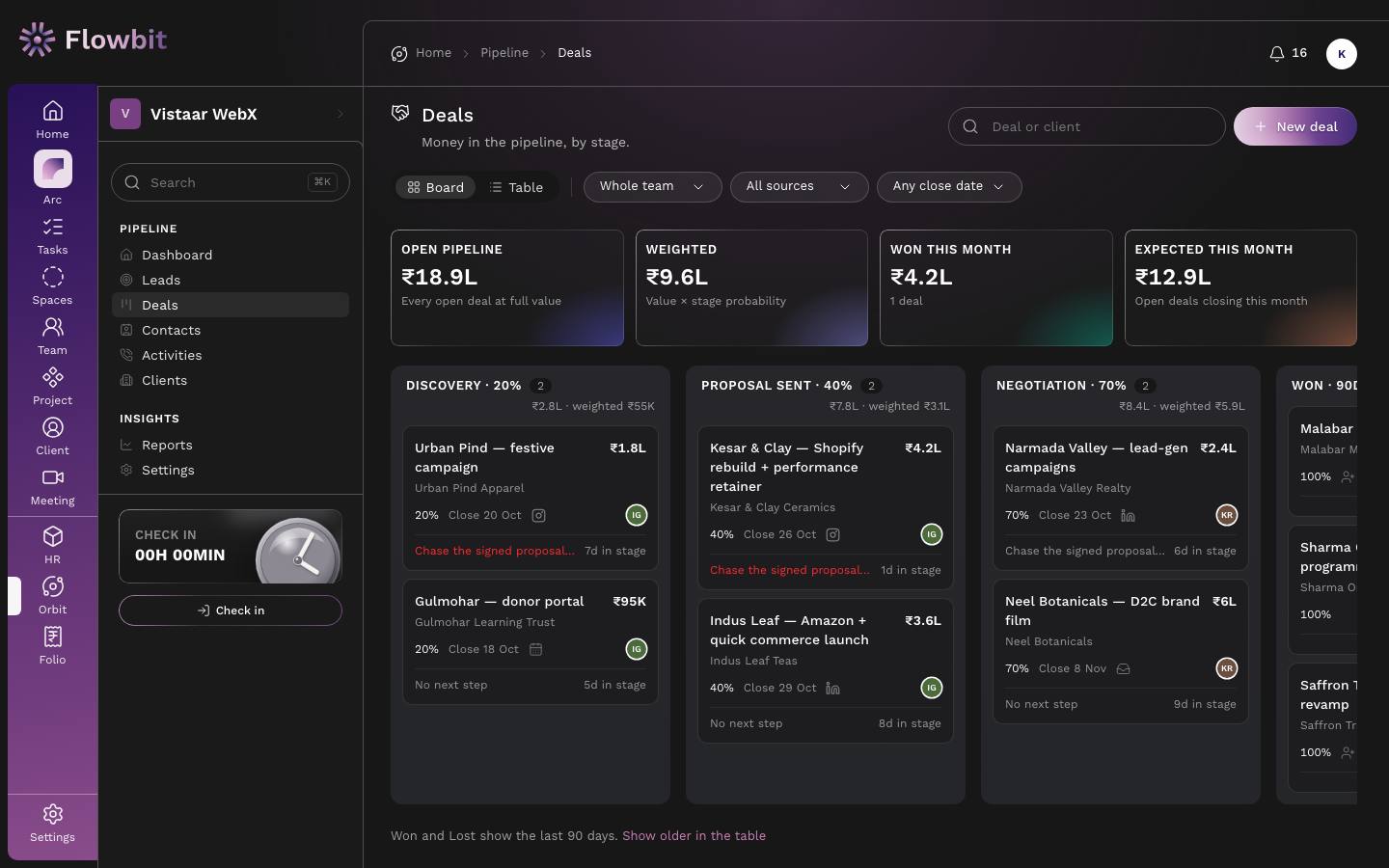
Money in the pipeline, by stage. A deal is what you are trying to sign with a client: a title, a value in ₹, a stage and an expected close date.
On this page
- Search (Deal or client), New deal, and Board / Table views.
- Filters: owner, source and Expected close (this month, overdue or next 30 days). The table also filters by status: open, won, lost or all.
- Totals:
- Open pipeline: every open deal at full value.
- Weighted: each open deal's value × its probability, added up. A ₹1,80,000 deal at 20% counts as ₹36,000.
- Won this month: value and count of deals won this month.
- Expected this month: open deals whose expected close date falls this month.
- Columns: your deal stages (by default Discovery 20%, Proposal sent 40%, Negotiation 70%), then Won and Lost for the last 90 days. Show older in the table finds earlier ones.
- Cards: title and value, client, probability, expected close (red when past and still open), source, owner initials, the next follow-up (red when overdue) or "No next step", and days in the current stage.
Deal stages, win and loss
- Open stages and their default probabilities are set in Orbit settings. Moving a deal to a stage sets its probability to that stage's default; you can still edit the probability on the deal.
- Between open stages, a deal can move in any direction, by its owner or a reviewer.
- Won (100%) and Lost (0%) are fixed and need a reviewer. Lost needs a reason from the same list used for leads.
- A closed deal can only be reopened by a reviewer, from the deal page. It returns to its last open stage.
- When a deal is won, its client's status changes from Lead to Active.
Create a deal for an existing client
- Click New deal.
- Give the deal a title (for example "Urban Pind: festive campaign").
- Pick the client, or create a new one by name right there. Pick the contact from that client's contacts.
- Enter the value in ₹, the stage (the probability fills in from it), the expected close date (today or later), and optionally owner, source and notes.
- Save. The deal page opens.
Most deals come from converted leads, which fills all of this for you. Use New deal for repeat work from an existing client.
Move, win or lose from the board
- Drag a card to another open stage to move it.
- Drag it to Won: confirm the Final value (₹), optionally pick Why we won, set the Close date (today by default), and click Mark won.
- Drag it to Lost: pick the Reason, add a Detail, and click Mark lost.
A deal
Open: Deals → click a deal/app/orbit/deals/{id}Who: the deal owner, and anyone who sees everyone
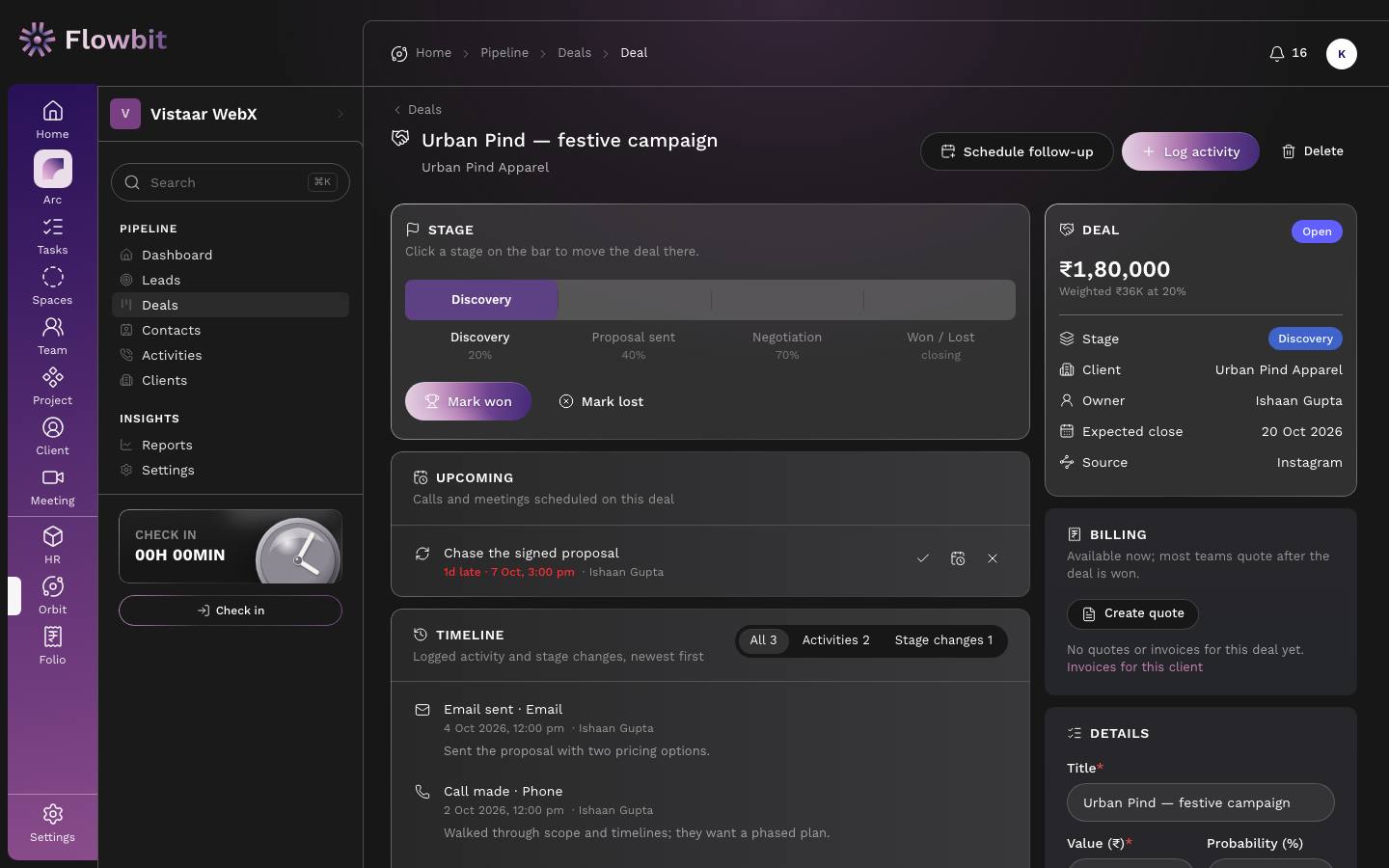
One deal from first call to signature, including its billing in Folio.
On this page
- Header: Schedule follow-up, Log activity and (admins) Delete.
- Stage: the stage bar with each stage's probability, then Mark won and Mark lost. When closed, the won or lost reason and, for reviewers, Reopen.
- Upcoming and Timeline, as on a lead. If the deal came from a lead, the lead's history appears as "Before conversion".
- Deal card: status (Open, Won or Lost), value, weighted value, stage, client, owner, expected close and source.
- Billing: Create quote (and Create invoice) in Folio, prefilled with the client, title and amount, plus any quotes or invoices made for this deal. Most teams quote after the deal is won.
- Details: title, value, probability, expected close, contact, source, sector, owner (reviewers) and notes, saved with Save changes. Add contact adds a new person to the client.
- Client card: name, status, primary contact, GSTIN and Open client.
Win a deal
- Click Mark won.
- Confirm the Final value (₹), the signed amount.
- Optionally choose Why we won (for example Referral or trust, Case studies and proof, Price fit, Speed of response).
- Set the Close date (today or earlier) and click Mark won.
- In Billing, click Create quote or Create invoice to bill it in Folio.
Reopening a won deal that already has an invoice warns you about it. If the deal fell through, void the invoice in Folio. A deal that came from a lead cannot be deleted; mark it lost instead.
Contacts
Open: Orbit → Contacts/app/orbit/contactsWho: everyone with Orbit and client access
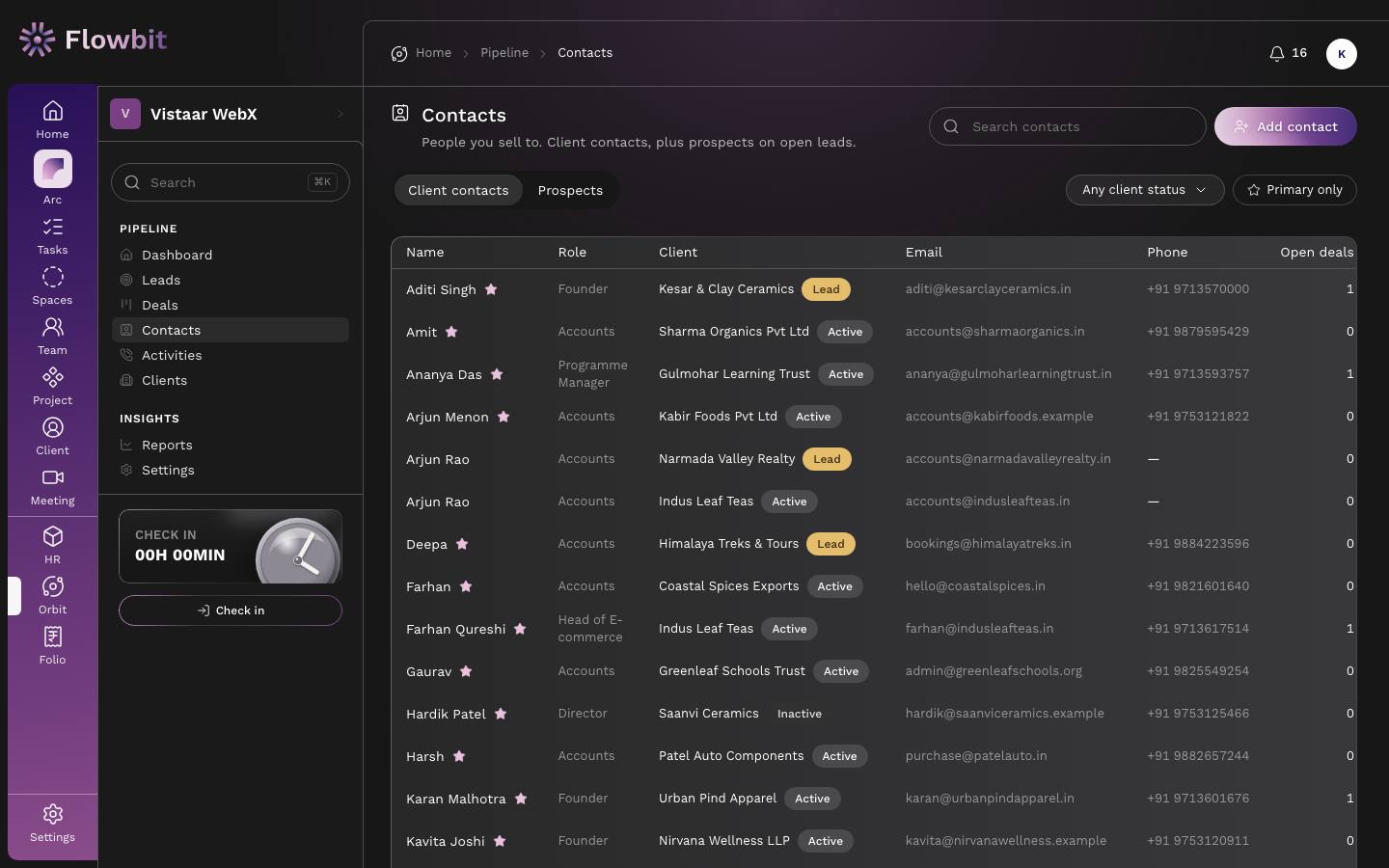
The people you sell to. Contacts belong to clients; prospects are the contact people on your open leads.
On this page
- Search contacts and Add contact.
- Tabs: Client contacts (columns Name, Role, Client with its status, Email, Phone and Open deals) and Prospects (contact people on open leads, with company, stage and owner; read only, click to open the lead).
- Filters: Any client status and Primary only.
Add a contact
- Click Add contact.
- Pick the client (required), then enter the name, role, email and phone (7 to 15 digits).
- Tick primary if this is now the main person; the previous primary is unset. A client's first contact is always primary.
- Save. The contact page opens.
Converting a lead brings its contact over to the client automatically. The same email cannot be used twice on one client.
A contact
Open: Contacts → click a name/app/orbit/contacts/{id}Who: everyone with Orbit and client access
One person: how to reach them, their client, their deals, and everything logged with them.
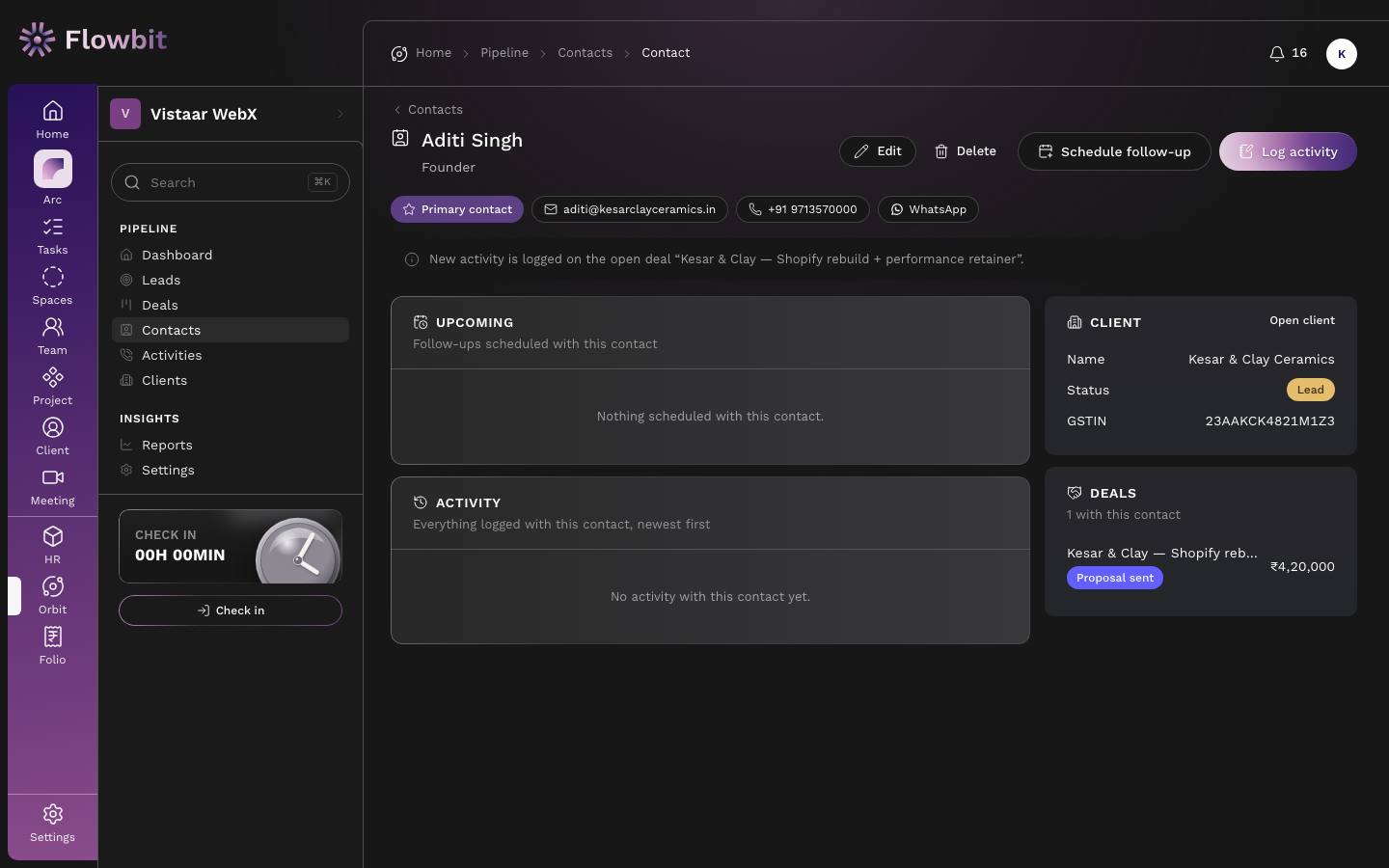
- Header: Edit, Delete, Schedule follow-up and Log activity, plus email and phone shortcuts.
- Upcoming and Activity with this contact; the Client card; and Deals with this contact.
- To change details, click Edit, update and save. You can also make the contact primary.
- To record a call with them, click Log activity. The client and contact are already filled in, and the activity goes on the client's open deal.
- To remove a contact, click Delete and confirm.
A contact on open deals cannot be deleted until those deals use another contact. If you delete the primary contact, the next one becomes primary.
Activities
Open: Orbit → Activities/app/orbit/activitiesWho: everyone with Orbit
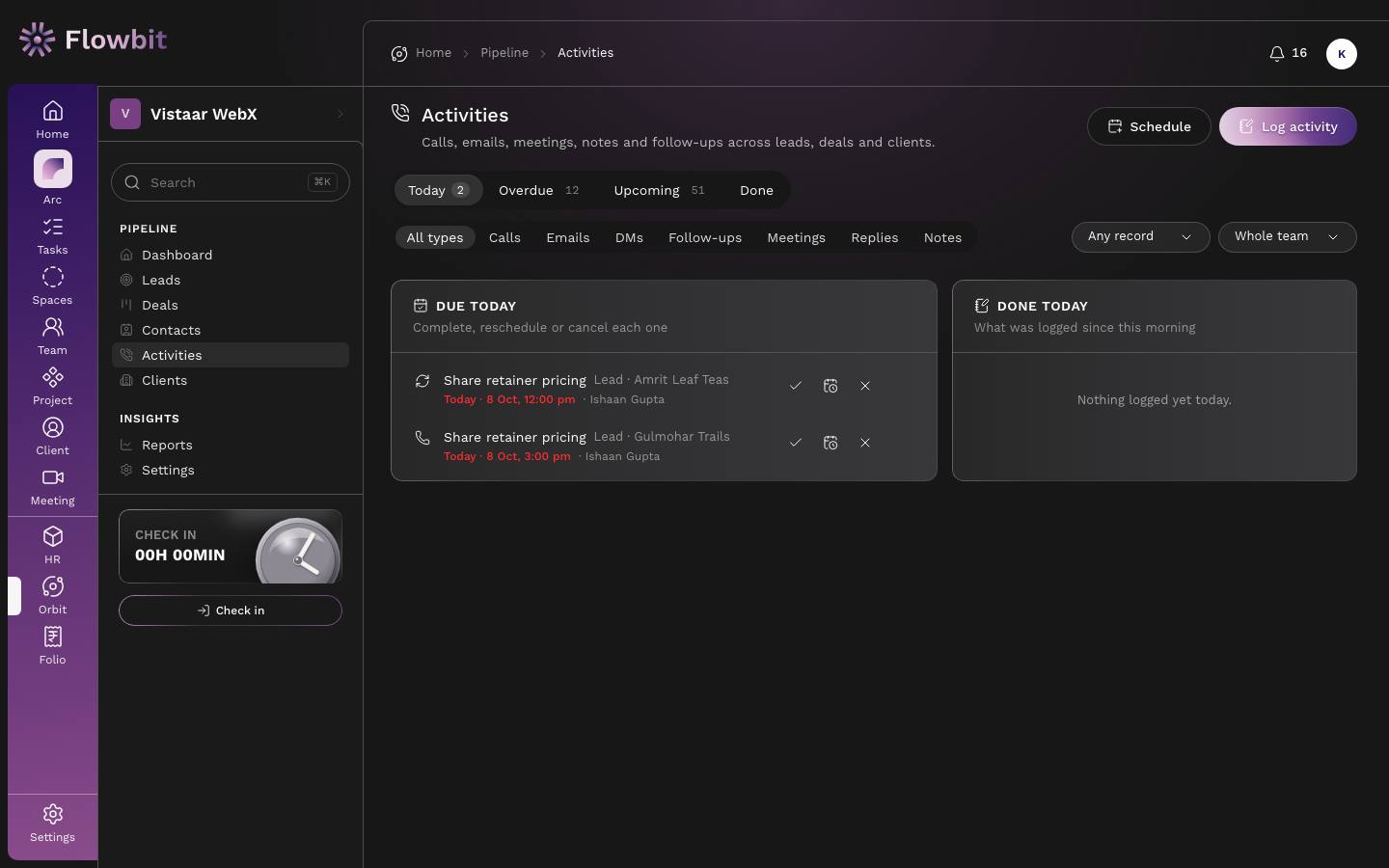
Calls, emails, DMs, meetings, notes and follow-ups across all leads, deals and clients: your follow-up queue and the log of what was done.
On this page
- Schedule and Log activity, for any lead, deal or client.
- Tabs: Today (due today, then Done today), Overdue (oldest first, with how late), Upcoming (next 30 days, grouped by date) and Done (the log, last 7 days by default, with a date range).
- Type filters: All types, Calls, Emails, DMs, Follow-ups, Meetings, Replies, Notes. Plus Related to (lead, deal or client) and owner.
- Each planned row: title, the record it belongs to, due date and time (red when due or late), assignee, and buttons to mark done, reschedule or cancel.
Kinds of activity
| Type | Can be planned? | Counts as |
|---|---|---|
| DM, Email, Call, Follow-up | Yes | Outreach (moves a lead to Contacted) |
| Reply | No, log it when it happens | Reply (moves a lead to Engaged) |
| Meeting | Yes, with a link | Meeting held, once done with notes |
| Note | No | Just a record |
Set a follow-up reminder
- Click Schedule.
- Under Related to, search for the lead, deal or client.
- Pick the Type, write the Title, set the Date and Time, and choose the Assignee.
- Click Schedule. It appears in Upcoming, then in Today on the day, and the assignee is notified if it is not you.
- When it is done, click the tick to mark it done and add what happened. Missed it? Reschedule or cancel it.
A planned activity can be edited, rescheduled, completed or cancelled. Once logged as done, it cannot be edited, because it is the evidence behind stages and reports; only an admin can delete it, and deleting does not move any stage back.
Orbit reports
Open: Orbit → Reports/app/orbit/reportsWho: everyone with Orbit (your own numbers, or the team's if you see everyone)
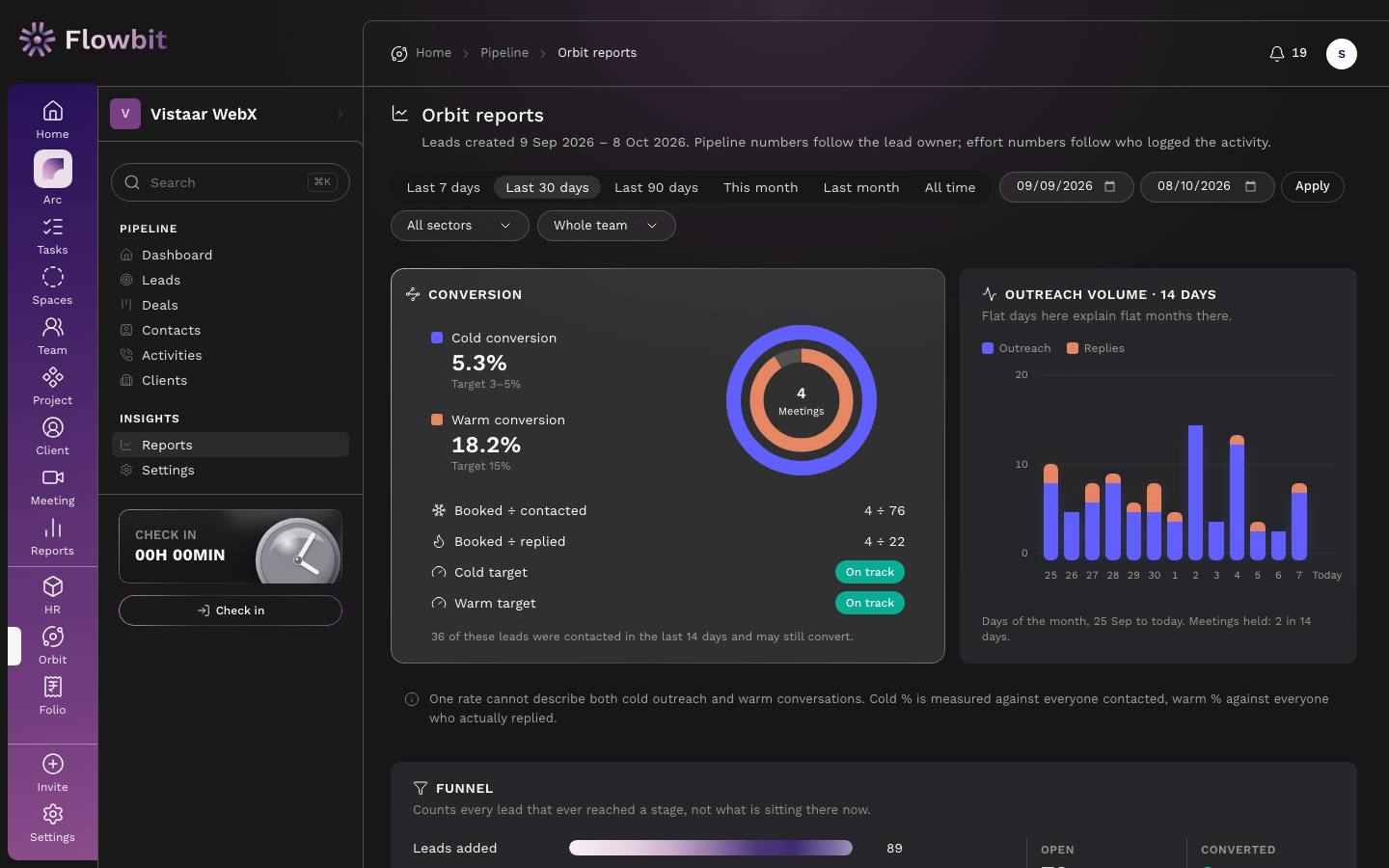
Whether the sales effort is working, and where. Reports look at the leads created in the chosen period and follow them through the funnel.
Choose the period
- Click Last 7 days, Last 30 days (default), Last 90 days, This month, Last month or All time, or set your own From and To and click Apply.
- Narrow by sector and, if you see everyone, by owner.
- Each table has Download CSV.
Two kinds of number: pipeline numbers (leads, stages, conversion) follow the lead owner; effort numbers (outreach sent, replies logged) follow whoever logged the activity. All percentages are rounded to one decimal. When the bottom number is zero, the figure shows as "—".
What each formula means
| Figure | Formula | What it tells you |
|---|---|---|
| Cold conversion | Meetings booked ÷ leads contacted | How well cold outreach turns into meetings. 3–5% is realistic for pure outreach (the default target). |
| Warm conversion | Meetings booked ÷ leads who replied | How well real conversations turn into meetings. 15% is the default target. |
| Reply rate | Engaged ÷ contacted | How many people you contact answer at all. |
| Contacted % | Contacted ÷ leads added | How much of what you source actually gets outreach. |
| Open | Leads added − converted − lost − disqualified | Leads from the period still being worked. |
| Weighted value | Deal value × stage probability | A realistic view of an open pipeline. |
| Win rate (count) | Deals won ÷ (won + lost) | Share of closed deals you win. |
| Win rate (value) | ₹ won ÷ (₹ won + ₹ lost) | Whether you win the big ones or only the small ones. |
| Stage velocity | Average days from entering a stage to the lead's next stage change | Where leads get stuck. |
One rate cannot describe both cold outreach and warm conversations, which is why there are two. The cards show On track when cold is at or above the cold minimum and warm is at or above the warm target.
Small samples swing wildly. Below about 30 contacted leads, one meeting more or less changes the rate a lot; read the numbers as direction, not performance. The note under the Conversion card also counts leads contacted in the last 14 days, which may still convert.
Sections
- Conversion: the two rings, with the numbers behind them.
- Outreach volume · 14 days: outreach and replies per day for the last 14 days, whatever the range. Flat days here explain flat months later.
- Funnel: Leads added, Contacted, Engaged, Meeting booked, Meeting done, Converted and Won, counting every lead that ever reached a stage, not where it sits now. Tiles for Open, Converted, Lost and Disqualified.
- Stage velocity: average days and sample size for each open stage.
- Source performance: per source, Leads, Contacted, Replied, Meetings, Converted, Won, Cold % and Warm %, with warm sources tagged. The source with the most leads is often not the one that produces meetings.
- Sector split: the same per sector, with your primary sector tagged. If a sector absorbs effort without producing meetings, this is the evidence to drop it.
- By owner (when you see everyone): each owner's leads, conversion, outreach they logged and deals won.
- Deals won and lost: deals closed in the period, count and ₹, and both win rates.
- Pipeline now: open deals by stage today, whatever the range, and what is expected to close this month.
- Close reasons and Won reasons: why leads were disqualified or lost and deals were lost or won, by reason.
Orbit settings
Open: Orbit → Settings/app/orbit/settingsWho: Orbit admins (owner, admin, sales)
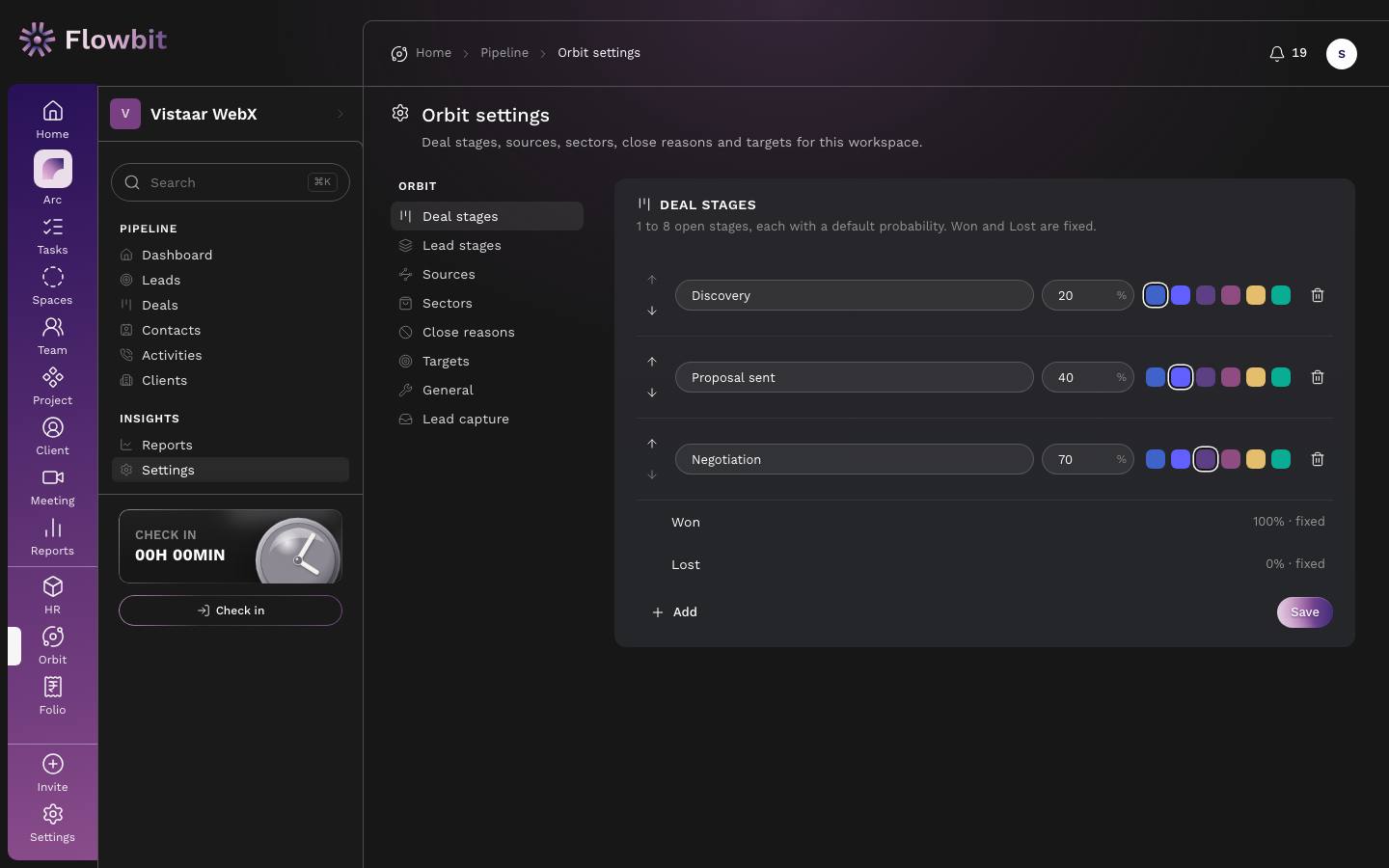
Deal stages, sources, sectors, close reasons, targets and lead capture for the workspace. Each section saves on its own.
Sections
- Deal stages: 1 to 8 open stages, each with a Label, Probability % and colour. Won (100%) and Lost (0%) are fixed. A stage with open deals cannot be removed until those deals move.
- Lead stages: read only. The lead stages, their rules and guards are fixed because Cold % and Warm % are defined by them.
- Sources: where leads come from. The Warm toggle lets leads from that source skip Contacted. At least one source must be active.
- Sectors: your markets, with exactly one marked Primary.
- Close reasons: Lost reasons (used for lost and disqualified leads and lost deals; Other always stays) and Won reasons.
- Targets: Cold min % and Cold max %, Warm %, New leads per week, Outreach per week and Meetings per month. These drive the dashboard's daily targets and the On track pills.
- General: after how many days an untouched lead counts as stale (1 to 60, default 7), and the default reviewer for new leads.
- Lead capture: turn enquiries into leads automatically (below).
Change a deal stage
- Open Deal stages.
- Edit a label or probability, pick a colour, reorder with the arrows, click Add for a new stage, or the bin icon to remove one.
- Click Save.
Keep probabilities rising down the list. Orbit warns you if a later stage has a lower probability than an earlier one.
A source, sector or reason already used by a lead or deal cannot be removed. Deactivate it instead: it disappears from the pickers but keeps its label in reports. Labels can be renamed at any time.
Set your targets
- Open Targets.
- Set Cold min and max (cold min cannot be above cold max), Warm %, and the weekly and monthly volume targets.
- Save. Revisit them: targets set once and never revised are how a role gets designed to fail.
Capture leads automatically
- Open Lead capture.
- Website form: tick Accept enquiries from my website, list Your websites (one per line), optionally a Thank-you page, and click Save form. Then paste either the HTML form or the Script (draws the form for you) snippet on your site. Every enquiry becomes a lead with source Website form and the page's UTM tags.
- Webhook (Zapier, Meta lead ads, JustDial): turn on Accept leads on this webhook, then give the URL and token to the other service.
- IndiaMART (beta): tick Pull IndiaMART enquiries into Orbit, paste your IndiaMART CRM key and click Save IndiaMART. Orbit checks for new enquiries every 15 minutes; Check now checks straight away.
- Who gets new leads: choose Always to one person or Round-robin, in turns with the people who take turns, and click Save. The person is alerted at once.
Only websites you list can post to your form. If a form URL or webhook token leaks, click New form URL or New webhook URL; the old one stops working, so update your site and integrations right away.