
Send GST invoices and get paid
Folio is where you quote, invoice, record payments, chase dues and see profit. Owners, admins and the finance role use all of it; the sales role can work with quotes. Open it from Rail → Folio.
How Folio fits together
The Folio side panel has four groups. Invoicing holds Folio (the receivables dashboard), Invoices, Quotes, Receipts, Recurring, Credit notes and Clients. Money in holds Collections, Ledgers and Forecast. Money out holds Expenses and Profit & loss. Insights holds Reports and Settings.
A few ideas run through every page:
- Firms. You can bill from more than one business. A GST-registered firm issues Tax Invoices with a GST breakup. A non-GST firm issues Sale Invoices with no tax. Many pages have a firm switch: Combined or one firm (for example Vistaar WebX or Vistaar Solutions).
- Drafts have no number. An invoice gets its number only when you issue it. After that its figures are locked. The only way to reduce an issued invoice is a credit note.
- Money arrives against a client. You record a payment first, then apply it to one or more invoices. Anything not applied waits as advance credit.
- Financial year is April to March. Each firm keeps its own number series per document type, restarting every 1 April.
Set up Folio in this order: add your firm in Settings, add a client, then raise the first invoice. If no firm exists, every Folio page shows a Set up a firm first callout.
Folio home
Open: Rail → Folio/app/folioWho: owner, admin, finance
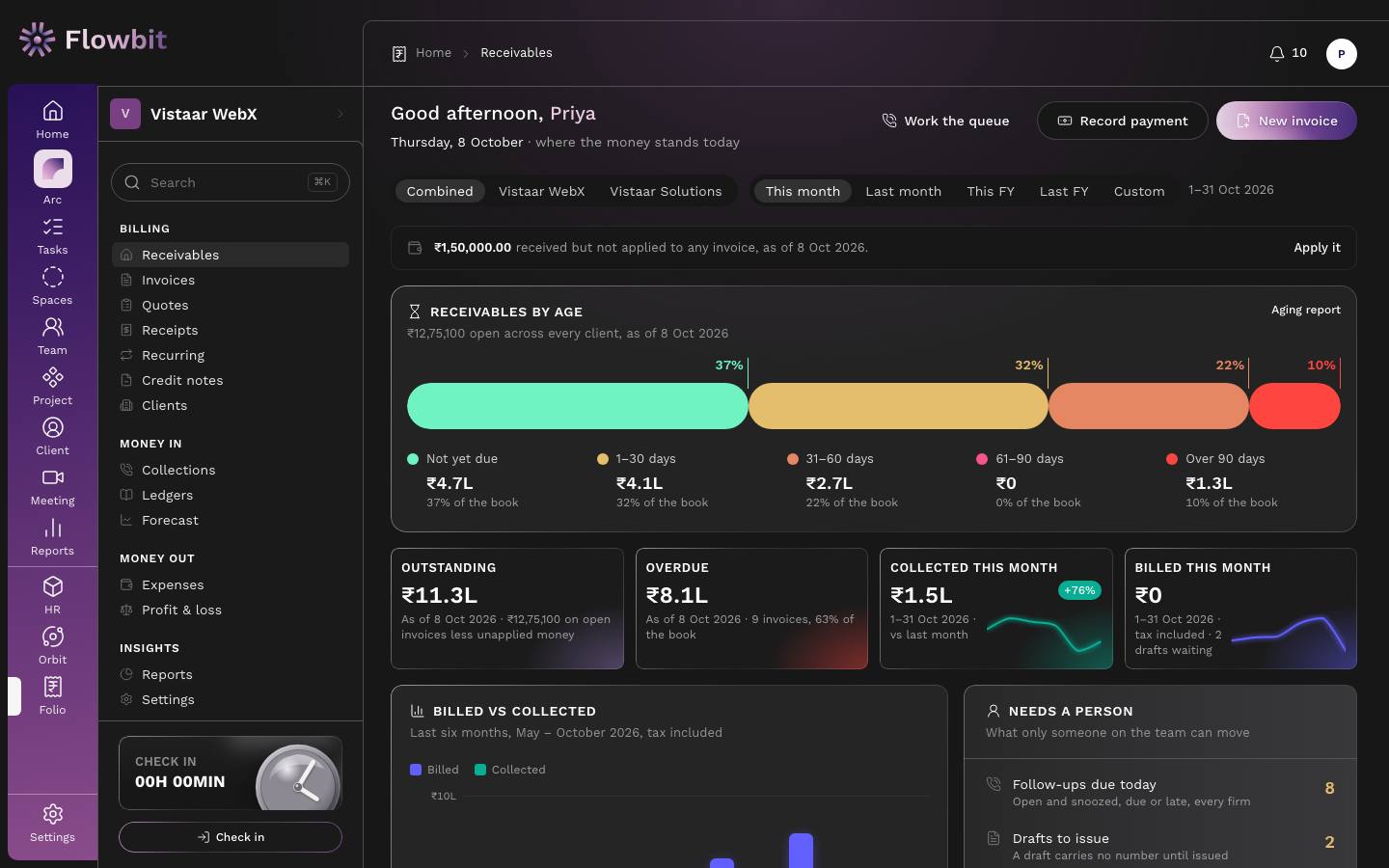
Where the money stands today, and what needs a person. It greets you by name with today's date.
On this page
- Work the queue, Record payment and New invoice buttons at the top right.
- Firm switch (Combined or one firm) and period switch: This month, Last month, This FY, Last FY, Custom.
- An unapplied-money banner, for example "₹1,50,000.00 received but not applied to any invoice", with Apply it. It opens the receipts list filtered to unapplied payments.
- Receivables by age: every open invoice in five buckets, Not yet due, 1–30 days, 31–60 days, 61–90 days and Over 90 days, each with its share of the book. Aging report opens the full report.
- Metric tiles:
- Outstanding: open invoice balances less unapplied money (net receivable).
- Overdue: past-due balances, with the invoice count and share of the book.
- Collected this month: payments received, compared with last month.
- Billed this month: issued invoices, tax included, with the number of drafts waiting.
- Billed vs collected: bars for the last six months.
- Needs a person: Follow-ups due today, Drafts to issue, Retainers to bill and DSO · last 90 days (days sales outstanding: what is owed against what you billed in the last 90 days, expressed in days).
- Top debtors: clients with overdue money, with Late since, Owed and Overdue. Click a client to open their ledger.
- Expected billing: what active retainers and dated milestones should bill in the next 3 and 6 months, before GST. View forecast opens the forecast.
- Profit and loss: net income, costs and net profit for the period, with links to Expenses and Full P&L.
Amounts on tiles are shortened (₹11.3L, ₹60K). The full figure is on the page the tile opens.
Clients
Open: Rail → Folio → Clients/app/clientsWho: owner, admin, finance, sales
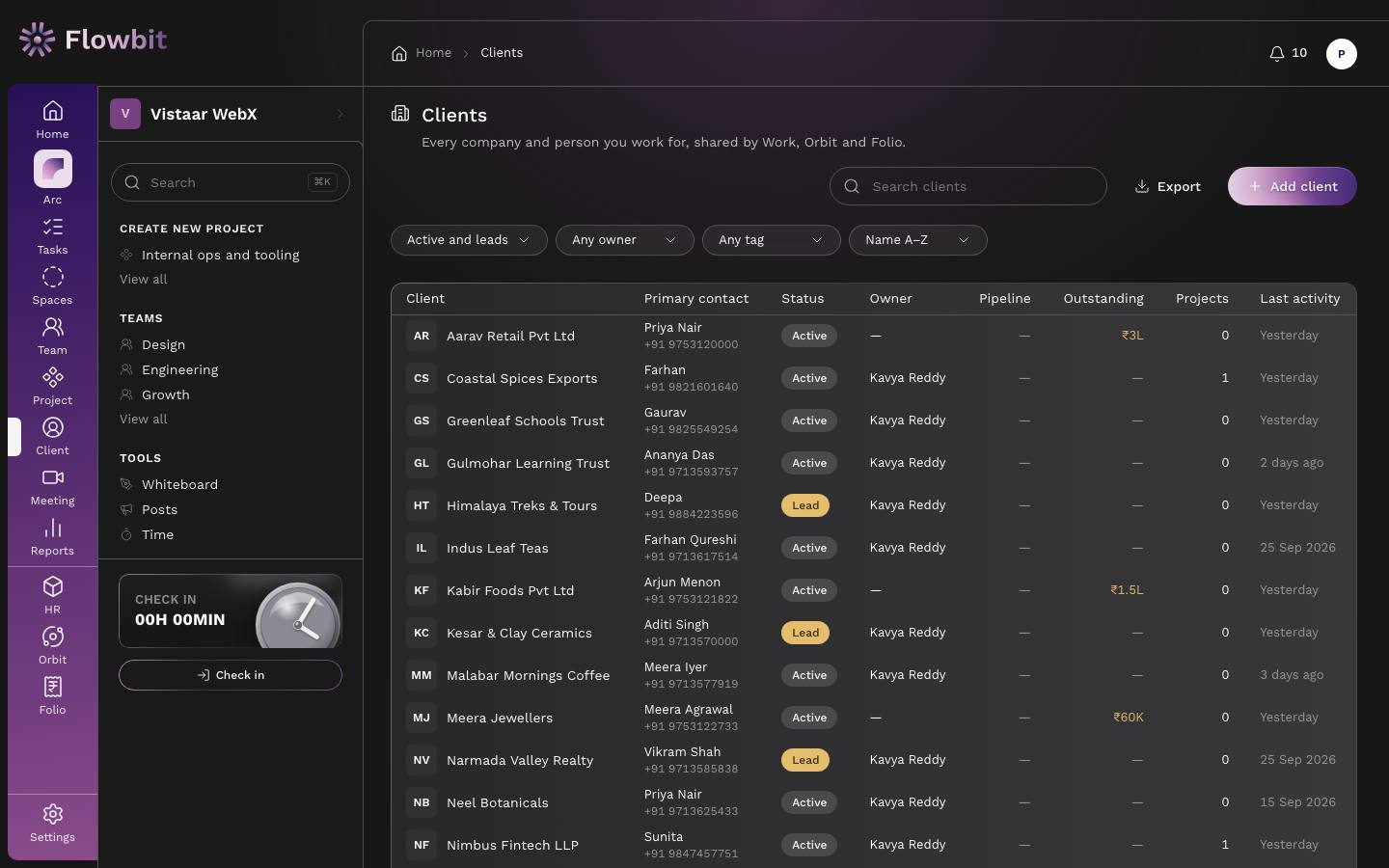
One client list shared by Work, Orbit and Folio. A client you add in Orbit can be invoiced in Folio straight away, and the invoices and balances show on the same client page.
On this page
- Search clients, Export and Add client.
- Filters: Status (default Active and leads), Owner, Tag, and Sort.
- Columns: Client, Primary contact, Status, Owner, Pipeline, Outstanding, Projects, Last activity.
Add a client
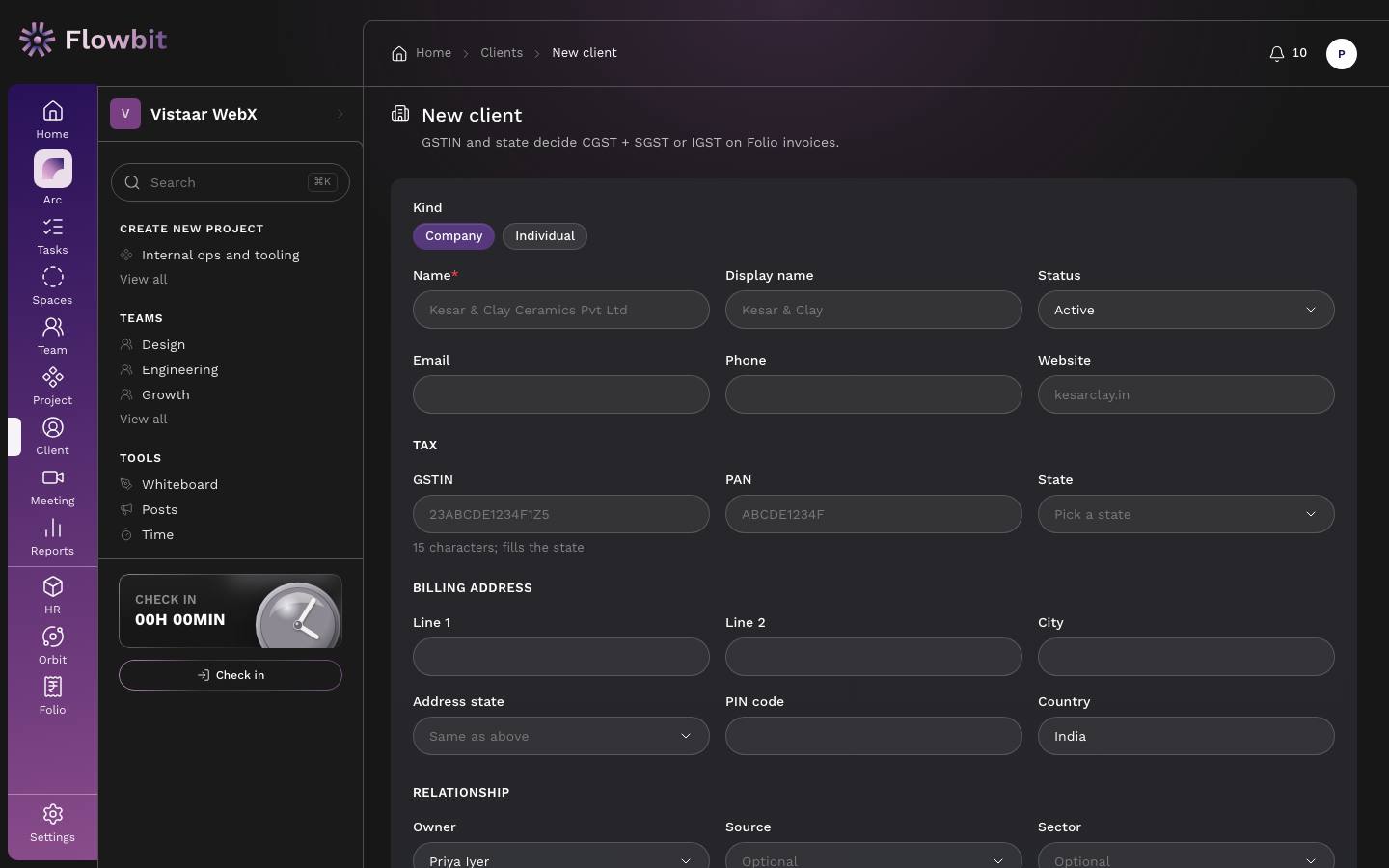
- Click Add client.
- Pick the Kind: Company or Individual.
- Enter the Name (the legal name that prints on invoices) and, if you like, a shorter Display name.
- Fill Email, Phone and Website.
- Under Tax, enter the GSTIN if the client is registered. The GSTIN is 15 characters and fills the State for you. Add the PAN. For an unregistered client, pick the State yourself.
- Under Billing address, fill Line 1, Line 2, City, Address state, PIN code and Country.
- Under Relationship, set the Owner, Source, Sector, Tags (comma separated) and Notes.
- Optionally add a First contact with name, role, email and phone.
- Click Add client.
Get the state right. If the GSTIN's first two digits do not match the billing state, Folio refuses it, for example "This GSTIN is registered in state 27, but the billing address is in state 23." A wrong state means the wrong tax type on every invoice.
The client page and billing profile
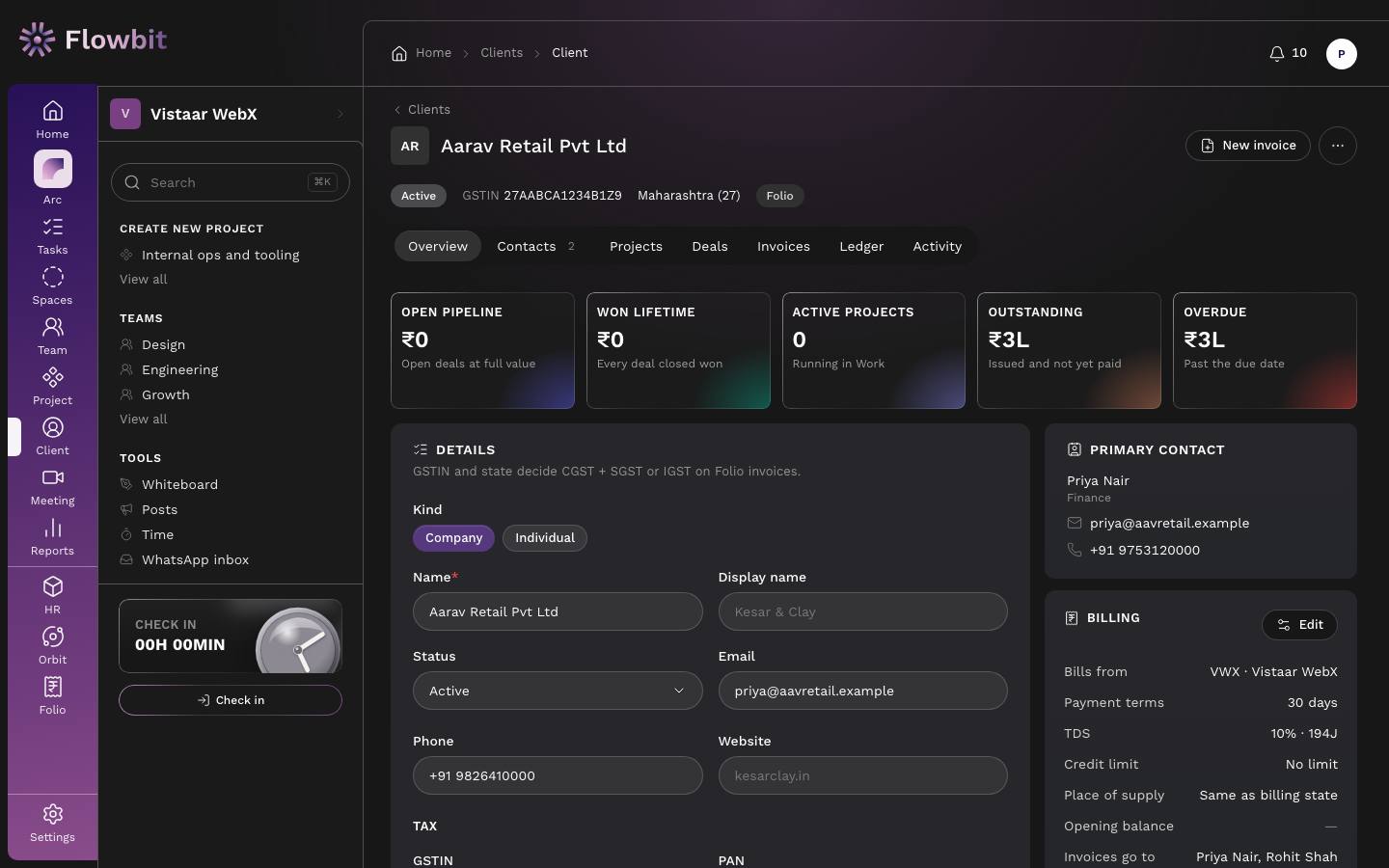
The header shows status, GSTIN and state. Tabs: Overview, Contacts, Projects, Deals, Invoices, Ledger, Activity. Tiles show Outstanding (issued and not yet paid) and Overdue (past the due date). New invoice opens the builder with this client already picked.
The Billing card is the client's billing profile. Click its Edit to change:
- Bills from: the default firm for this client. The invoice builder picks it first.
- Payment terms in days. If blank, the firm's default applies (15 days unless changed).
- Place of supply: "Same as billing state", or another state when the service is delivered elsewhere.
- Export client: makes new invoices default to Export (zero-rated).
- Default GST rate for this client's lines.
- Credit limit in rupees. Blank means no limit. The builder warns when the client's outstanding plus the new invoice goes over it.
- TDS: turn it on if the client deducts tax at source, then enter the section (default 194J) and rate (default 10%).
- Billing recipients: who gets invoices and who gets reminders, with name, email and phone. Mark one as primary.
- Reminders paused: the automatic reminder run skips this client.
- Opening balance and the date it is as on: what the client owed before you started Folio. Only people who can issue invoices can set it.
An opening balance behaves like an invoice: payments can be applied to it and it shows in aging and the ledger. It stays out of GST reports, revenue and numbering, and has no PDF. You can change it only while no payment is applied to it.
Quotes and proformas
Open: Rail → Folio → Quotes/app/folio/quotesWho: owner, admin, finance, sales
Send a price before the work starts, then turn it into an invoice in one click. A Quotation is an offer. A Proforma invoice is a request for advance payment; it says it is not a tax invoice, and the tax invoice is issued when payment arrives.
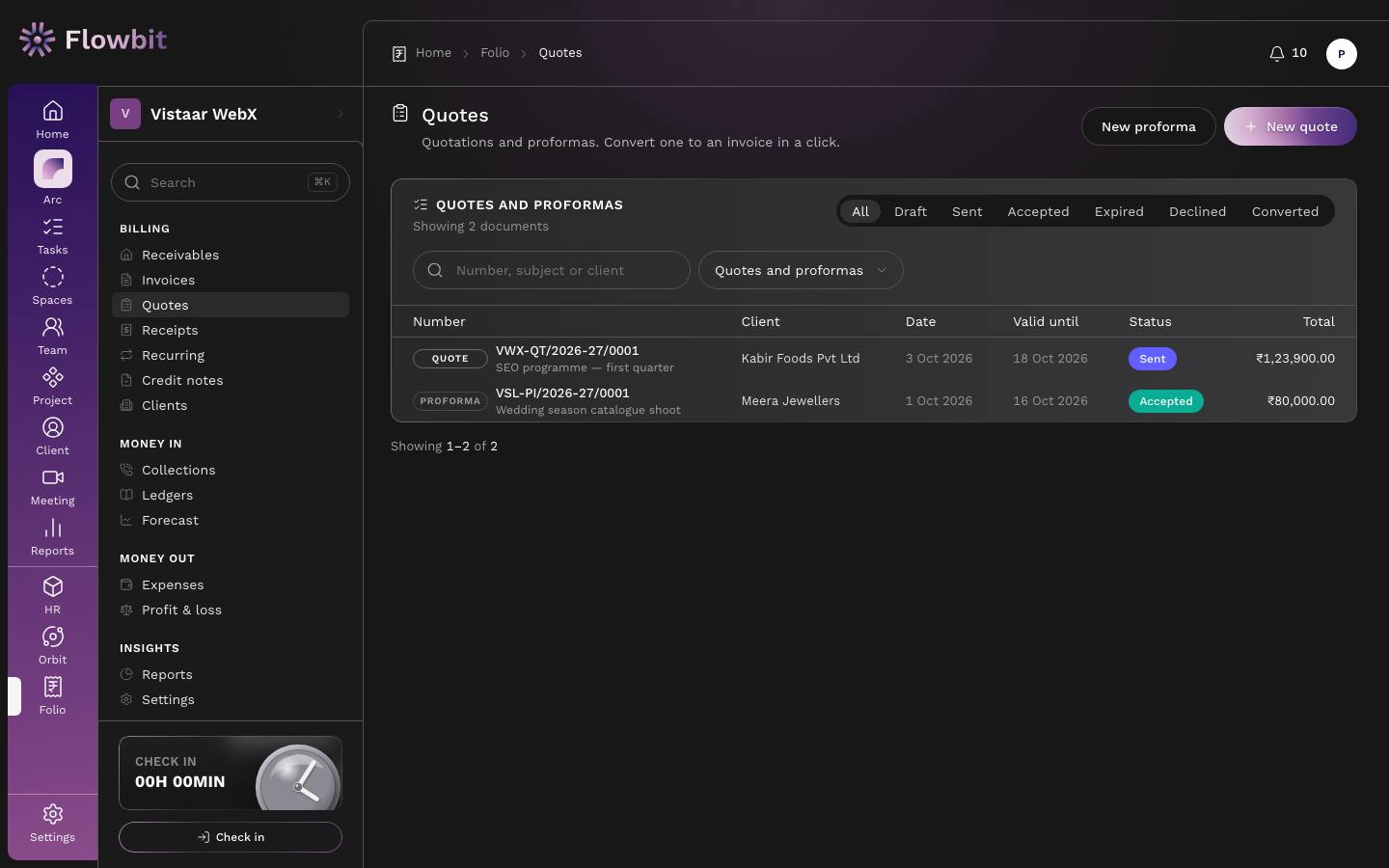
On this page
- New quote and New proforma.
- Status tabs: All, Draft, Sent, Accepted, Expired, Declined, Converted. A draft or sent quote past its Valid until date shows as Expired.
- Search by number, subject or client, and a type filter: Quotes and proformas, Quotes or Proformas.
- Columns: Number, Client, Date, Valid until, Status, Total.
Create a quote
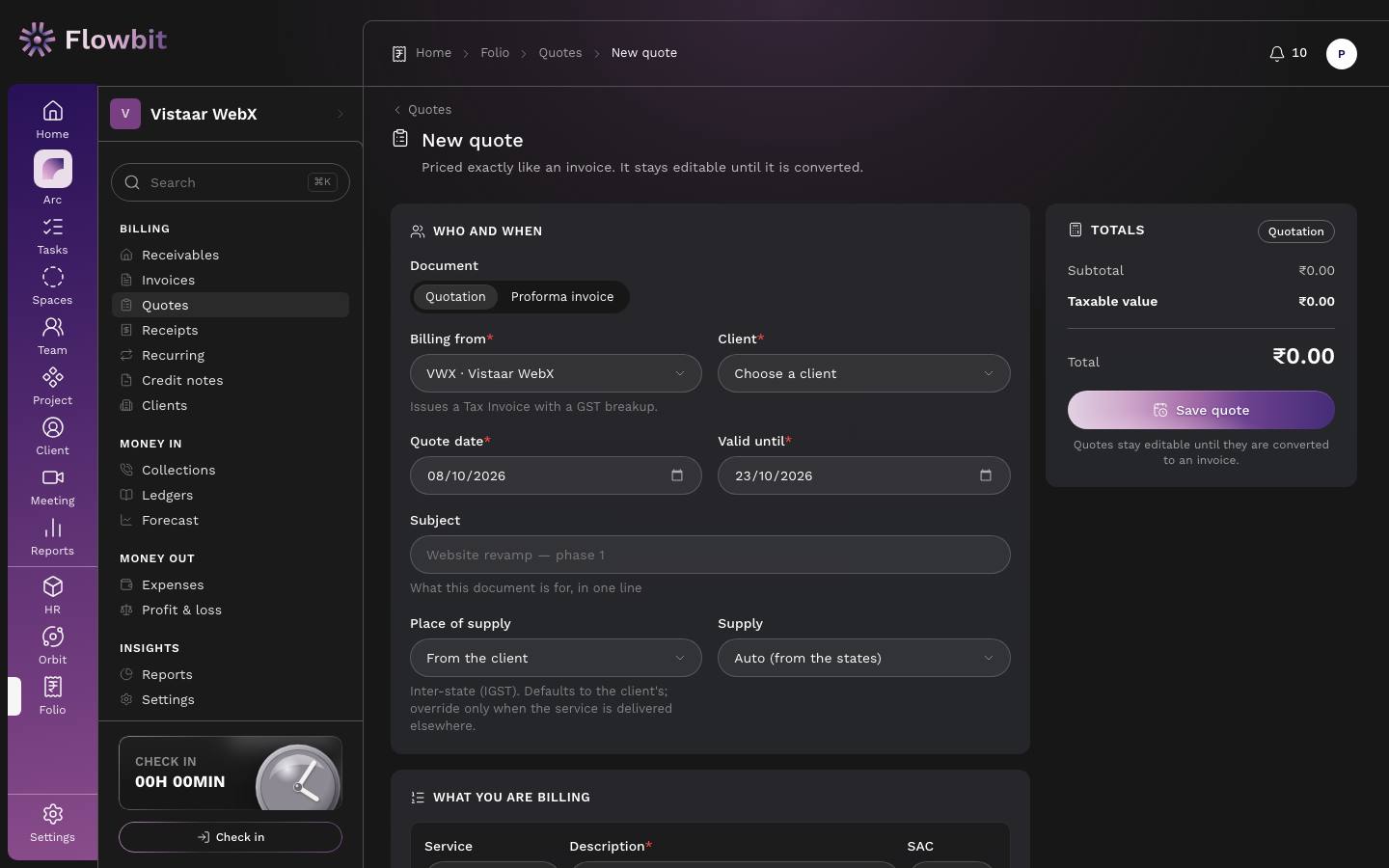
- Click New quote (or New proforma).
- Under Document, choose Quotation or Proforma invoice.
- Pick Billing from and the Client.
- Set the Quote date and Valid until. Validity defaults to 15 days; you can change the default in Folio → Settings → Tax.
- Add a Subject, check Place of supply and Supply, and add lines exactly as on an invoice (see below).
- Click Save quote. The quote gets its number now (for example VWX-QT/2026-27/0001). Quote numbers are not statutory, so gaps are fine.
Send, accept and convert
The screenshot of this page is being retaken. The Online link and activity card shows whether the client has opened the quote.
The quote page shows badges for kind, document type, status and supply type; Prepared for; Dates (date, valid until, place of supply, sent); the lines; and a Summary with the total in words.
- Click Email to client to send the PDF to the client's billing recipients. This marks the quote as sent. PDF opens the document.
- Sending creates a private online link, shown under Online link and activity. Use Copy to share it yourself, or Turn off link to stop it working. The client can open it without signing in and accept or decline with their name and a comment.
- When the client replies, click Accept or Decline. Decline asks for a reason.
- Click Convert to invoice. Folio creates a draft invoice with the same firm, client, lines, discount, notes and terms, dated today. Review it and issue it from the invoice page.
A quote stays editable (Edit) until it is converted. You can convert from draft, sent or accepted, but not a declined quote, and not an expired one until you extend Valid until. If the converted draft is deleted or the invoice is voided, the quote goes back to Accepted. Converting needs invoice permission as well as quote permission.
Invoices
Open: Rail → Folio → Invoices/app/folio/invoicesWho: owner, admin, finance
Every tax and sale invoice in one list, from drafts to paid.
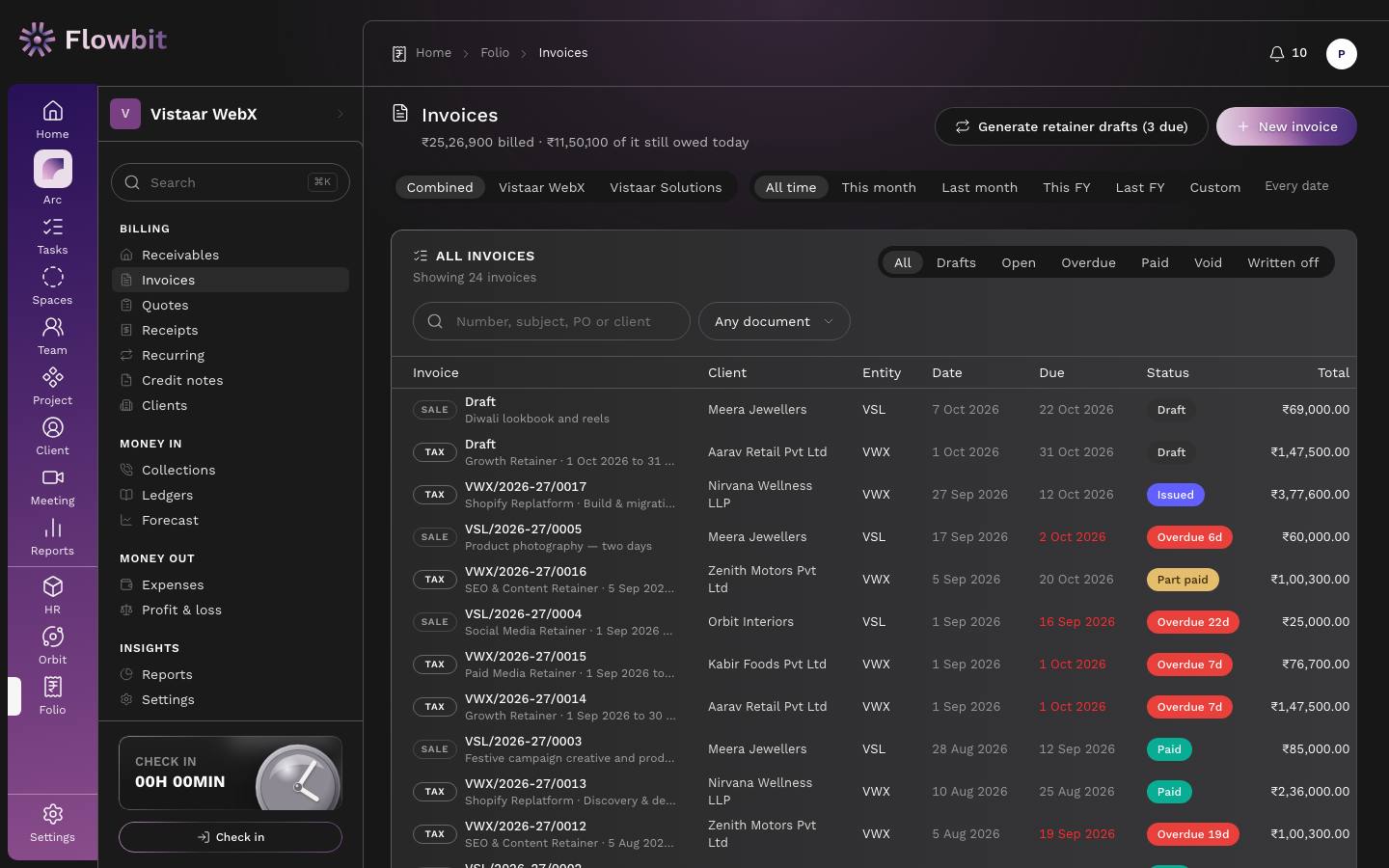
On this page
- New invoice, and Generate retainer drafts when retainer periods are due (the button shows how many).
- Firm switch and period switch (All time, This month, Last month, This FY, Last FY, Custom).
- Status tabs: All, Drafts, Open, Overdue, Paid, Void, Written off.
- Search by number, subject, PO or client, and a document filter: Any document, Tax invoices, Sale invoices.
- Columns: Invoice (TAX or SALE badge, number or "Draft", subject), Client, Firm, Date, Due, Status, Total, Balance.
Invoice statuses
An invoice has exactly five statuses. Two more labels can appear on top of them.
| Status | What it means | What moves it |
|---|---|---|
| Draft | Being prepared. No number, not a legal document, figures still editable. | Issue it, or delete it. |
| Issued | Numbered and locked. Nothing paid yet. | A payment, TDS or credit note applied to it. |
| Part paid | Some money, TDS or credit applied, some balance left. | More money applied, or a payment released or bounced. |
| Paid | Cash, TDS and credit notes together cover the total. | Goes back down if a payment bounces, is released, or a credit note is cancelled. |
| Void | Cancelled. Final. The number stays used. | Nothing; void is the end. |
| Overdue {n}d | Label on an issued or part-paid invoice past its due date. | Paying it, or the balance reaching zero. |
| Written off | Label when the remaining balance was written off as bad debt. The status itself does not change; the balance becomes zero. | Undo write-off. |
The flow is: Draft → Issued → Part paid → Paid. Settlement moves an invoice between Issued, Part paid and Paid by itself, based on the money applied. You only act to issue, void or write off.
Create an invoice, line by line
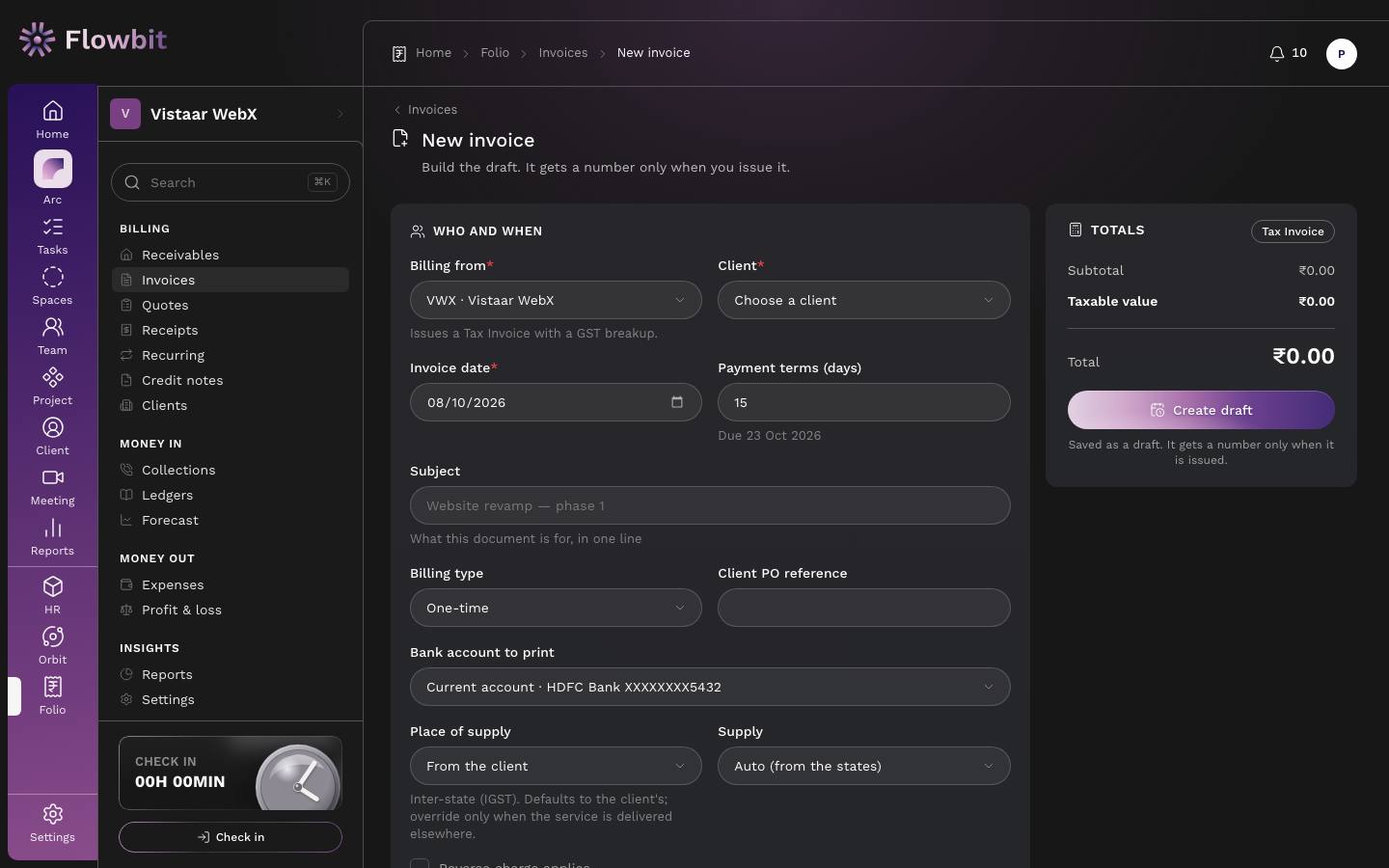
- Click New invoice.
- Under Who and when, pick Billing from. The hint says what it issues: "Issues a Tax Invoice with a GST breakup." for a GST firm, or a sale invoice with no tax for a non-GST one.
- Pick the Client. Folio fills the firm, terms, TDS and place of supply from the client's billing profile.
- Check the Invoice date (today by default) and Payment terms (days). The due date shows under it, for example "Due 23 Oct 2026".
- Write a one-line Subject, choose the Billing type (One-time, Retainer, Milestone or Advance) and add the Client PO reference if they gave one.
- Pick the Bank account to print. Account numbers show masked here.
- On a tax invoice, check Place of supply (default From the client) and Supply: Auto (from the states), Export (zero-rated) or SEZ (zero-rated). Tick Reverse charge applies only if it does; it needs a client with a GSTIN.
- Optionally set Service period from and Service period to. They print on the invoice.
- Under What you are billing, for each line:
- Pick a Service from your catalogue, or keep Free text. A service fills the description, SAC, unit, rate and GST rate.
- Fill Description, SAC (the HSN/SAC code, 4 to 8 digits), Qty (up to 3 decimals, so 7.5 hours works), Unit, Rate ₹, Disc % and GST %.
- Under the line you see its taxable value, tax and line total.
- Click Add line for more. Remove line works while there is more than one.
- Under Discount and notes, set an Invoice discount (None, Percentage or Flat amount (₹)) if needed. Edit Notes on the document and Terms (both prefilled from the firm), and add Internal notes, which are never printed.
- Check the Totals panel and click Create draft. The draft opens; it has no number yet.
How the tax is worked out
- CGST + SGST or IGST. Folio compares the firm's state with the place of supply. Same state: the GST is split equally into CGST and SGST. Different states: the whole GST is IGST. If either state is unknown, Folio uses IGST. For example, ₹1,00,000 at 18% is CGST ₹9,000 + SGST ₹9,000 within Madhya Pradesh, or IGST ₹18,000 to Maharashtra. In a union territory without a legislature, SGST prints as UTGST.
- Place of supply comes from the client's billing profile override, then their GSTIN, then their state, then their billing address state. Override it on the invoice only when the service is delivered elsewhere.
- Export and SEZ supplies are zero-rated: lines keep their value and carry no tax.
- Sale invoices (non-GST firm) never carry tax; the GST column is hidden.
- Discounts come before tax. Line discount first, then the invoice discount is spread across lines in proportion to their value. Tax is charged on what remains (the taxable value).
- Rounding. The total is rounded to the nearest rupee once, shown as a Round off line between −₹0.49 and +₹0.50. You can turn this off in Folio → Settings → Tax.
- TDS. If the client deducts TDS, the invoice shows the expected TDS (calculated on the taxable value, never on the GST) and an Expect in bank figure. TDS is printed beside the total, not deducted from it. For example ₹1,00,000 + IGST ₹18,000 with 10% TDS: total ₹1,18,000, TDS ₹10,000, expect ₹1,08,000 in the bank.
- Allowed GST rates are 0, 5, 12, 18 and 28% unless you change them in Folio → Settings → Tax.
Invoice numbers and the financial year
- Numbers look like VWX/2026-27/0007: firm prefix, financial year, sequence.
- Each firm has its own series, restarting on 1 April. The year comes from the invoice date.
- A number is used only when you issue. Drafts never take one, so deleting a draft leaves no gap.
- A voided invoice keeps its number. A GST series may contain cancellations but not gaps.
- You cannot issue an invoice dated in the future, or dated before the last issued invoice in the same series.
The invoice page
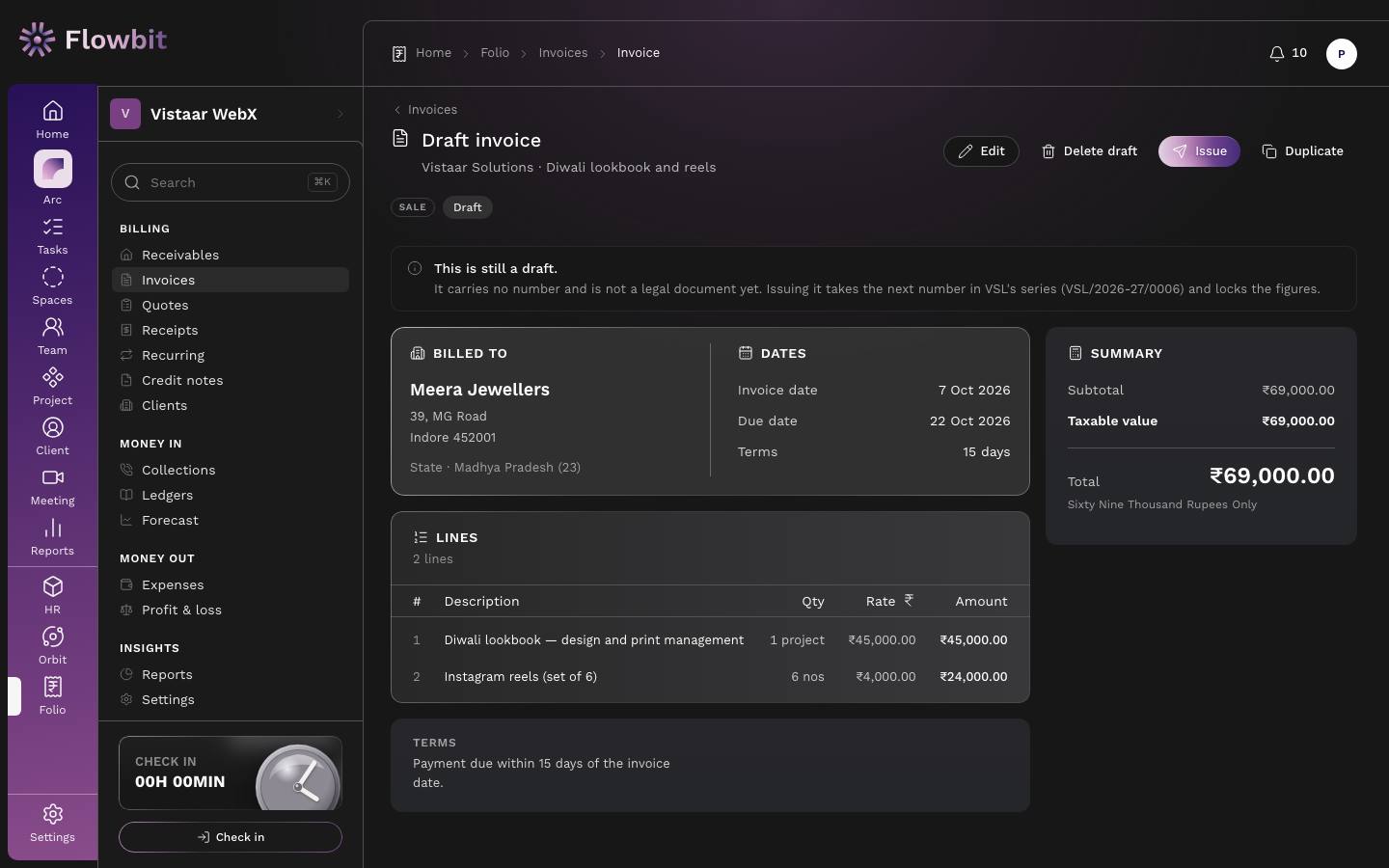
The page shows badges (TAX or SALE, status, billing type, supply type), Billed to, Dates (invoice date, due date, terms, service period, your PO, place of supply), the Lines, notes and terms, and a Summary with subtotal, discount, taxable value, tax, round off, total in words, received, TDS received, credit notes, written off and Balance due. Issued invoices also show Payments against this invoice, Credit notes and Chase history (reminders sent and follow-ups logged).
Edit and issue a draft
- Open the draft. Click Edit to change anything, then save.
- Click Issue. The dialog shows the number it will take and an Invoice date field (not in the future, and not before the last invoice in this series).
- Click Issue invoice. The number is assigned, the client's and your firm's details are frozen onto the invoice, and the figures lock.
After issue you cannot edit the invoice. To reduce it, raise a credit note. To cancel it entirely, void it (only possible before any money or credit is applied).
Other draft actions: Delete draft ("Nothing has been issued, so this leaves no trace and spends no number.") and Duplicate, which makes a new draft with the same lines dated today.
Send the invoice
- On an issued invoice, click PDF to open or download it. Drafts have no PDF; they are not legal documents.
- Click Email to send it. Pick recipients under To (from the client's billing recipients), add a Cc if needed, check the Subject and Message (prefilled with amount, due date and your bank details), and click Send. The PDF is attached.
- Sending creates a private online link, shown under Online link and activity, with Copy and Turn off link. Your client can view the invoice, download the PDF and pay, without signing in. The card shows when they open it.
If an online payment gateway is connected, an Online payment card offers a payment link for the balance. Payments made through it record the receipt by themselves. If no email provider is set up, sending is logged but nothing is delivered, and Folio says so.
Actions on an issued invoice
- Record payment: opens Record payment with this invoice already filled in.
- Send reminder and Add follow-up: see Collections.
- Raise credit note: see Credit notes.
- Void: only when nothing is paid, no TDS is received and no credit note exists. A reason is required. The number stays used, because a GST series may contain cancellations but not gaps. A void releases any linked milestone or quote.
- Write off: for a debt you will not collect. Reason required. The invoice stands, the balance stops counting as receivable, and the ledger shows a write-off, not a payment. Undo write-off makes it receivable again.
- Duplicate: a new draft with the same content.
Receipts: recording and applying payments
Open: Rail → Folio → Receipts/app/folio/receiptsWho: owner, admin, finance
Every rupee that arrived, and which invoices it settled. A payment is recorded against a client first and then applied to invoices. Whatever is not applied stays as advance credit.
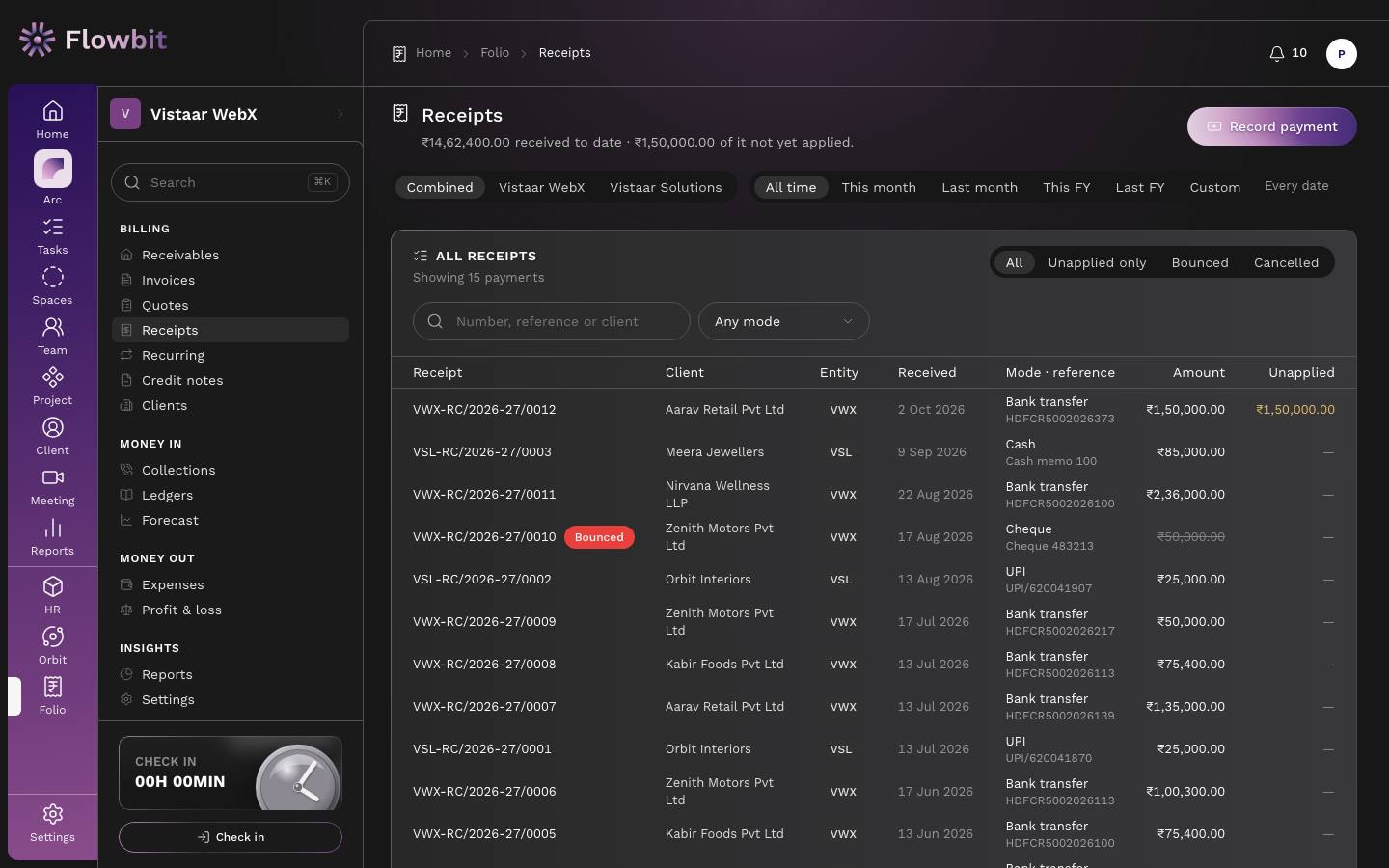
On this page
- Record payment, the firm switch and the period switch.
- Filter tabs: All, Unapplied only, Bounced, Cancelled.
- Search by number, reference or client, and a mode filter (Bank transfer, UPI, Cheque, Cash, Card, Payment gateway, Adjustment, Other).
- Columns: Receipt, Client, Firm, Received, Mode · reference, Amount, Unapplied.
Record a payment
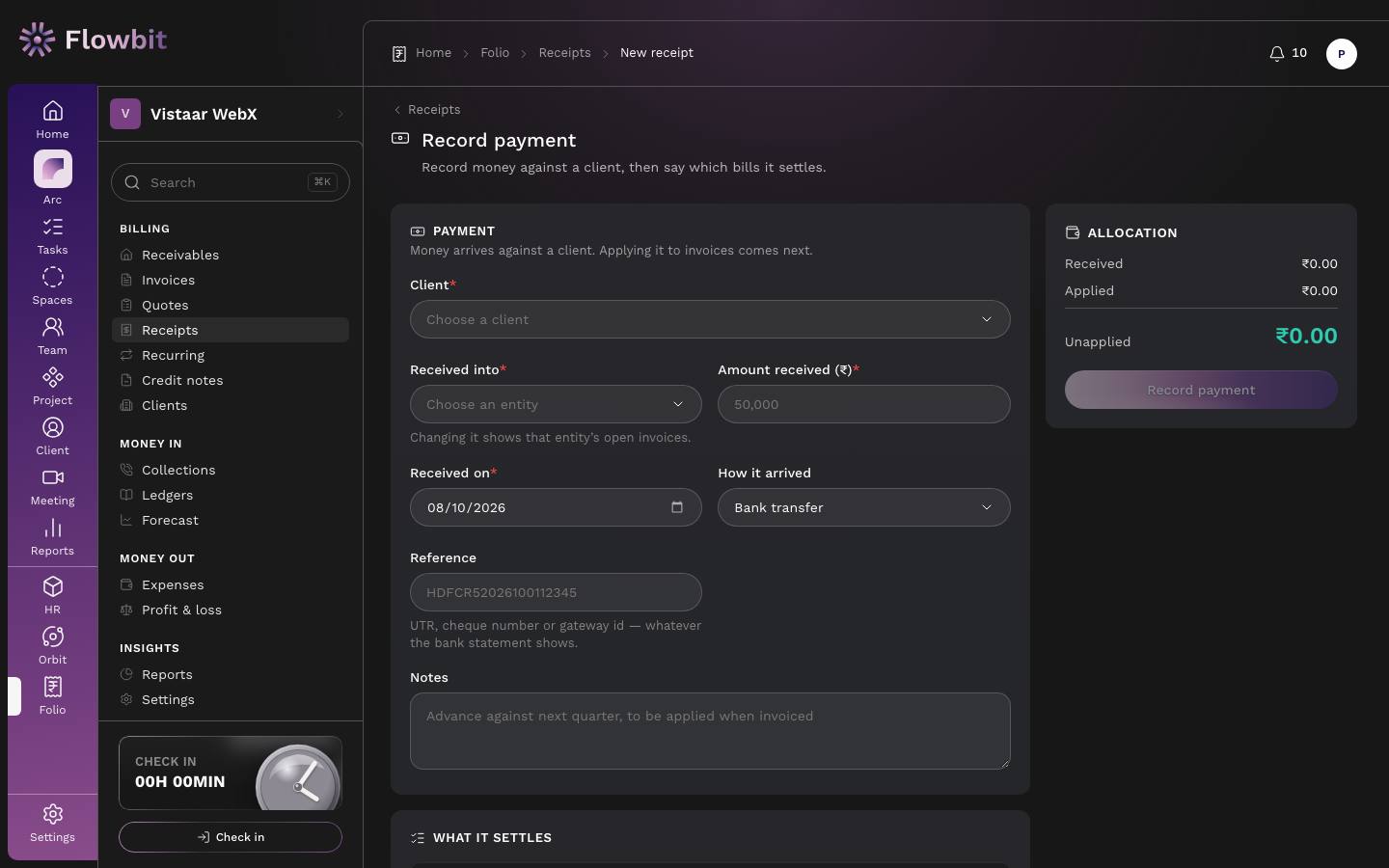
- Click Record payment.
- Pick the Client and Received into (the firm whose bank received it). Only that firm's invoices can be settled by this money.
- Enter Amount received (₹) and Received on (today or earlier).
- Pick How it arrived and type the Reference: the UTR, cheque number or gateway id, whatever the bank statement shows. For a cheque, add the cheque date.
- Under What it settles, the client's open invoices appear, oldest due first. Type an amount against each invoice, or click Apply oldest first to fill them in order. If the client deducts TDS, a TDS box appears on each row, prefilled with the TDS still expected.
- Watch the Allocation panel: Received, Applied, Unapplied. You cannot apply more than you received.
- Click Record payment.
Leave every row blank to hold the whole amount as an advance. TDS is not cash, so it does not count against the amount received, but cash plus TDS together settle the invoice. An invoice becomes Part paid or Paid automatically.
Apply advance credit later, release, bounce or cancel
The screenshot of this page is being retaken. An advance of ₹1,50,000 waiting to be applied; the TDS hint shows what the client is expected to deduct.
- Open the receipt. Applied to lists the invoices it settled.
- Under Apply the remaining, pick an open Invoice of the same client and firm, check the Amount (₹) and TDS (₹), and click Apply.
- To undo an application, click Release on that row. The invoice is owed again and the money returns to unapplied credit.
- If a cheque bounces, click Mark bounced and enter the date and reason. Every invoice it settled is owed again and returns to Collections. The record stays, marked Bounced.
- If the receipt was entered by mistake, click Cancel receipt with a reason, then record it again correctly.
Receipts are never edited or deleted. To correct one, cancel it and record it again.
The receipt also has an Online link and activity card with Create link, so you can send the client a link to their receipt.
Credit notes
Open: Rail → Folio → Credit notes/app/folio/credit-notesWho: owner, admin, finance
The only way to reduce an issued invoice, for a post-sale discount, a deficiency in service, a correction or a cancellation.
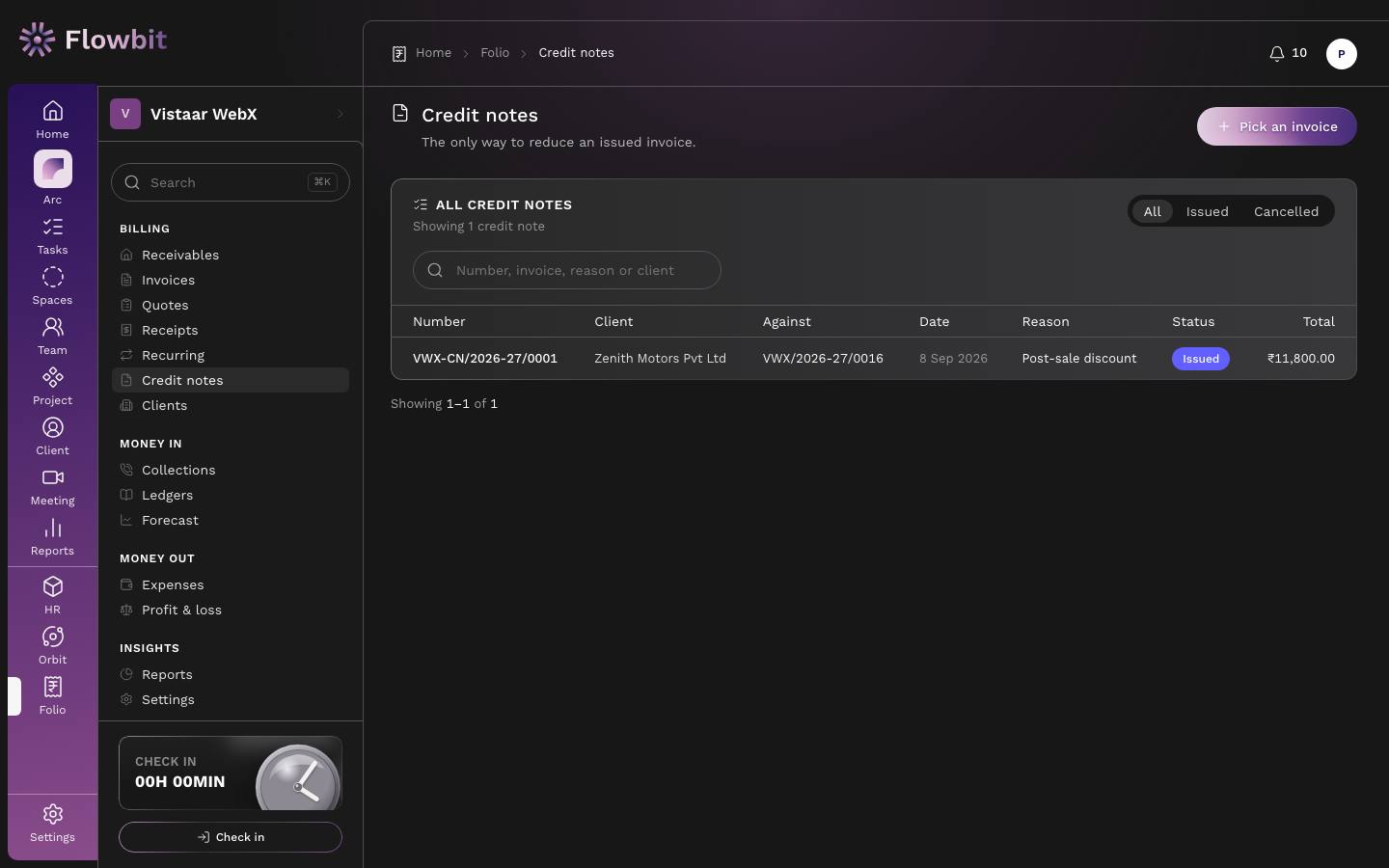
The list has status tabs (All, Issued, Cancelled), a search box, and columns Number, Client, Against, Date, Reason, Status, Total.
Raise a credit note
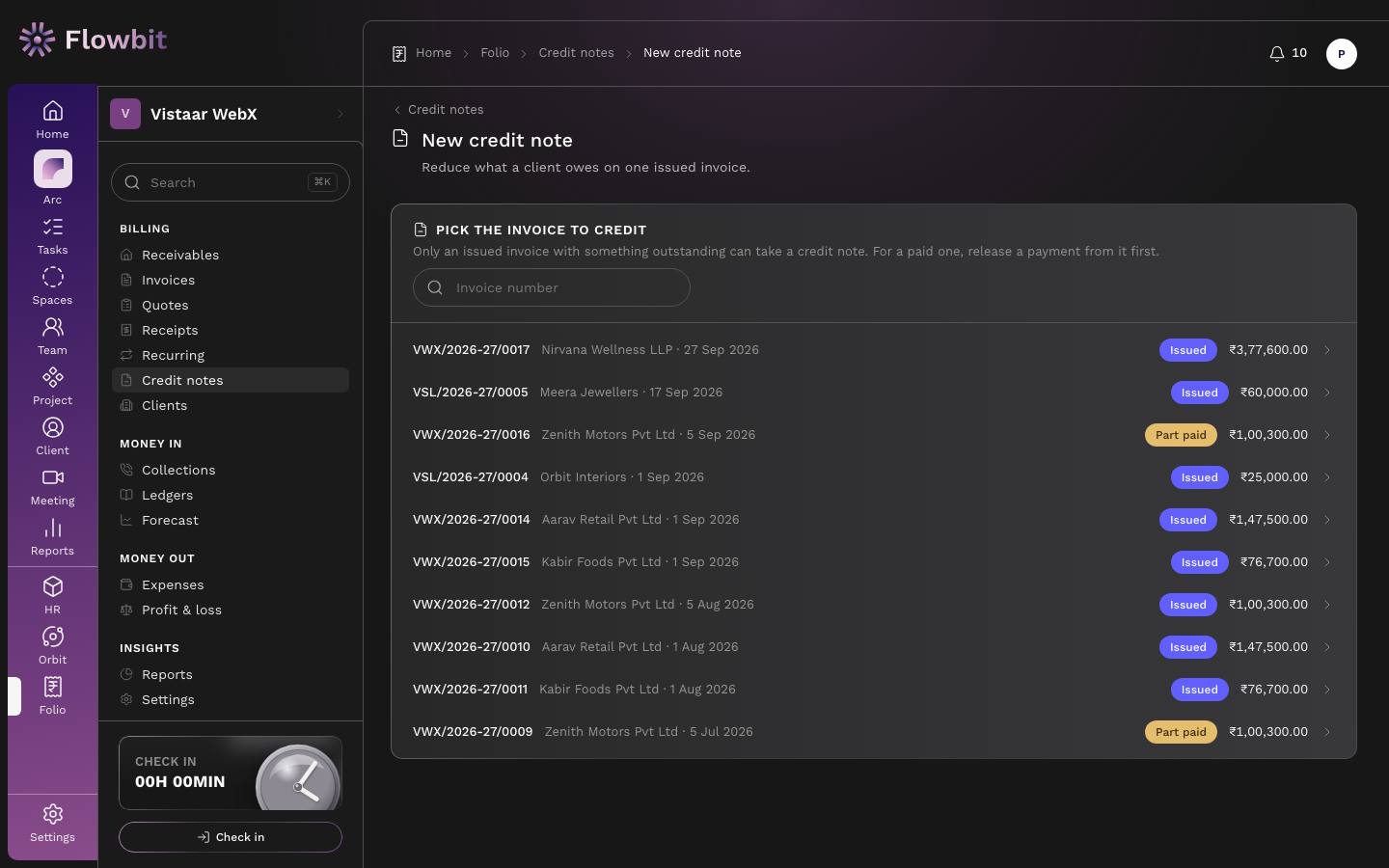
- Click Pick an invoice (or Raise credit note on the invoice itself).
- Search by Invoice number and click the invoice.
- Choose the mode: Full credits everything still creditable, or By line lets you type a credit amount against each line.
- Set the note date, pick a reason and write the reason text (it prints on the note).
- Check the live totals; tax is reversed the same way it was charged (CGST + SGST or IGST).
- Click Issue credit note and confirm. It takes the next credit-note number (for example VWX-CN/2026-27/0001) and reduces what the client owes.
A credit note cannot exceed what is still outstanding on the invoice. If the invoice is already paid and the client needs a refund, release the payment from the invoice first. Cancelling a credit note makes the invoice owed again; its number stays used.
Recurring: retainers and billing plans
Open: Rail → Folio → Recurring/app/folio/recurringWho: owner, admin, finance
Retainers that draft their own invoices every period, and billing plans that bill a fixed project in phases.
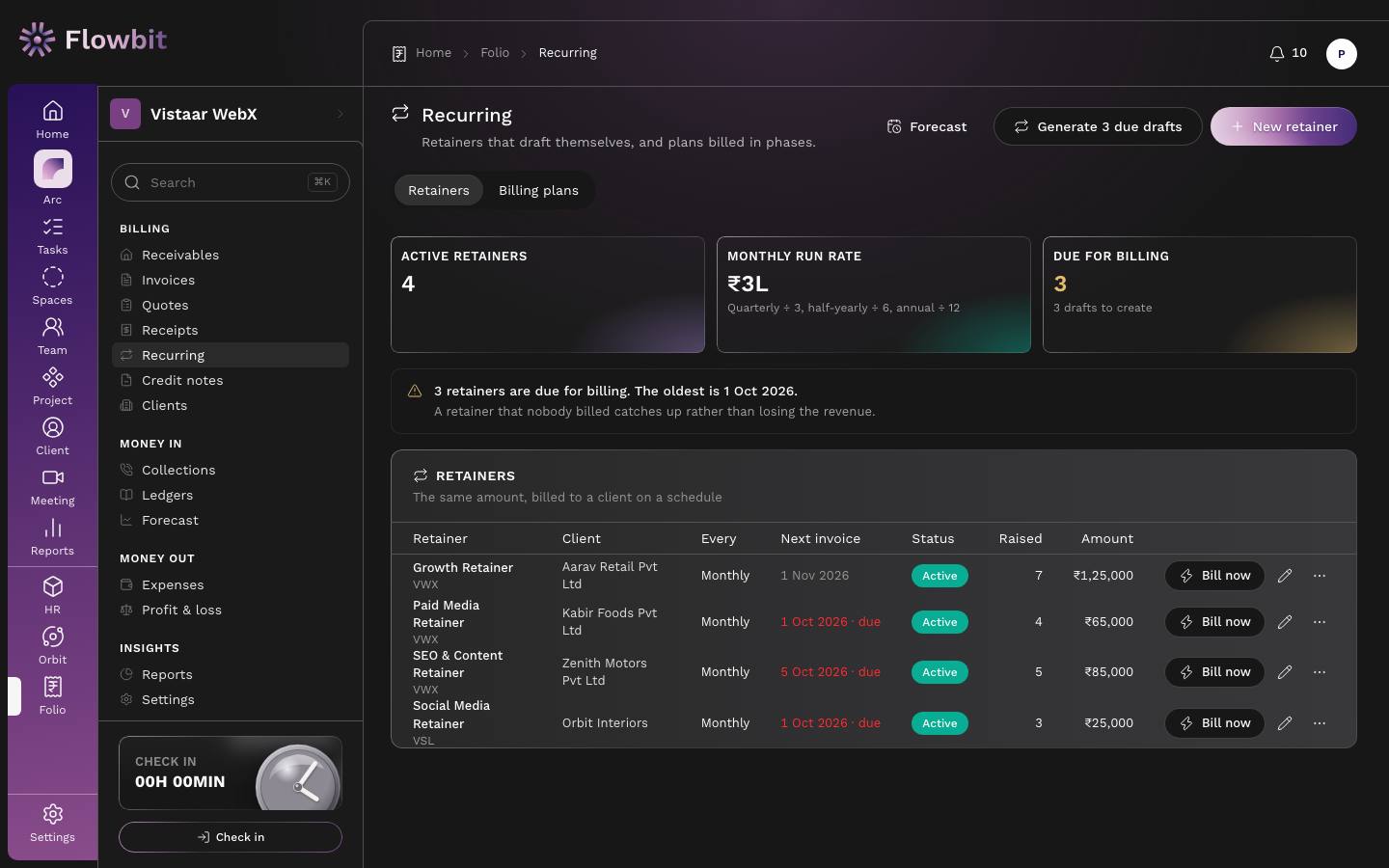
On the Retainers tab
- Tiles: Active retainers, Monthly run rate (quarterly ÷ 3, half-yearly ÷ 6, annual ÷ 12) and Due for billing.
- Columns: Retainer (with firm code), Client, Every, Next invoice, Status (Active, Paused, Ended), Raised (invoices so far), Amount, and row buttons Bill now, Edit retainer and More.
- Header buttons: Forecast, Generate {n} due drafts, New retainer.
Set up a retainer
- Click New retainer.
- Pick the client and firm, and enter a name, description (it becomes the invoice line), SAC, amount per period and GST %.
- Choose the frequency (monthly, quarterly, half-yearly or annual), start date, optional end date and billing day (1 to 31; a 31 bills on the 30th in April).
- Choose whether to bill in advance (the invoice covers the coming period) or in arrears (the period just ended). Set payment terms and leave auto-generate on to let the daily run create drafts.
- Save. The first partial period is not prorated.
Bill retainers
- Click Generate {n} due drafts, or Bill now on one row.
- Each due retainer gets one draft invoice per missed period, with the service period in the subject. Nothing is issued and nothing reaches the client.
- Open Invoices → Drafts, review each draft and issue it.
Missed periods catch up rather than being lost, and running generation twice never bills anyone twice. Deleting a generated draft or voiding its invoice makes that period due again. Changing a retainer's amount affects future drafts only. Use More to pause, resume or end a retainer, or to see its invoices.
Billing plans (milestones)
Open the Billing plans tab for projects agreed at a fixed value and billed in stages. The table shows each plan with its phase count, client, status, a billed meter, the amount invoiced and the total value.
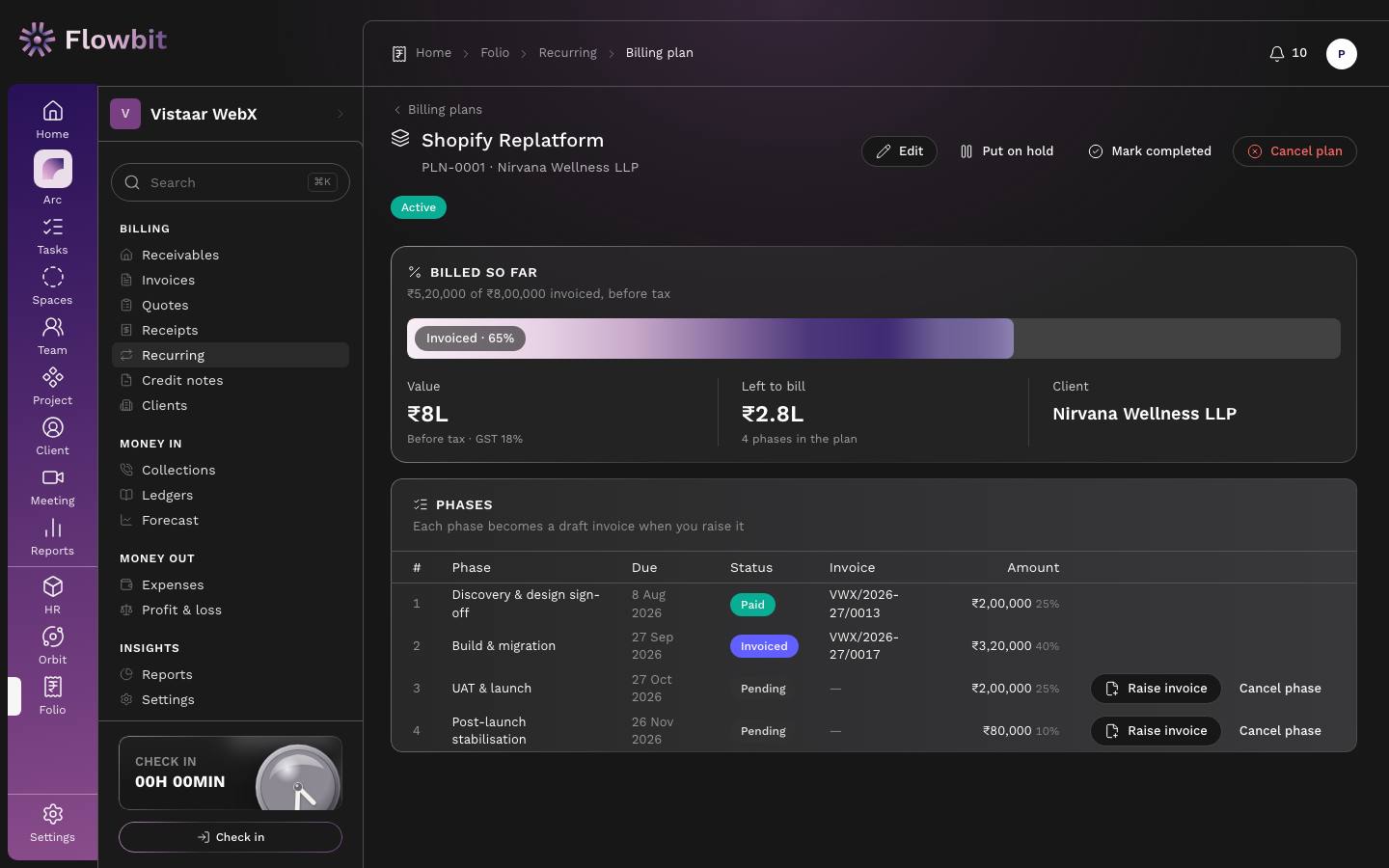
- Create a plan: pick client and firm, name it (a code such as PLN-0001 is given automatically), and enter the total value before tax, GST %, SAC, start and target end. You can link a Work project.
- Add phases. Each phase has a name, a due date and either a share of the total (%) or a flat amount, never both. The editor shows how much of the value you have allocated.
- On the plan's page, tiles show value, invoiced, left to bill and client. When a phase is ready, click Raise invoice and confirm. Folio creates a draft for that phase's amount; review and issue it.
- Phase status follows its invoice: pending, invoiced when issued, paid when the invoice is paid. Use Cancel phase for work that will not be billed, and Put on hold, Make active, Mark completed or Cancel plan for the plan as a whole.
"Invoiced" on a plan counts value before tax, because the plan value is agreed before tax. An invoiced or paid phase cannot change its amount. Deleting a phase's draft or voiding its invoice frees the phase to be invoiced again.
Collections: chasing what is owed
Open: Rail → Folio → Collections/app/folio/collectionsWho: owner, admin, finance
Who to chase today, oldest debt first. It combines your team's follow-ups with automatic payment reminders.
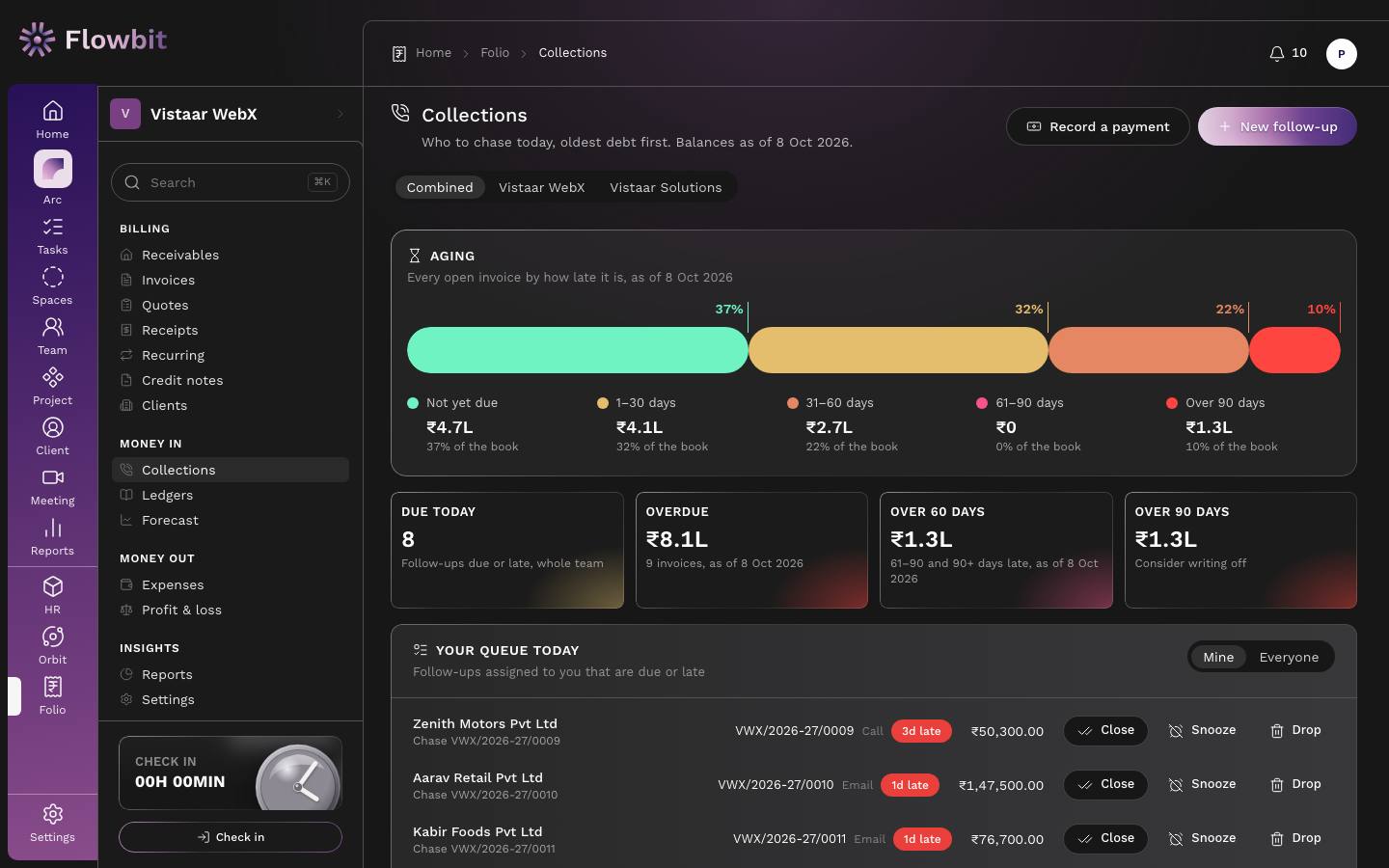
On this page
- Record a payment, New follow-up and the firm switch.
- Aging bar and tiles: Due today (follow-ups), Overdue, Over 60 days, Over 90 days ("Consider writing off").
- Your queue today: follow-ups due or late, Mine or Everyone. Each row shows client, invoice, channel, days late, balance, and Close, Snooze, Drop.
- Everything overdue: oldest first, then the larger balance. Columns Invoice, Client, Due, Age, Balance, Last reminder, with Email reminder buttons.
- Messages to send by hand: reminders the automatic run composed for a person to send from their own phone, each with an open button and Mark sent. This list appears only if you ticked that channel in Folio settings.
The automatic reminder schedule
Every day Folio checks open invoices against the cadence in Folio → Settings → Reminders. The default is −3, 0, 7, 15 and 30 days from the due date: a heads-up 3 days before, a note on the due date, then reminders at 7, 15 and 30 days late. The tone rises with age: Advance notice, Due today, Gentle reminder (up to 15 days late), Firm reminder (up to 45), Final notice.
- Only invoices with a balance above zero are chased, so paid invoices stop automatically.
- Each reminder goes once per invoice, channel and step. If several steps were missed, only the latest is sent, so a client never gets a pile of emails at once.
- Email goes to the client's billing recipients marked to receive reminders.
- Clients with reminders paused, and inactive clients, are skipped.
Send a reminder by hand
- In Everything overdue, click Email on the invoice (or Send reminder on the invoice page).
- Pick the contact. Folio drafts the message from the invoice in the right tone; edit the Subject and Message if you like.
- Check the message and send it. Every reminder is recorded, so the chase history stays complete. Sending reminders from your own WhatsApp Business number is coming soon.
Work follow-ups
- Click New follow-up. Pick the client, optionally one of their invoices, the due date, channel (call, email, meeting or note), subject, notes and who it is assigned to.
- When you have spoken to the client, click Close. Write what happened (required, even if it was nothing), the date they committed to pay, and optionally Chase again on, which opens the next follow-up automatically.
- Click Snooze to bring it back on a later date.
- Click Drop only for a follow-up raised by mistake. If you actually spoke to them, use Close so the outcome stays on record.
Expenses
Open: Rail → Folio → Expenses/app/folio/expensesWho: owner, admin, finance
Money paid out by your firms: rent, software, travel, vendors and freelancers. Expenses feed the profit and loss view.
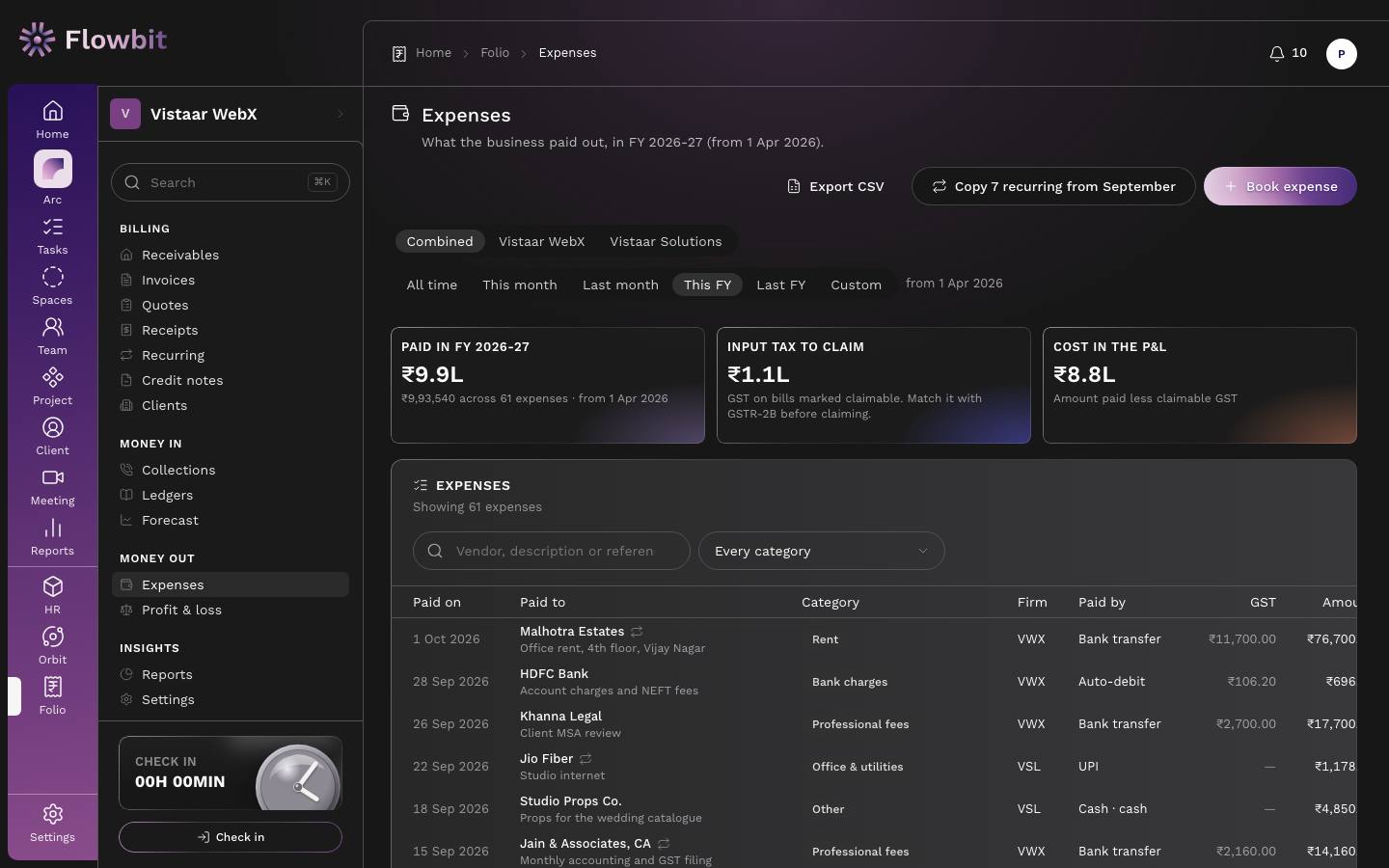
On this page
- Export CSV, Copy {n} recurring from {last month} and Book expense, plus firm and period switches.
- Tiles: total paid in the period, Input tax to claim (GST on bills marked claimable) and Cost in the P&L (amount paid less claimable GST).
- Search by vendor, description or reference, and a category filter (Rent, Salaries & wages, Software & subscriptions, Travel, Marketing, Creator/freelancer payments, Office & utilities, Professional fees, Bank charges, Taxes & fees, Other).
- Columns: Paid on, Paid to, Category, Firm, Paid by, GST, Amount.
Book an expense
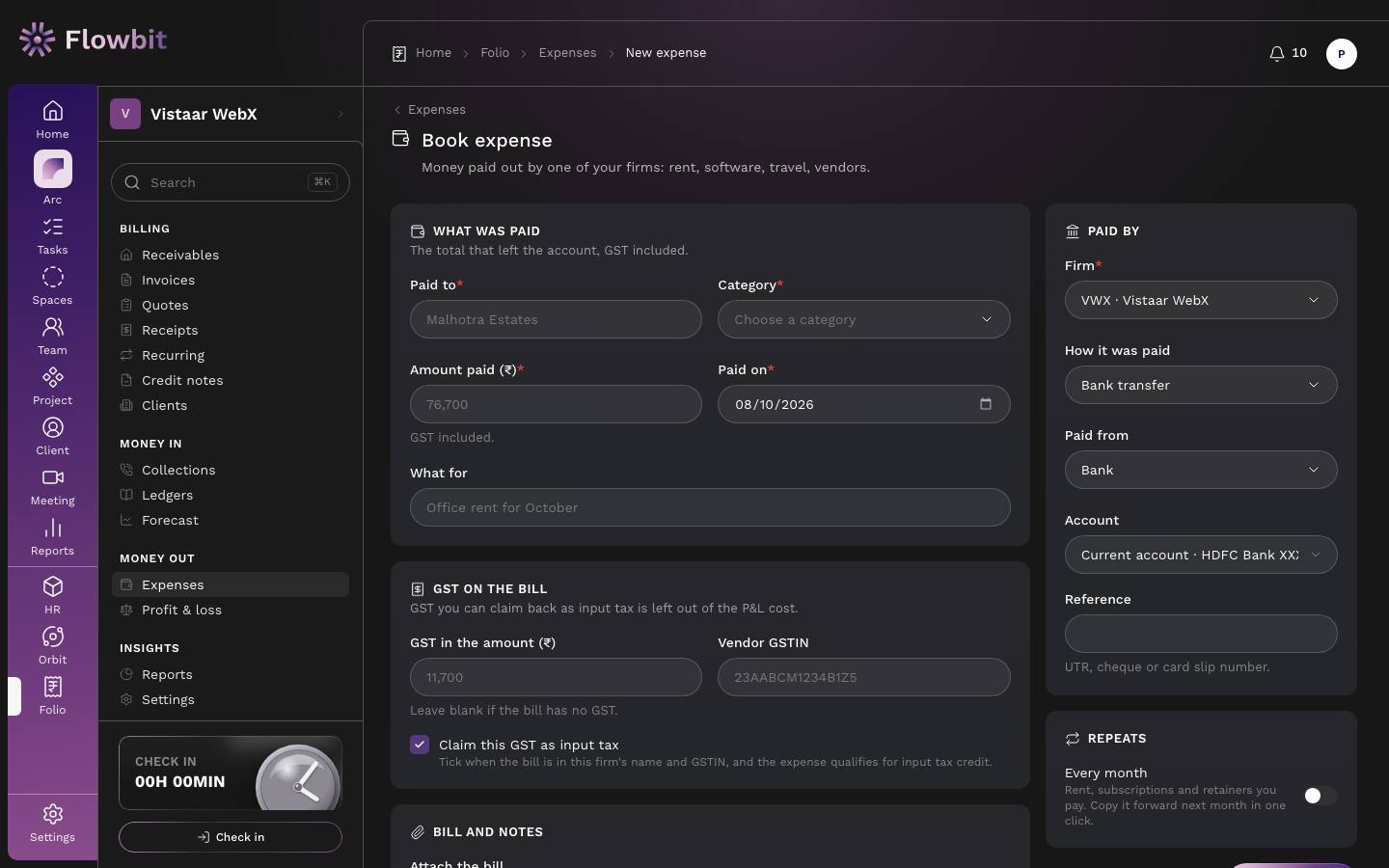
- Click Book expense.
- Fill Paid to, Category, Amount paid (₹) (GST included), Paid on and What for.
- Under GST on the bill, enter GST in the amount (₹) and the Vendor GSTIN. Leave GST blank if the bill has none. Keep Claim this GST as input tax ticked only when the bill is in this firm's name and GSTIN and the expense qualifies.
- Attach the bill (PDF or photo, up to 4 MB) and add notes.
- Pick the paying Firm, How it was paid, Paid from, the Account and a Reference (UTR, cheque or card slip number).
- Turn on Every month for rent, subscriptions and retainers you pay, so you can copy it forward next month in one click.
- Click Book expense.
Match the input tax figure with your GSTR-2B before claiming it. Folio shows what you marked claimable; it does not file anything.
Ledgers and statements
Open: Rail → Folio → Ledgers/app/folio/ledgerWho: owner, admin, finance
Every client's balance in one table, and a full statement of account for each client.
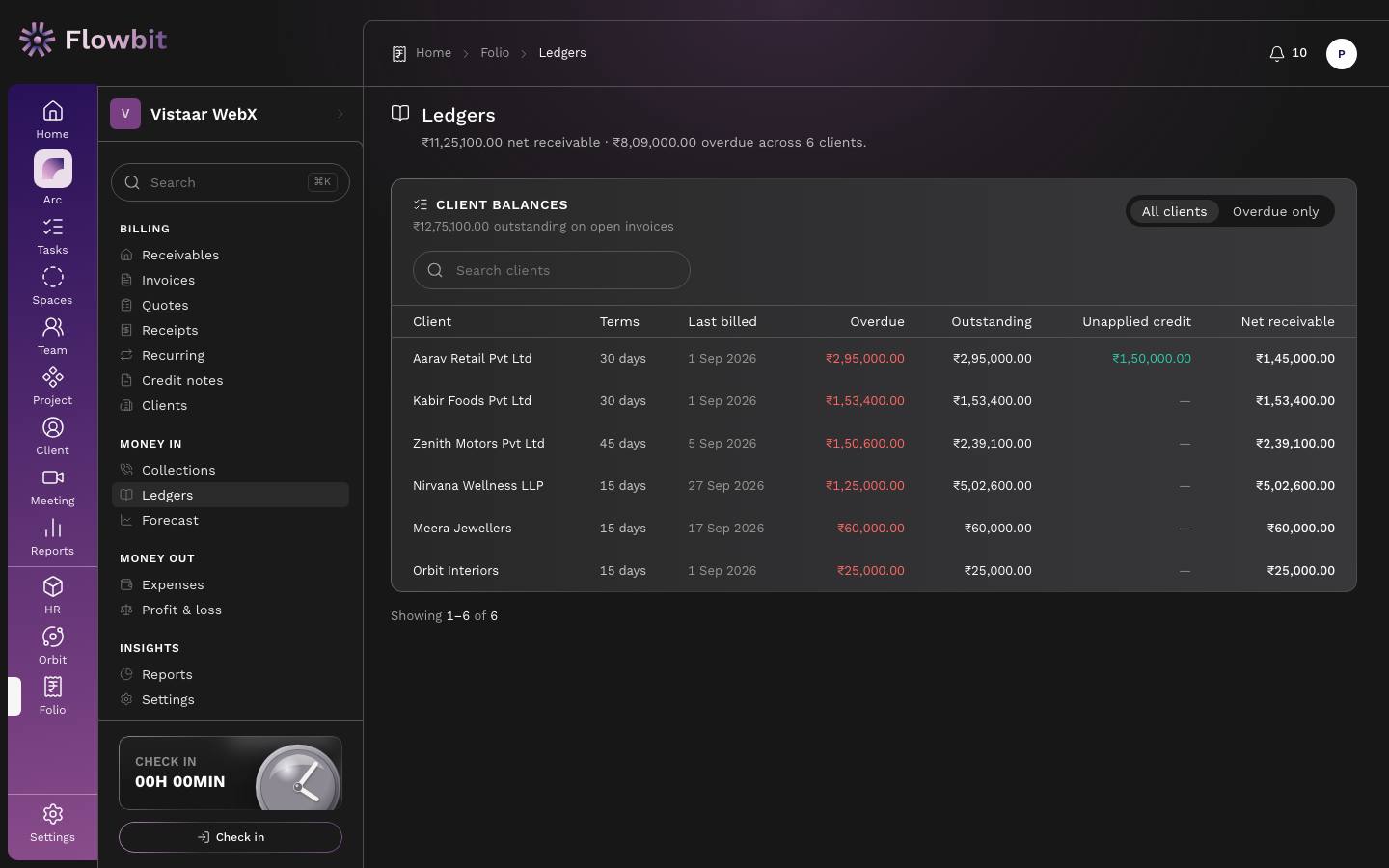
- Filters All clients and Overdue only, and Search clients.
- Columns: Client, Terms, Last billed, Overdue, Outstanding, Unapplied credit, Net receivable.
Read and send a client statement
- Click a client. Their statement opens with their billing terms, TDS and credit limit at the top.
- Set from and to dates if you want a period. The statement then starts with a brought-forward balance from before that date.
- Read the rows: date, type, document, particulars, debit (invoices and opening balance) and credit (payments, TDS deducted, credit notes, write-offs), with a running balance. The closing line says, for example, "Aarav Retail owes ₹1,45,000.", "We hold ₹X of the client's money as credit." or "The account is square."
- Switch to the Monthly view for opening, billed, received and closing by month.
- Download the CSV or the statement PDF, or email the statement to the client's recipients. You can also record a payment or start a new invoice from here.
Aging uses the due date: Not yet due, 1–30, 31–60, 61–90 and Over 90 days. Bounced and cancelled receipts do not appear in the ledger.
Profit and loss
Open: Rail → Folio → Profit & loss/app/folio/pnlWho: owner, admin, finance
A management view of income against costs, month by month. It is not your statutory accounts; your CA's books remain the record for filing.
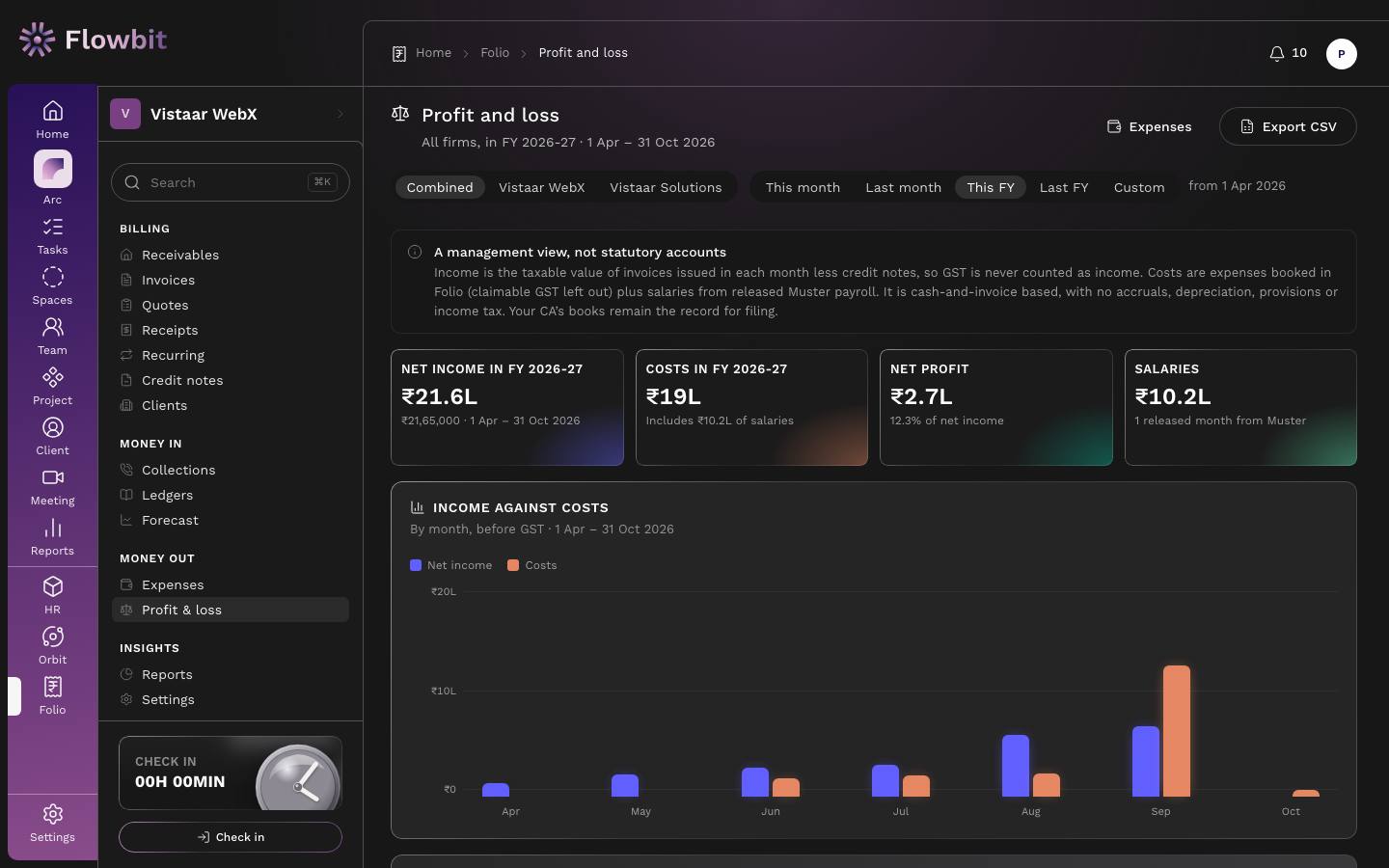
- Income is the taxable value of invoices issued in each month, less credit notes. GST is never counted as income.
- Costs are expenses booked in Folio (claimable GST left out) plus salaries from released Muster payroll.
- No accruals, depreciation, provisions or income tax.
- Tiles: Net income, Costs, Net profit (with margin) and Salaries.
- Income against costs chart and a Month by month table: invoiced, less credit notes, net income, each cost category, salaries, total costs and net profit.
- Firm and period switches, Expenses link and Export CSV.
Billing forecast
Open: Rail → Folio → Forecast/app/folio/forecastWho: owner, admin, finance
What your active retainers and pending milestones should bill over the coming months, before GST.
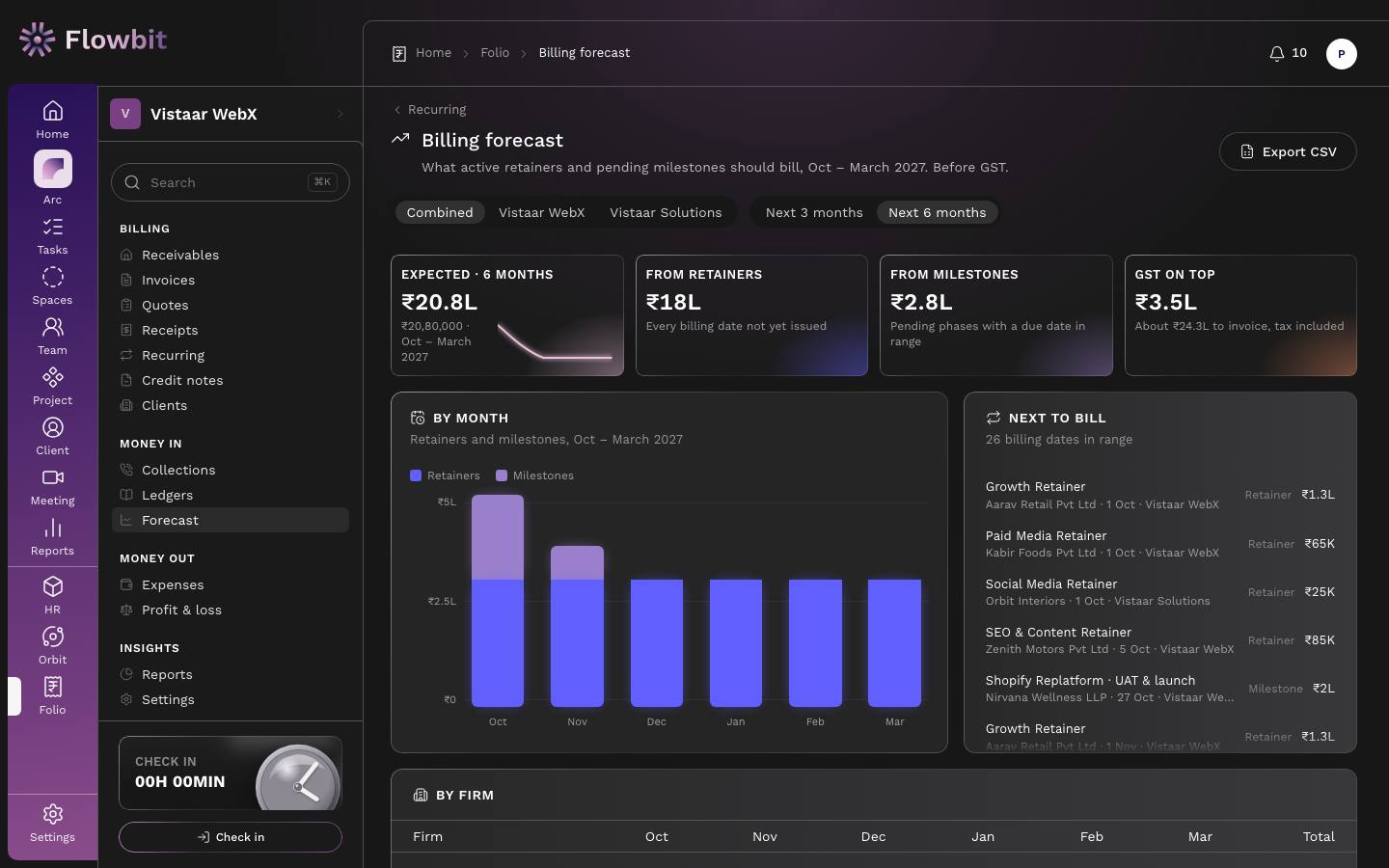
- Firm switch and horizon: Next 3 months or Next 6 months. Export CSV.
- Totals: expected billing, the part from retainers, the part from milestones (pending phases with a due date in range), and GST on top, giving an approximate amount to invoice tax included.
- By month chart, Next to bill list (each retainer date or milestone with client, firm and amount), and tables By firm and By client.
A milestone appears here only if its phase has a due date. Add due dates to your plan phases to make the forecast complete.
Bank reconciliation: import a statement
Open: Folio → Bank/app/folio/bankWho: finance
Import your bank statement and Flowbit suggests which invoice each deposit pays, so receipts are recorded in a few clicks instead of one by one.
- Under Import a bank statement, pick the firm and its bank account, then the file: CSV or XLSX from HDFC, ICICI, SBI, Axis or Kotak, or "Other bank" and map the columns yourself. Old
.xlsfiles need saving as.xlsxor.csvfirst. - Check the Preview and import. Rows already imported before are skipped.
- In Money in to match, each deposit shows the invoice it most likely pays, with a confidence. Flowbit looks at the balance (also less 2% or 10% TDS), the invoice number, a UTR the client shared, the client's name and the due date.
- Confirm the match. Flowbit records the receipt, allocates it (with any TDS) and marks the invoice paid. Use Pick an invoice to choose another, or Split across invoices when one deposit pays several invoices of the same client.
- In Money out, book each withdrawal as an expense (Flowbit suggests the category, payee and mode) or ignore it.
Imported the wrong file? Undo on a statement within 7 days removes its rows and cancels the receipts and expenses it created.
E-invoice (IRN) and e-way bill
Set up: Folio → Settings → E-invoiceUse: an issued invoice → E-invoiceWho: finance
If your aggregate turnover is above ₹5 crore, Flowbit can get an IRN for your B2B tax invoices from the Invoice Registration Portal through your GST Suvidha Provider (GSP), and print the signed QR code on the invoice PDF.
- In Folio → Settings → E-invoice, choose the GST firm, tick Generate IRNs for B2B tax invoices and Aggregate turnover is above ₹5 crore.
- Pick the Environment (sandbox first, then production) and enter your GSP's GSP API address, Client ID, Client secret, API username and API password. They are stored encrypted.
- Issue an invoice to a client with a GSTIN, then click Generate IRN on it. The IRN, acknowledgement number and date, and the QR code are saved and printed on the PDF.
- For goods on the move, fill the transport details and click Generate e-way bill.
- Cancel IRN works within 24 hours and not while an e-way bill exists. Cancelling an IRN does not void the invoice in Flowbit; void it separately if needed.
- Not covered yet: export invoices, reverse charge and IRNs for credit notes.
Reports
Open: Rail → Folio → Reports/app/folio/reportsWho: owner, admin, finance
GST return preparation, registers and money reports, each exportable as CSV.
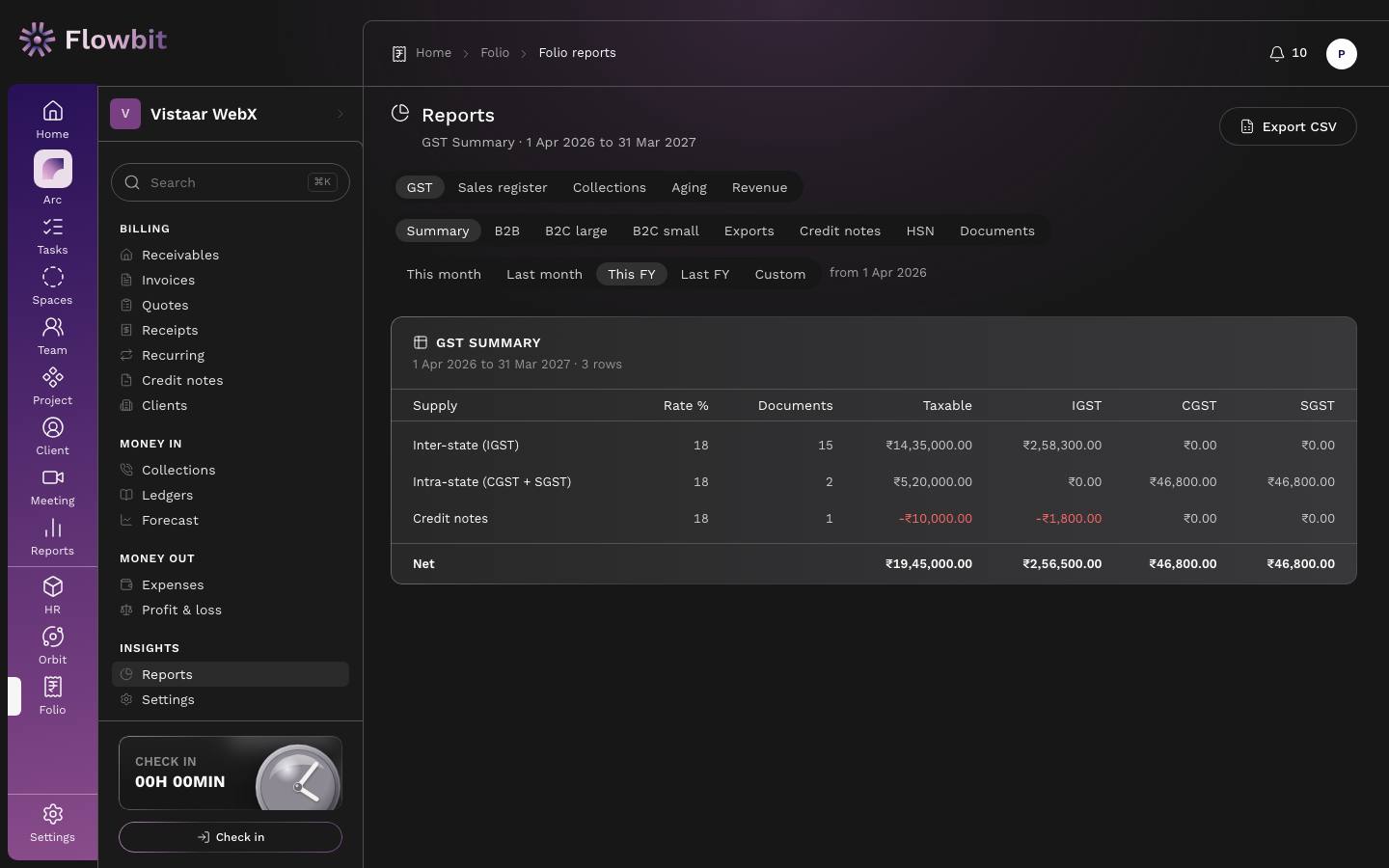
- Pick a report tab, then a period (This month, Last month, This FY, Last FY, Custom). The default is the start of the financial year to today.
- For GST, pick the section and the GST firm (each GSTIN files separately).
- Click Export CSV to download what is on screen.
| Report | What it shows |
|---|---|
| GST | Issued tax invoices of one GST firm, for GSTR-1 preparation. Sections: Summary (by supply type and rate), B2B (clients with GSTIN), B2C large, B2C small, Exports, Credit notes, HSN (by SAC and rate) and Documents (first and last number, count and voided per series). Sale invoices, drafts, voids and opening balances are left out. |
| Sales register | Every non-draft invoice in number order, every firm, voids included with their status, then credit notes as negative rows. |
| Collections | Recorded receipts: amount, applied, TDS and unapplied, with the total received. |
| Aging | One row per client across the five age buckets. Always as of today, not the period end. |
| Revenue | Taxable value of issued invoices less credit notes, by client (with share, warning at 30% or more from one client) or by month. |
Reports help you prepare returns; they do not file them. Check the B2C large threshold and the figures with your CA before filing.
Folio settings
Open: Rail → Folio → Settings/app/folio/settingsWho: owner, admin, finance
The businesses you bill from, their number series and banks, tax rates, terms, services and reminders.
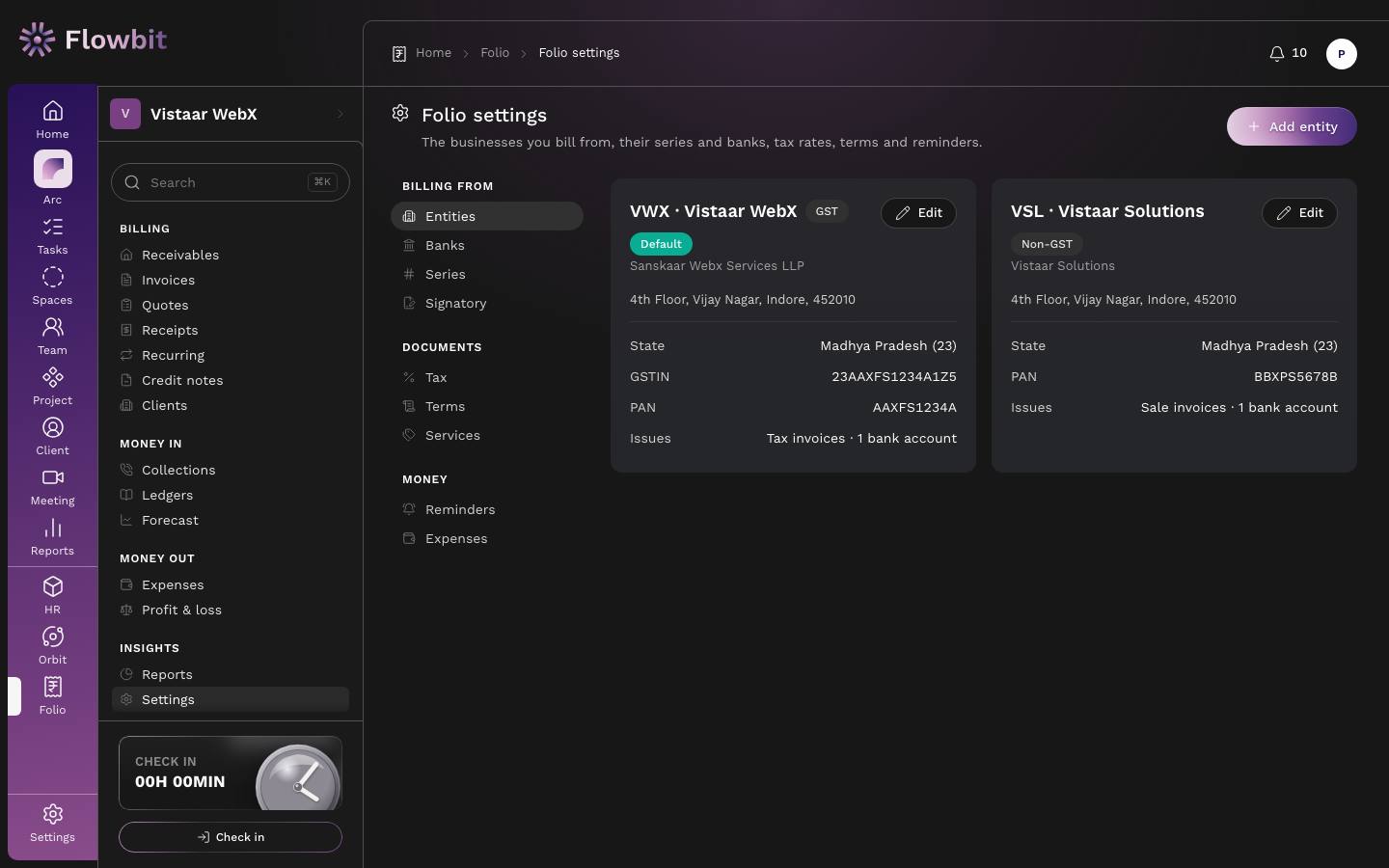
Tabs
- Billing from
- Firms: each firm that bills. Add firm or Edit to set code, legal name, trade name, kind (GST or Non-GST), GSTIN, PAN, CIN/LLPIN, address with state, email, phone, website and logo, and mark the default and active firm.
- Banks: each firm's accounts (label, account name, number, IFSC, bank, branch, UPI ID, default). This is the only page that shows full account numbers; elsewhere they are masked.
- Series: prefixes for invoices, credit notes, receipts, quotes and proformas, and number padding. It shows the next invoice number.
- Signatory: name, title and signature image printed in the signature block of every document.
- Documents
- Tax: Allowed GST rates, Round totals to the rupee, Show expected TDS on invoices and Quote validity (days).
- Terms: per firm, default payment terms in days, terms text and notes text.
- Services: your service catalogue (code, name, SAC, unit, rate, GST). Archived services leave the picker; past invoice lines keep them.
- Money
- Reminders: Send reminders automatically, Cadence (days) (up to 8 values from −30 to 365, negative meaning before the due date), Channels (at least one; Email sends automatically) and Automatic retainer drafts, the master switch for the daily retainer run.
- Expenses: add, rename or archive expense categories.
Add a firm
- Click Add firm.
- Enter a short code (2 to 10 letters or digits, for example VWX; it becomes the default number prefix), the legal name and the trade name.
- Choose GST or Non-GST. For GST, enter the GSTIN; its first two digits must match the firm's state.
- Fill the address, contact details and logo, and save.
- Add at least one bank account on Banks and check the prefixes on Series.
A firm's kind (GST or Non-GST) cannot change once it has issued an invoice. Changing a prefix mid-year changes only future numbers; the sequence continues. Every bank detail change is recorded in the audit log.