
Run your workspace
Settings is where the owner and admins set up the workspace: people and roles, products, plan and billing, notifications, automations, integrations, payments and data. It also holds the personal settings every user has: profile, alerts, briefs, password and appearance. Open it from Rail → Settings.
How Settings is laid out
The Settings side panel has six groups.
- You is for everyone and changes only your own login: My account (login), Security, Appearance, My alerts, Briefs, Google and Connected apps.
- The other groups change things for everyone, so most of them are open only to the owner and admins (or to a custom role given the right permission): Company (General, Company profile, Domains, Privacy), People and access (Members, Roles, Support access, Audit log), Plan (Plan & billing), Automation and messages (Workspace alerts, Automations, Compliance calendar, Messages log) and Data (Import, Export, Integrations, Modules).
The owner can do everything. An admin can do everything except manage the subscription and delete the workspace. There is always exactly one owner; ownership can be handed over from Members.
General: workspace details
Open: Rail → Settings → General/app/settingsWho: owner, admin
The workspace name and URL, and the working hours that attendance and payroll use. The company's legal details, logo and signatories live in Company profile.
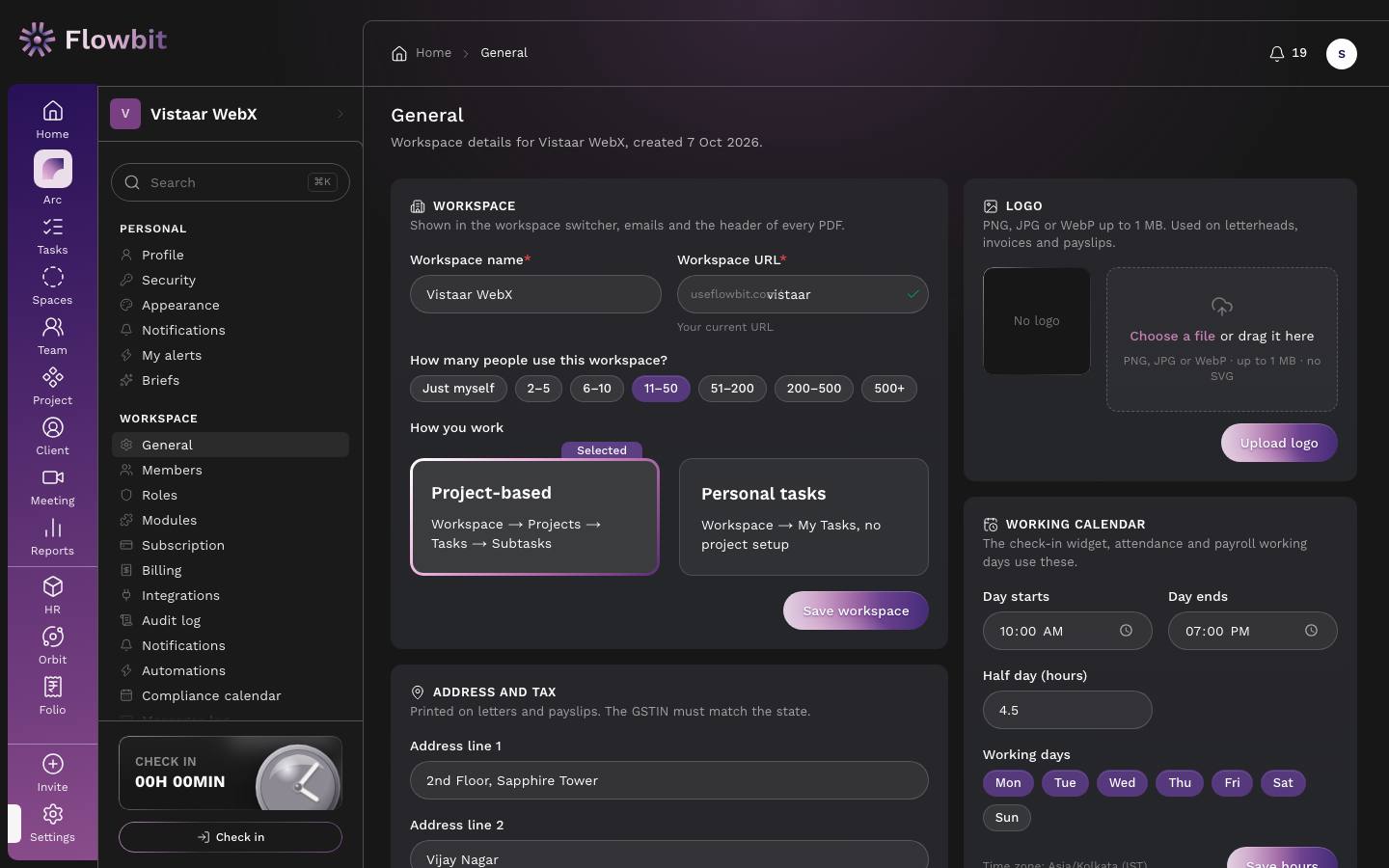
On this page
- Workspace — Workspace name (shown in the workspace switcher, emails and the header of every PDF), Workspace URL, How many people use this workspace? and How you work: Project-based (Workspace → Projects → Tasks → Subtasks) or Personal tasks (My Tasks, no project setup).
- Company profile — the legal name and GSTIN, with Open company profile to change them, the address, the logo and the signatories.
- Working calendar — Day starts, Day ends, Half day (hours) and Working days. The time zone is fixed to Asia/Kolkata (IST).
- Delete workspace — at the bottom of the page, owner only.
Set office hours and working days
- Set Day starts and Day ends, for example 10:00 AM to 07:00 PM.
- Set Half day (hours), for example 4.5.
- Tick the Working days. Untick Sunday (and Saturday if you work five days).
- Click Save hours.
The check-in widget, attendance and the number of working days in payroll all follow this calendar. Change it before you run a month's payroll, not in the middle.
Delete the workspace
Only the owner can do this. Everyone loses access at once and billing stops. Flowbit emails you the date: the data is kept for 30 days in case you change your mind (write to support to restore it), you get a reminder 7 days before, and then it is removed for good. Flowbit's own invoices to you are kept, as the law requires.
Take a full export from Export before you click Delete workspace. After 30 days the data cannot be brought back.
Company profile: letterhead and signatories
Open: Rail → Settings → Company profile/app/settings/companyWho: owner, admin
What every PDF prints at the top and at the bottom: payslips, HR letters, Form 130 Part B, receipts, statements, and Folio invoices, quotes and credit notes. PDFs use the same brand colours as the app (Settings → Appearance), darkened a little where a light colour would be hard to read on paper.
On this page
- Company details — Legal name, Trade name, GST registration (GST registered with the GSTIN, or Not registered), PAN, CIN / LLPIN, Website, Contact email, Phone and the full address. The GSTIN must match the state of the address.
- Logo — PNG, JPEG, SVG or WebP. Flowbit turns it into a resized PNG before it uploads.
- Authorised signatories — each with a name, designation, signature image and an optional seal or stamp. One of them is the Default.
- Show signature on payslips — off by default; payslips then say they are computer-generated and need no signature.
Add an authorised signatory
- Under Authorised signatories, click Add signatory.
- Type the Name and Designation.
- Click Choose signature and pick a photo or scan of the signature on white paper (PNG or JPEG).
- Leave Remove background on to make the paper transparent. Move the slider if faint ink disappears or a grey patch stays.
- Optionally add a Seal or stamp the same way.
- Click Add signatory.
Only owners and admins can add, change or remove signatories, and every change is in the audit log. Signature and seal images are stored privately: they are only ever drawn into PDFs and cannot be opened or downloaded as files.
Who signs what
- HR letters — the signatory set for that letter type in HR settings → Letter signatories, else the default. On a draft, Signed by picks another signatory or Someone else (a typed name, no signature image). The signature is fixed on the letter when it is issued, so a reprint looks the same.
- Form 130 Part B — the person in the tax-year settings. When that is an authorised signatory, their signature prints; left blank, the default signs.
- Folio documents — the firm's own signatory when it has one, else the default. A firm that leaves its logo, email, phone or website blank uses the company profile's ("Using company profile" in the firm form).
- Receipts and statements — as Folio documents.
- Flowbit's own bills (Settings → Plan & billing) — always Flowbit's details, because Flowbit issues them.
Your profile
Open: Rail → Settings → My account (login)/app/settings/profileWho: everyone
Your name, job title and photo, and what this workspace knows about you.
The screenshot of this page is being retaken. Your name shows on tasks, approvals and the audit log in every workspace you belong to.
On this page
- Your details — Full name, Job title and Your sign-in email. The email cannot be edited here; ask a workspace owner to invite the new email if yours changes.
- Photo — PNG, JPG or WebP under 2 MB.
- In Vistaar WebX (your workspace name) — your role, department, manager, joining date and sign-in methods, with a link to your employee record. Department and manager are managed by your admin.
Change your name or photo
- Edit Full name or Job title and click Save profile.
- For a photo, click Choose a file, pick the image, then click Upload photo.
Language
The Language card switches your own screens between English and हिन्दी (Hindi). Hindi covers My HR (profile, attendance, leave and payslips), check-in and breaks, and the Home attendance and Get started cards; the rest of Flowbit stays in English. Payslip PDFs print English and Hindi labels side by side when you read in Hindi. See Flowbit in Hindi.
Email to task
When your Flowbit server receives email, the Email to task card shows your private tasks+… address with a copy button. See Email to task.
My alerts
Open: Rail → Settings → My alerts/app/settings/profile/notificationsWho: everyone
Choose which alerts reach you, and where: in the bell (In-app) or by Email. Any switch you leave untouched follows the workspace defaults set by your admin.
The screenshot of this page is being retaken. One row per kind of alert, with a switch for each channel.
On this page
- Alerts — one row per kind of alert: tasks assigned to you, @mentions, blocked tasks, due today and overdue, comments and replies, task status changes, approvals waiting on you, decisions on your requests, HR reminders, attendance nudges, birthdays and anniversaries, compliance dates, meetings, follow-ups due, leads and deals, invoices and payments, payslips and letters, team and announcements, Flowbit account and security.
- Snooze — pause alert emails for 1 hour, the Rest of today, or until a time you pick (Until then).
- Digest — One email per alert, Hourly digest (at most one alert email an hour) or End-of-day digest (one email at 6 pm). Urgent alerts still go at once.
- Quiet hours — follow the workspace quiet hours, set My own hours, or choose No quiet hours.
Change what reaches you
- Find the row, for example Task status changes.
- Turn the In-app or Email switch on or off.
- Pick a Digest and Quiet hours option if you want fewer emails.
- Click Save.
Some switches are fixed by Flowbit. Security emails (password resets, sign-in codes, ownership changes) always go and ignore snooze and quiet hours. Comments are always emailed as an hourly digest.
Approval and task emails have buttons (Approve, Reject, Mark done, Snooze 1 day). Each button works once, for 7 days, without signing in, for whoever has the email, so don't forward approval emails. Expense claims and bank account changes ask the person they were sent to to sign in first.
Briefs
Open: Rail → Settings → Briefs/app/settings/profile/briefsWho: everyone
A brief is your own summary of what needs you, sent at a time you choose. You pick the days, where it arrives and what it covers. You can have more than one, for example a morning brief and an end-of-day wrap. Times are IST.
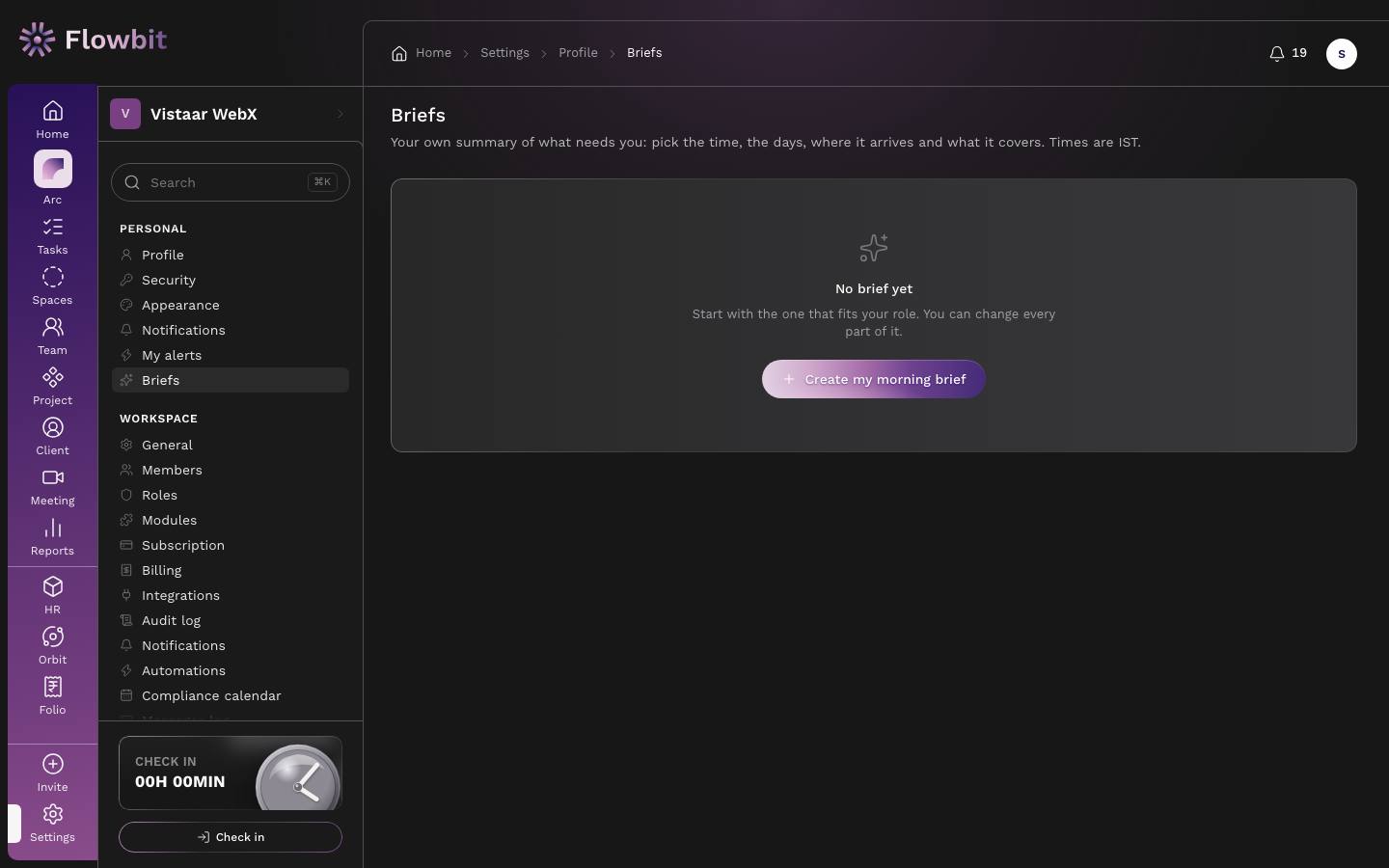
Create your first brief
- Click Create my morning brief. Flowbit starts you with the preset that fits your role: an owner gets everything, an employee gets Work and Approvals.
- Change the Name if you like.
- Set Time (IST) and How often: daily, weekdays, weekly on a Day of the week, or monthly on the 1st. Pick the Days.
- Under Where, tick In-app (the bell), Email or both.
- Under Sections, in order, add the sections you want and use Move up and Move down to order them. Remove drops one.
- Narrow the task sections with Which tasks, Only these projects (none = all) and Only these priorities (none = all).
- Tick Skip when there is nothing so an empty brief is not sent. Save.
Use Add a brief later for a second one.
Sections you can pick
| Group | What it shows |
|---|---|
| Work | Your tasks due today, overdue, due this week, blocked, today's meetings, your timer and timesheet status |
| Approvals | Everything waiting on you, with approve links |
| Team (managers) | Who is on leave or absent today, who is late, the team's overdue tasks, workload |
| Money (owners and accounts) | Due today and overdue with the top 5 clients, yesterday's receipts, this month's billing, the week's cash forecast |
| Sales | Follow-ups due, new leads yesterday, deals closing this week |
| Compliance | Statutory dates in the next 7 days |
Security: password, two-factor and sessions
Open: Rail → Settings → Security/app/settings/securityWho: everyone
Change your password, turn on two-factor sign-in and see every device you are signed in on, across all your workspaces.
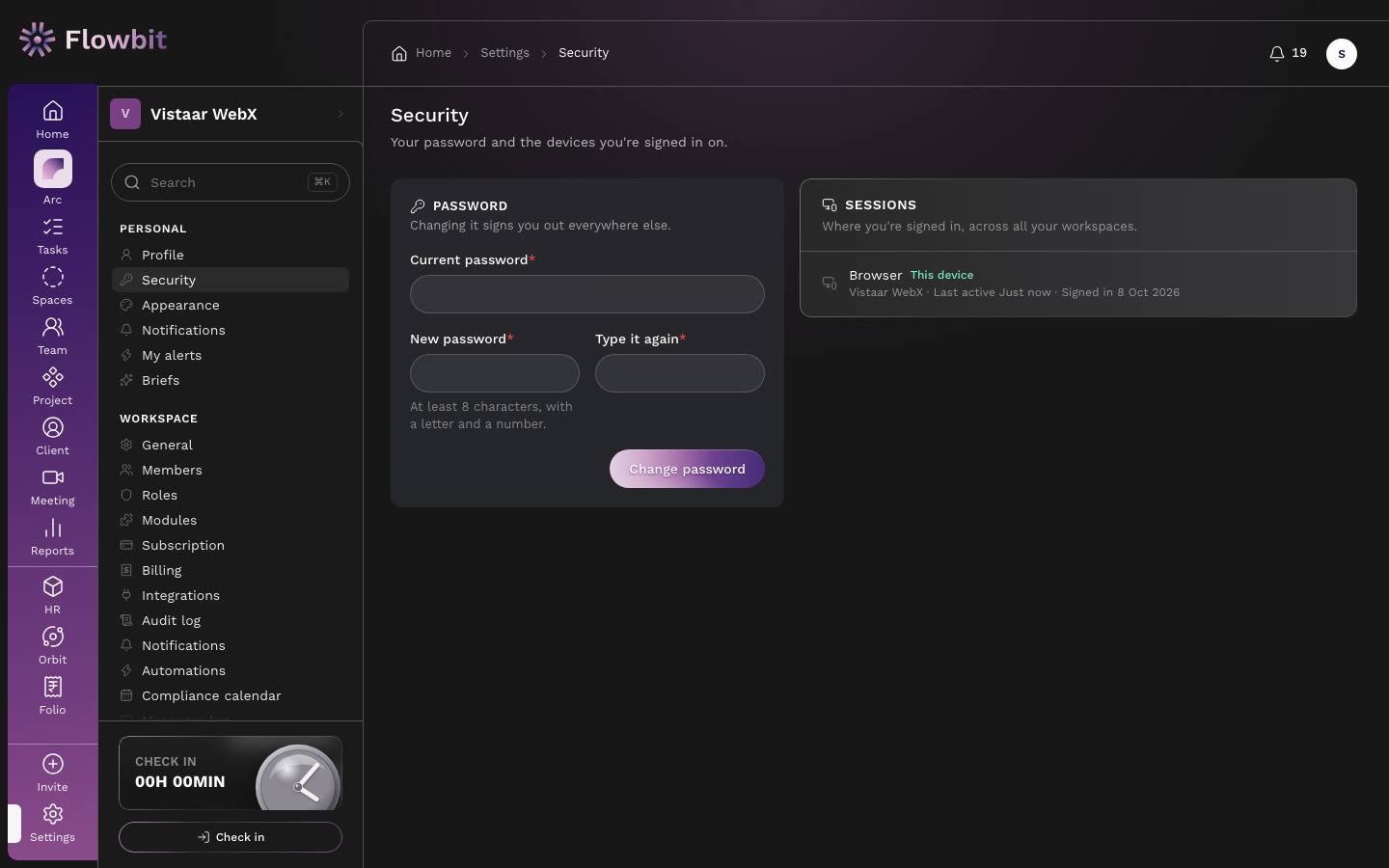
Change your password
- Type your Current password.
- Type a New password: at least 8 characters, with a letter and a number.
- Type it again in Type it again.
- Click Change password.
Changing your password signs you out on every other device. Use this if a phone or laptop is lost.
Turn on two-factor sign-in
With two-factor sign-in, Flowbit asks for a 6-digit code from an authenticator app (Google Authenticator, Microsoft Authenticator, 1Password and similar) after your password or Google sign-in.
- In the Two-factor sign-in card, click Set up two-factor sign-in.
- Scan the QR code for your authenticator app, or type the key shown under it.
- Type the Code from the app and click Turn on two-factor sign-in.
- Save the 10 Recovery codes somewhere safe (Copy codes), then click I saved them. They are shown only once; each works one time.
When you sign in you can tick "remember this device for 30 days". New recovery codes replaces the old set, and Turn off goes back to password or Google alone.
Owners and admins can tick Require two-factor sign-in for admins once their own two-factor is on. Owners and admins without it are then sent to this page before they can do anything else. Lost your phone and your codes? A workspace admin can reset your two-factor from Members; only the owner can reset the owner's.
Appearance: colours, sounds and motion
Open: Rail → Settings → Appearance/app/settings/appearanceWho: everyone (brand colours: owner, admin)
Sounds and motion are your own choice. Brand colours change the look for everyone in the workspace.
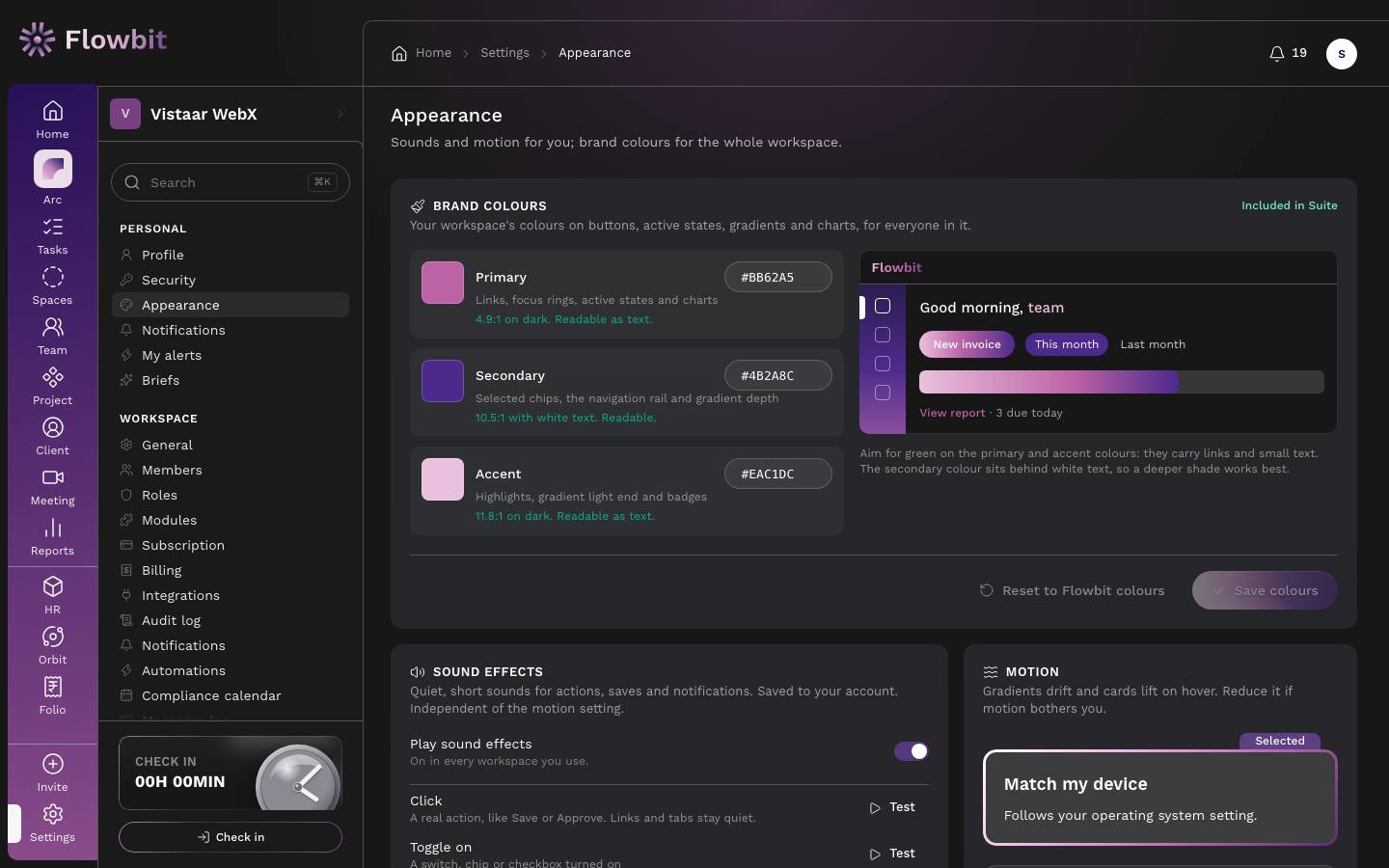
Set your brand colours
- Under Brand colours, pick or type a hex value for Primary (links, focus rings, active states, charts), Secondary (selected chips, the navigation rail, gradient depth) and Accent (highlights and badges).
- Check the preview card and the contrast line under each colour. Aim for "Readable".
- Click Save colours. Reset to Flowbit colours undoes it.
Primary and accent carry links and small text, so pick shades that read well on a dark background. Secondary sits behind white text, so a deeper shade works best. Brand colours are included in the Suite plan.
Sounds and motion
- Play sound effects — short, quiet sounds for real actions (Click, Toggle on, Toggle off, Pop, Success, Error, Notify, Whoosh). Click Test next to each to hear it. The setting follows you to every workspace.
- Motion — Match my device, Reduce motion (no gradient animation and no hover lift) or Full motion.
Members: invite, change role, disable
Open: Rail → Settings → Members/app/settings/membersWho: owner, admin
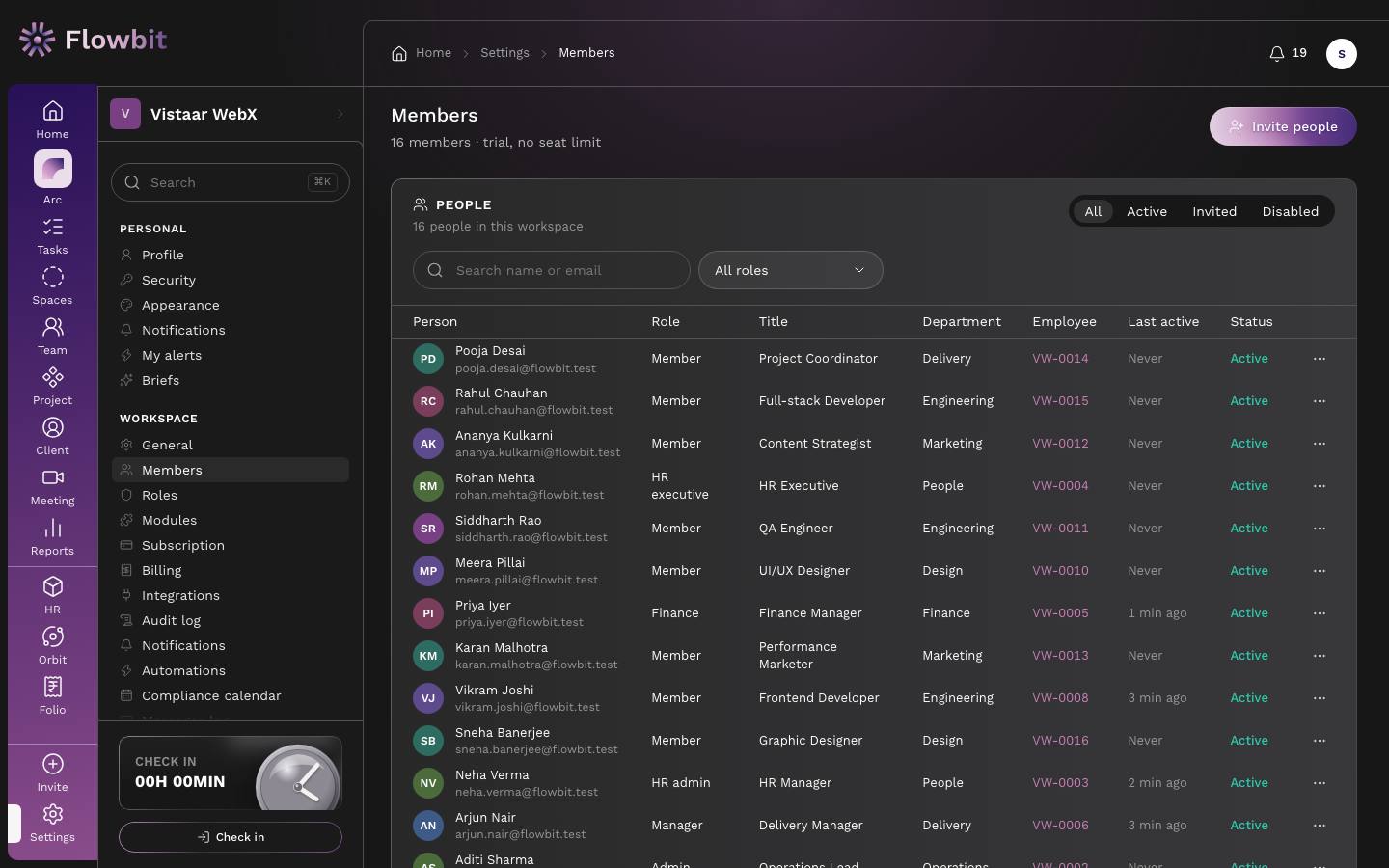
Everyone who can sign in to the workspace, with their role and status. This is where you invite people, change what they can do, and cut off access when someone leaves.
On this page
- Filters: All, Active, Invited, Disabled, plus Search name or email and Filter by role.
- Columns: Person, Role, Title, Department, Employee (links to the HR record), Last active, Status, and an actions menu at the end of each row.
Invite people
- Click Invite people.
- If the person already has an HR record, pick it in Link to an employee record. This fills the email and connects their self-service.
- Type one or more addresses in Emails, separated by commas, spaces or new lines. Up to 20 at a time.
- Pick a Role (Member by default) and, if you like, a Job title.
- Click Send invitations. Each person gets an email with a link to join. The link works for 7 days.
If email delivery is not set up yet, invitations are saved instead of sent. You can copy each invite link and share it yourself. To invite many people from a spreadsheet, use Import → Team members.
Pending invites appear under Invited. Use Resend to send the email again, or Revoke to cancel it: the link stops working and the seat is freed.
Change someone's role
- Open the row's actions menu (for example Actions for Vikram Joshi).
- Choose Change role.
- Pick the new role and save. It applies on their next request.
Edit details in the same menu changes title and department. When the member is linked to an employee record, department and manager are managed in HR → People instead.
Disable someone who has left
- Open the row's actions menu and choose Disable.
- Confirm with Disable. They are signed out at once and cannot sign back in. Their tasks, records and history stay, and the seat is freed.
- To bring them back, open the menu on the Disabled list and choose Enable. This uses a seat again.
Flowbit does not delete members. Disabling keeps the audit trail intact, which matters for approvals and payroll history. To finish an exit in HR (last day, settlement), use the employee's record in Muster.
Hand over ownership
- As the owner, open the new owner's actions menu and choose Transfer ownership.
- Type the workspace name to confirm, then click Transfer ownership.
The new owner gets the subscription and the right to delete the workspace. You become an admin, and cannot undo this yourself.
Roles and permissions
Open: Rail → Settings → Roles/app/settings/rolesWho: owner, admin
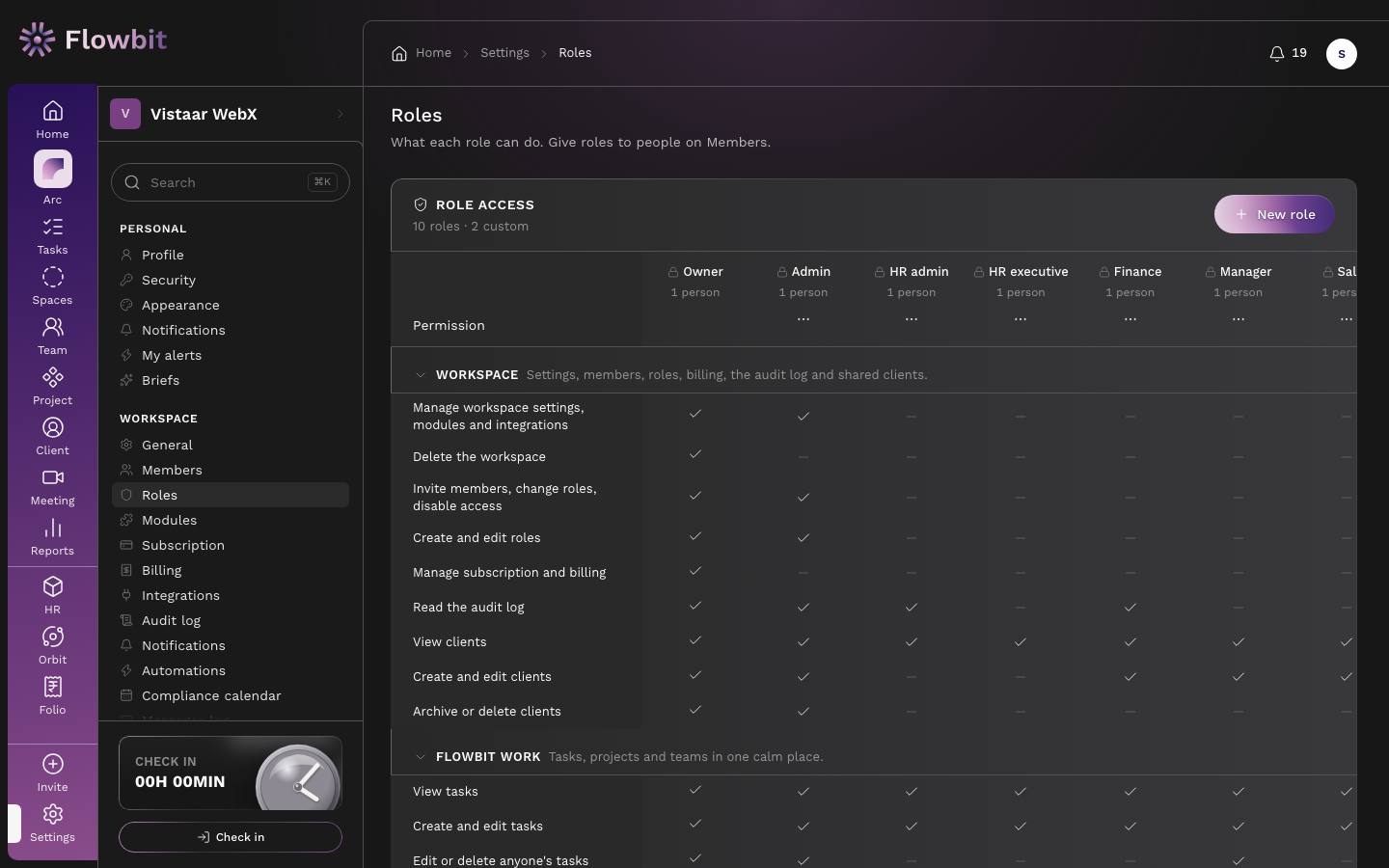
What each role can do. Flowbit comes with eight built-in roles. You can add your own custom roles, for example a "BD executive" who also sees Orbit reports. You give roles to people on Members.
The built-in roles
| Role | What it can do |
|---|---|
| Owner | Everything, including the subscription and deleting the workspace. One per workspace. |
| Admin | Everything except the subscription and deleting the workspace. |
| HR admin | All of Muster: people, attendance, leave, claims, payroll run and approval, letters. Can read the audit log. |
| HR executive | People, attendance, leave, claims and letters. Does not see salaries, payslips or payroll, and no sensitive IDs (PAN, Aadhaar, bank). |
| Finance | Payroll approval and release, claim payouts, all of Folio and reports. Can read sensitive IDs and the audit log. |
| Manager | All of Work, approvals (leave, attendance, timesheets) for direct reports, and read access to Orbit. |
| Sales | All of Orbit, client records and Folio quotes. |
| Member | Their own tasks and self-service: attendance, leave, claims and payslips. |
Key permissions at a glance
| Permission | Owner | Admin | HR admin | HR exec | Finance | Manager | Sales | Member |
|---|---|---|---|---|---|---|---|---|
| Manage workspace settings, modules and integrations | Yes | Yes | No | No | No | No | No | No |
| Invite members, change roles, disable access | Yes | Yes | No | No | No | No | No | No |
| Create and edit roles | Yes | Yes | No | No | No | No | No | No |
| Manage subscription and billing | Yes | No | No | No | No | No | No | No |
| Delete the workspace | Yes | No | No | No | No | No | No | No |
| Read the audit log | Yes | Yes | Yes | No | Yes | No | No | No |
| Create and edit tasks | Yes | Yes | Yes | Yes | Yes | Yes | Yes | Yes |
| Approve timesheets | Yes | Yes | No | No | No | Yes | No | No |
| Approve leave | Yes | Yes | Yes | Yes | No | Yes | No | No |
| See PAN, UAN, ESIC, Aadhaar and bank details | Yes | Yes | Yes | No | Yes | No | No | No |
| Approve payroll (finance) | Yes | Yes | Yes | No | Yes | No | No | No |
| Release payroll and publish payslips | Yes | Yes | Yes | No | Yes | No | No | No |
| Open Orbit; see own leads, deals and activities | Yes | Yes | No | No | Yes | Yes | Yes | No |
| Issue invoices and email them | Yes | Yes | No | No | Yes | No | No | No |
| View clients | Yes | Yes | Yes | Yes | Yes | Yes | Yes | Yes |
The full matrix on the page lists every permission, in five groups: Workspace, Flowbit Work, Muster, Orbit and Folio. Click a group name to fold it.
Create a custom role
- Click New role. Or, to start from an existing role, open its column menu and choose Duplicate to customise (built-in roles) or Duplicate (custom roles).
- Give it a name and a short description.
- Tick the permissions people with this role should have.
- Save. The new role now appears in the Role list on Members.
To change a custom role later, open its column menu and choose Edit, or tick and untick cells in its column and save. Delete removes a custom role.
Built-in roles cannot be edited; duplicate them instead. You can only grant permissions you hold yourself, so an admin cannot create a role that manages the subscription.
Modules: turn products on or off
Open: Rail → Settings → Modules/app/settings/modulesWho: owner, admin
Switch whole products on or off for everyone in the workspace. A team that does not do HR in Flowbit, for example, can hide Muster.
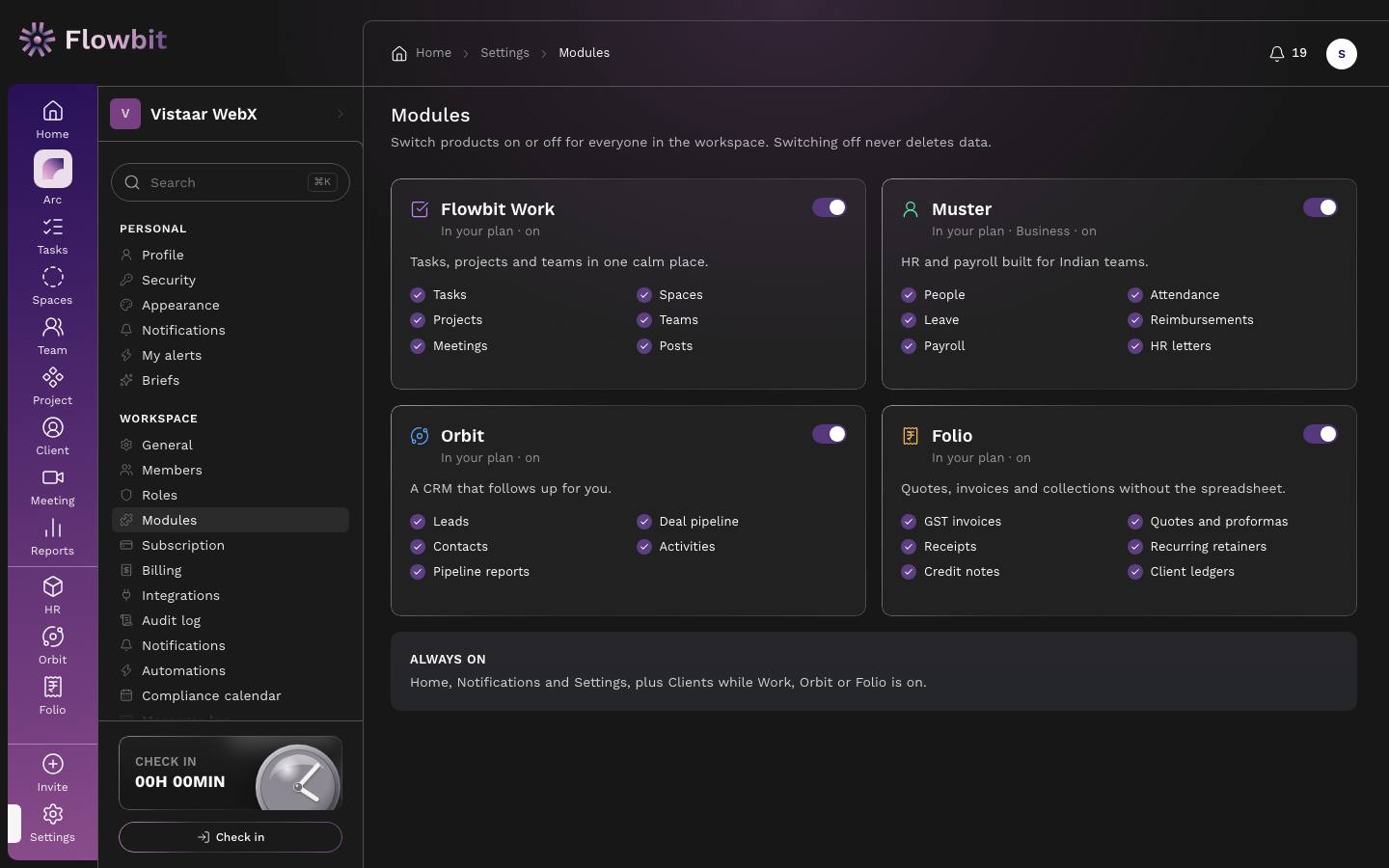
- Flowbit Work — tasks, spaces, projects, teams, meetings and posts.
- Muster — people, attendance, leave, reimbursements, payroll and HR letters. The card shows your Muster tier (Starter or Business).
- Orbit — leads, deal pipeline, contacts, activities and pipeline reports.
- Folio — GST invoices, quotes and proformas, receipts, recurring retainers, credit notes and client ledgers.
- Always on — Home, Notifications and Settings, plus Clients while Work, Orbit or Folio is on.
Switch a product off
- Find the product card, for example Orbit.
- Turn off its switch (Orbit on or off). It leaves the rail for everyone.
- Turn it on again whenever you need it.
Switching a product off never deletes its data. It also does not change your bill: to stop paying for a product, change your plan on Plan & billing.
Plan & billing: plan, seats and trial
Open: Rail → Settings → Plan & billing/app/settings/subscriptionWho: owner
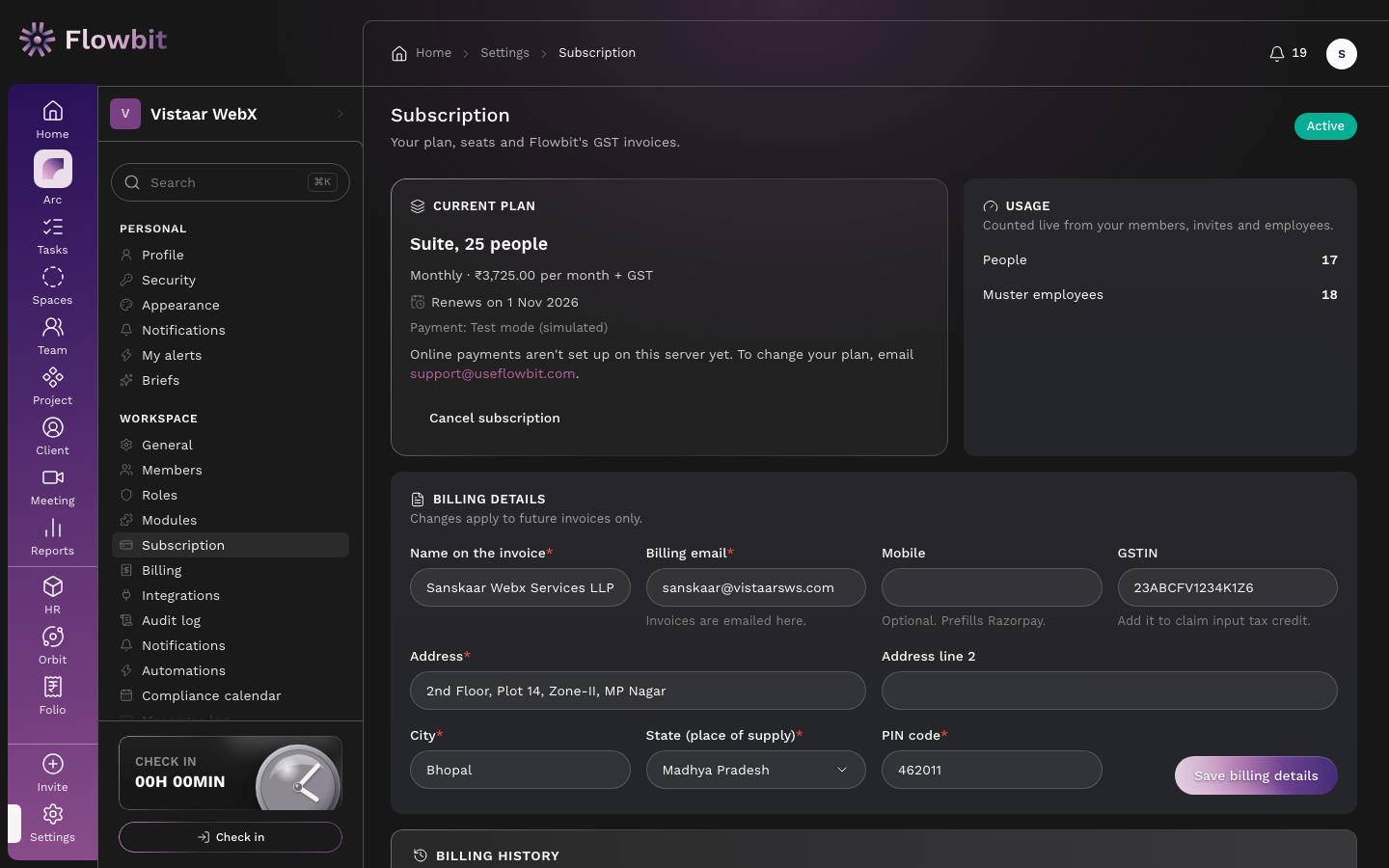
Your Flowbit plan, how many seats you use, the details printed on Flowbit's GST invoices to you, and your billing history.
On this page
- Current plan — plan name, seats, billing cycle, price per month plus GST, renewal date and payment method. Cancel subscription sits here.
- Usage — counted live from your members, invites and employees: People and Muster employees.
- Billing details — Name on the invoice, Billing email (invoices are emailed here), Mobile, GSTIN, address and State (place of supply).
- Billing history — every GST invoice Flowbit issued to you, with Number, Date, Period, Amount, Payment, Status, a PDF link and Email again.
How plans work
| Stage | Rule |
|---|---|
| Free | Up to 5 people, all four products, free for 6 months from signup. Adding a 6th person asks you to upgrade, or to start the trial if your business has not had it. Extra Folio firms and paid add-ons (client portal, custom domains, Meetings AI) are not included. One Free workspace per business. |
| Trial | For teams of more than 5: 15 days with all features and all people. One trial per business (GSTIN, else PAN, else the owner's email). After it, pay, or trim to 5 people and go back to Free for the rest of the 6 months from signup. |
| Paid | Monthly or yearly billing. Monthly pays the list price. Yearly costs 10 months' price (2 months free). Your first yearly plan is also 50% off for its first year (a separate discount line on the invoice, with GST on the discounted amount); yearly renewals pay 10 months' price. The price shown when you upgrade is the one you pay. |
| Seats | Free: the higher of people who sign in and employees on payroll. Suite: everyone who signs in plus employees on payroll who do not sign in, so each person counts once. Separate products are each counted on their own: Work counts people who sign in, Muster counts employees on payroll, Orbit counts people whose role can work leads or deals. Pending invites count as people who sign in. An employee who only uses self-service (attendance, leave) counts as an employee, not a login. |
| Folio users | Folio on its own includes 3 users, and the limit cannot be raised. Anyone whose role has any Folio permission counts, even to view or quote: by default the Owner, Admins, Finance and Sales. For more than 3, choose Suite. |
List prices (per month, before 18% GST)
| Plan | Price | Minimum |
|---|---|---|
| Suite (Work, Muster Business, Orbit and Folio) | ₹149 per person | 10 people |
| Work | ₹59 per user | 5 users |
| Muster Starter (no payroll) | ₹39 per employee | 10 employees |
| Muster Business (with payroll, PF, ESI and PT) | ₹79 per employee | 10 employees |
| Orbit | ₹149 per sales user | 2 sales users |
| Folio | ₹399 flat per workspace (2 firms and 3 users included; ₹199 per extra firm) | — |
Prices can change; the price shown when you upgrade is the one you pay. For example, Suite for 25 people monthly is 25 × ₹149 = ₹3,725 a month (plus 18% GST once Flowbit is GST-registered: ₹4,396 a month after rounding).
Upgrade or start a trial
- When you reach the Free limit, a panel offers Upgrade, and Start 15-day trial only while your business has not had its trial. When a trial ends, a workspace trimmed to 5 people within the 6 months from signup also sees Stay on Free (5 people). When the free months end, only Upgrade is left. There is no separate trial of a single product: a product your plan does not include shows Add to plan.
- Click Upgrade, choose the products, the number of people and monthly or yearly.
- Pay by UPI, card or net banking. Flowbit emails the invoice to your billing email (a GST tax invoice once Flowbit is GST-registered; until then it says it is not a tax invoice), and it appears in Billing history.
Only the owner can upgrade. Others see "Ask your workspace owner to upgrade the plan or start a trial." If online payments are not switched on for your account, the page tells you to email support@useflowbit.com to change your plan.
Fill in your billing details
- Under Billing details, enter the Name on the invoice and Billing email.
- Add your GSTIN to claim input tax credit on Flowbit's invoices.
- Fill the address and pick the State (place of supply).
- Click Save billing details. Changes apply to future invoices only.
If your plan ends without payment, the workspace becomes read-only for 30 days. Export data always works, without a watermark, and employees can still download old payslips. A missed renewal payment keeps full access for 7 days first. A monthly downgrade applies from the next cycle; yearly plans are not refunded.
Bills and invoices: pay bills and autopay
Open: Rail → Settings → Plan & billing → Bills and invoices/app/settings/subscription?tab=billsWho: owner
Bills to pay, Flowbit's invoices and receipts, autopay and bank transfers.
The screenshot of this page is being retaken. Due bills on top, autopay status in the middle, paid invoices below.
Pay a due bill
- Under Due bills, find the bill.
- Pay online, or pay by bank transfer or UPI and then send the UTR (the bank's reference number) from the same card.
- When the payment arrives, the invoice is issued and listed under Invoices and receipts (a GST tax invoice once Flowbit is GST-registered).
Turn on autopay
- Under Autopay, click Set up autopay.
- Approve a UPI Autopay or e-mandate in your bank or UPI app.
- The Status changes from Off. Your plan now renews by itself, with a notice 24 hours before every debit.
Download any invoice from the PDF link in the Invoices and receipts table.
Workspace notification defaults
Open: Rail → Settings → Workspace alerts (Automation and messages group)/app/settings/notificationsWho: owner, admin
What the workspace sends by default, and on which channel. Each person can still change their own on My alerts; switches they have not touched follow these defaults.
The screenshot of this page is being retaken. The same alert list as My alerts, but these are the defaults for everyone.
Change a default
- Under Workspace defaults, find the alert, for example Leads and deals.
- Turn its In-app or Email switch on or off. Alerts always land in the bell unless you switch In-app off.
Set quiet hours
- Under Quiet hours, set From and Until, for example 21:00 to 08:00 IST.
- Click Save quiet hours. Alert emails that arrive in these hours wait and go out together when they end.
Security emails always go at once. Rows marked "Fixed by Flowbit" cannot be changed.
Automations
Open: Rail → Settings → Automations/app/settings/automationsWho: owner, admin
Rules that act for you: when something happens, Flowbit sends the message, alerts the right person or adds a task. Flowbit comes with a ready set; switch each one on or off, and open it to change the wording and timing.
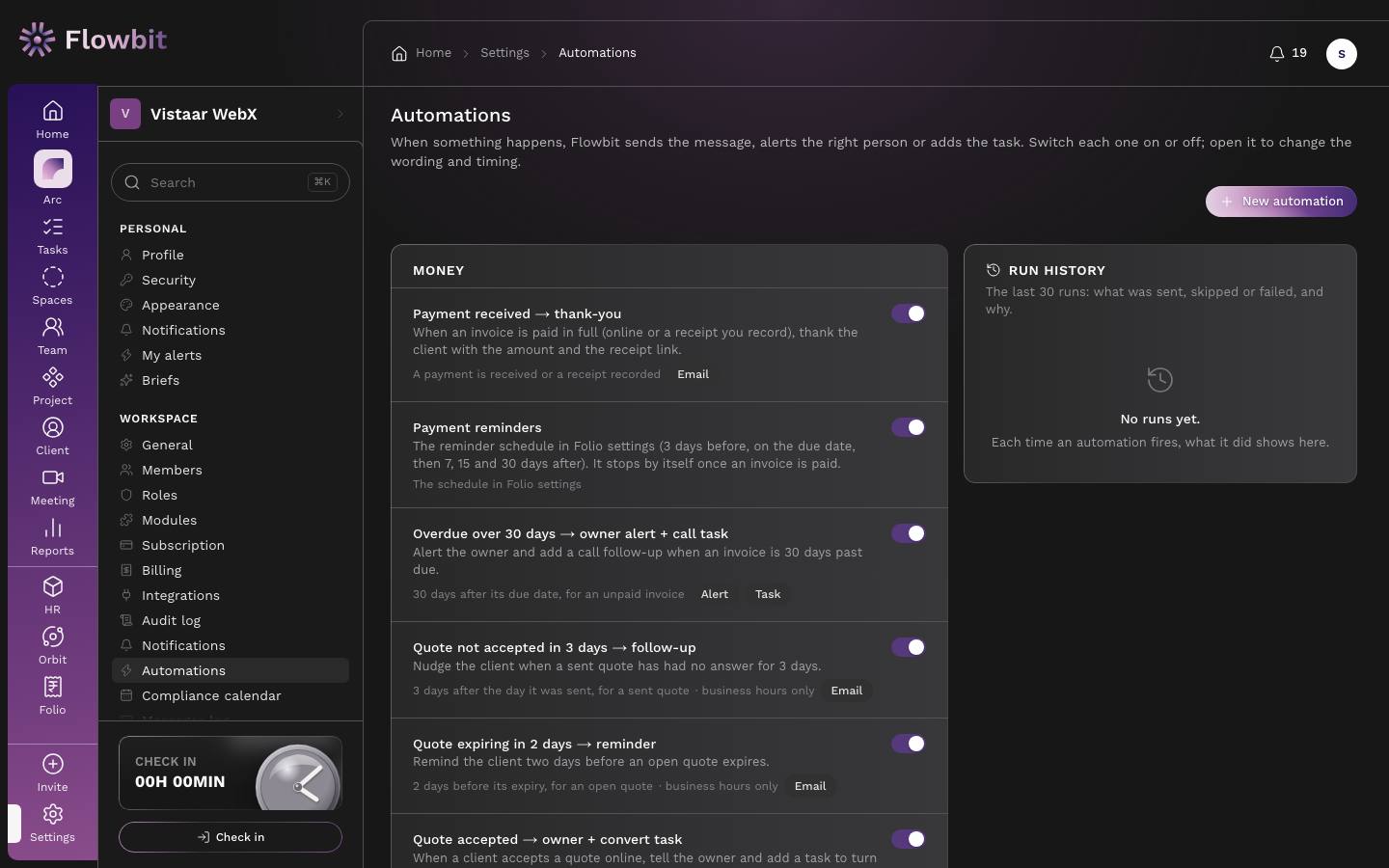
The ready-made automations
| Group | Examples |
|---|---|
| Money | Payment received → thank-you; Part payment → acknowledgement; Invoice issued → send to client; Overdue over 30 days → owner alert + call task; Quote not accepted in 3 days → follow-up; Quote expiring in 2 days → reminder; Quote accepted → owner + convert task; Recurring invoice drafted → review; Monthly statement on the 1st; Client shares a UTR → verify task. Payment reminders link to the schedule in Folio settings. |
| Team | Task overdue 3 days → manager; Leave pending 24 hours → reminder; Leave pending 48 hours → escalate (timed from the request's current stage); Meeting in 15 minutes → attendees |
| Sales | New lead → alert the assignee + welcome the lead; Lead not contacted in 2 hours → nudge; Lead not contacted in 24 hours → sales manager; Deal idle for 7 days → nudge; Deal won → team post + owner alert |
| People | Attendance not marked by 10:30 → nudge; Forgot to check out → evening nudge; Birthday and work anniversary wishes; New joiner → welcome before Day 1; Joining documents incomplete → weekly reminder; Probation ending in 15 days; ID, contract or visa expiring in 30 days; Payslip published → "your payslip is ready" note |
| Business compliance | Statutory due date in 3 days → owner and accounts (from your Compliance calendar) |
Edit a ready-made automation
- Click its name, for example Payment received → thank-you.
- Change the wording, the conditions or the timing.
- Click Test on me to receive the saved version yourself, filled with sample values.
- Save, and turn on its switch on the list. Delete removes an automation you no longer need.
Run history at the bottom of the list shows the last 30 runs: what was sent, skipped or failed, and why.
Build a new automation
Open: Automations → New automation/app/settings/automations/newWho: owner, admin
Every automation has three parts: When (the trigger), Only if (conditions) and Then (one or more actions), plus timing and safety limits.
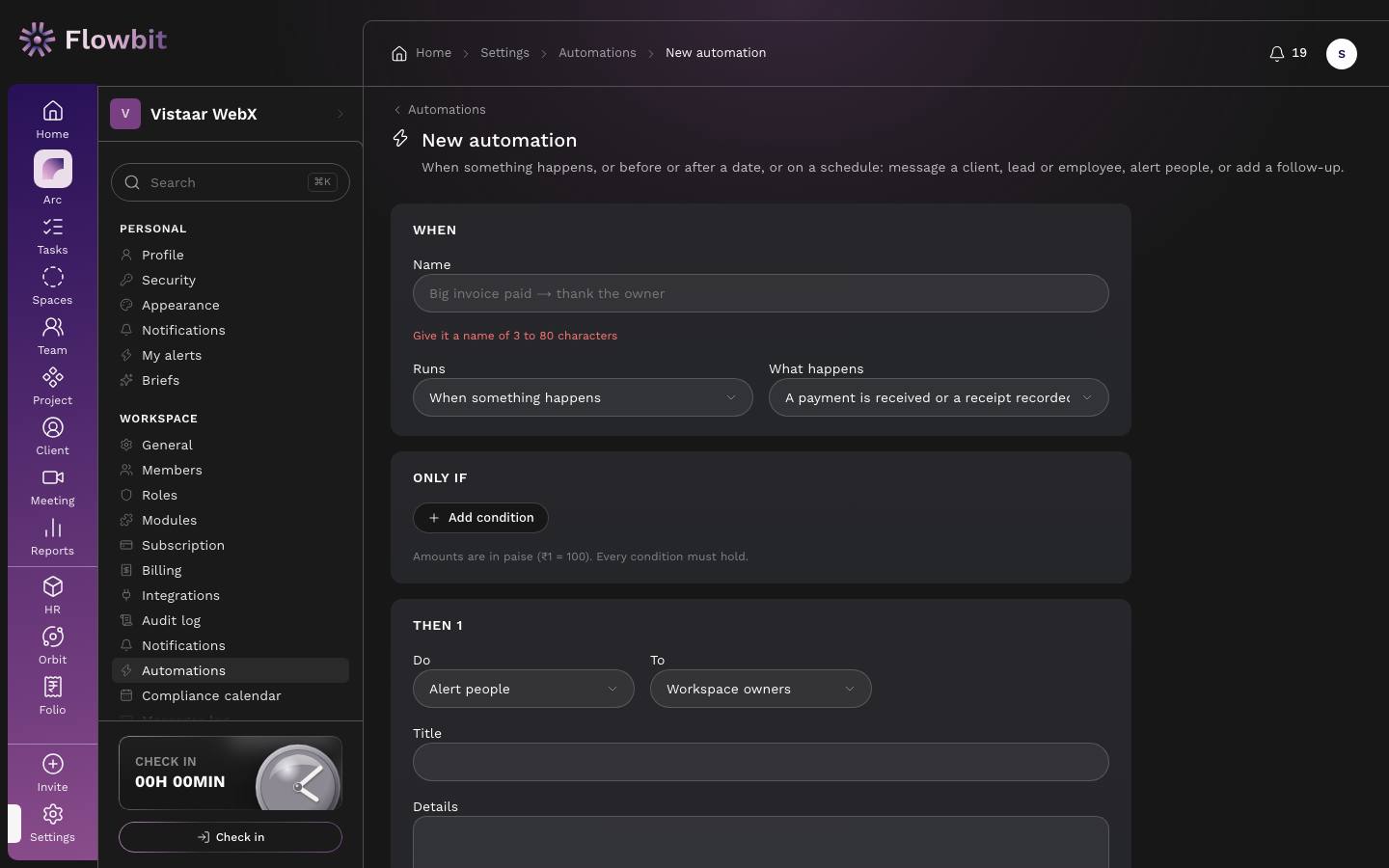
Create one
- Click New automation and give it a Name of 3 to 80 characters, for example "Big invoice paid → thank the owner".
- Under When, pick how it Runs: When something happens, Before or after a date, or On a schedule (Every day, Every week or Every month).
- Pick What happens, for example A payment is received or a receipt recorded, An invoice is issued, A client accepts a quote online, A new lead arrives (form, webhook, IndiaMART), A deal is won or A payslip is published.
- Under Only if, click Add condition to narrow it: pick a field, a comparison and a Value. Every condition must hold. Amounts are in paise, so ₹50,000 is 5000000.
- Under Then 1, choose what to Do: Alert people, Send a message or Add a follow-up task. Choose To whom, and write the Title and Details.
- Insert values such as
{{client_name}},{{amount}}or{{invoice_number}}; the list under the box shows the ones this trigger offers. - Click Add a step for a second action, for example an alert and a task.
- Under Timing and safety, set Wait before running (minutes), the most automated messages per contact a day (3 by default; 0 = no limit), and tick Only during business hours (Monday to Saturday, 10 am to 7 pm IST, the default office hours) if it messages clients.
- Tick Switch it on now and click Save automation.
Keep the daily limit on for messages to clients, so a client never gets a flood of them. Messages from your own WhatsApp Business number are coming soon.
Integrations
Open: Rail → Settings → Integrations/app/settings/integrationsWho: owner, admin
The outside services Flowbit connects to, and whether each one is working. Nothing secret is shown here.
The screenshot of this page is being retaken. Each card shows a status such as Not configured, Not connected or Test mode.
- Google sign-in — how many members sign in with Google, and the two addresses to register with Google: one for sign-in, one for Calendar and Gmail connections.
- Email delivery — sent, saved-not-sent and failed emails in the last 30 days, with a link to Open the Messages log. If it is not configured, emails are saved in the log instead of being sent.
- Flowbit subscription payments — how you pay Flowbit.
- Your Razorpay (invoice payments) — Connect Razorpay to add "Pay now" links to your invoices.
- File storage — how many files the workspace stores and their size.
- Arc (AI) — whether Claude is connected, and this month's AI requests against your plan's allowance. Arc reads and suggests. Nothing changes until someone clicks Apply.
Apps and connectors
Cards at the top of the page open the connectors you set up yourself:
- Connected apps (also in the Settings menu) — let Claude or ChatGPT read and update Flowbit for you.
- Slack — turn Slack messages into tasks with
/flowbit. - Webhooks — send Flowbit events to Zapier, Make or your own server.
- Email to task — forward an email to make a task.
Each member connects their own Google Calendar and Gmail under Settings → Google; see Google Calendar and Meet.
Connect Razorpay for invoice payments
Open: Settings → Integrations → Connect Razorpay/app/settings/integrations/razorpayWho: owner, admin
Collect invoice payments straight into your own Razorpay account. When a client pays through the link, Flowbit records the receipt, thanks the client and stops reminders by itself.
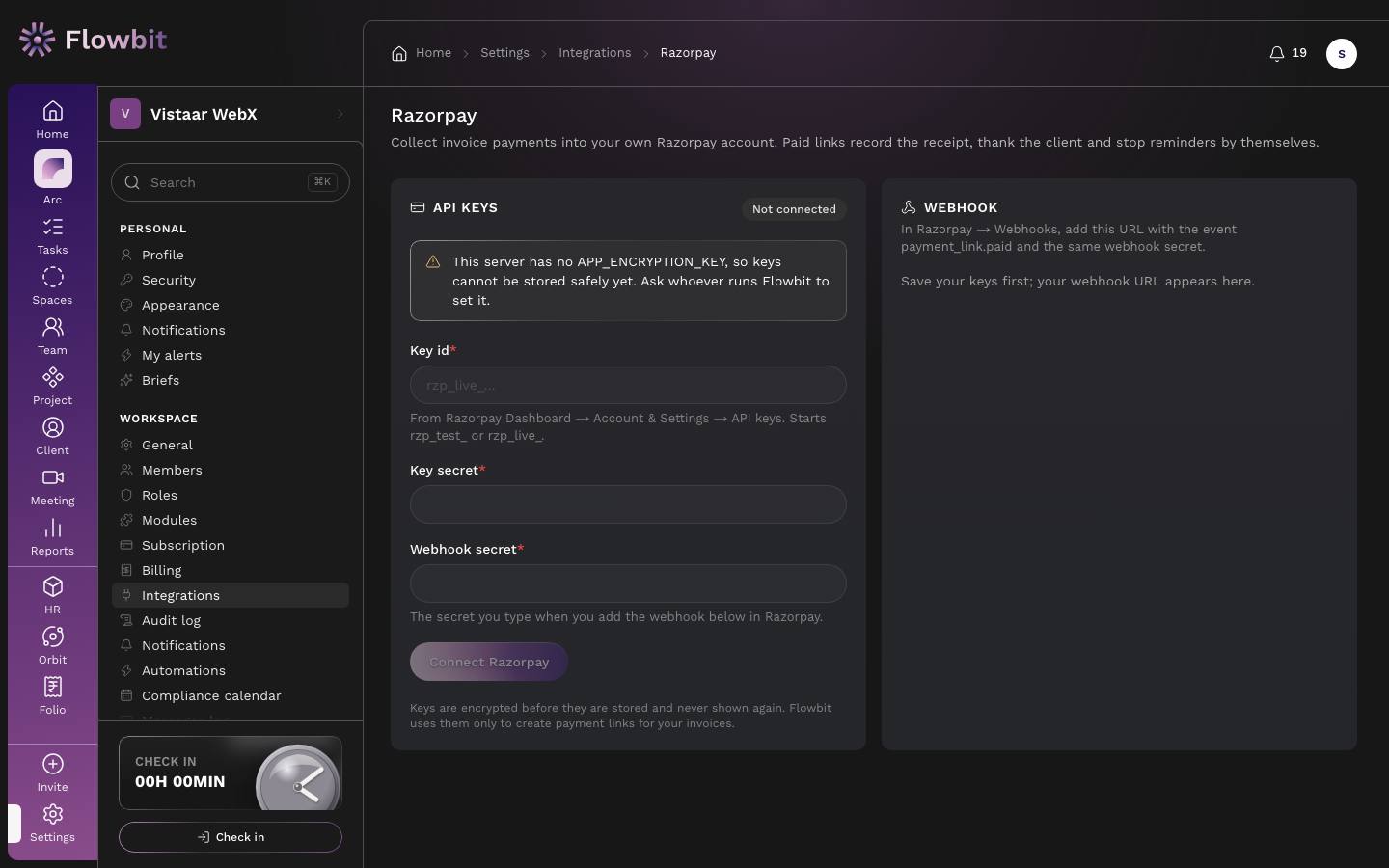
Connect it
- In the Razorpay Dashboard, open Account & Settings → API keys and generate a key. It starts with
rzp_live_(orrzp_test_for testing). - In Flowbit, paste the Key id and Key secret.
- Make up a Webhook secret.
- Click Connect Razorpay. Keys are encrypted and never shown again.
- Copy the URL shown under Webhook. In Razorpay, open Webhooks, add that URL with the event
payment_link.paidand the same webhook secret.
Test with rzp_test_ keys and a small invoice first, then switch to live keys. Flowbit uses the keys only to create payment links for your invoices.
Connected apps: Claude and ChatGPT
Open: Settings → Connected apps/app/settings/integrations/aiWho: everyone, for themselves; owners and admins switch it on or off
Flowbit has an MCP server, so an AI app you already use can read your Flowbit workspace and make changes as you, within your own role. Ask Claude "add tasks from these meeting notes" or ask ChatGPT "which invoices are overdue?" and it works with your real data.
- Copy the connection URL shown on the page. It is your Flowbit address followed by
/mcp. - In Claude, open Settings → Connectors → Add custom connector and paste it. In ChatGPT, turn on developer mode, create a connector and paste the same URL.
- Sign in to Flowbit when asked, pick the workspace and untick anything you do not want the app to do. Then approve.
- The app can do only what your role can do, and only within the scopes you approved.
- Some things are never allowed through an AI app: attendance, payroll and salaries, issuing or voiding invoices, payments, deleting, roles, settings and billing. Salary, PAN and bank details are never sent to it.
- Every change is logged as "you via Claude" (or ChatGPT). History lists each batch of changes, and Undo reverses a batch for 7 days.
- Your connections are listed with when they were last used. Revoke cuts one off at once.
Connected apps work on paid plans and during a trial, not on Free. Owners and admins can switch them off for the whole workspace.
Slack
Open: Settings → Integrations → Slack/app/settings/integrations/slackWho: owner, admin to connect; everyone to use
Turn Slack messages into Flowbit tasks without leaving Slack. People act as themselves: Slack users are matched to Flowbit members by email.
- Click Add to Slack and approve the Flowbit app for your Slack workspace.
- In Slack, type
/flowbit task logo bhejo kal 5 baje @vikram. The task is read the same way as quick add, Hinglish included. - Type
/flowbit my dayto see what is due for you today. - On any message, open its ⋯ menu and choose Create Flowbit task.
Slack has to be set up once on your Flowbit server before Add to Slack works. If the card says it is not configured, ask the person who runs Flowbit.
Webhooks
Open: Settings → Integrations → Webhooks/app/settings/integrations/webhooksWho: owner, admin
Send Flowbit events to Zapier, Make or your own server the moment they happen.
- Under Add a webhook, give it a name and the URL to call (http or https).
- Tick the events: task created, task completed, lead created, deal won, invoice issued and invoice paid.
- Save, then send a test. The Delivery log shows the last 50 deliveries, kept for 30 days.
- Every delivery is signed in the
X-Flowbit-Signatureheader (HMAC-SHA256), so your server can check it came from Flowbit. - Failed deliveries are retried for about 9 hours. Edit a webhook's name, URL or events, pause it, or remove it at any time.
- Addresses on private networks are refused.
Email to task
Your address: Settings → My account (login) → Email to taskWho: everyone with Flowbit Work
Forward or send any email to your private tasks+… address and it becomes a task assigned to you: the subject is the title, the body is the description, and attachments up to 4 MB each are added. One email makes one task.
- Send from the email address you sign in to Flowbit with. Mail that fails the sender's SPF, DKIM or DMARC check is refused.
- By default only you can use your address. Owners and admins can turn on Allow teammates to email my address in Settings → Security so members can send tasks to each other.
- Keep the address private. It shows only when your Flowbit server is set up to receive email.
Messages log
Open: Rail → Settings → Messages log/app/settings/messagesWho: owner, admin
Every email and in-app message Flowbit sent, held or skipped for this workspace, with its delivery timeline. Look here when someone says "I never got the invite" or a client says a reminder did not arrive.
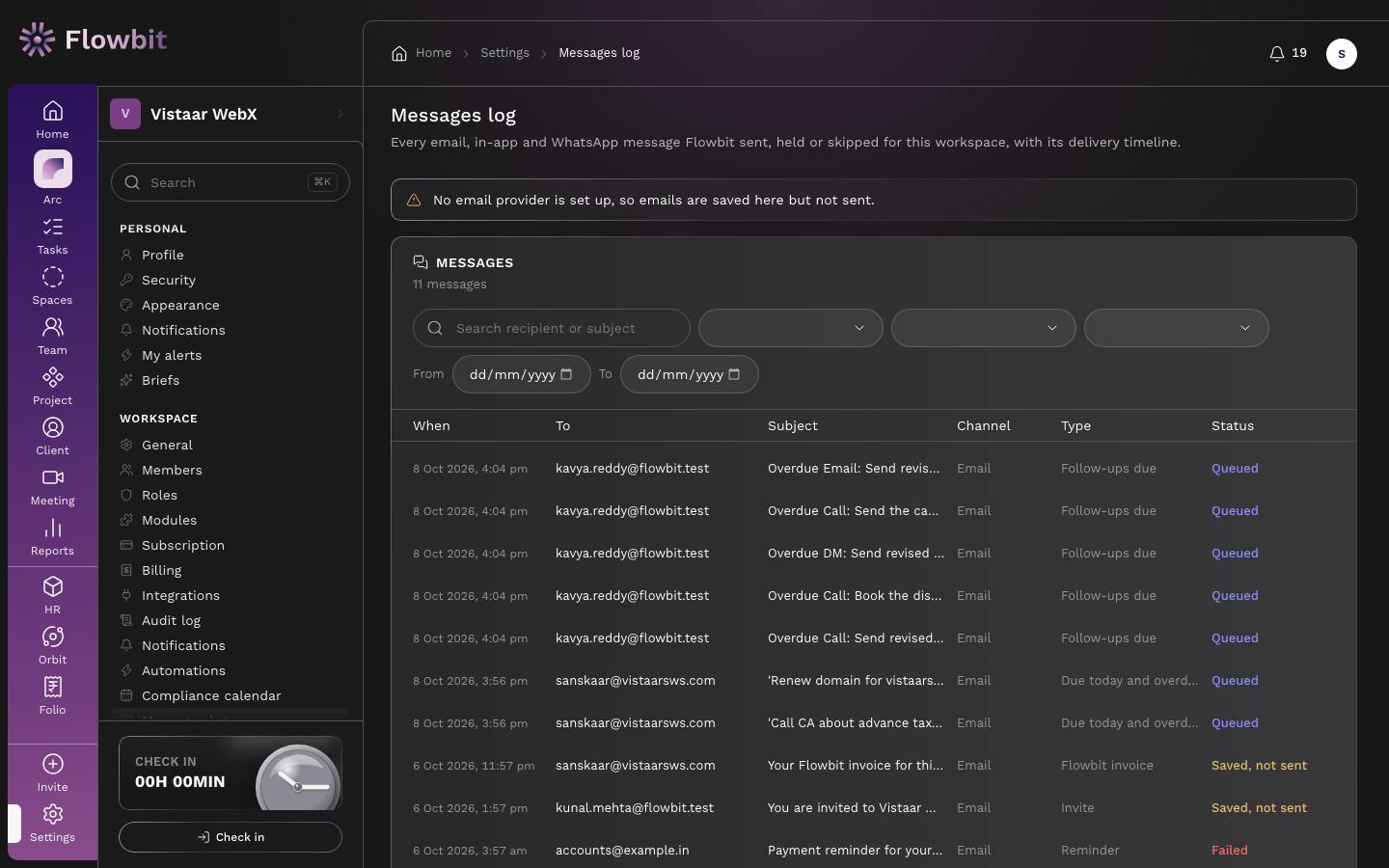
On this page
- Filters: Search recipient or subject, Channel, Status, Type, and From and To dates.
- Statuses you will see include Queued (waiting to go, for example during quiet hours), Saved, not sent (no email provider set up yet) and Failed.
Check and resend a message
- Search for the recipient's email, or filter by Type (for example Invite or Reminder).
- Click the row. The panel shows the Message, an Email preview or Plain text, the Timeline of delivery events, Attempts, Next try and, if it was skipped, Why it was skipped.
- Click Send again to resend it.
If the page warns that no email provider is set up, emails are kept here but not delivered. Copy invite links from Members in the meantime. Message and delivery logs are kept for 13 months, then deleted.
Import centre
Open: Rail → Settings → Import/app/settings/importWho: owner and admins (each import also needs the matching permission)
Bring data in from a spreadsheet: download a template, upload it, check every row, then confirm. Nothing is saved until you confirm, and each import can be undone for 7 days.
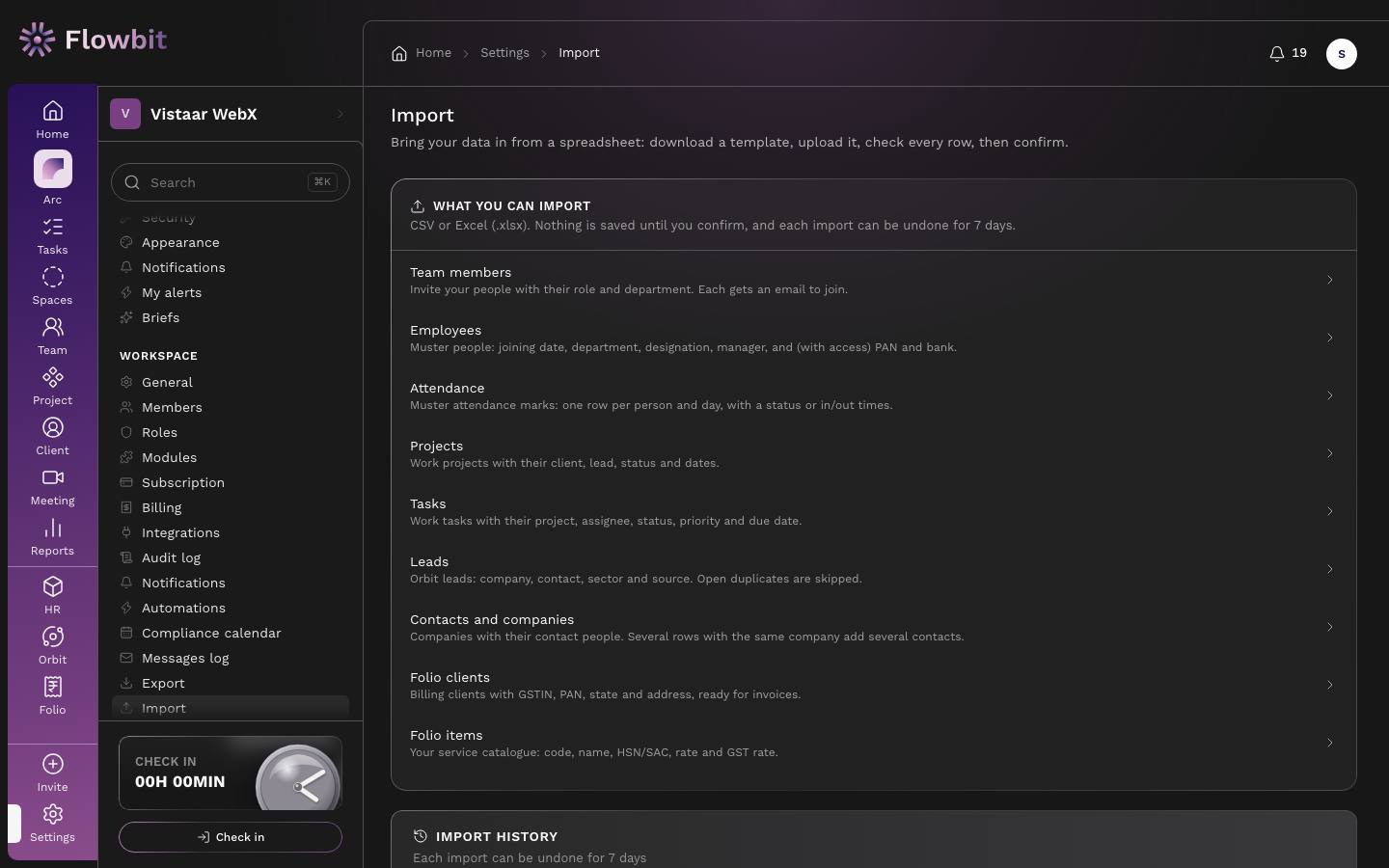
What you can import
- Team members — invites with role and department; each person gets an email to join.
- Employees — joining date, department, designation, manager, and (with access) PAN and bank.
- Attendance — one row per person and day, with a status or in and out times.
- Projects and Tasks — Work projects and tasks with client, lead or assignee, status, priority and dates.
- Leads — company, contact, sector and source. Open duplicates are skipped.
- Contacts and companies — several rows with the same company add several contacts.
- Folio clients — billing clients with GSTIN, PAN, state and address.
- Folio items — your service catalogue: code, name, HSN/SAC, rate and GST rate.
Import a file
- Click the kind of data, for example Employees.
- Click Download the template and fill it in. CSV or Excel (.xlsx) both work.
- Under 1 · Your file, upload it. Flowbit checks every row.
- Under 2 · Preview, read the rows with errors, fix them in your file and upload again if needed.
- Click the import button to save the rows that are ready.
To reverse an import, find it in Import history and click Undo within 7 days.
Import in this order: employees, then team members (linked to their employee records), then projects and tasks. Folio clients before your first invoice.
Export all your data
Open: Rail → Settings → Export/app/settings/exportWho: owner
Download everything in the workspace as one ZIP file. It works even when the workspace is read-only or locked, and has no watermark.
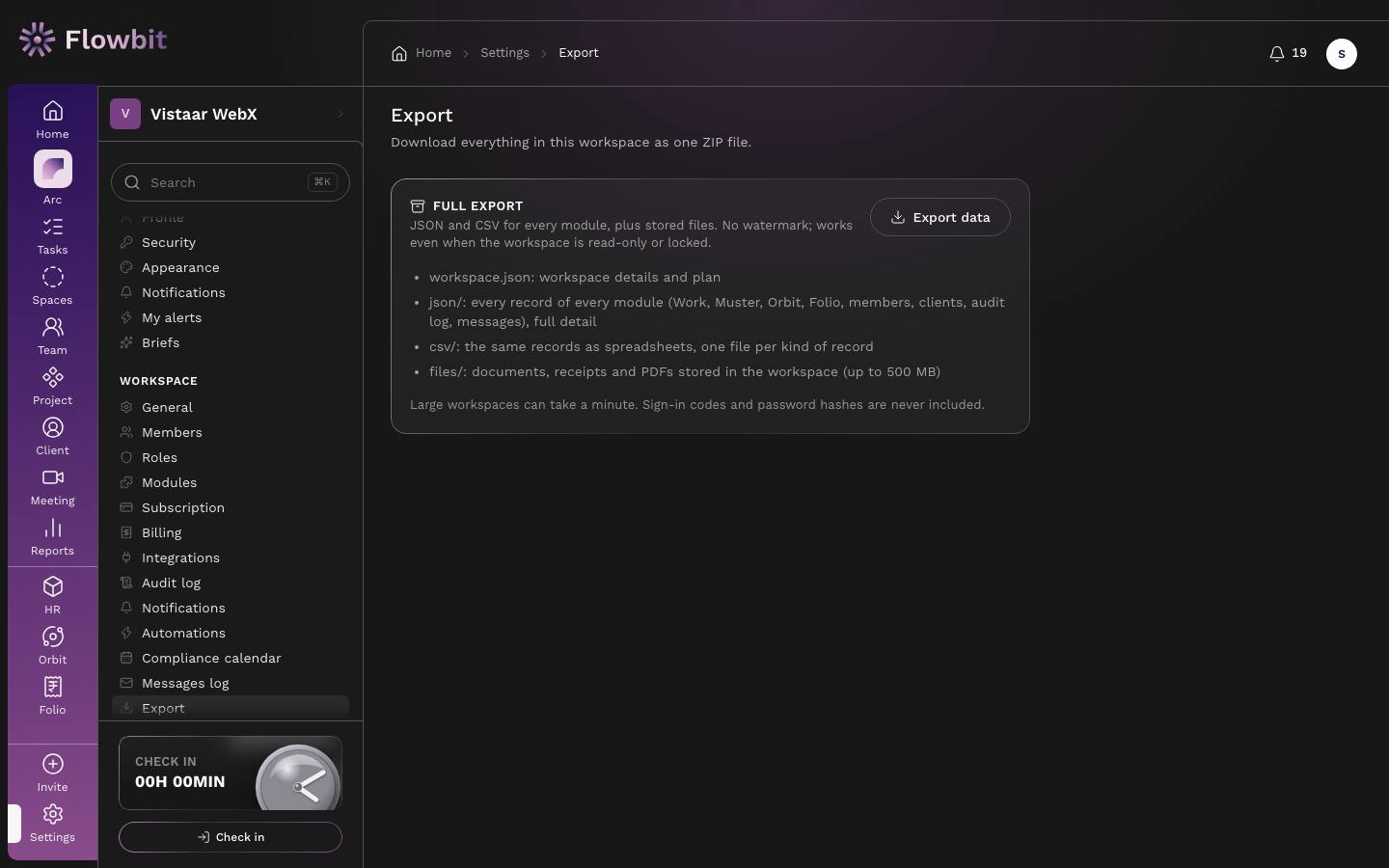
- Click Export data. Large workspaces can take a minute.
- Open the ZIP. It holds
workspace.json(workspace details and plan), ajson/folder with every record of every module in full detail, acsv/folder with the same records as spreadsheets, and afiles/folder with stored documents, receipts and PDFs (up to 500 MB).
Only the workspace owner can download the full export. Sign-in codes and password hashes are never included. Keep the file safe: it contains salaries, PAN and bank details.
Compliance calendar
Open: Rail → Settings → Compliance calendar/app/settings/complianceWho: owner, admin, finance (Folio settings)
GST, TDS, PF, ESI, professional tax and advance tax due dates for your business. Turn on the reminder in Automations, or add Compliance to your brief.
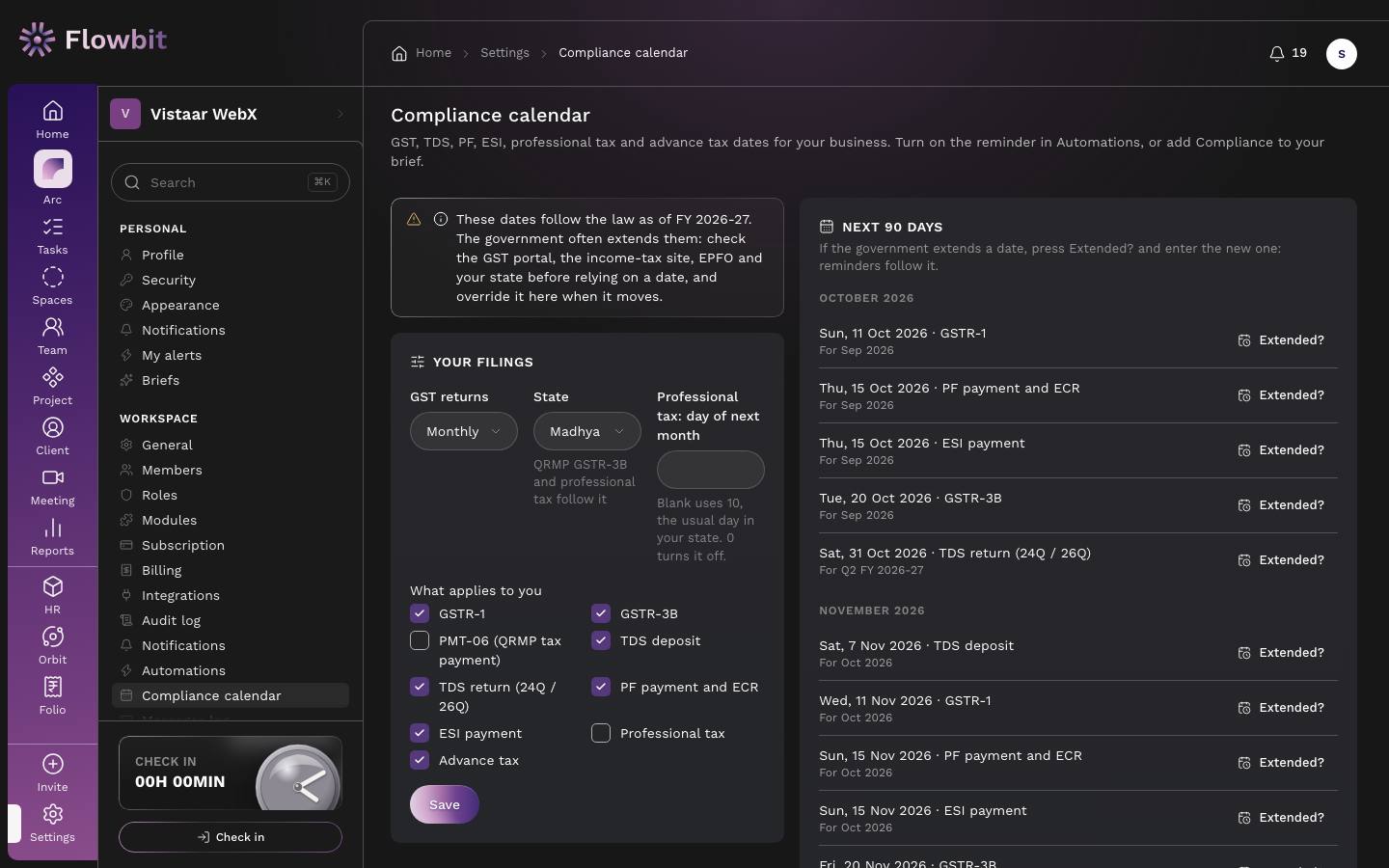
Set up your filings
- Under GST returns, choose Monthly filer or Quarterly (QRMP).
- Pick your State. QRMP GSTR-3B and professional tax dates follow it.
- In Professional tax: day of next month, leave it blank for the usual day (10), type another day, or 0 to turn it off.
- Under What applies to you, tick the filings you make: GSTR-1, GSTR-3B, PMT-06, TDS deposit, TDS return (24Q / 26Q), PF payment and ECR, ESI payment, Professional tax, Advance tax.
- Click Save.
When the government extends a date
- Find the date under Next 90 days, for example GSTR-3B on 20 Oct 2026.
- Click Extended? and enter the new date. Reminders follow it.
The dates follow the law as of FY 2026-27. Due dates are often extended: check the GST portal, the income-tax site, EPFO and your state before relying on a date.
Privacy and data requests
Open: Rail → Settings → Privacy/app/settings/privacyWho: owner, admin
Answer a person's request to see or delete their data under India's data protection law (the DPDP Act), and see how long Flowbit keeps logs.
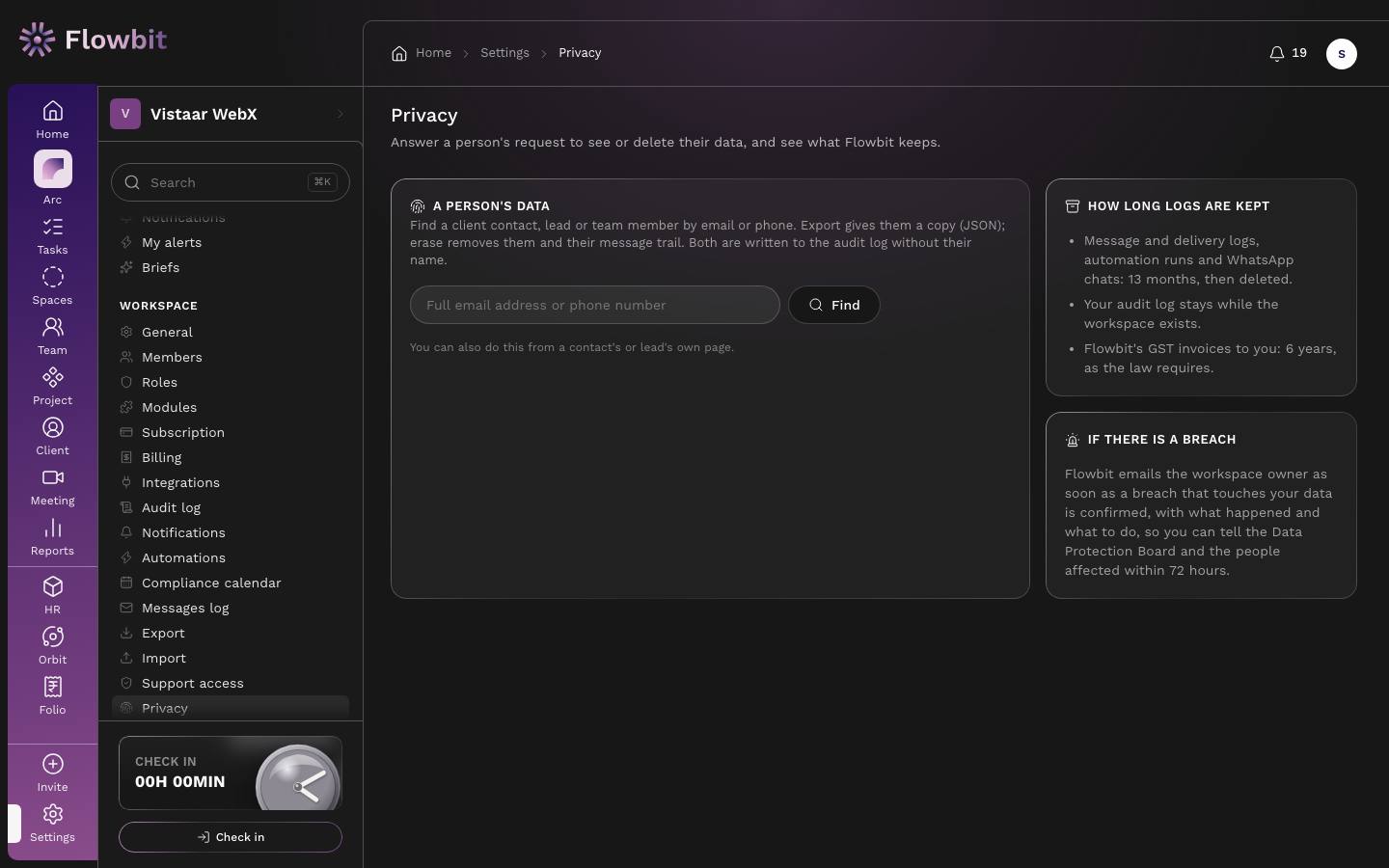
Answer a data request
- Type the person's full email address or phone number and click Find. It finds client contacts, leads and team members.
- Choose export to give them a copy of their data (JSON), or erase to remove them and their message trail.
- Both actions are written to the audit log without the person's name.
You can also do this from a contact's or lead's own page.
Erasing cannot be undone. Check you have the right person, and keep records the law requires (for example issued invoices) before you erase.
How long logs are kept
- Message and delivery logs and automation runs: 13 months, then deleted.
- Your audit log: as long as the workspace exists.
- Flowbit's invoices to you: 6 years, as the law requires.
If a breach touches your data, Flowbit emails the workspace owner as soon as it is confirmed, and aims to do so within 24 hours, with what happened and what to do, so you can tell the Data Protection Board and the people affected within 72 hours.
Audit log
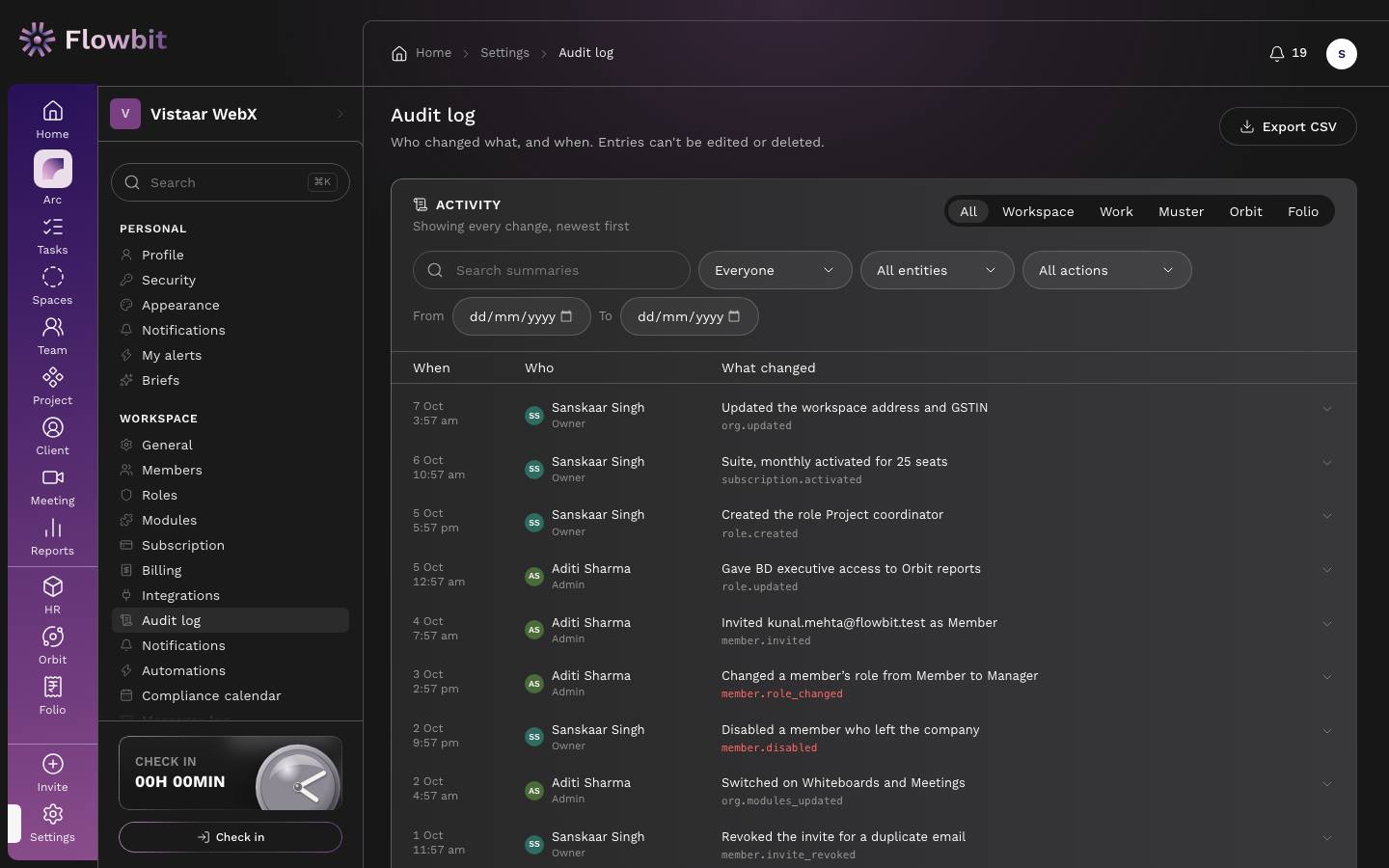
Open: Rail → Settings → Audit log/app/settings/auditWho: owner, admin, HR admin, finance
Who changed what, and when. Entries cannot be edited or deleted, so this is your record for disputes, audits and "who did this?" questions.
Find a change
- Pick a product tab: All, Workspace, Work, Muster, Orbit or Folio.
- Narrow it with Search summaries, Who, Entity, Action and the From and To dates. For example, Who = Aditi Sharma and Action = member.role_changed shows every role she changed.
- Click an entry to see the details of the change.
- Click Export CSV to download what you filtered.
Actions by the Flowbit support team, such as extending a trial, appear here too, marked as Flowbit support.
Support access
Open: Rail → Settings → Support access/app/settings/supportWho: owner, admin
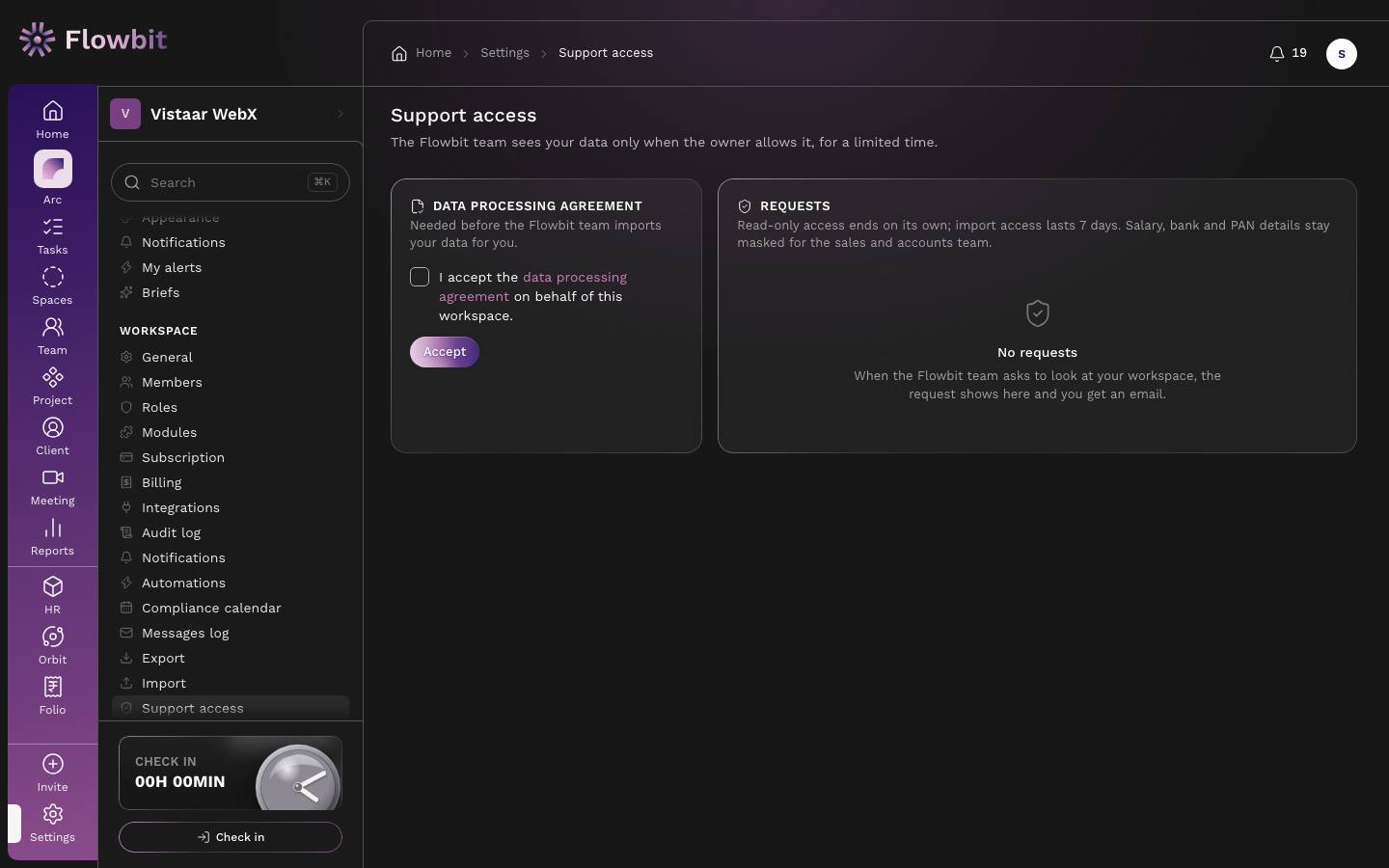
The Flowbit team sees your data only when the owner allows it, for a limited time. This page is where you approve those requests and accept the data processing agreement.
Let Flowbit import your data for you
- Read the data processing agreement.
- Tick I accept the data processing agreement on behalf of this workspace. and click Accept.
- When the Flowbit team asks to look at your workspace, the request shows under Requests and you get an email. Approve or decline it there.
Read-only access ends on its own; import access lasts 7 days. Flowbit staff never see salary, bank or PAN details: they stay masked for every Flowbit role, admins included. Free setup by the Flowbit team is offered to yearly customers.
Status page
Open: useflowbit.com/status/statusWho: anyone, no sign-in
A public page that shows whether Flowbit is working: the app, the database, file storage and email, and when each scheduled job (reminders, recurring invoices, briefs and the like) last ran. Check it first when something seems slow or an email has not arrived, then write to support.